Keep File Versions
Without versions, a file in a File Field has no past. To update it you either attach the new file next to the old one, where it takes another place in the file limit (and a one-file field refuses it outright), or you delete the old file, and nothing shows it ever existed.
With file versions turned on, you upload the new file onto the old one. The new file becomes the current version, and the one it replaced moves into the file's history, where anyone who can see the file can still open it. For a field that holds evidence, such as a signed contract, an approved procedure, or a test report, a new version never hides the one before it.
Turn on file versions
File versions are a setting on the field context, and they're off by default. Until an administrator turns them on for a context, nobody using it sees any change.
Open the field configuration
Go to Jira Settings → Work items → Fields, open the actions menu on your File Field row, click Contexts and default values, and then Edit custom field config on the context you want. Set Field Configuration shows each step.
Switch on Keep file versions
On the Allowed files tab, switch on Keep file versions, then click Save.
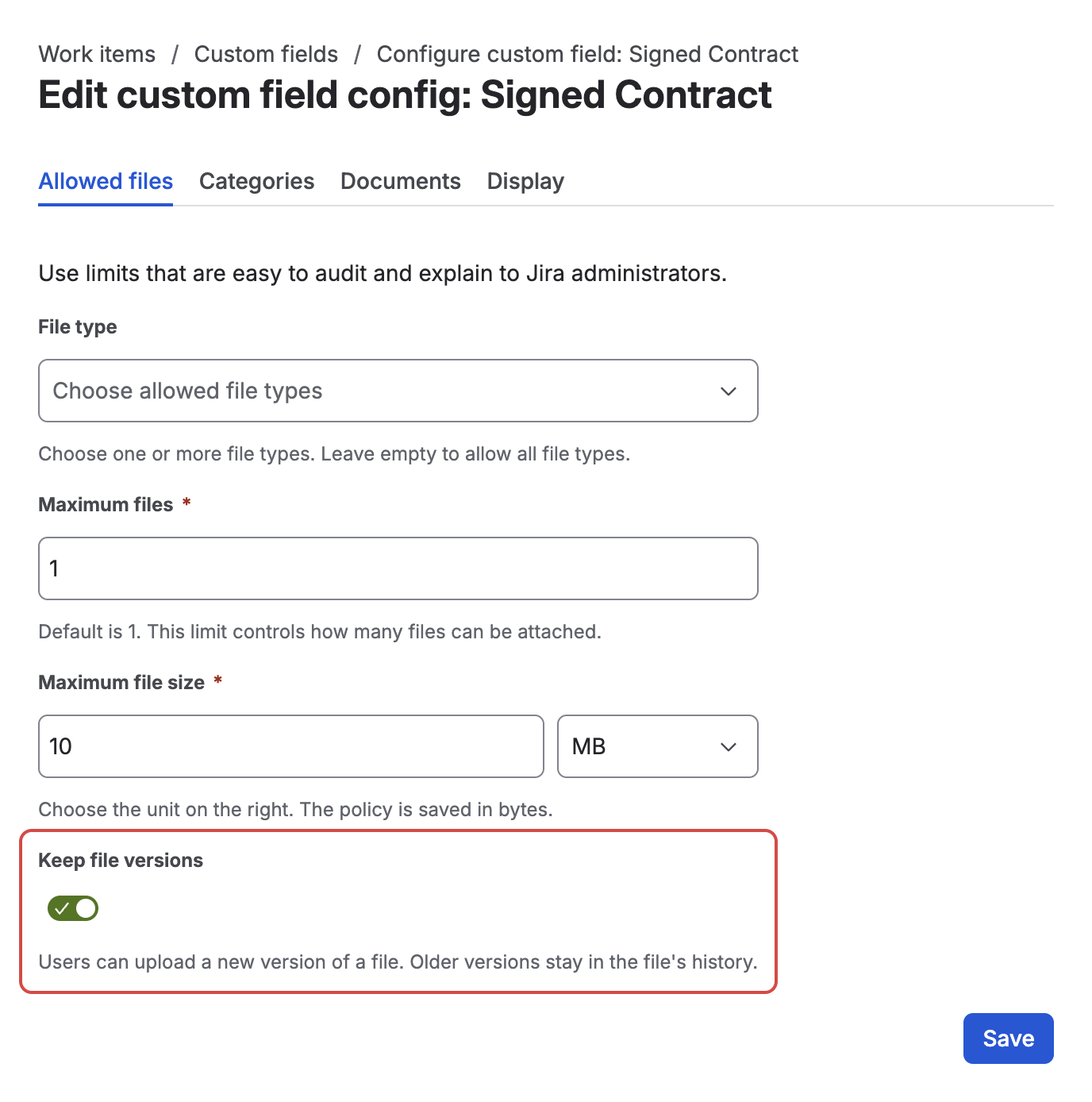
Keep file versions sits at the bottom of the Allowed files tab
Each context has its own setting, so the same field can keep versions in one project and not in another.
Turning the setting off later only removes the Upload new version action. Files that already have a history keep it, and everyone who could see it still can.
Upload a new version
Anyone who can edit the issue can upload a new version of a file that's already saved in the field. It works on the issue view and on workflow transition screens.
Open the field for editing
On the issue, click the File Field to edit it.
Click Upload new version on the file
Each saved file carries an Upload new version action, the upload arrow next to Download and Delete. Click it and choose the new file from your computer.
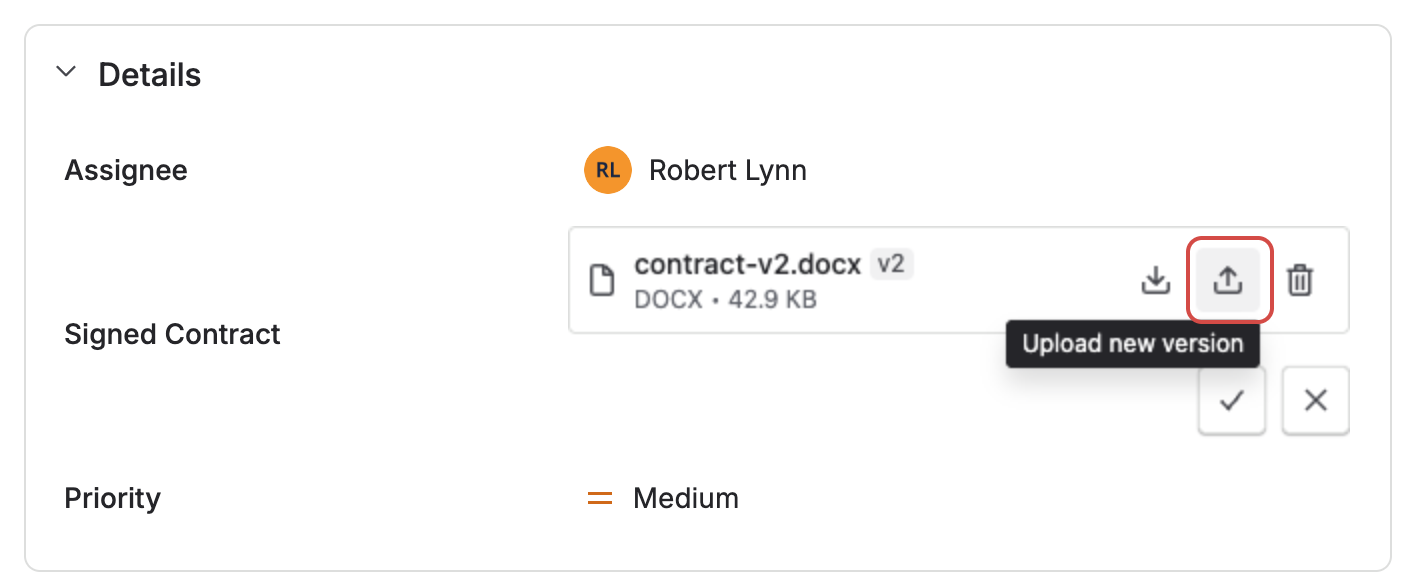
The upload arrow on a saved file uploads a new version of it
Say what changed
A panel shows New version of the current file's name, and the file you picked. If you like, type a one-line note in What changed, for example "Signed by both parties". Then click Upload.
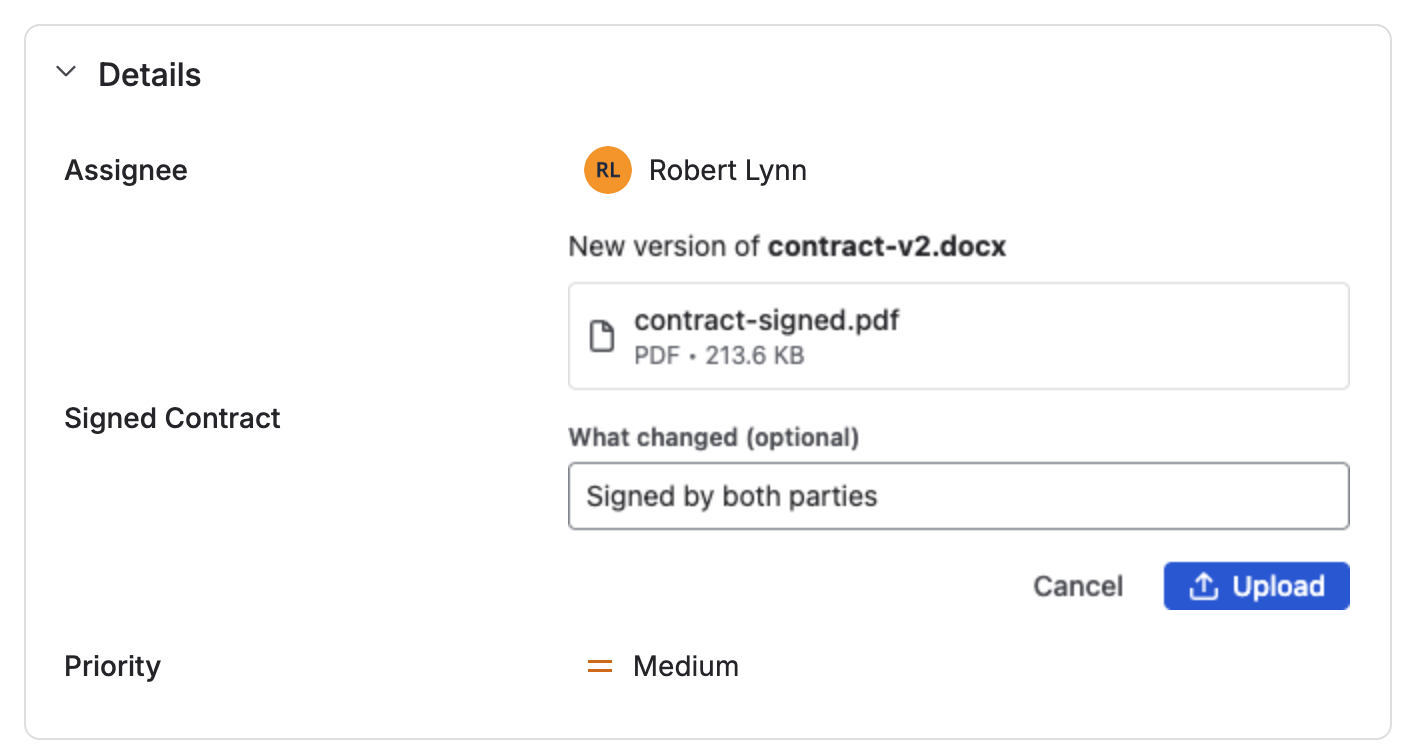
The panel names the file being replaced, the file you picked, and your note
Save the field
On the issue view, click the save button (the check mark) to keep the change. On a transition screen there's nothing extra to do: the new version is saved with the transition.
The file keeps its place in the field and its category, and it now shows a version marker such as v2.
In a field limited to one file, which is the default, this is how you update the file. Once the field holds its file there's no drop zone for another one, but Upload new version is still there.
A new version may have a different name and type from the one it replaces, so a draft .docx can become a signed .pdf. It still has to pass the field's upload rules like any other upload: an allowed type, within the size limit, and not empty.
See a file's history
When you're not editing the field, a file with older versions shows its version marker, for example v3. Click the marker to open Version history.
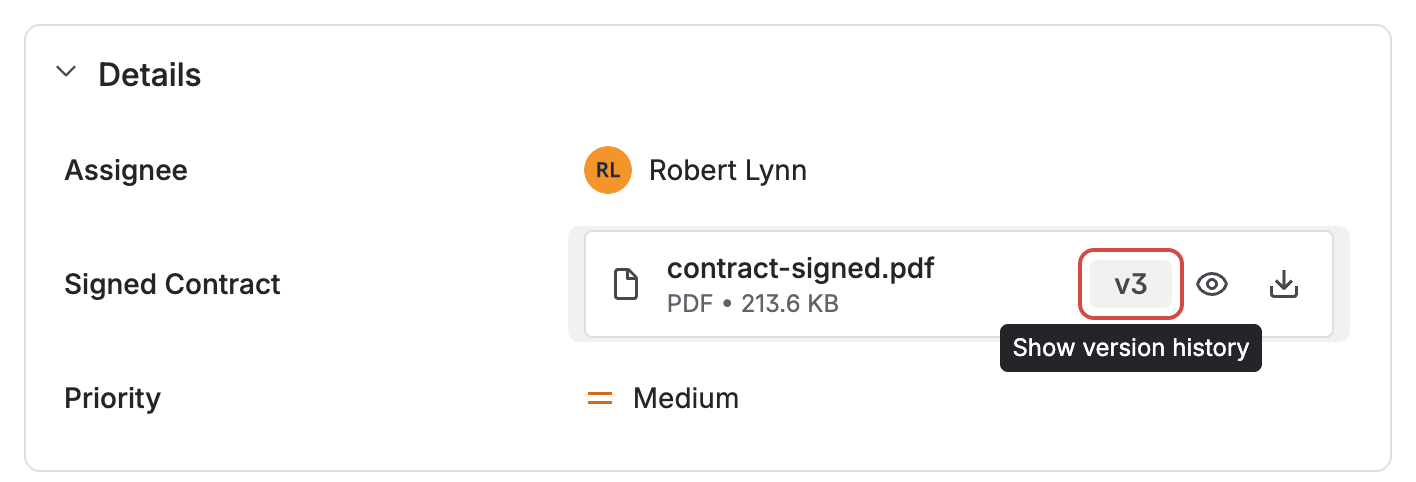
The marker shows the current version number and opens the file's history
The window lists every version, newest first, with the current one marked (current). Each row shows:
- the version number and the file name
- when the version was uploaded, and who uploaded it
- its size
- its What changed note, if someone wrote one
Every version can be downloaded, and the ones File Field can show in place also open in the preview, so you can read an older contract without saving a copy. When File Field doesn't know who uploaded a version, for example a file copied by an Automation rule, that row shows no name.
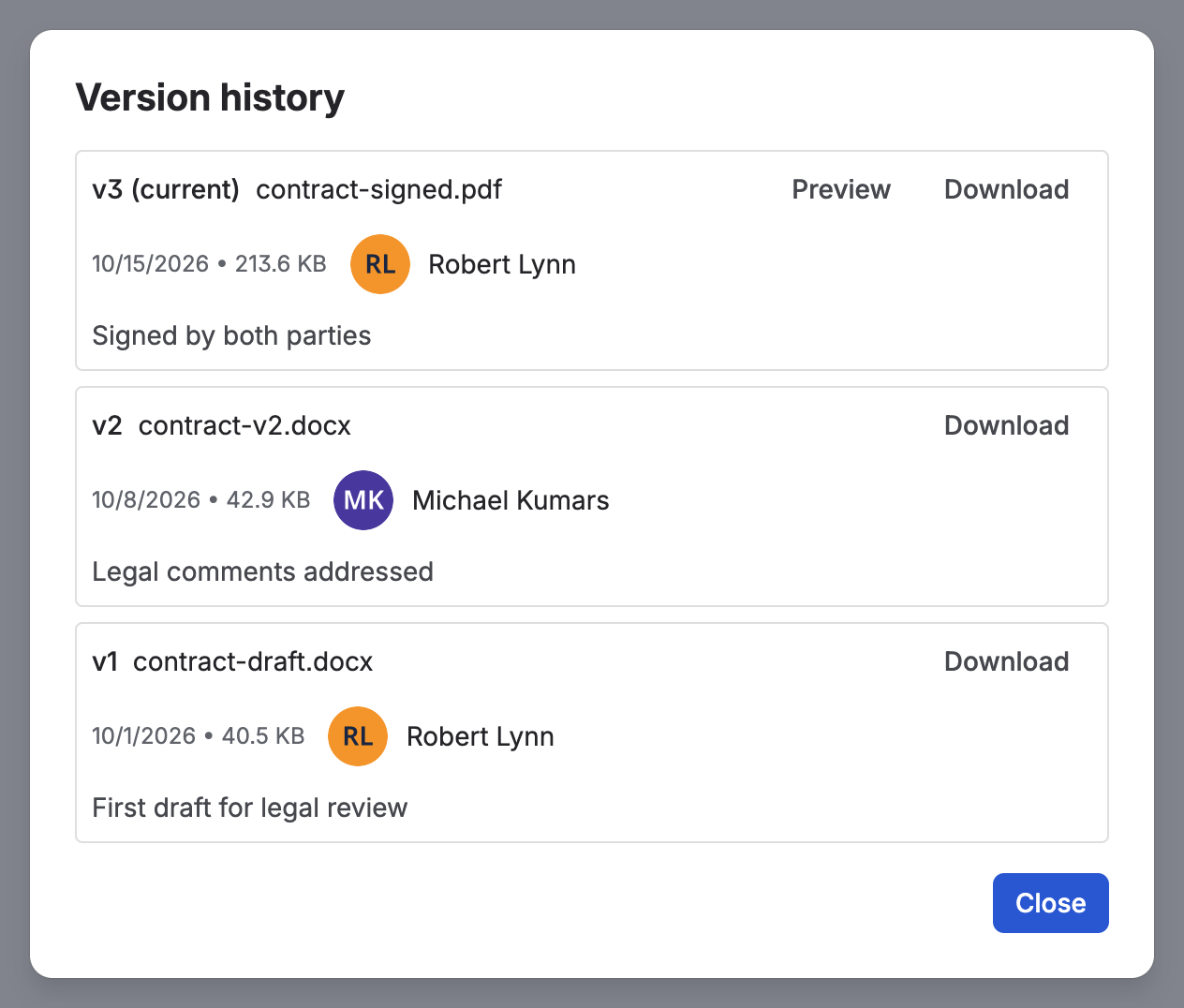
Every version with its date, size, uploader, and note, newest first
A version is not a new file
Only the current version counts as the file. Older versions:
- don't take a place in the field's maximum number of files
- don't change what JQL finds: a file with three versions counts as one file, and a search by file name looks at current names only
- don't count toward a workflow validator, which still counts files
Who can see the history
Whoever can see a file can see its history, on the issue and on the Jira Service Management portal. There's no separate permission to set.
On the portal, customers can open the version history and download or preview older versions, but they can't upload a new version. Agents do that from the issue.
History is never removed without asking
File Field doesn't delete older versions on its own. It asks you first in two situations:
- A new version doesn't fit. A file keeps up to 21 older versions, and the field as a whole has a limit on how much it can hold. When a new version would go over either one, the upload panel names the oldest versions that would have to make room, and the Upload button becomes a confirmation such as Remove v1 and upload. Nothing is removed unless you click it, and Cancel leaves everything as it was. If the version wouldn't fit even with every older version removed, the panel says the field is full.
- You delete a file that has older versions. File Field asks before it removes the file, because its whole history goes with it.
A removed version can't be brought back. Version numbers don't shift, though: once v1 is gone, the history starts at v2.
The one exception is the Automation actions that copy files into a File Field, Copy File Field to Another Work Item and Copy Attachments into File Field. A copy replaces everything the target field held, version history included, and copying from another File Field brings only the current version of each file. Both actions say so where you pick the target field.
What's next?
- Attach, Download & Delete Files — the everyday actions on a File Field
- Preview Files Without Downloading — open an older version in place
- Use on the JSM Portal — what customers see on a request they have sent