Preview Files Without Downloading
Most of the time you don't need the file — you need to know what's in it. Is this the signed copy of the contract? Does the log the customer attached actually show the error they described? Is that screenshot the right screen?
File Field answers all three in place. Open the file, read it, close it. Nothing is copied to your computer, nothing lands in anyone's Downloads folder, and you never leave the screen you're on.
The preview behaves like the application you'd otherwise open the file in: whole documents scroll, Excel workbooks and CSV files arrive as tables, and text can be searched.
There's nothing to set up. The preview works as soon as File Field is installed — no setting to switch on, and no decision for an administrator to make.
Open a preview
- Click the File Field — clicking it opens the field, and every file in it shows the full set of actions you can take.
- An eye icon appears on each file the preview can open, ahead of Download and Delete.
- Click it. The file opens full-screen, with Download in the row of icons above it.
Arrows at the sides of the preview — and the ← and → keys — move to the previous or next file in the field, so a set of documents can be checked in one pass. Press Escape or the cross icon to close the preview and go back to what you were doing. A preview only reads the file — nothing about the issue changes.
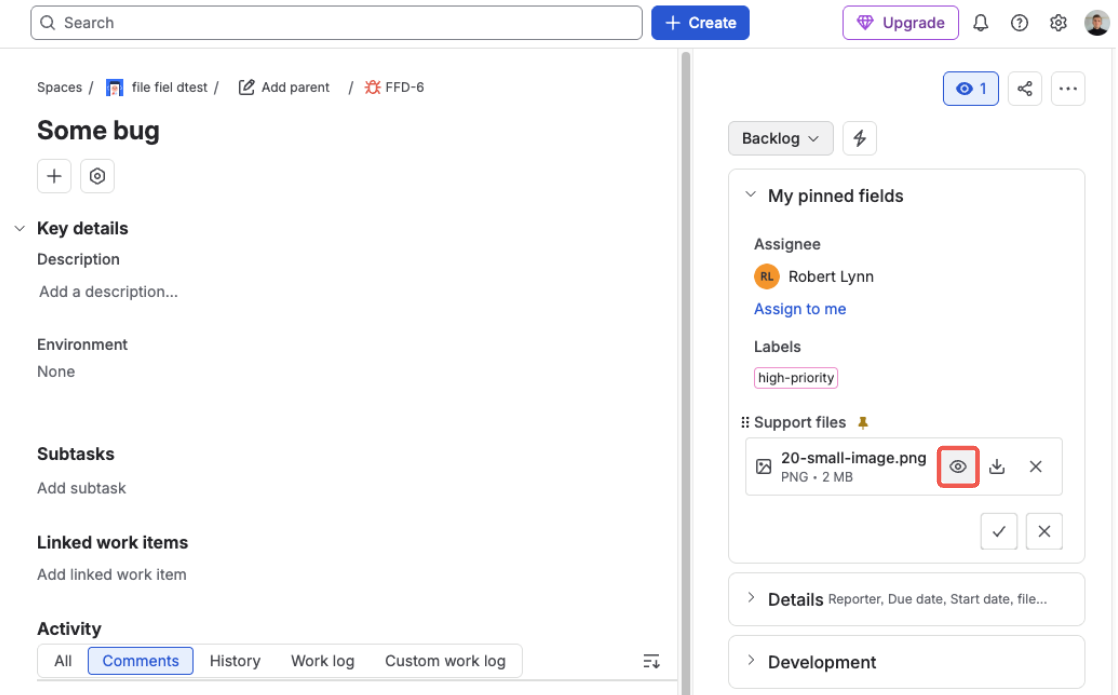
The preview action on a file — the eye icon, ahead of download and delete
And this is what opens:
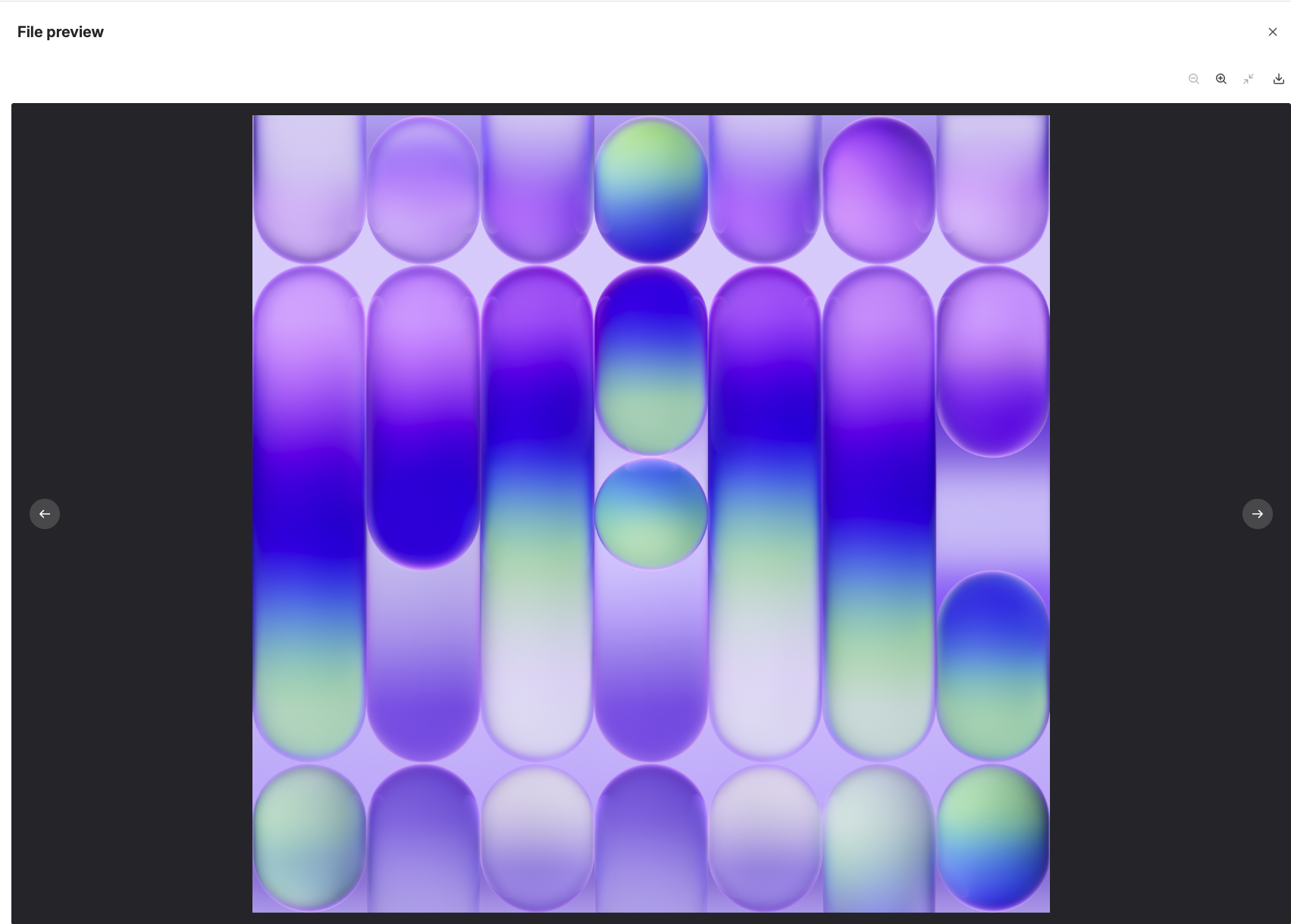
The file opens full-screen, with its own tools and Download in the row above it
Where it works
Wherever the field itself appears, and you don't have to save the form first. A file attached on a create screen, a workflow transition screen, or a JSM portal request can be opened the moment it finishes uploading:
- The issue view
- The create-issue form
- Workflow transition screens
- The JSM customer portal
Reference documents open in the same preview. The arrows keep the two sets apart — stepping through documents, or through the files on the issue, but never across from one to the other.
What can be previewed
Images, PDF documents, Excel workbooks, CSV and TSV tables, and text files — including logs, JSON, and configuration files.
| File type | Formats |
|---|---|
| Images | PNG, JPEG, GIF, WebP, AVIF |
| Documents | |
| Spreadsheets | Excel — XLSX |
| Tables | CSV, TSV |
| Text and data | TXT, LOG, JSON, XML, Markdown (MD), YAML (YML), INI, CONF, PROPERTIES |
You don't have to keep the list in your head, though. The eye icon appears on the files the preview can open and stays away from the ones it can't — anything without it downloads as usual. Size rarely gets in the way either: the preview opens files up to 150 MB, and one over 25 MB states its size and asks before it starts, then shows progress you can cancel. Past 150 MB, download the file instead.
Tell us which one and what you use it for — we add support for new file types based on what customers actually attach. See Contact & Support.
Tools in the preview
Every control sits in one row of icons above the file, and what's in that row follows what you're looking at. Download is always among them, so you can take the file with you without closing the preview. Hover any icon to see what it does.
- CSV
- Excel
- Images
- PDFs
- Text & code
A CSV or TSV file opens as a table, with the columns lined up and the header row staying in view as you scroll — so the twentieth row still tells you what it's a row of.
- Header row — treat the first row as the table's header, or as data like any other row.
- Raw text — switch to the file exactly as it was written, and back.
- A file that isn't really a table — rows that don't line up open as text rather than being forced into columns.
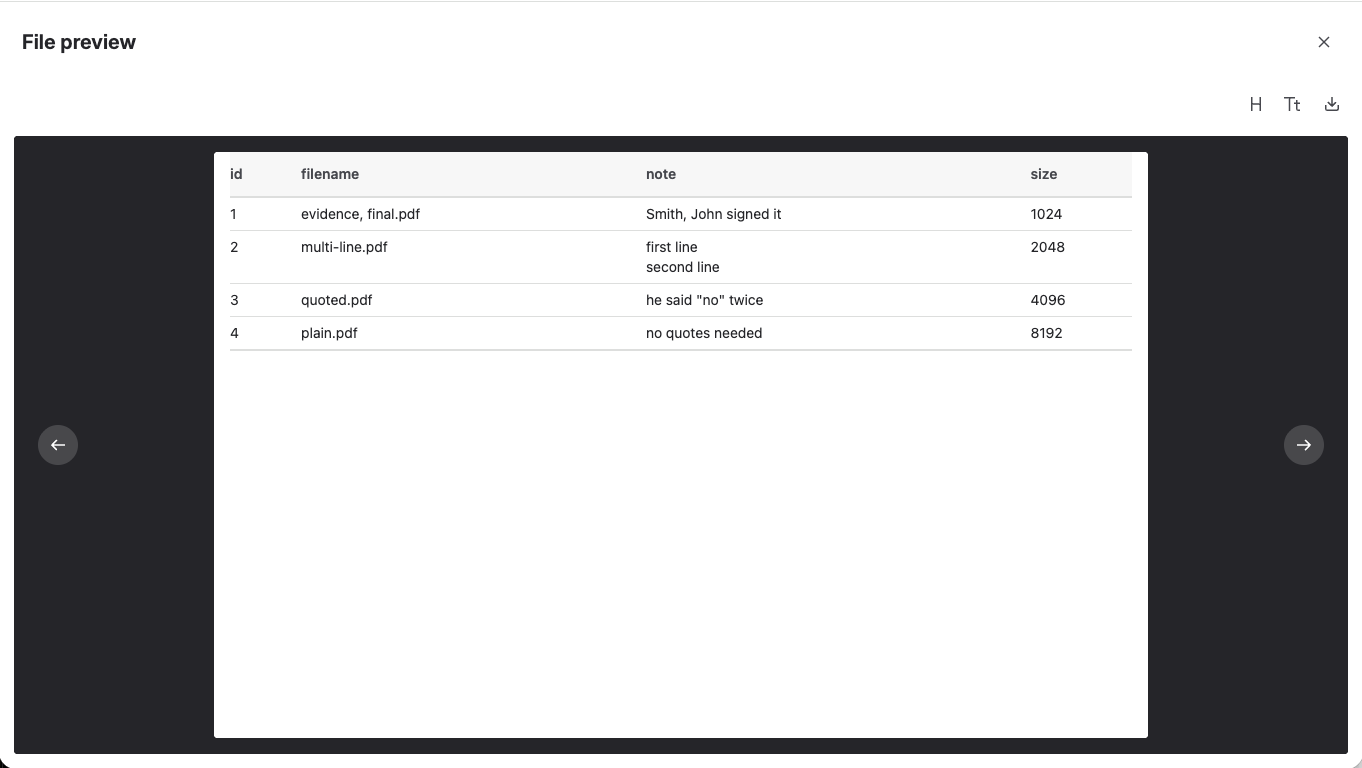
A CSV in the preview — columns lined up under their header, with one button back to the raw text
An Excel workbook opens in the frame you'd see in Excel itself — column letters across the top, row numbers down the side, and a tab for each sheet under the grid.
- Values as the file stores them — dates read as dates,
007keeps its leading zeros, and a formula shows the result saved with the file. Nothing is recalculated, reformatted, or rounded. - Cell colors and merged cells — carried across, including a color set on a whole row or column, so a highlighted row still reads as highlighted.
- Every sheet — click a tab under the grid to move to another sheet in the workbook.
- Large workbooks — open on their first rows and say how many the sheet holds, so it's clear you're looking at the start of something longer. Use Download for the rest.
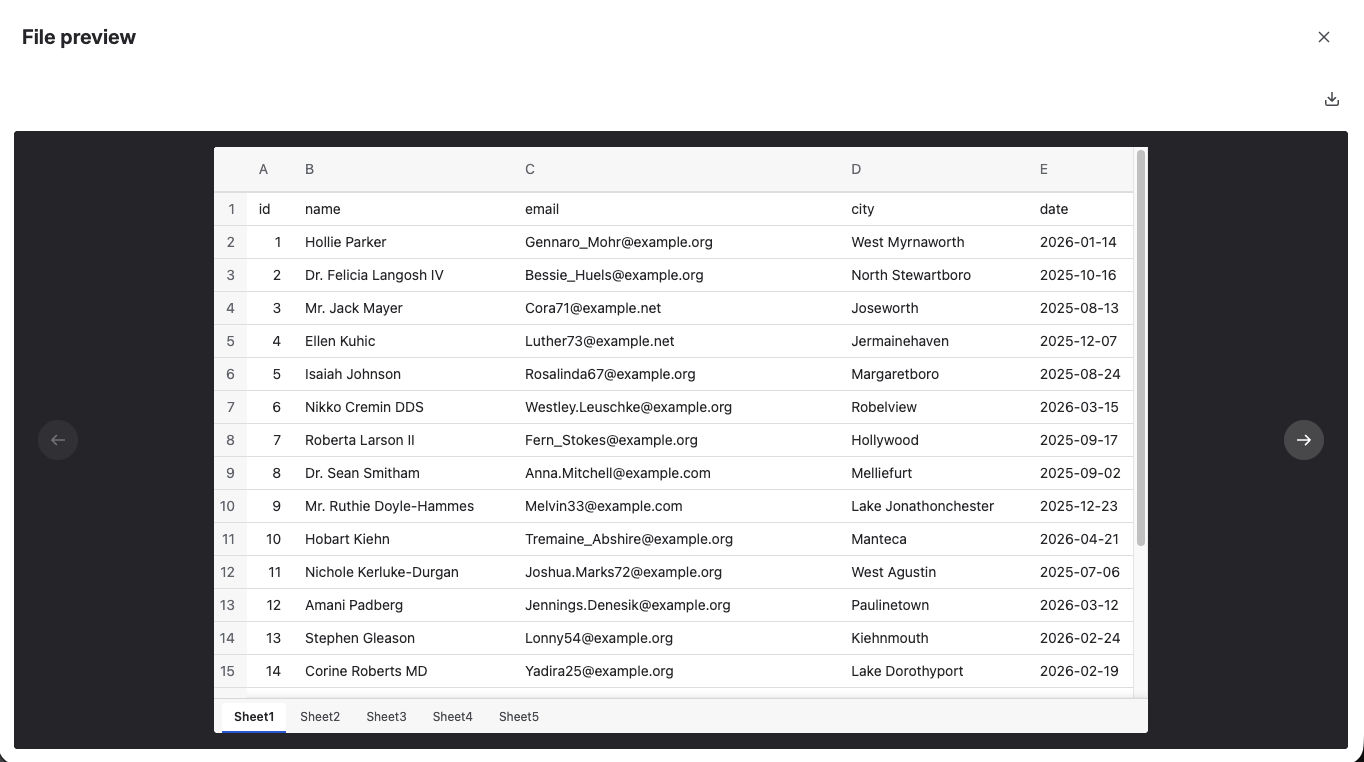
A workbook in the preview — Excel's own column letters and row numbers, with a tab for each sheet under the grid
Row shading that comes from Excel's Format as Table, and colors produced by conditional formatting rules, aren't applied in the preview — those cells appear plain. Color set on the cells themselves comes through as it is.
The image is fitted to the dialog, and the row above it is about size.
- Zoom in and out — get closer to the small print on a scanned document, then back out again.
- Fit — return the image to the size of the dialog after zooming.
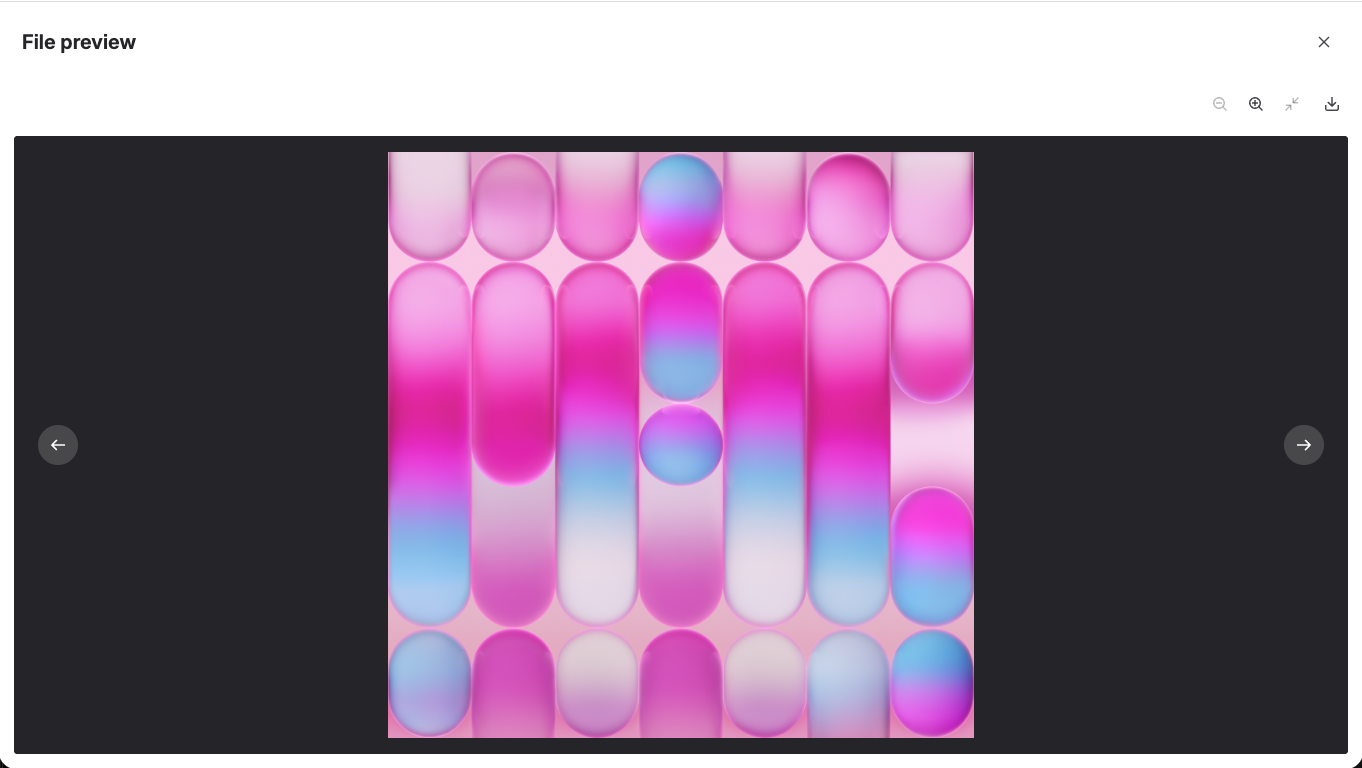
An image in the preview — zoom, fit, and download in the row above it
The whole document opens in one continuous scroll — every page, one after another, fitted to the width of the dialog.
- Page counter — shows the page you're on out of the total, with buttons to step to the previous or next one.
- Zoom in and out — set the size the pages are drawn at.
- Fit — return the pages to the width of the dialog.
- Only what you're near is drawn — so a report of several hundred pages opens as fast as a one-page invoice.
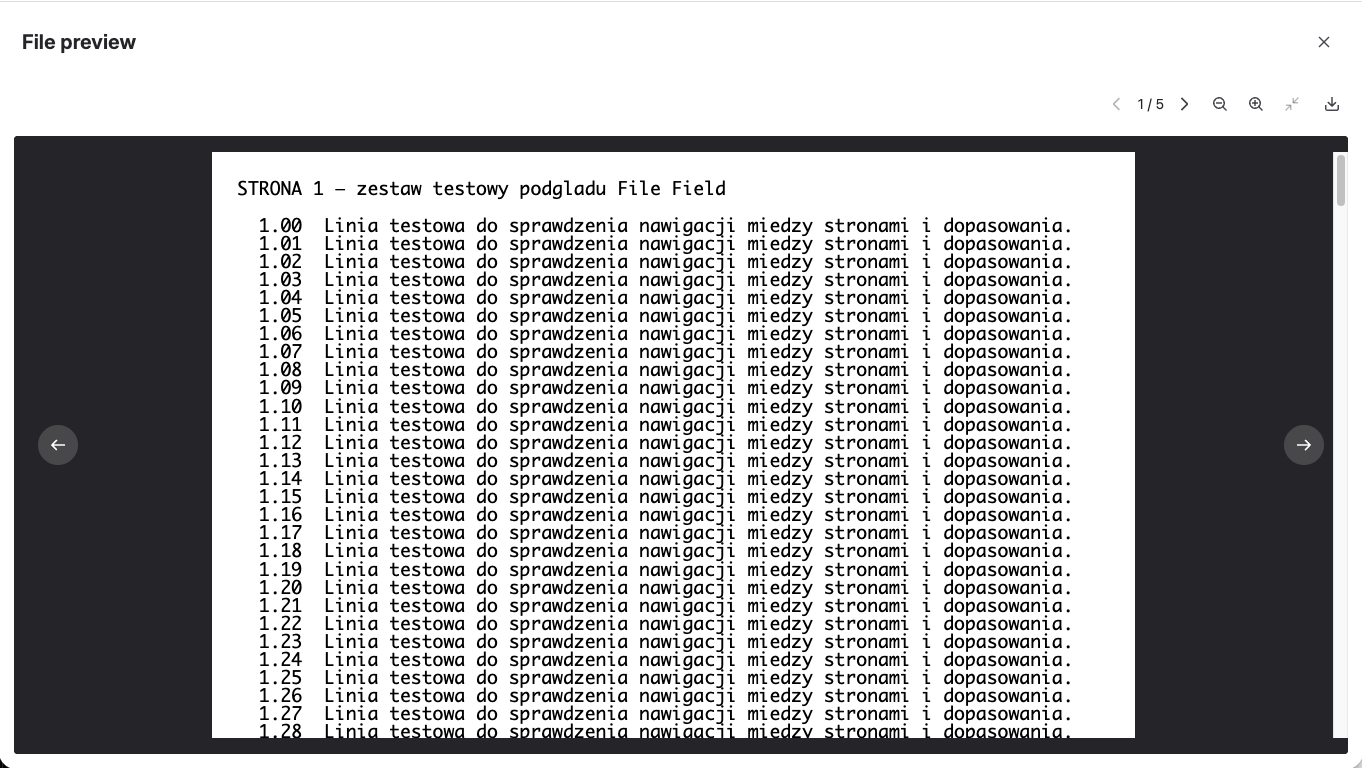
A PDF in the preview — every page in one scroll, with the counter showing where you are
The row carries the tools that suit reading text rather than looking at it.
- Find — a search box with a match count and next/previous, for moving between occurrences in a long log.
- Syntax coloring — where the preview recognizes the format, as it does in JSON, XML, YAML, Markdown, INI, and properties or other configuration files, keys, values, and structure are colored instead of arriving as a wall of monospace. Plain text and logs are shown as they are.
- Line numbers — on by default, and can be hidden.
- Text size — step it up or down.
- Line wrapping — wrap long lines to the width of the dialog, or leave them on one line.
- Copy — take the file's text to your clipboard.
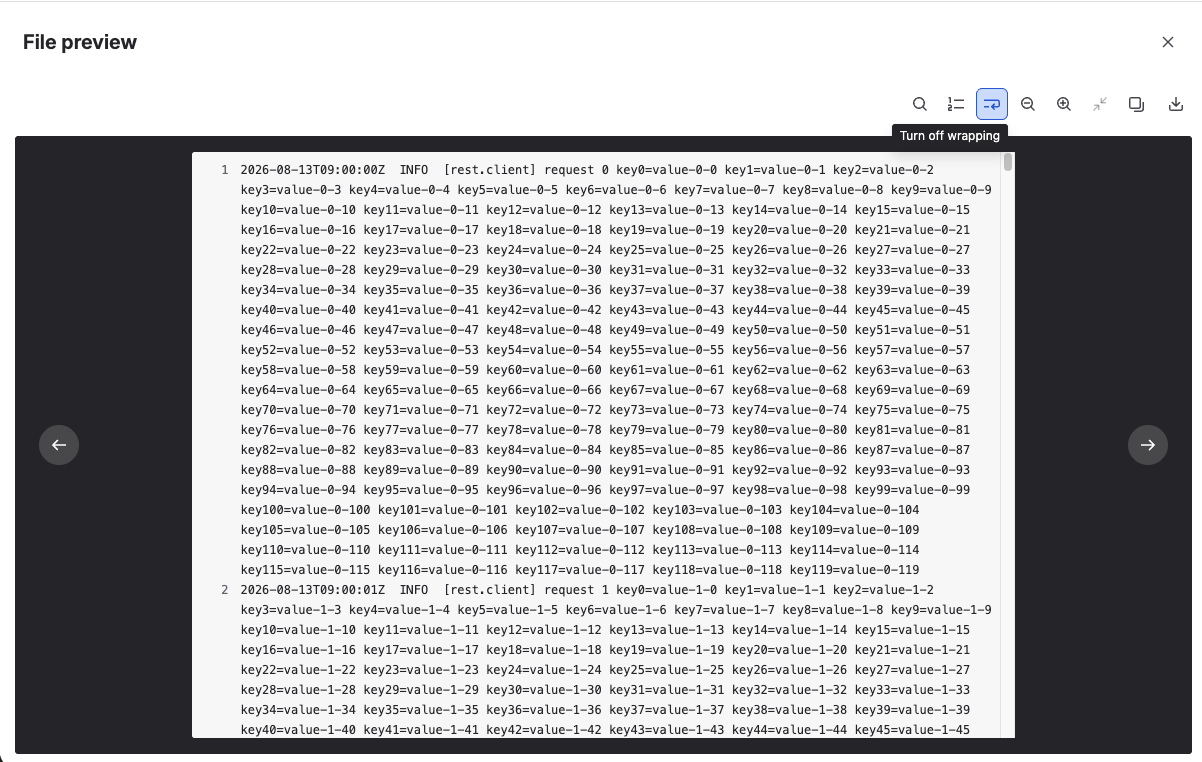
A log in the preview — the row carries the tools that suit text, and each icon names itself on hover
Who can see a preview
Exactly the people who can already download it. The preview runs the same permission check as a download, so it can never show a file you couldn't have downloaded from that issue anyway.
The file is fetched fresh each time a preview opens and discarded when it closes. Nothing is stored or cached outside Atlassian, and there's no new permission to grant.
See Data & Security for the full picture.
What's next?
- Attach, Download & Delete Files — the everyday actions on the field
- Data & Security — how files are stored and access follows Jira permissions
- FAQ — limits, permissions, and common questions