Add the Field to a Project
This page is for Jira administrators. It explains how to add File Field to your project so it shows up on the issue view, the create-issue form, and the JSM portal.
Required: Jira administrator access (to create custom fields and edit screens).
Add the field to your screens
File Field is a native Jira custom field, so you add it through the standard custom-field flow.
Open the Fields admin
Go to Jira Settings (cog icon, top right) → Work items → Fields.
Create the field
Click Create new field and choose the File Field type from the list.
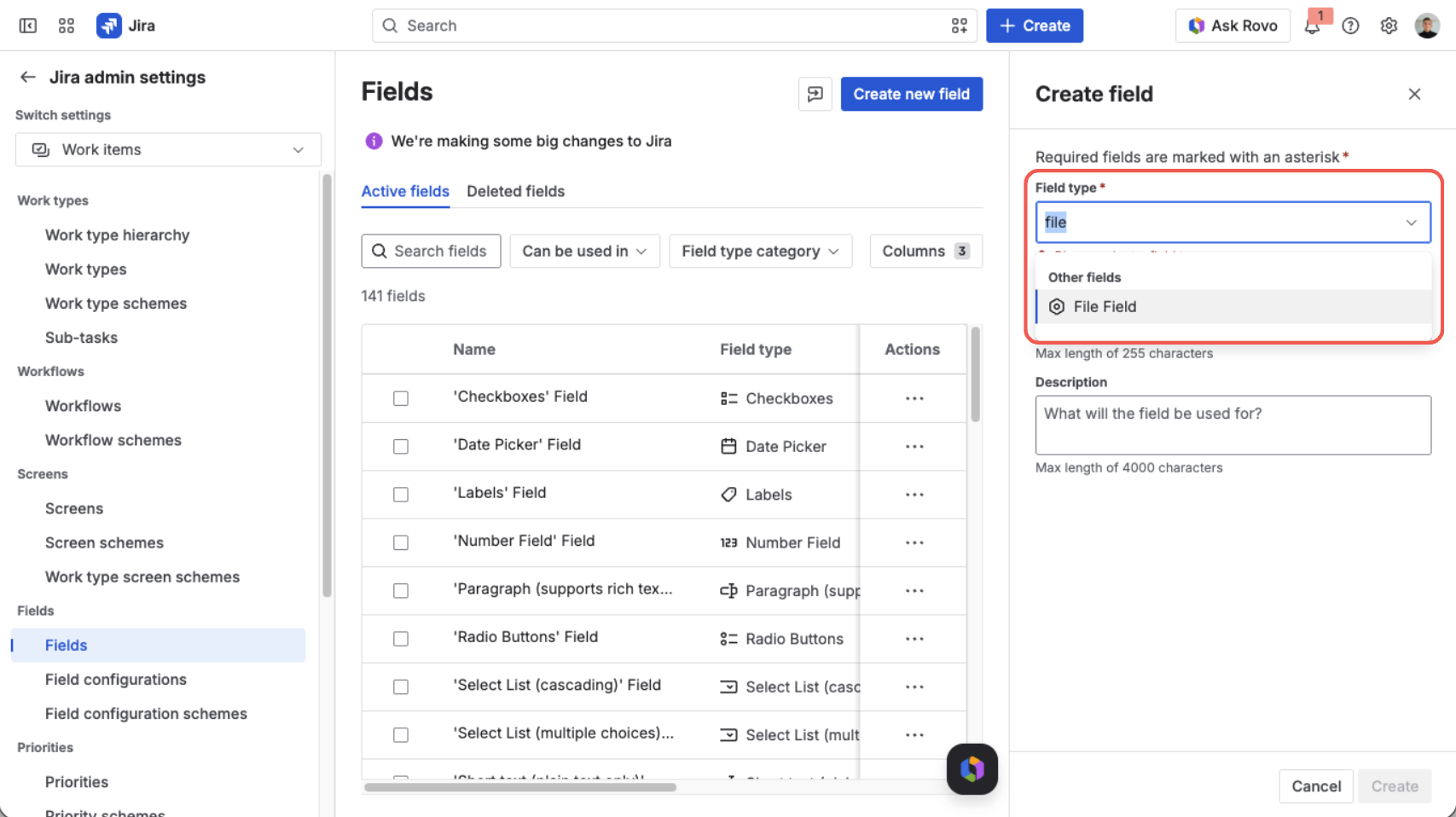
Search the field type list for “File Field” and select it
Name the field
Give the field a clear, single-purpose name — for example, Signed Contract, Proof of Identity, or Compliance Evidence — and an optional description. A specific name makes it obvious what belongs in the field and lets you enforce rules tailored to that document.
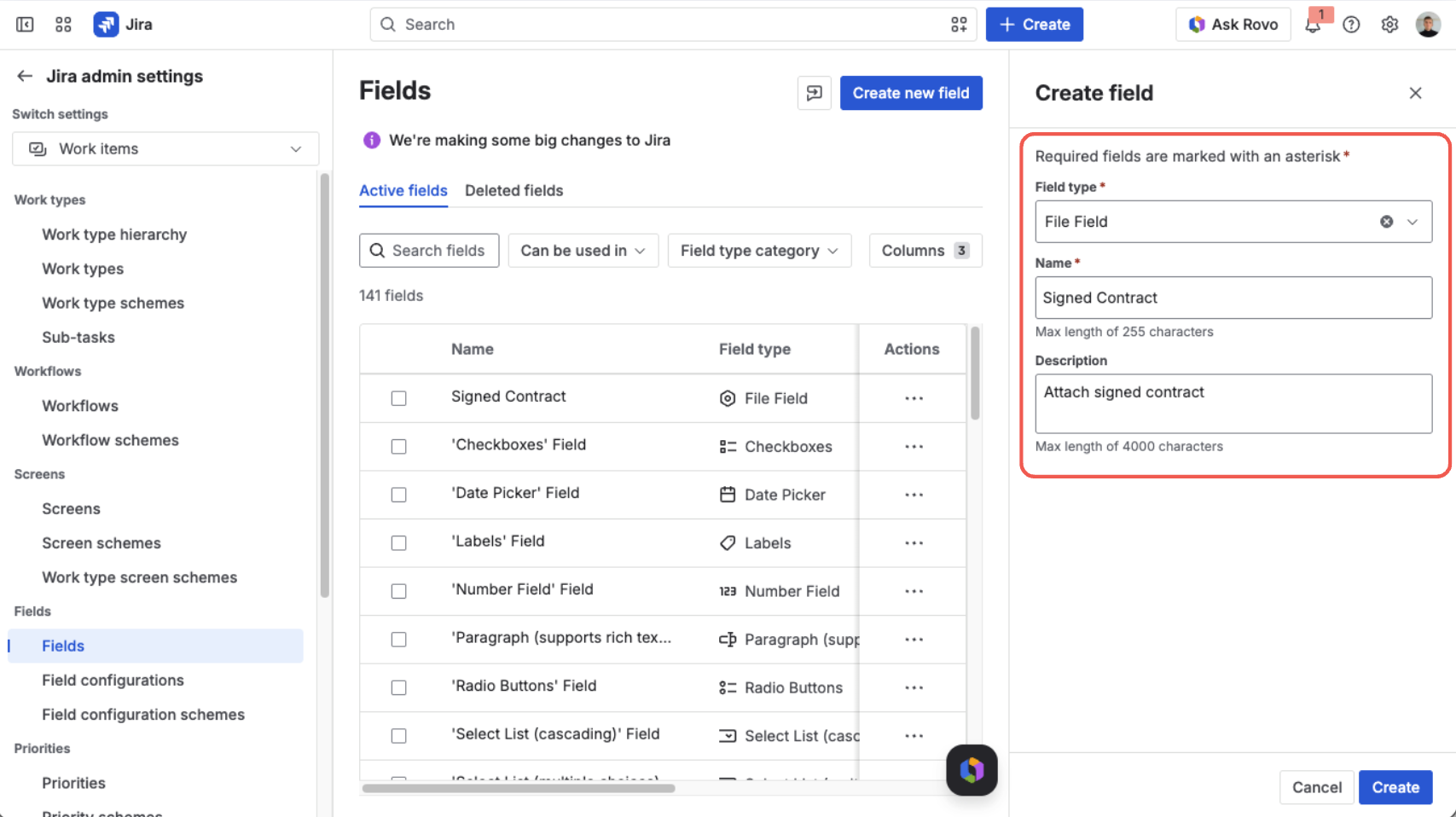
Give the field a clear, single-purpose name and an optional description
Add it to your screens
Select the screens where the field should appear. To cover the whole lifecycle, add it to the create, edit, and view screens of the issue types that need it.
A field only appears where its screen is used, so the screens you pick determine where people can attach files — the issue view, the create-issue form, workflow transitions, and the matching Jira Service Management portal request.
Verify it appears
Once the field is on a screen, confirm it for end users:
- Open an issue of a type whose screen includes the field — or start creating a new one.
- Check that File Field is visible on the issue, ready to accept files.
- Attach a test file to confirm uploads work, then remove it.
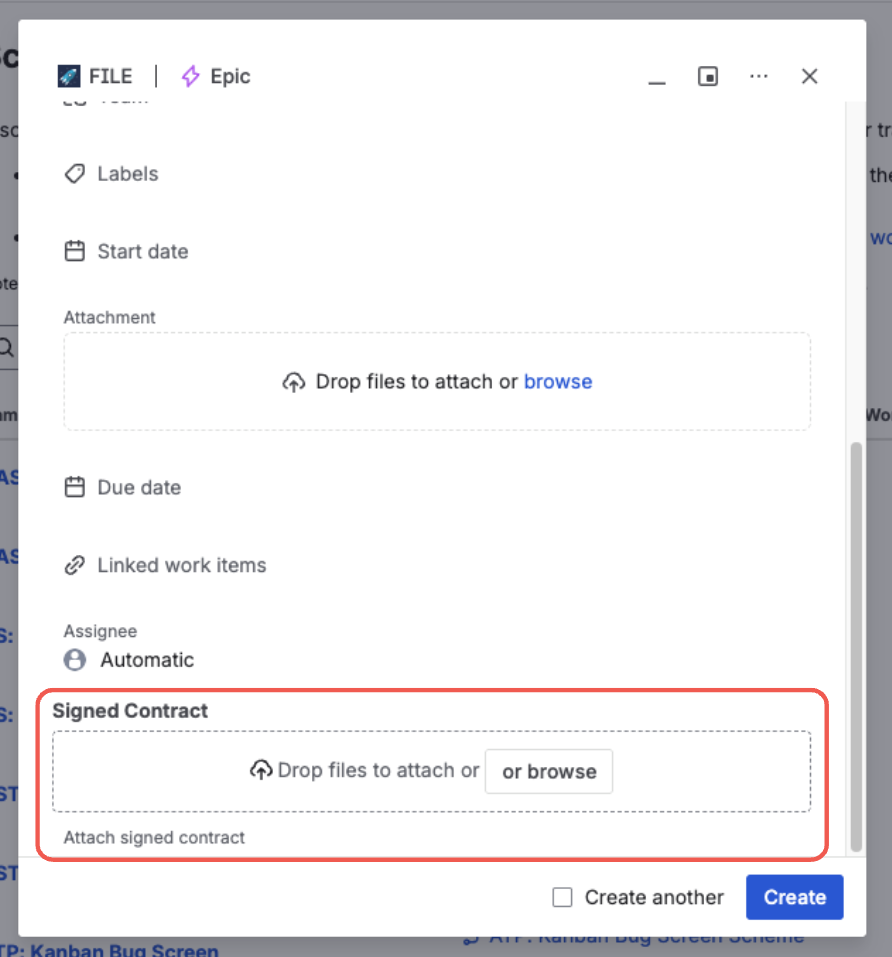
The File Field appears on the form, ready to accept files
If the field doesn't show up, the most common cause is that it isn't on the screen for that issue type, or the issue type falls outside the field's context. Revisit the screen configuration and the context scope above.
What's next?
- Set Field Configuration — define allowed types, file count, and file size for each context
- Make the Field Required — require at least one file before an issue can be saved