Classify Files with Categories
Categories let you tag each file in a File Field with a colored label — for example Contract, ID Document, or Certificate. With categories on, a single field can collect a mix of documents — and even several of the same kind — while keeping each one easy to identify, without anyone guessing from the file name.
That's the difference from adding a separate field per document: the number and mix of files is rarely fixed — one issue brings a single contract, another brings three certificates — so one labeled field scales where a field-per-document doesn't.
The label is a colored chip shown above the file, visible both while editing and in the read-only issue view. Categories are also included in Jira exports and are searchable in JQL through the field's Categories alias.
This page is mostly for Jira administrators — they turn categories on and define them — but it also covers what people see when they attach files.
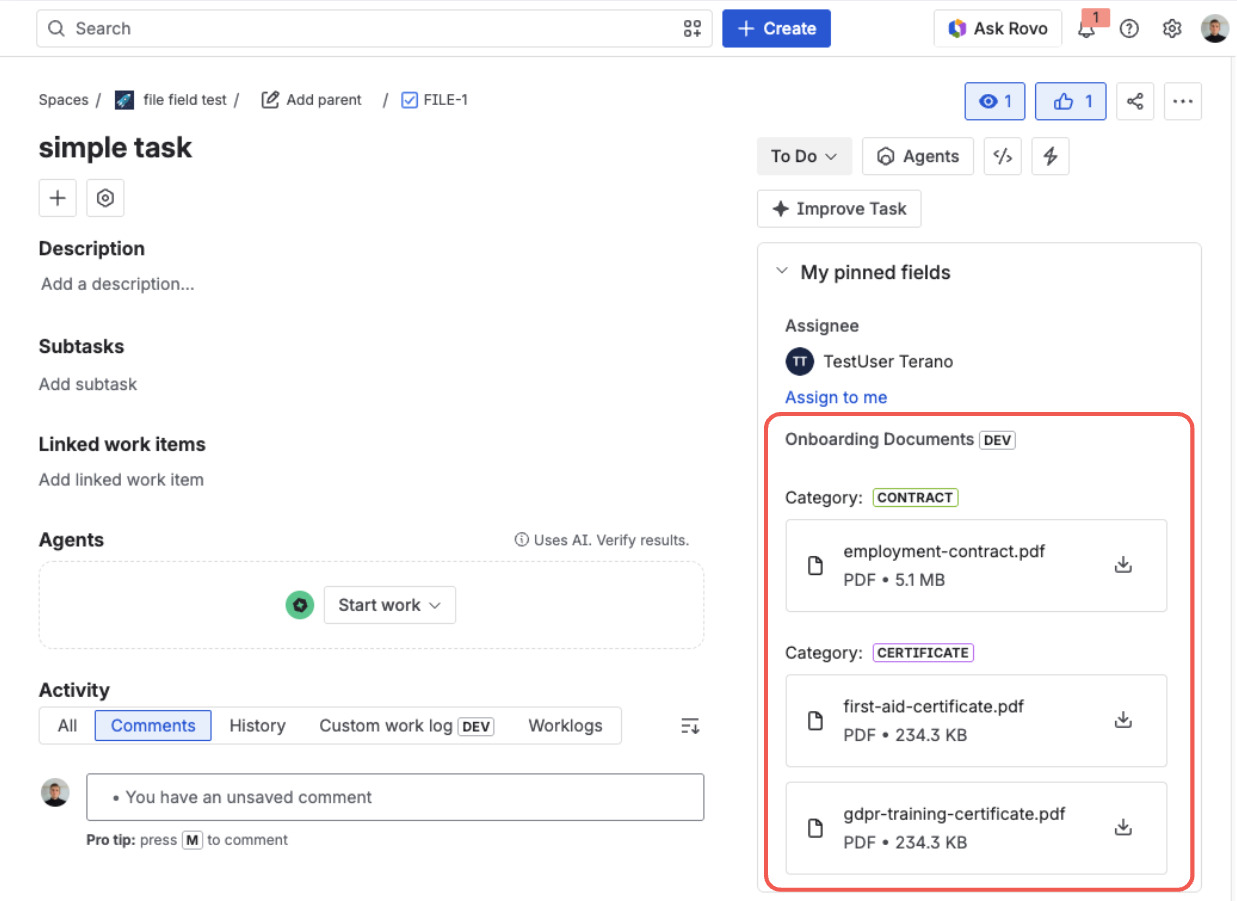
One field, files grouped by category — a Contract and two Certificate files, each clearly labeled
Categories are optional and off by default
Categories are turned off until an administrator enables them. Until then the field behaves exactly as before — people just add files, with no extra step.
- They are enabled separately for each field context, so you can use different settings for different projects or issue types — the same per-context control you get for upload rules.
- Turning the feature off again does not delete the categories you defined. The chips stop appearing and the upload prompt goes away, but your list is kept and comes back the moment you switch the toggle on again.
Turn on and define categories
Categories live on the field context, in the Categories tab of the field configuration — right next to Allowed files, where you set file types, count, and size. If you have not opened a field context before, Set Field Configuration walks through getting there.
Open the Categories tab
In the field's configuration, switch from Allowed files to the Categories tab. This is where the whole feature is set up for this context.
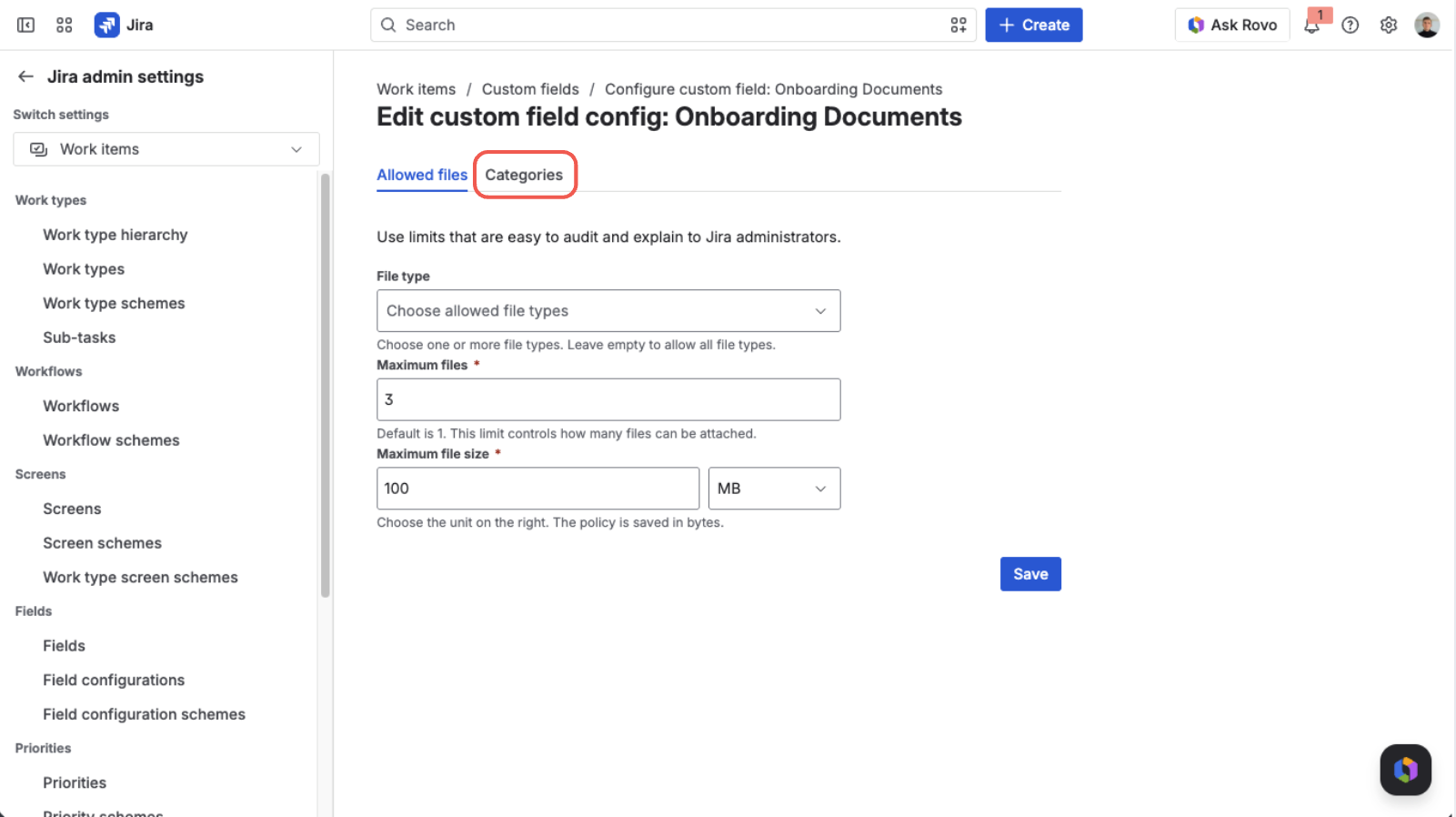
Open the field configuration and switch to the “Categories” tab
Enable categories
Turn on Enable categories for this context. While it is off, the Add button and the category list are inactive and people attach files without being asked for a category.
Add a category
Click Add to open the Add category dialog and set:
- Name — required, and each name must be unique within the field.
- Color — one of six colors (Grey, Blue, Green, Red, Purple, Yellow). A live Preview shows exactly how the label will look.
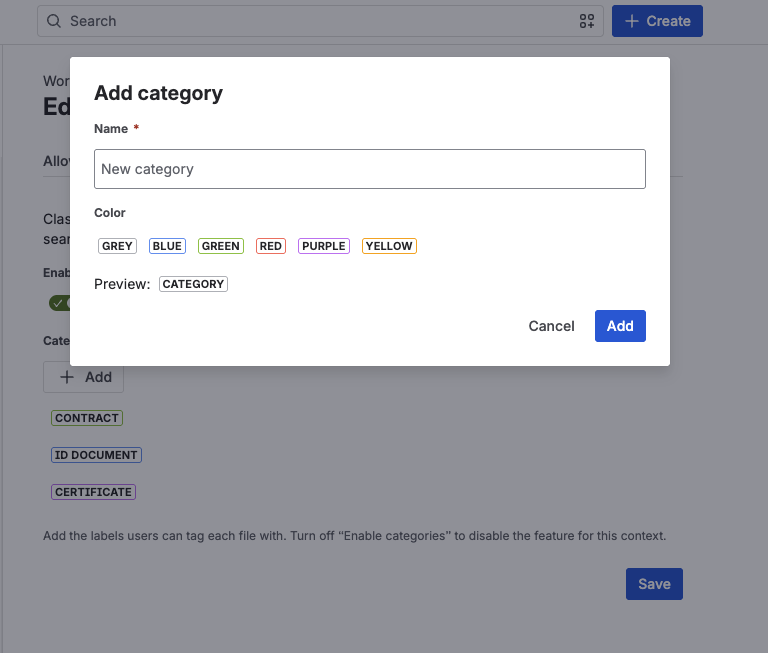
Set a name and color — the Preview shows the label as it will appear
Edit or remove a category
Each category appears in the list as its colored chip. Click a chip to open Edit category, where you can rename it, change its color, or Delete it.
Save
Click Save to store the policy for this context — the category list together with the state of the toggle.
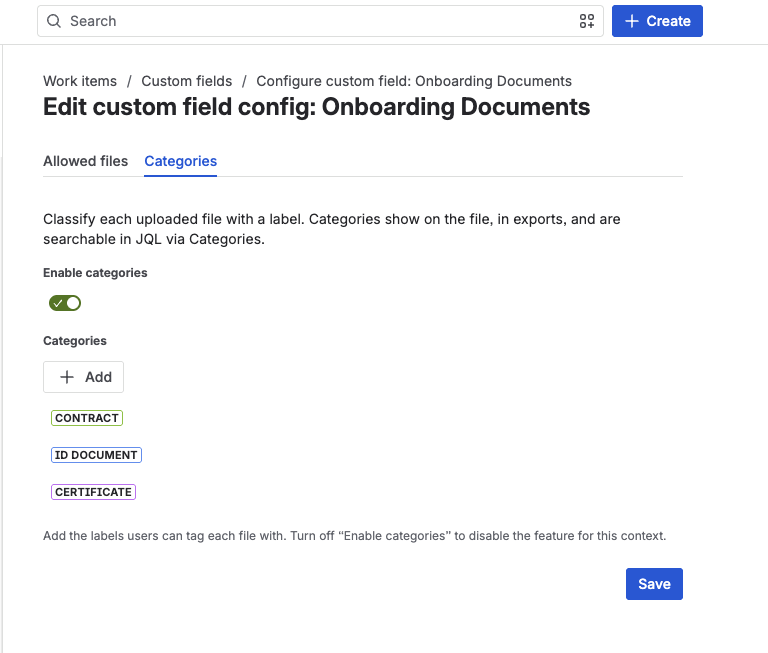
The finished setup — categories enabled and defined, ready to save
Because categories are defined per context, changes apply only to the projects and issue types that context covers — not to your whole Jira instance. The same field can offer different categories in different projects.
Choosing a category when attaching files
When categories are on, the moment of adding a file changes slightly:
- The person selects one or more files in the picker.
- Before anything uploads, a Choose a category dialog appears.
- They pick a category from the list — each shown with its colored label — or leave it as none to attach without a category.
- Add files uploads the files with the chosen category; Cancel discards the selection and nothing is uploaded.
If several files are selected together, they all receive the same category from that dialog. After upload, the category shows as a colored chip above each file, the same in editing and in the read-only view. When categories are off, this dialog never appears — files upload right away.
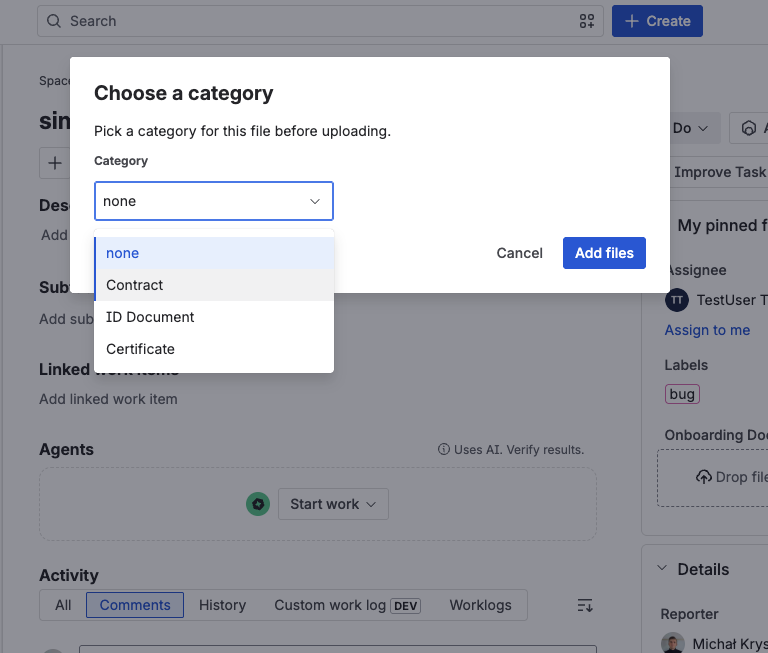
Before the file uploads, pick a category — or leave it as “none”
Where categories appear
- Above the file — a colored chip on every file, in the editor and in the read-only view.
- In Jira exports — the field's value is exported together with its category information.
- In JQL search — through the field's
Categoriesalias, so you can filter issues by the category a file was given.
Find files by category in JQL
Once a file has a category, you can search for it in Advanced search (JQL) using the field's Categories alias. The alias is scoped to the field, so the pattern is "<Field name>.Categories" and the value is the category name.
For example, find every issue where the Onboarding Documents field holds a file labeled Certificate:
"Onboarding Documents.Categories" = Certificate
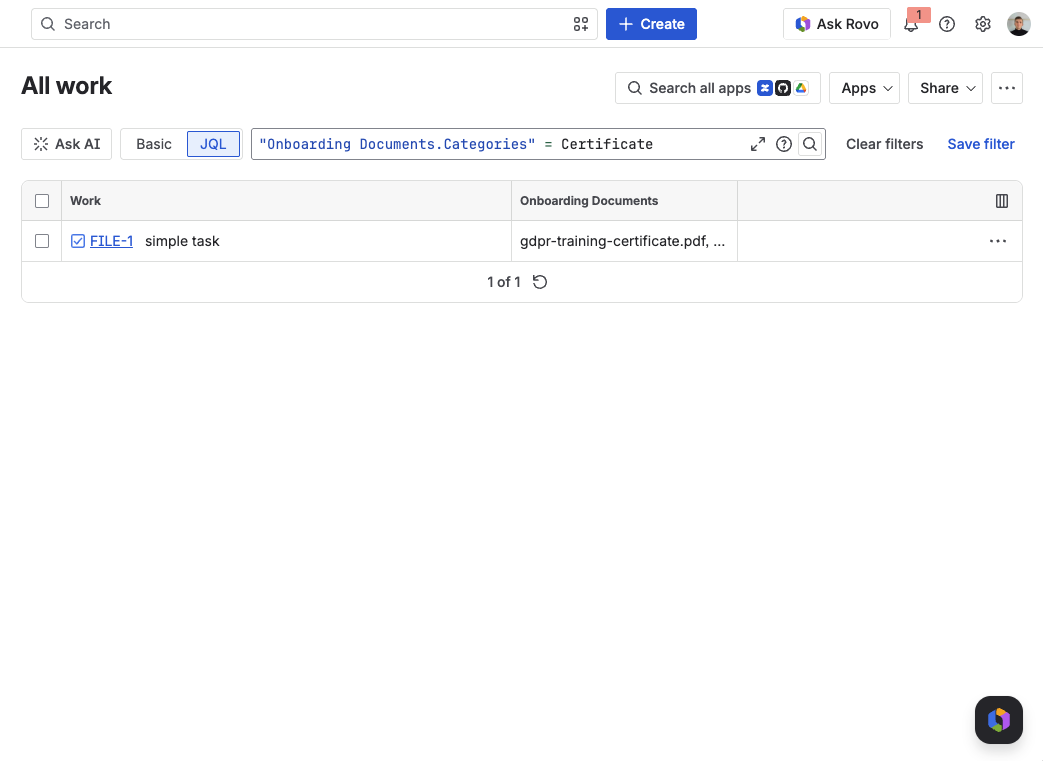
Searching by category in Advanced search (JQL)
Categories are just one of the things you can search on. See Find Issues by Their Files (JQL) for filtering by file count, type, and name as well.
When to use categories
Reach for categories when one field collects a mix of documents whose number and type vary from issue to issue — often with several of the same kind. That's exactly where a separate field per document falls down: you can't predefine a field for "the third certificate." One labeled field absorbs the whole pile and keeps it organized.
One field, a variable mix of documents
- Onboarding / HR — a contract, an ID scan, and however many training certificates a new hire happens to have, all in one field, each labeled.
- Legal / contracts — a contract plus its amendments and consent forms, where the count grows over time.
- Bug reports — a log, a screenshot, and one or more screen recordings together, but clearly told apart.
Enforcing a complete set before work moves on
- A workflow rule can demand a file in each category you name, so one field can require a contract and an invoice and a delivery note — not merely three files. Categories are what makes that possible: without them a rule can only count.
Recognizing an attachment's type for automation and reporting
- A stable, searchable label means automation and reports can act on what a file is instead of guessing from its name — for example reacting to a particular document type or keeping tidy reports of what an issue holds.
Handling sensitive data (GDPR)
- Marking files that contain personal data makes them easier to find later and to remove selectively, without touching the other attachments on the issue.
What's next?
- Require Files on a Transition — demand a file in each category before a work item moves on
- Set Field Configuration — the Allowed files tab: control file types, count, and size
- Attach, Download & Delete Files — the everyday end-user experience
- FAQ — limits, permissions, and common questions
- Publish Reference Documents — the Documents tab: attach a template or procedure for everyone who uses the field
- Choose a Field Layout — the Display tab: pick how the field draws its files