Set Field Configuration
Each field context has its own upload policy. As an administrator you decide which file types are allowed, how many files can be attached, and how large each file can be. These rules are checked before anything is uploaded, so people can only attach files that fit your policy.
These rules govern what people attach to the field. They don't apply to the reference documents you publish yourself — a field restricted to images can still carry a PDF procedure.
Open the configuration
Upload rules live on the field context, so you set them in the field's configuration. A context determines which projects and issue types it applies to — which is what lets the same field carry different rules in different projects.
Open Contexts and default values
Go to Jira Settings → Work items → Fields, open the actions menu on your File Field row, and click Contexts and default values.
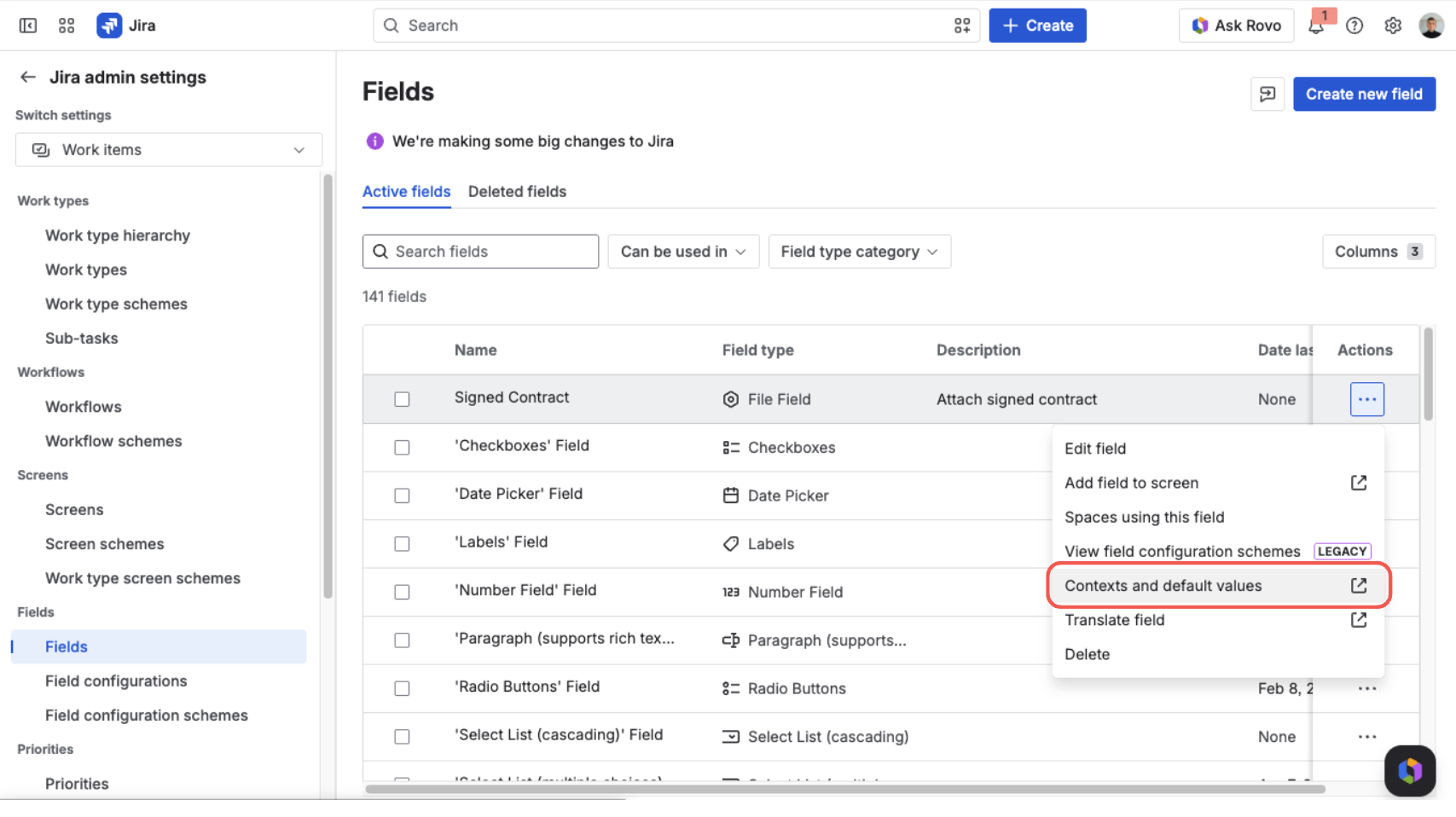
Open the field's actions menu and choose “Contexts and default values”
Edit the custom field config
Find the context you want to change and click Edit custom field config.
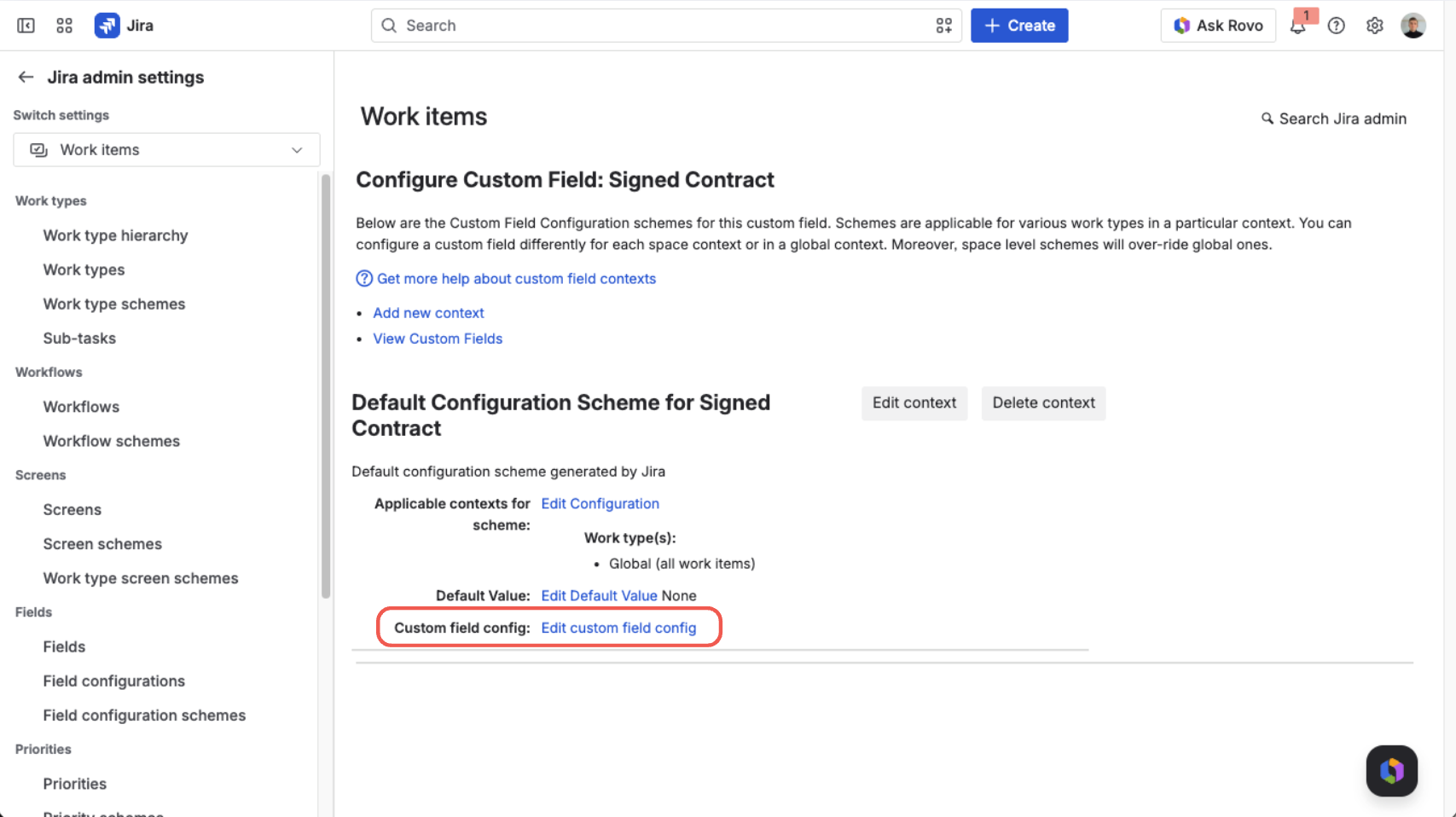
Click “Edit custom field config” for the context you want
Set the upload rules
The configuration view opens. Set the allowed file types, the maximum number of files, and the maximum file size for that context — each is explained below — then click Save.
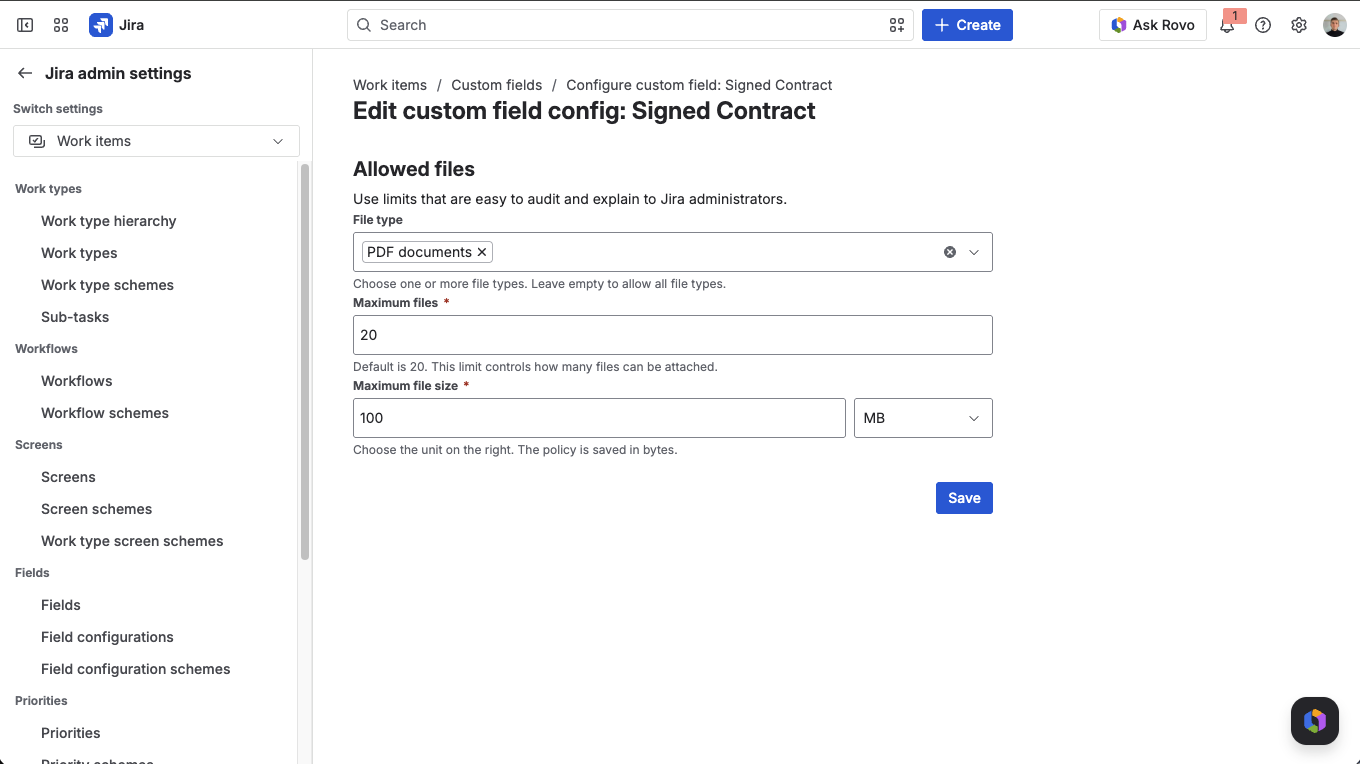
Set the allowed file types, file count, and file size, then save
Allowed file types
Choose which kinds of file people may attach:
- Pick one or more types from the built-in catalog — PDF, PNG, JPEG, GIF, WebP, plain text, CSV, Word (.docx), Excel (.xlsx), and ZIP.
- Need something outside the list? Add a custom type as well.
- Leave the selection empty to allow all file types.
When someone attaches a file, its type is matched against this list. If the browser doesn't report a reliable type, File Field falls back to the filename extension, so valid files aren't wrongly rejected.
Maximum number of files
Set how many files one field can hold. The default is 1, so the field accepts a single file until you raise the limit.
This limit is cumulative: it counts the files already attached plus the ones being added. If a new selection would push the total over the limit, the whole selection is rejected and the user is told to remove some files first.
Maximum file size
Set the largest a single file may be, and pick the unit — B, KB, MB, or GB. The default is 100 MB.
Keep in mind the Atlassian platform enforces a hard ceiling of just under 1 GB per file. Setting your limit above that won't raise the real maximum — files larger than ~1 GB simply can't be uploaded. The 100 MB default sits safely below the ceiling. Empty (0-byte) files are never accepted.
What's next?
- Publish Reference Documents — the Documents tab: give everyone who uses the field a template or a procedure
- Classify Files with Categories — the Categories tab: label files so one field can hold different document types
- Make the Field Required — require at least one file before an issue can be saved
- Choose a Field Layout — the Display tab: pick how the field draws its files
- Attach, Download & Delete Files — what end users see when a file passes or fails the rules