Publish Reference Documents
A File Field collects files from the people who fill it in. Reference documents add the other direction: as an administrator you attach files to the field, and everyone who uses that field can read them.
That covers the material people need in front of them at the moment they attach something — the contract template to fill in, the safety procedure to follow, a worked example of a correctly completed form, or the policy the evidence is being gathered against.
Documents are published once per field context, and they are read-only for everyone else.
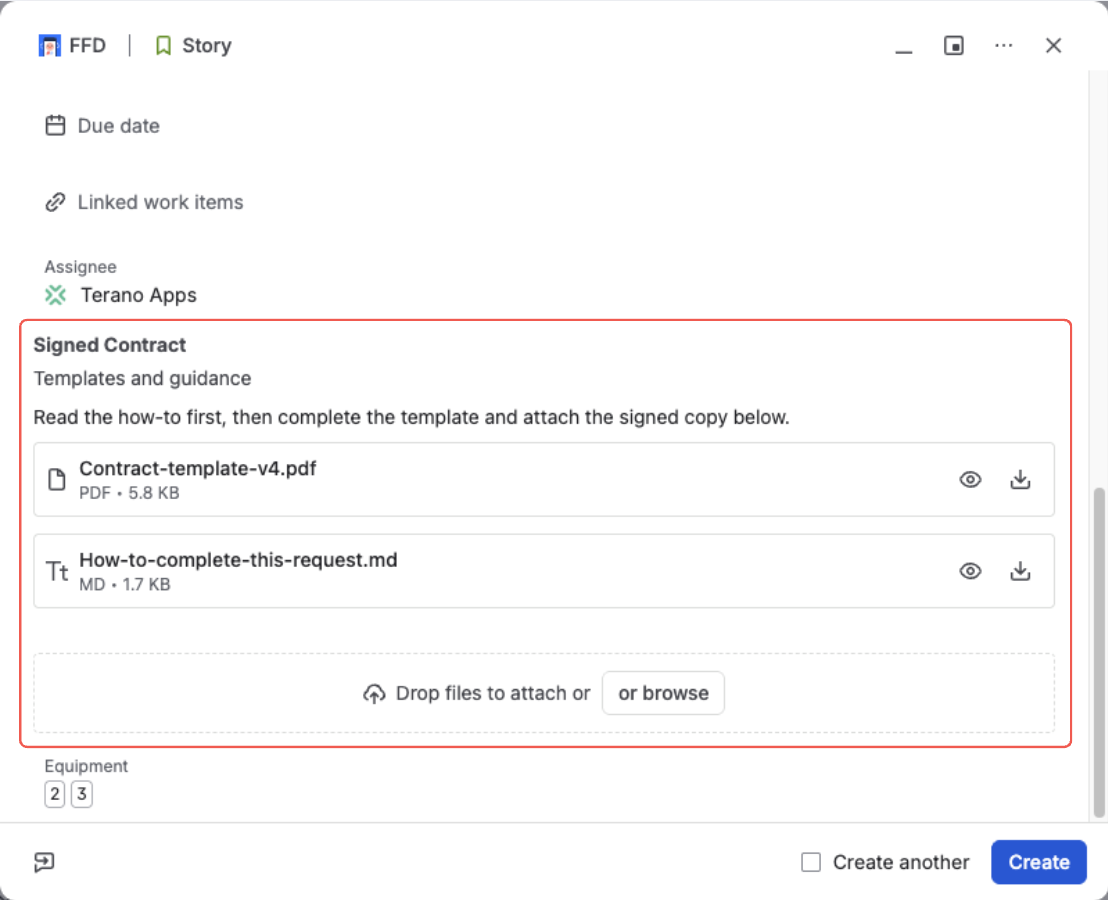
The template and the instructions sit on the field itself — in front of the person before they attach anything
Read-only, and never the field's value
People who use the field can download a reference document and open it in the preview. They cannot delete it, replace it, or rename it.
A reference document is also never the field's value:
- It doesn't count toward the field's file limit.
- It doesn't appear in Jira exports or in JQL searches.
- It doesn't satisfy a required field — a field marked required still needs a file from the person filling it in.
The field stays empty until someone attaches a file of their own.
Publish documents for a field context
Reference documents live on the field context, in the Documents tab of the field configuration — next to Allowed files and Categories. If you have not opened a field context before, Set Field Configuration walks through getting there.
Switch to the Documents tab
Click the Documents tab.
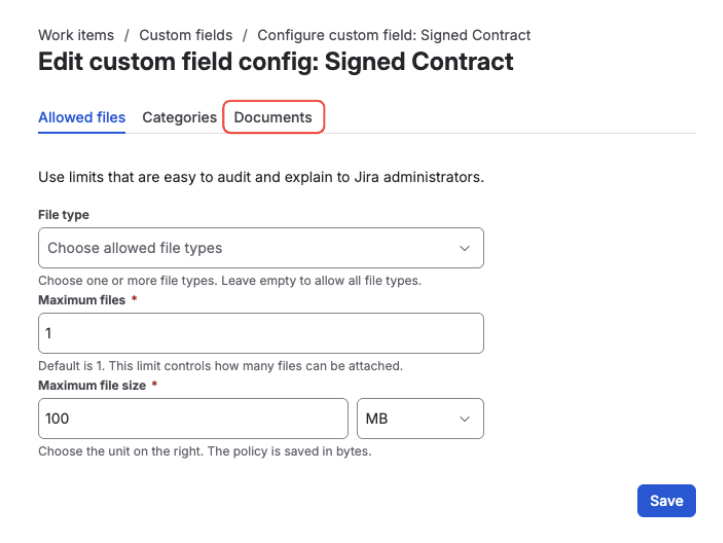
Open the field configuration and switch to the “Documents” tab
Set the section title, and add an instruction if you want one
The title names the section — Templates and guidance says more than the default Reference documents. The instruction is optional: one line under the title, telling people what to do with the files.
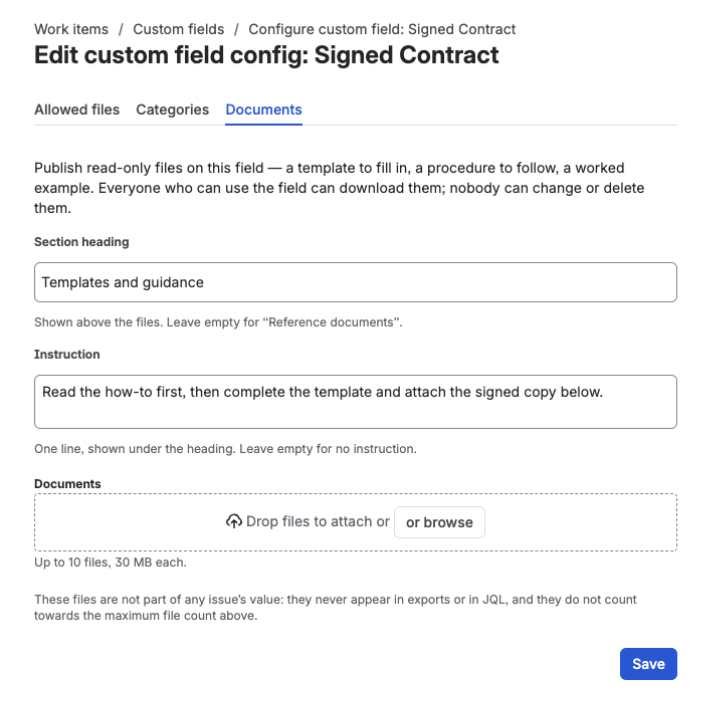
The title and the instruction, filled in before any file is added
Choose and attach the files
Pick the files you want to publish, in any file type.
Adding a second file with the same name is refused, so a list never carries two rows nobody can tell apart. The rest of the selection still uploads — one duplicate doesn't cost you the other files you picked.
Documents appear in the order you add them, and there is no way to reorder them afterwards. If the order matters, number the filenames before you upload.
Publish them
Click Save. The section appears on the field straight away, everywhere that field renders.
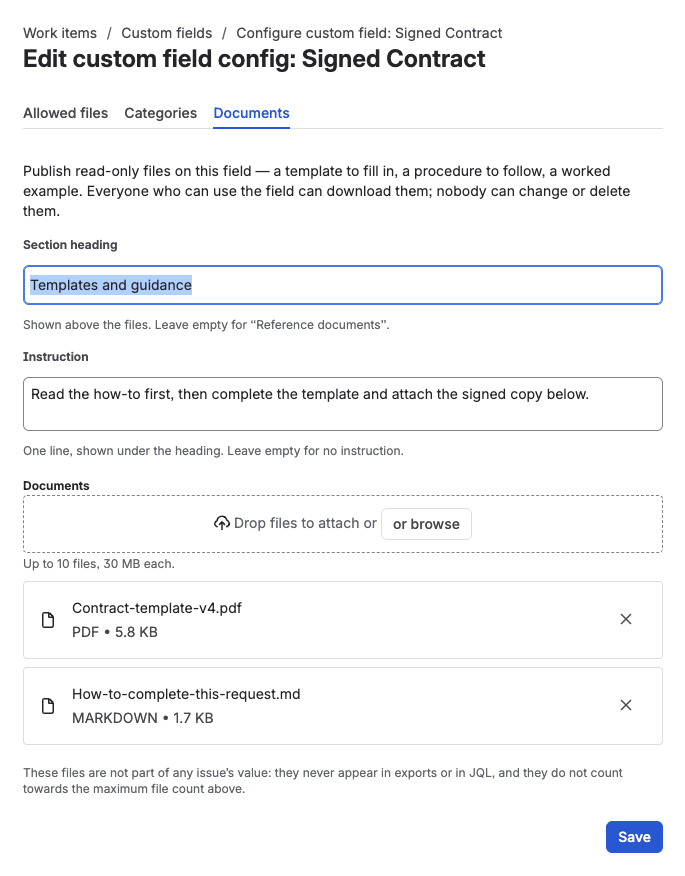
The finished tab — title, instruction, and the documents ready to publish
Documents are published per field context, so the same field can offer different documents in different projects and issue types — the same per-context control you get for upload rules and categories.
When to use reference documents
Reach for them whenever the person filling in the field needs something before they can attach anything sensible.
- HR and onboarding — the blank employment contract and the onboarding checklist sit on the very field that collects them back.
- Service requests on the portal — a customer sees the request template, and an example of a complete submission, before attaching a thing.
- Legal and compliance — the policy or clause library the evidence is being gathered against, next to the evidence.
- Field and safety work — the procedure to follow, published where the signed copy is returned.
The documents are the same for everyone who uses the field, so they suit published material — not anything you would only want one person to read.
What's next?
- Read Reference Documents — what people see, and how they open a document
- Set Field Configuration — the Allowed files tab: control file types, count, and size
- Classify Files with Categories — the Categories tab: label the files people attach
- Choose a Field Layout — the Display tab: pick how the field draws its files