Choose a Field Layout
A File Field can draw its files in more than one way: as compact rows, as full cards, or as a grid of tiles. You pick the layout once per field context, and everyone who uses that field sees it that way — while editing and in the read-only issue view alike.
The layout is presentation only. It changes how files are shown, never what may be uploaded: file types, the maximum number of files, and the maximum size all stay on the Allowed files tab, described in Set Field Configuration.
Set the layout
The layout lives on the field context, on the Display tab of the field configuration — the last tab, after Allowed files, Categories, and Documents. If you have not opened a field context before, Set Field Configuration walks through getting there.
Open the Display tab
In the field's configuration, switch to the Display tab. It holds one setting for the whole context.
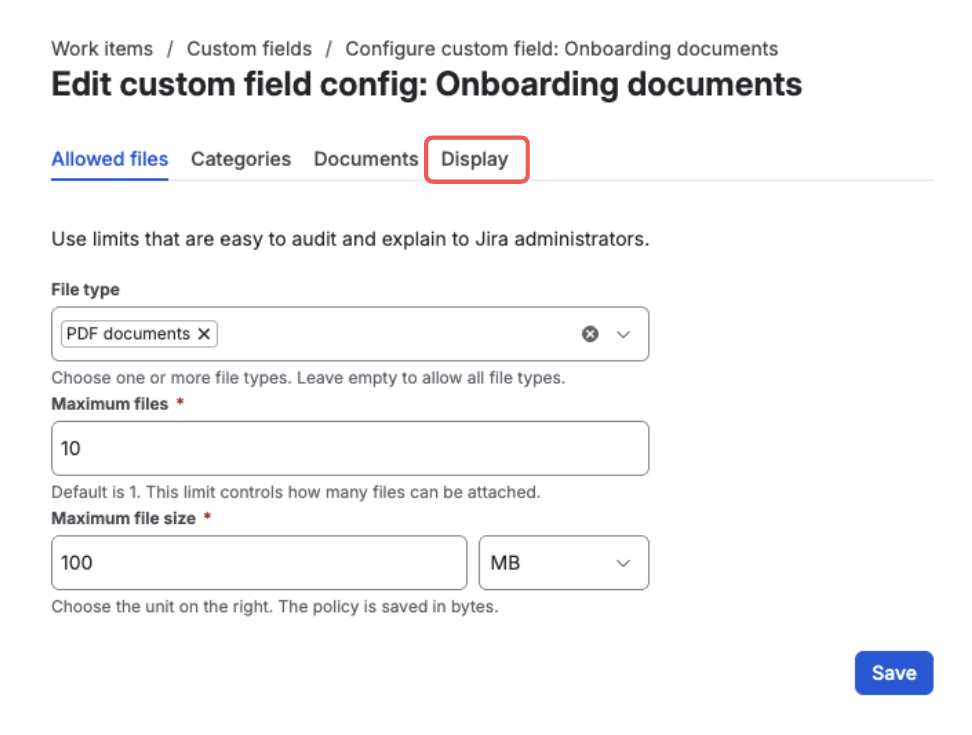
Open the field configuration and switch to the “Display” tab — the last one in the row
Choose a layout
Open the Layout select and pick one of four: Auto, List, Cards, or Grid. Each is described below.
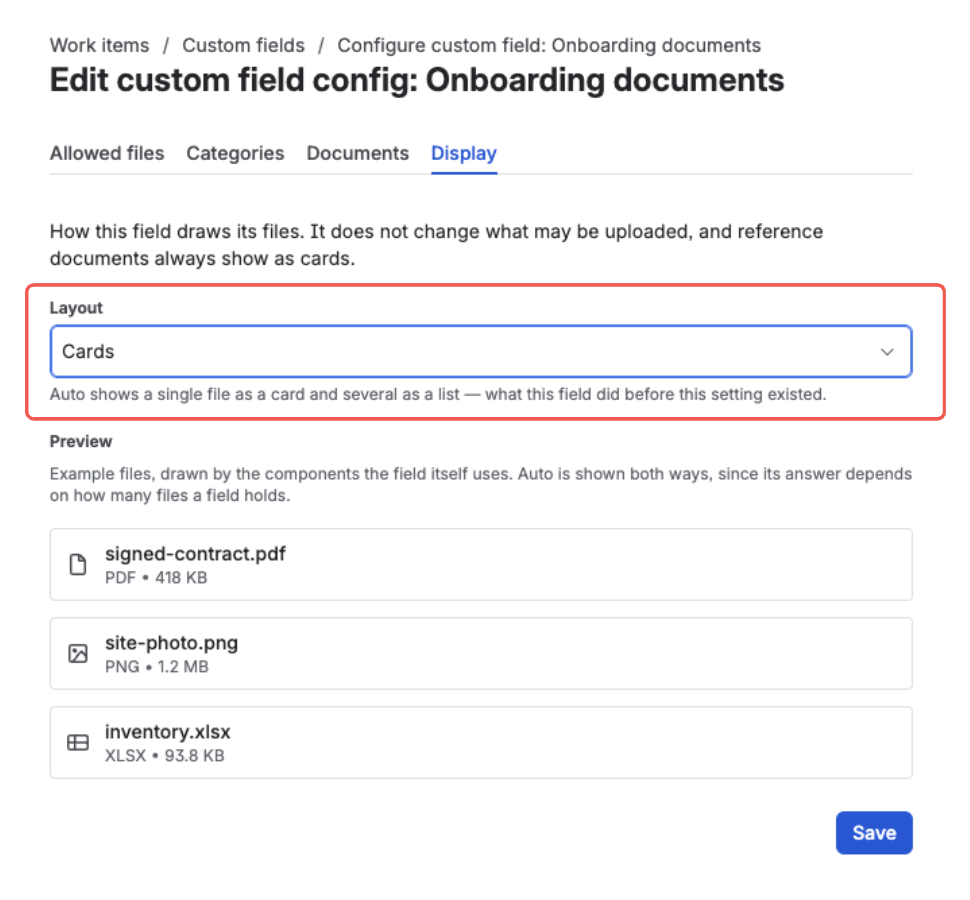
One setting for the context — here set to “Cards”
Check the preview, then save
Under the setting, a Preview draws example files using the same components the field itself uses, so you see the result before you commit to it. Change the select and the preview changes with it. Click Save to store the layout for this context.
Auto appears twice in the preview — once as One file and once as More than one — because it is the only choice whose answer depends on how many files the field is holding.
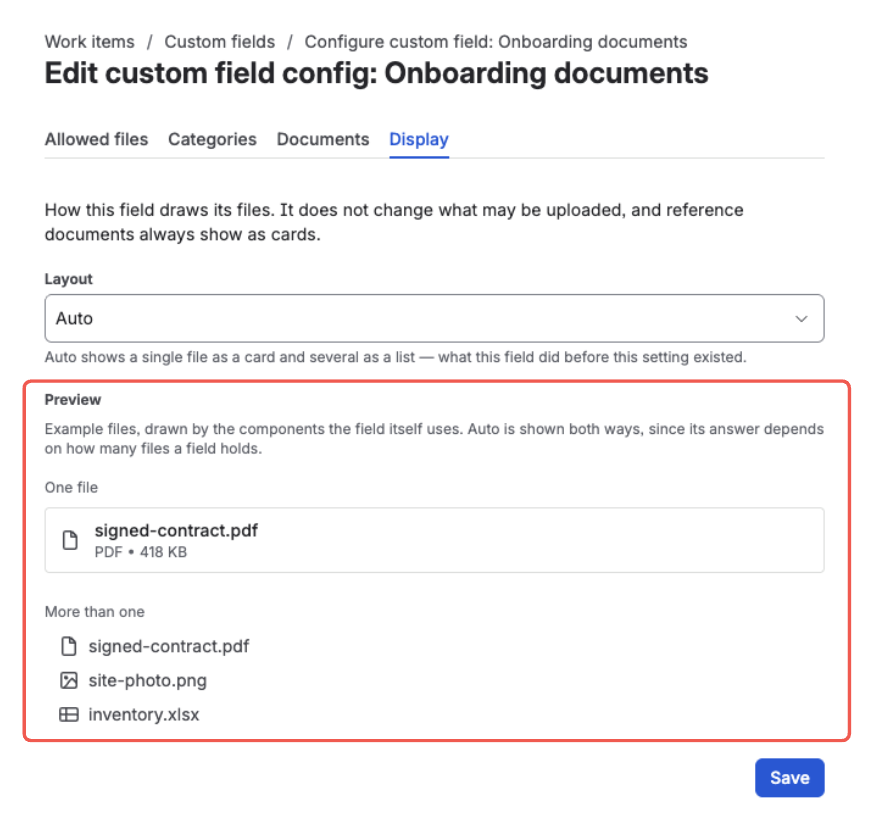
With Auto selected the preview shows both cases — one file, and more than one
The layout is set per context, so the same field can look one way in one project or issue type and another way elsewhere — the same per-context control you get for upload rules and categories.
The four layouts
- Auto
- List
- Cards
- Grid
One file as a card, several as a list. A field holding a single file shows it as a full card; add a second and they collapse into compact rows.
Auto is the default, and it is what the field did before this setting existed. Choose it when a field's job varies from issue to issue — sometimes one signed contract, sometimes a handful of photos.
Auto is the only layout with two answers — the Preview on the Display tab shows both
Always compact rows. Every file on one line — an icon, the name, and the file's actions. This is the most files you can see without scrolling.
Choose it for fields that routinely collect many files, where the names matter more than the space each file gets.
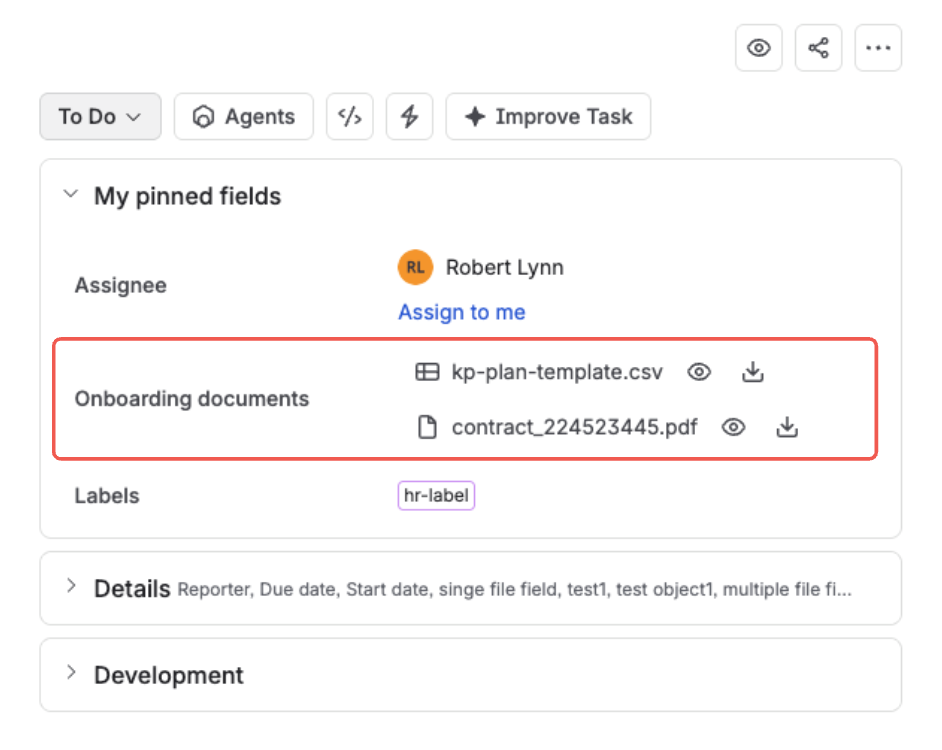
List on the issue — one line per file, names first
Always full cards. Each file gets a full-width card showing its name, type, and size. The roomiest of the four, and the easiest to read at a glance.
Choose it for fields holding one or two important documents that deserve the space.
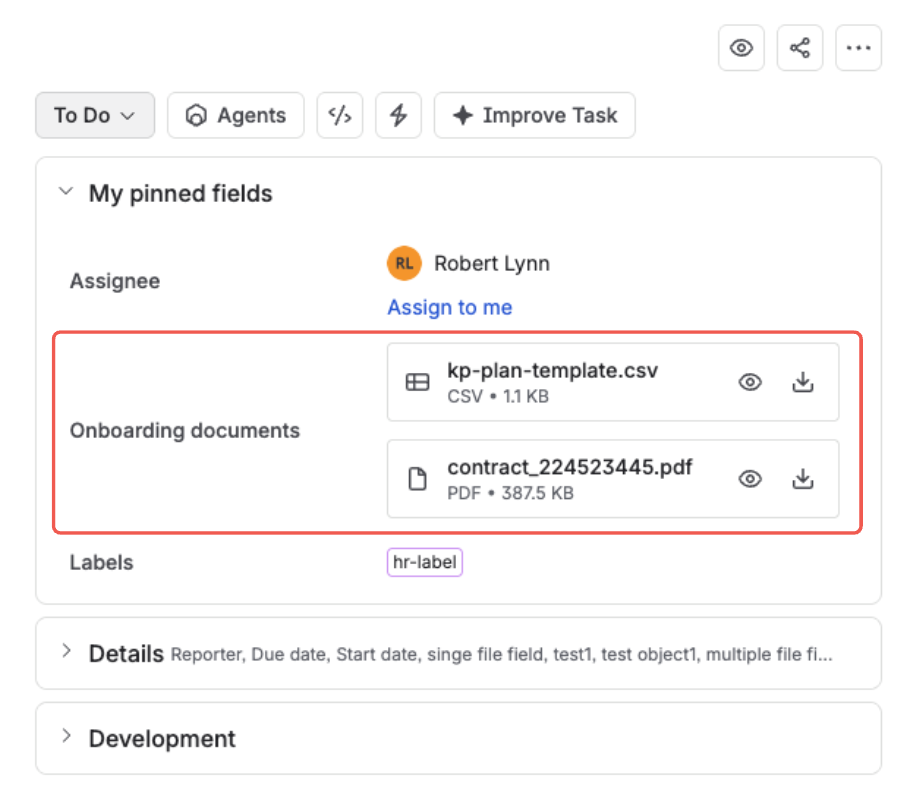
Cards on the issue — each file with its type and size
Tiles side by side. Files become fixed-width tiles that wrap onto the next row when they run out of room. Because the tile width is fixed, a long file name is shortened to fit it.
How many tiles land on one row follows the width the field has to work with — the wider the space, the more of them sit side by side. In the narrow issue sidebar there is only room for a single column, so the tiles stack.
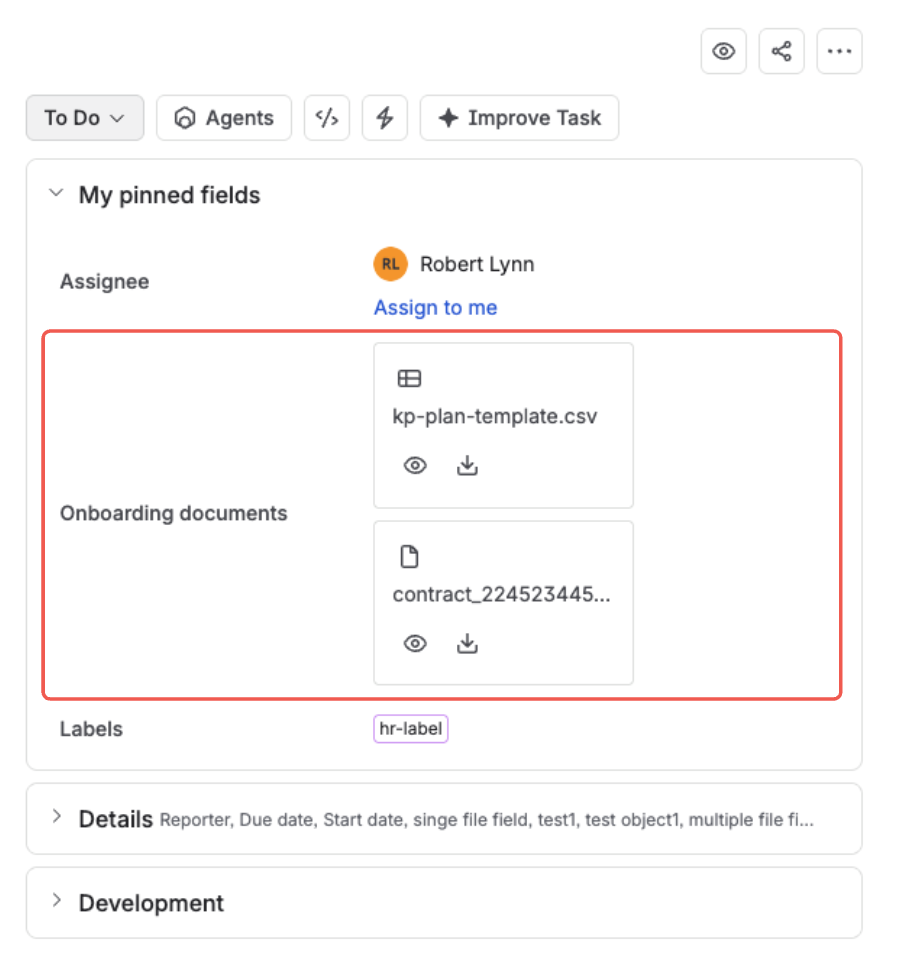
Grid in the narrow issue sidebar — room for one column, so the tiles stack
What the layout doesn't change
- What people can upload. File types, the maximum number of files, and the maximum file size stay on the Allowed files tab. See Set Field Configuration.
- Who can see a file. Every upload, download, and delete is still checked against the person's Jira permissions, in every layout.
- The size of icons and file names. These follow the layout you choose; they are not settings of their own.
What's next?
- Set Field Configuration — the Allowed files tab: control file types, count, and size
- Classify Files with Categories — the Categories tab: label files so one field can hold different document types
- Publish Reference Documents — the Documents tab: give everyone who uses the field a template or a procedure
- Attach, Download & Delete Files — the everyday end-user experience