Copy Attachments into File Field
Copy attachments into File Field copies files from Jira's built-in Attachments into a File Field, as a step in a Jira Automation rule.
In the action's configuration you set two things: which issue the attachments are read from — a smart value such as {{issue.key}}, or a literal issue key — and which File Field receives the copies.
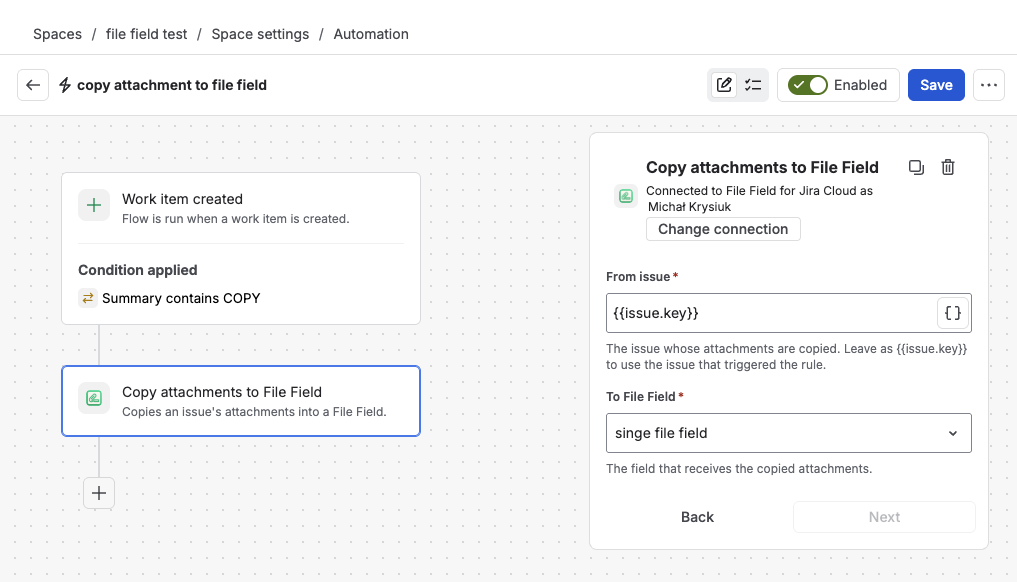
The action in a rule — here it runs on every created work item whose summary contains COPY
What this action does
When the rule runs, the action:
- Reads the files from the built-in Attachments of the issue you point it at
- Copies each one into the File Field you chose, keeping its name, type, and size
- Replaces whatever the field held before, including any version history its files had, so the field always reflects the latest run
- Leaves the original attachments untouched — nothing is moved or deleted
The copied files behave exactly like files someone attached to the field by hand: they show up as file cards with Download and Delete, and they're searchable in JQL right away.
Add the action to a rule
Open Automation
Go to Project settings → Automation, then create a new rule or open an existing one.
Choose a trigger
Work item created is the usual choice — it captures the files the issue was created with. Any trigger works, including transitions, field changes, and scheduled runs.
Add the action
Click Add component → Action, search for
file field, and choose Copy attachments into File Field.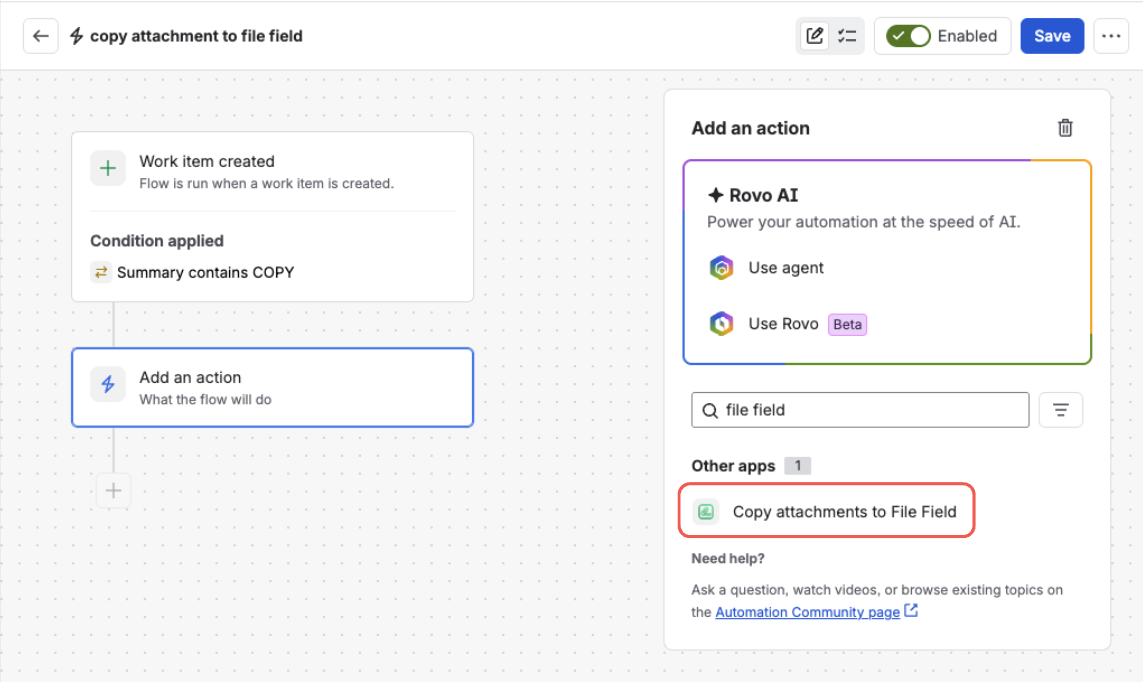
Search for “file field” and pick the action from the list — both File Field actions appear under Other apps
Configure it
Set the two inputs described below, then save the rule and turn it on.
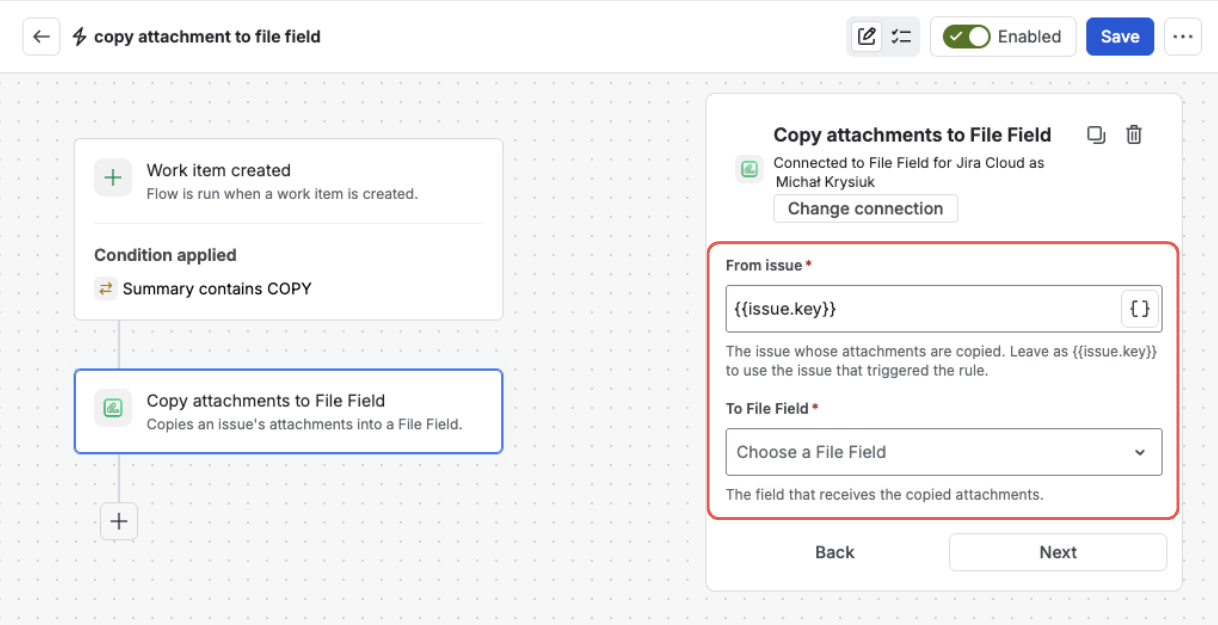
The action's two inputs — the issue to read attachments from, and the File Field that receives them
Configure the action
The action has two inputs:
| Input | What it is | Smart values | Default |
|---|---|---|---|
| From issue | The issue the attachments are read from. | Yes | {{issue.key}} |
| To File Field | The File Field that receives the copies, picked from a list of the File Fields on your site. Its current contents, including file version history, are replaced. | No | — |
From issue is pre-filled with {{issue.key}}, which means the issue that triggered the rule — the right answer for almost every rule, so you can usually leave it alone. Replace it with another smart value or a literal issue key when you need the files from a different issue, for example {{triggerIssue.parent.key}}.
To File Field lists the File Fields defined on your site by name, so there's no need to hunt down a custom field ID. Make sure the field you pick is on a screen used by the project — otherwise the files are copied but nobody can see them.
Both inputs are required. The rule can't be saved until each is filled in.
What happens when the rule runs
The action hands the copy off and lets the rule carry on to its next step — it doesn't hold the rule up while files transfer. On an issue with a handful of ordinary documents the files appear in the field within seconds.
Because the rule doesn't wait, the audit log records that the copy was started, not that it finished. To confirm a rule is doing what you expect, look at the field on a real issue after the rule runs — that's the reliable check.
An issue with no attachments is a normal, successful run: nothing is written, and the field is left exactly as it was. A field that's still empty answers "File Field" is EMPTY in JQL, which is exactly what makes "issues missing a document" searchable.
Copy limits
One run of the action copies up to:
| Limit | Value |
|---|---|
| Files per run | 50 |
| Size of a single file | 100 MB |
| Total size per run | 500 MB |
These limits are checked before anything is copied. If an issue's attachments exceed any of them, the run stops immediately and the field is left exactly as it was — you never end up with half a copy.
The limits apply to the automated copy only. What people may attach to the field by hand is governed separately by the field's own upload rules.
What's next?
- Find Issues by Their Files (JQL) — search and report on what the rule copied
- Classify Files with Categories — label documents so one field can hold several kinds
- Attach, Download & Delete Files — what people see on the issue once the files are there