Read Reference Documents
Some File Fields show a short section above the files you attach. Those are reference documents — material an administrator published on the field itself, the same for everyone who uses it.
They are there to help you fill the field in: the template to complete, the procedure to follow, or an example of what a finished submission looks like. You'll find them wherever the field itself appears — on an issue, on the create form, on a transition screen, and on a Jira Service Management portal request.
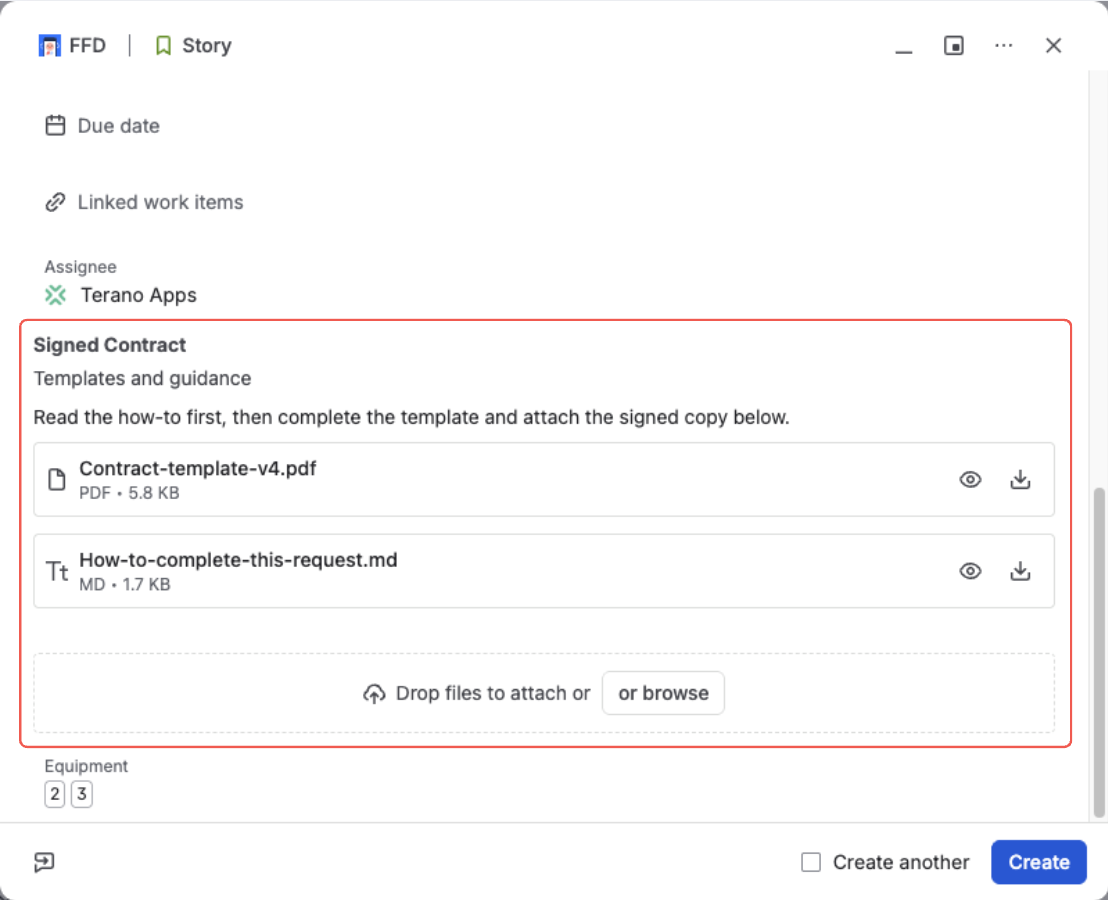
Reference documents sit above the field's own files — read them, download them, but they are not yours to change
Read or download a document
Every document carries two actions. Download takes the file as it is. The eye icon opens it in the preview — images, PDF documents, tables, and text — so you can read it without putting a copy on your computer.
The preview's arrows step through the documents, and never off into the files someone attached to the issue. Open one of your own files instead and the arrows stay among those, so a step never lands you somewhere you didn't expect.
See Preview Files Without Downloading for everything the preview can do.
These are not your files
Reference documents belong to the field, not to the issue, so you can read them but not change them: there's no delete, no replace, and no rename.
They also don't count as your attachment:
- A field marked required still needs a file from you.
- Documents don't appear in Jira exports or in JQL searches.
- They don't count toward the number of files the field will accept.
On the JSM portal
On a Service Management portal request the documents appear on the form itself. Whatever the administrator published is in front of a customer before they attach anything — instead of arriving in a follow-up comment after the request has already been raised.
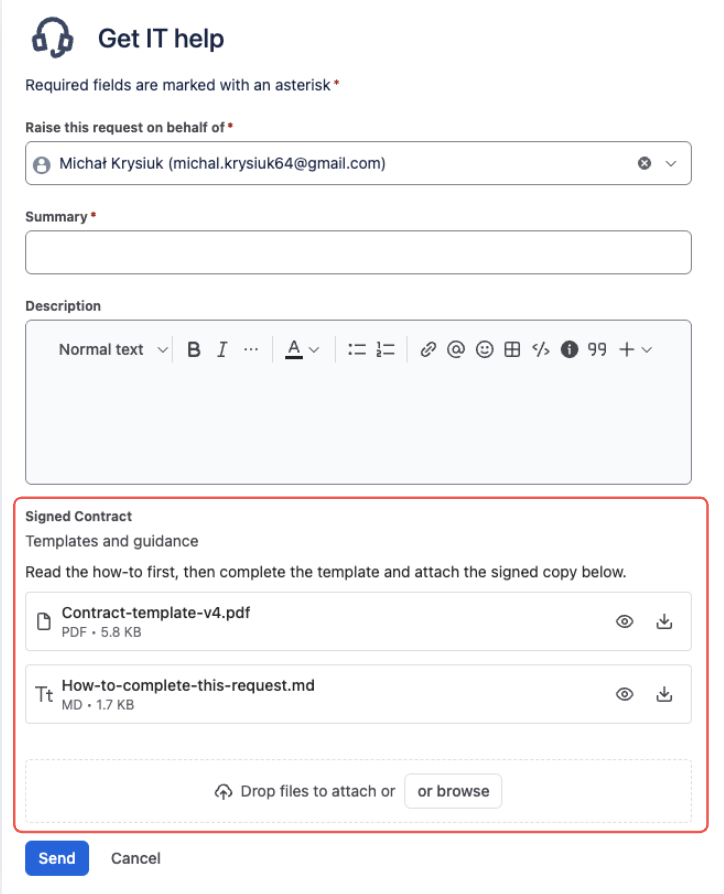
On a portal request the customer gets the template, and what to do with it, before attaching anything
Want to publish these yourself?
Reference documents are set up by a Jira administrator, once per field context — a section title, an optional one-line instruction, and the files themselves. Everyone who uses that field then sees the same section, on every screen the field appears on.
Publish Reference Documents walks through the Documents tab from start to finish.
What's next?
- Publish Reference Documents — for administrators: how to put documents on a field
- Attach, Download & Delete Files — adding your own files to the field
- Preview Files Without Downloading — the full guide to opening a file in place