About Storage Saver
Jira Cloud limits file storage to 2 GB on the Free plan and 250 GB on Standard, while storage on Premium is unlimited. At the limit, some Jira actions are restricted until you upgrade or free up storage, and upgrading is the only way to raise the cap. Atlassian's advice for freeing up storage is to delete content.
What Storage Saver does
Storage Saver changes where an attachment is stored, not where it belongs. A moved file leaves Jira's storage, the one with the limit, for the app's own storage, hosted by Atlassian, which does not count toward your site's Jira storage. Files never leave Atlassian, and each file stays with its work item. A file used in a work item's text, such as an image pasted into a comment, is never moved, so the text stays as it was.
Where it appears in Jira
A moved file is used where its attachment was: on the work item. The Storage Saver panel shows each of the work item's moved files as a tile with a preview, and people download or delete it there, much as they would a regular attachment. Anyone who can see the work item sees the panel, and each action checks that person's Jira permissions, the same ones that apply to attachments.
The panel is added once per work item, through View app actions, and then stays for everyone. Until someone adds it, a file moved from the project page or the admin page is simply gone from that work item's attachments; a Jira administrator can show it on every work item of a project at once ( see Work Item Panel).
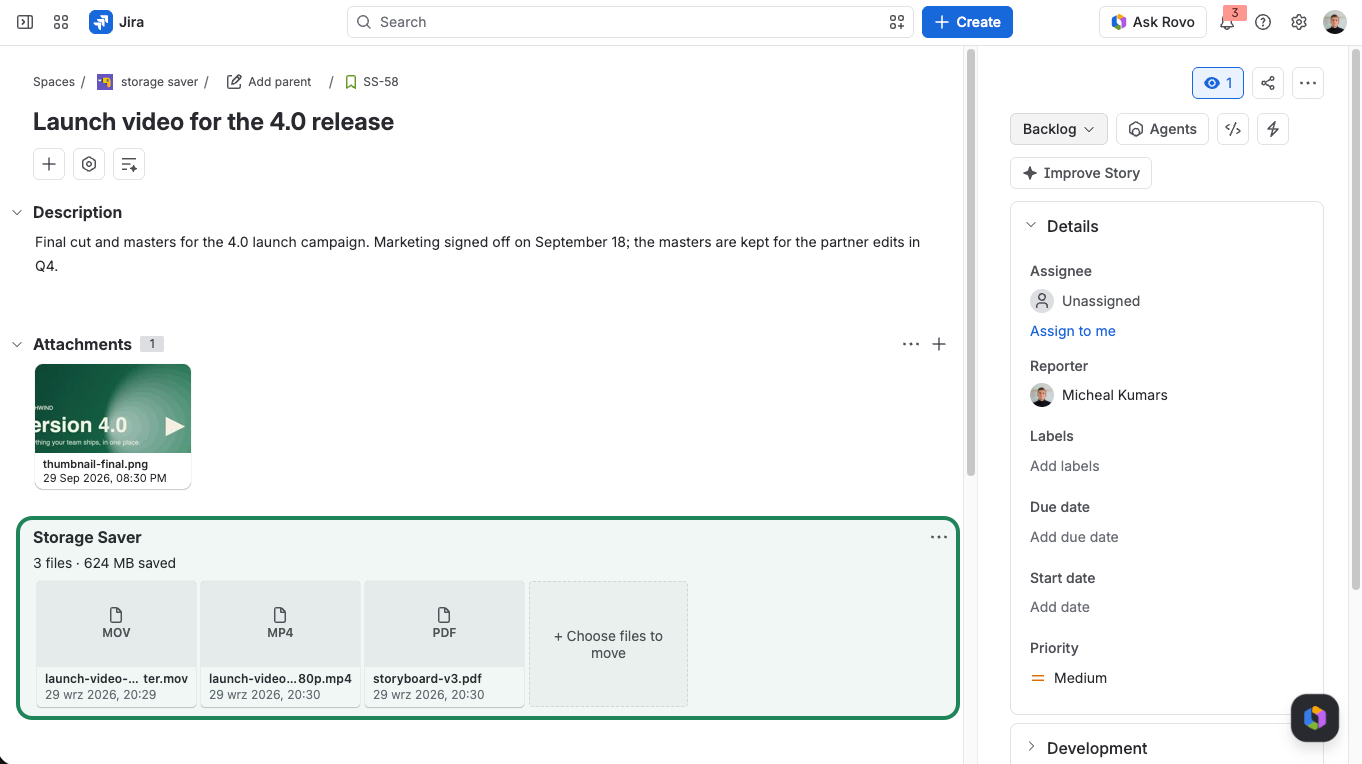
Moved files stay on the work item, in the Storage Saver panel under its attachments
Moved files show up in three places in Jira: on the work item, and on two pages that list files across many work items.
Atlassian now calls Jira projects spaces, so Jira's own menus and permissions say Space settings, Administer spaces and Browse spaces, while Storage Saver's screens and these docs still say project.
How to use Storage Saver
See where your storage goes
Install Storage Saver and it scans the site on its own. The Overview tab of its admin page (Jira settings → Apps → Storage Saver) shows how much space attachments take, how much of it you can move, and when the site reaches its limit. See Storage Report.
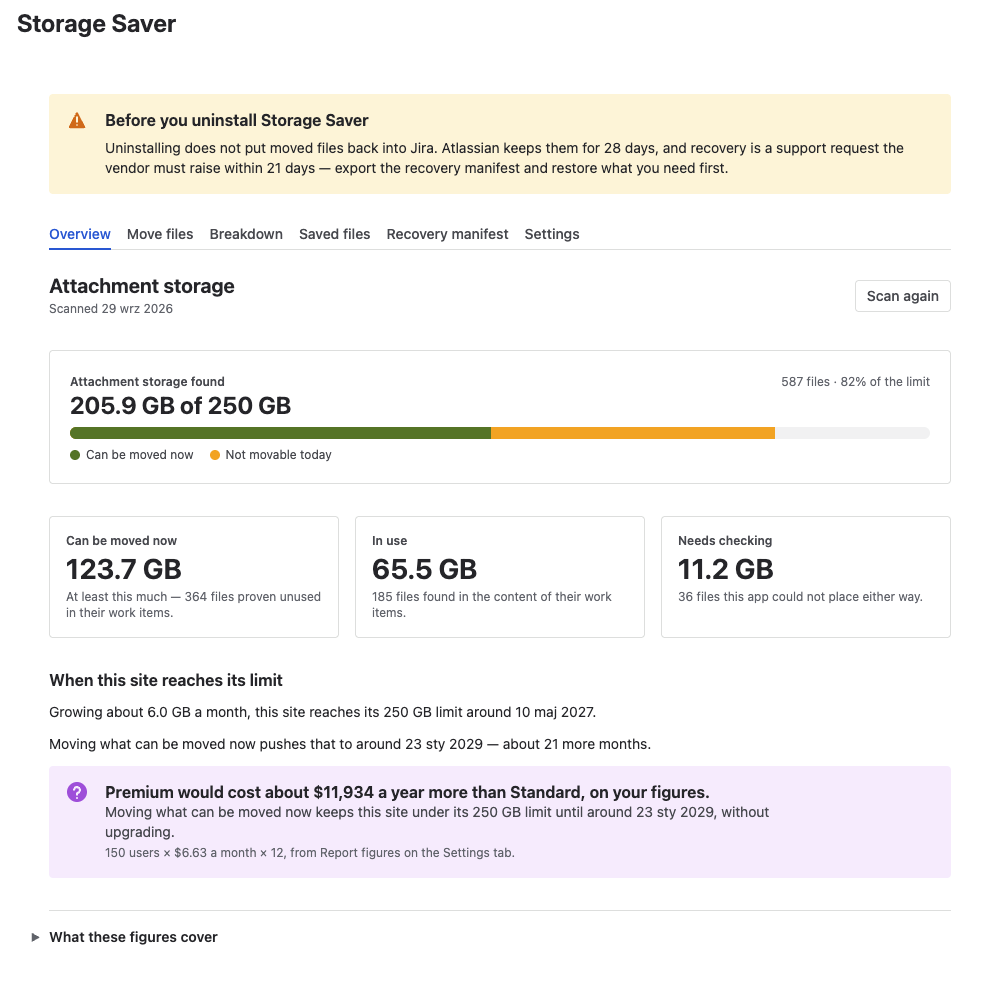
The Overview tab: what the attachments take, what can be moved now, and when the site reaches its limit
Move files
Pick what to move: a whole project on the Move files tab, the largest files of one project on its project page, or single files on a work item. Confirm, and Storage Saver moves them. A file leaves Jira only after its copy is verified ( see How a move works).
Check the new numbers
Moved files no longer count toward your Jira storage and stay on their work items. Press Scan again on the * Overview* tab to see the new numbers; Jira's own storage figure catches up later.
Where moved files live
A moved file lives in Storage Saver instead of Jira's attachment list. People still find it on its work item and download or delete it there, as before. Because it is no longer a Jira attachment, it stops counting toward your storage, and tools that read Jira attachments (the REST API, JQL attachment search, exports, backups, automation rules and other apps) work with the attachments that stay in Jira. So move the files people keep for the record, and leave in Jira the ones a rule or an integration still reads.
A move can be undone. Restore puts a file back into Jira as a regular attachment whenever you need it there again. It works one file at a time, from the work item's panel or the project page, so bringing back a whole project's files takes a while. A restored file comes back as a new attachment, so update links that pointed to the old one; Storage Saver keeps the original author and date. Before you uninstall the app, restore the files you want back in Jira and export the recovery manifest (see Data & Security).