Copy File Field to Another Work Item
Copy File Field to another work item copies the files held in one File Field onto a File Field on a different issue, as a step in a Jira Automation rule.
It exists for one shape of work in particular. A service request arrives with a dozen attachments; someone reviews them and moves the three that actually matter into a File Field; the rule that opens the development ticket carries just those three across. Copying the issue's built-in attachments instead would put all twelve back — the automation would undo the very triage it was meant to act on.
In the action's configuration you set four things: the issue and File Field the files are read from, and the issue and File Field they are copied to.
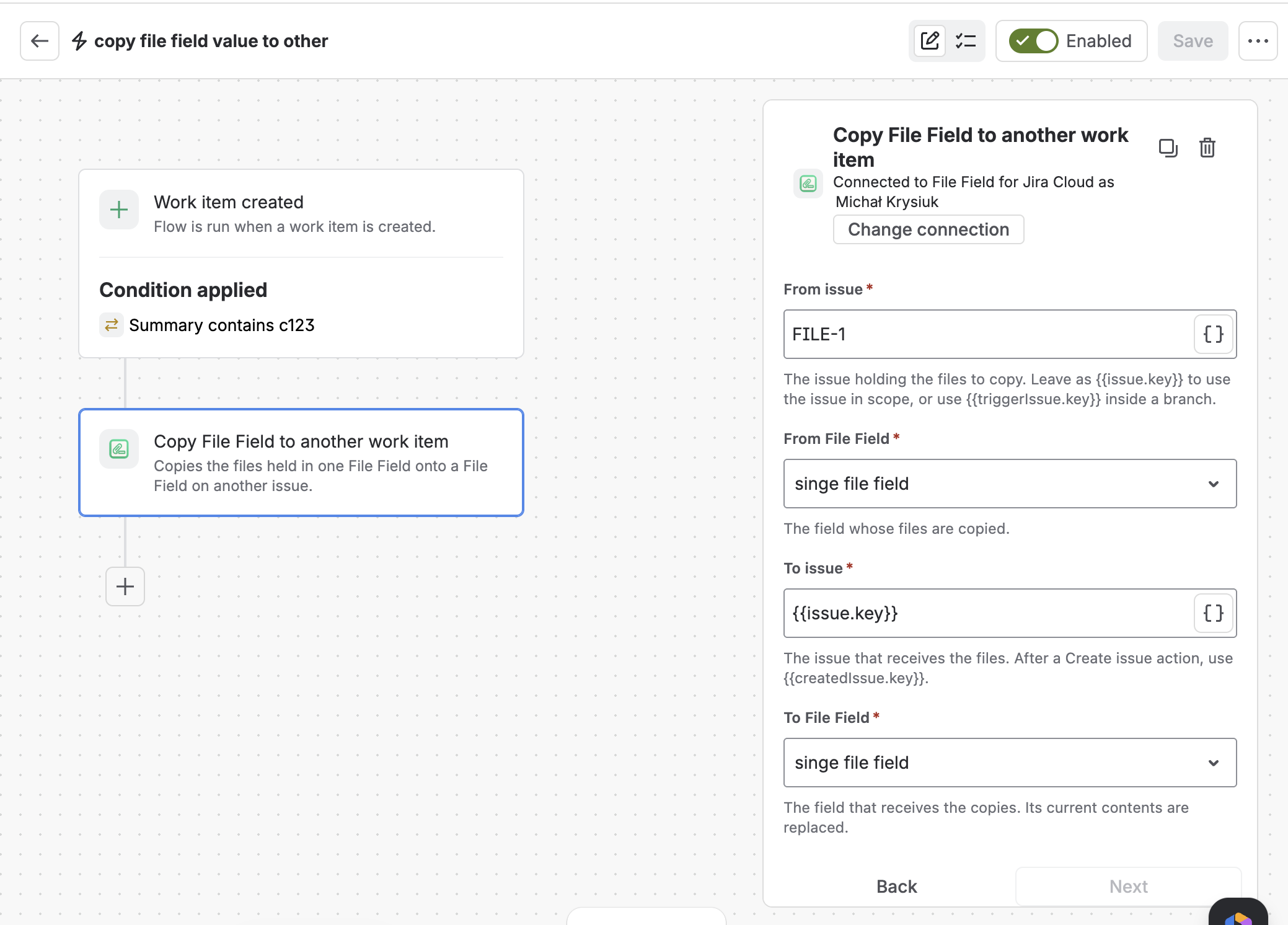
The action in a rule — here every matching new work item is seeded with the files held on FILE-1
What this action does
When the rule runs, the action:
- Reads the files held in the File Field you point it at
- Copies each one onto a File Field on another issue, keeping its name, type, and size
- Replaces whatever the target field held before — the files that were there are removed
- Leaves the source field untouched, so the original issue keeps everything it had
The copied files behave exactly like files someone attached to the field by hand: they show up as file cards with Download and Delete, and they're searchable in JQL right away.
The action copies the field's value — the files someone attached. Reference documents belong to the target field's context, so they already appear on the destination work item if that context covers it — nothing is duplicated.
Add the action to a rule
Open Automation
Go to Project settings → Automation, then create a new rule or open an existing one.
Choose a trigger
Any trigger works. Work item transitioned is a common choice here — the files travel when a request is approved, rather than when it's first raised and the attachments haven't been reviewed yet.
Create the issue that receives the files
If the target issue doesn't exist yet, add a Create work item action first. The copy step can then point at it with
{{createdIssue.key}}. Copying onto an issue that already exists? Skip this step and use its key instead.Add the action
Click Add component → Action, search for
file field, and choose Copy File Field to another work item.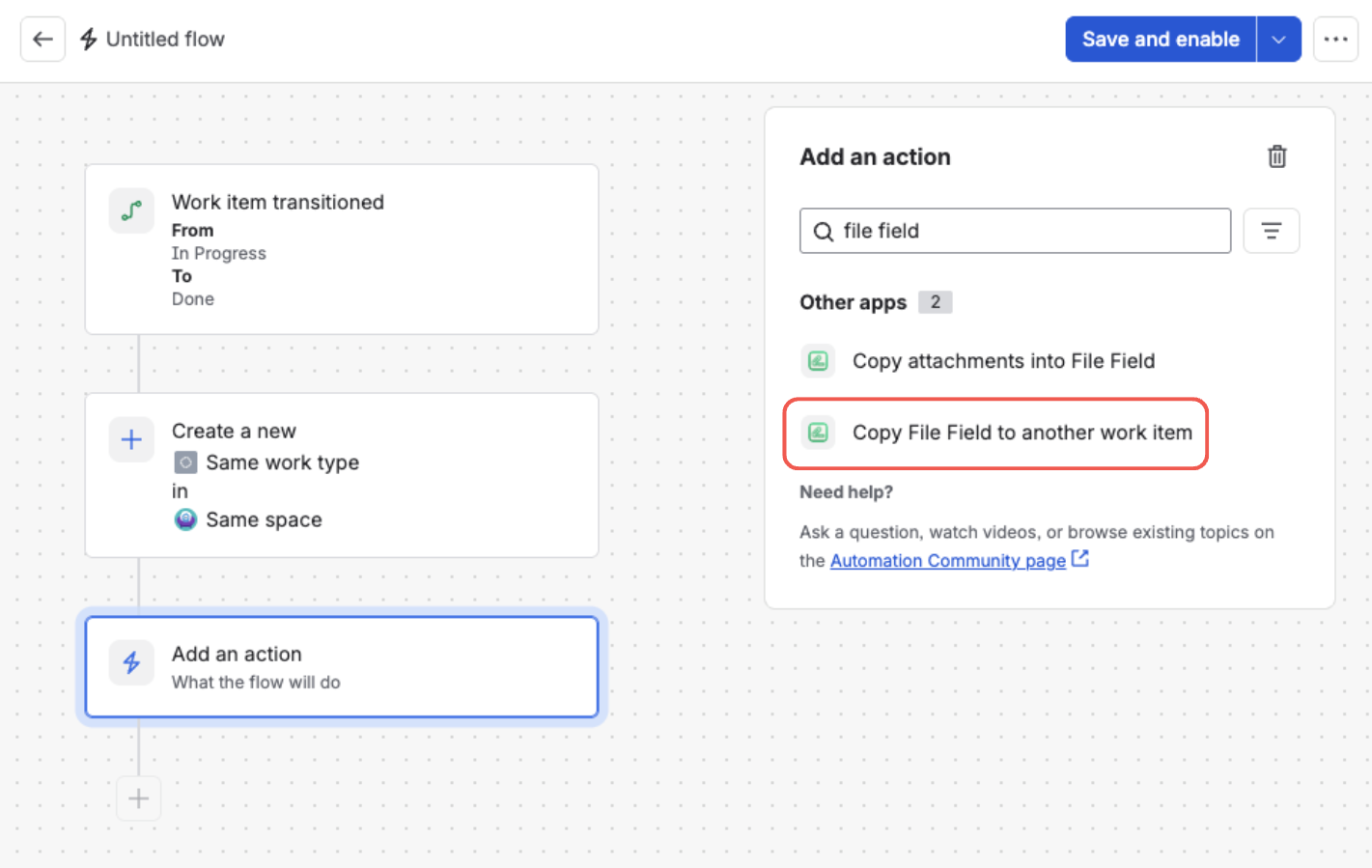
Search for “file field” and pick the action from the list — both File Field actions appear under Other apps
Configure it
Set the four inputs described below, then save the rule and turn it on.
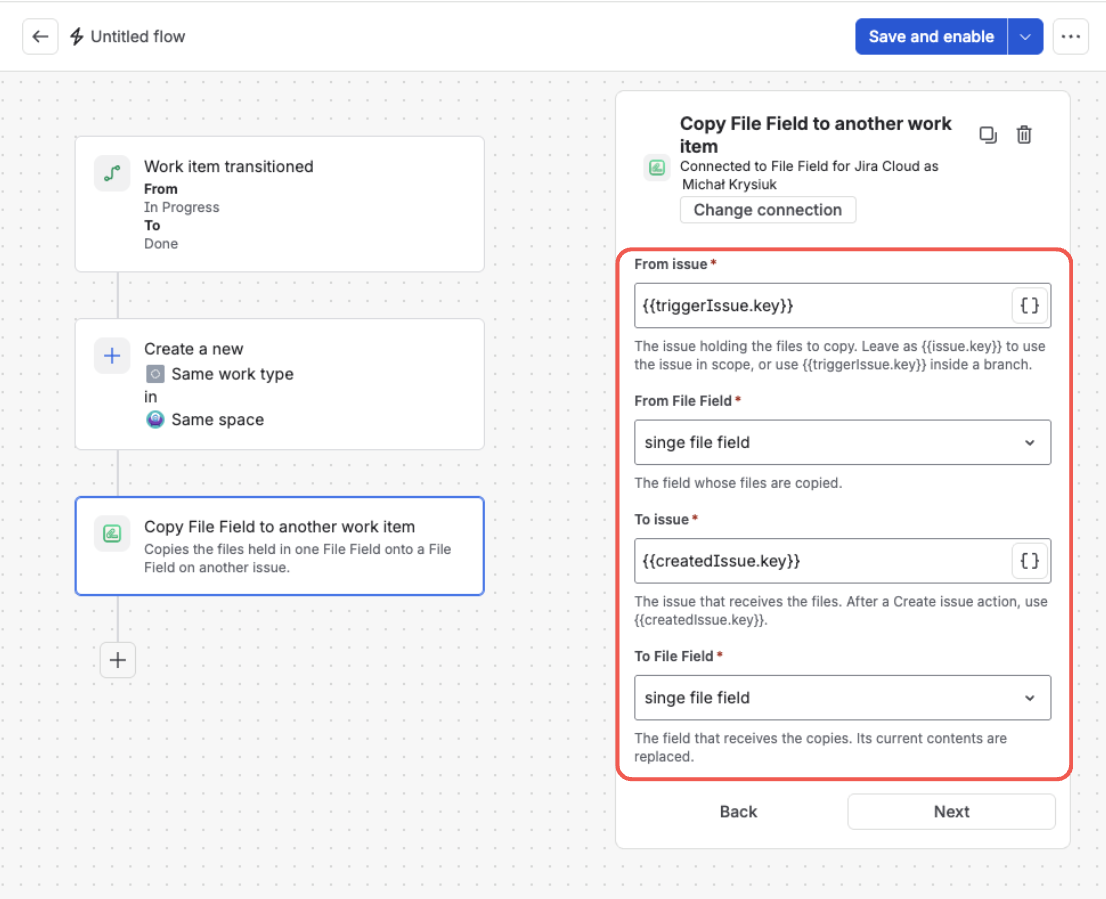
The action's four inputs — the issue and field the files are read from, and the issue and field that receive them
Configure the action
The action has four inputs:
| Input | What it is | Smart values | Default |
|---|---|---|---|
| From issue | The issue holding the files to copy. | Yes | {{issue.key}} |
| From File Field | The field whose files are copied, picked from a list of the File Fields on your site. | No | — |
| To issue | The issue that receives the files. | Yes | — |
| To File Field | The field that receives the copies. Its current contents are replaced. | No | — |
From issue is pre-filled with {{issue.key}} — the issue in scope — which is the right answer for most rules, so you can usually leave it alone. Inside a branch — or after a Create work item action, which moves the rule's scope onto the issue it just made — use {{triggerIssue.key}} to refer back to the issue that started the rule.
To issue is normally {{createdIssue.key}}, the issue produced by a preceding Create work item action. A literal issue key works too, as does any smart value that resolves to one.
The source and target fields are picked separately because they're often not the same field. A File Field's context is set per project and issue type, so the field on a service request in JSM and the field on a development ticket in a software project are frequently two distinct custom fields. Both dropdowns list every File Field on your site by name, so there's no need to hunt down a custom field ID. Make sure the target field's context covers the receiving issue's project and issue type, and that it's on that project's issue view screen — otherwise the copy succeeds but nobody sees the files.
All four inputs are required. The rule can't be saved until each is filled in.
What happens when the rule runs
The action hands the copy off and lets the rule carry on to its next step — it doesn't hold the rule up while files transfer. On a handful of ordinary documents the files appear in the target field within seconds.
Because the rule doesn't wait, the audit log records that the copy was started, not that it finished. To confirm a rule is doing what you expect, look at the field on a real issue after the rule runs — that's the reliable check.
A source field with no files is a normal, successful run, and the target field is left exactly as it was. An empty run never clears files that someone uploaded to the target by hand.
The run is subject to the same per-run limits as the attachments action — 50 files, 100 MB per file, 500 MB in total — checked before anything is copied, so a run that exceeds them leaves both fields untouched. See Copy limits for the full table.
One thing worth checking when you build the rule: it runs as the account named in the action's panel as Connected to File Field for Jira Cloud as …. That account has to be able to see the source issue and edit the target one — read access to the target isn't enough.
What's next?
- Find Issues by Their Files (JQL) — search and report on what the rule copied
- Classify Files with Categories — label documents so one field can hold several kinds
- Attach, Download & Delete Files — what people see on the issue once the files are there