Make the Field Required
Because File Field is a native Jira field, you can make it mandatory the same way you would any other field — through Jira's field configuration.
It helps to keep two settings separate:
- Upload rules (the field's configuration) decide what may be attached — allowed types, file count, and file size. See Set Field Configuration.
- Required (Jira's field configuration) decides whether a file must be present at all. That's what this page covers.
Mark the field as required
- Go to Jira Settings (cog icon, top right) → Work items → Field configurations.
- Open the field configuration used by the relevant projects and issue types.
- Find your File Field in the list and choose Required.
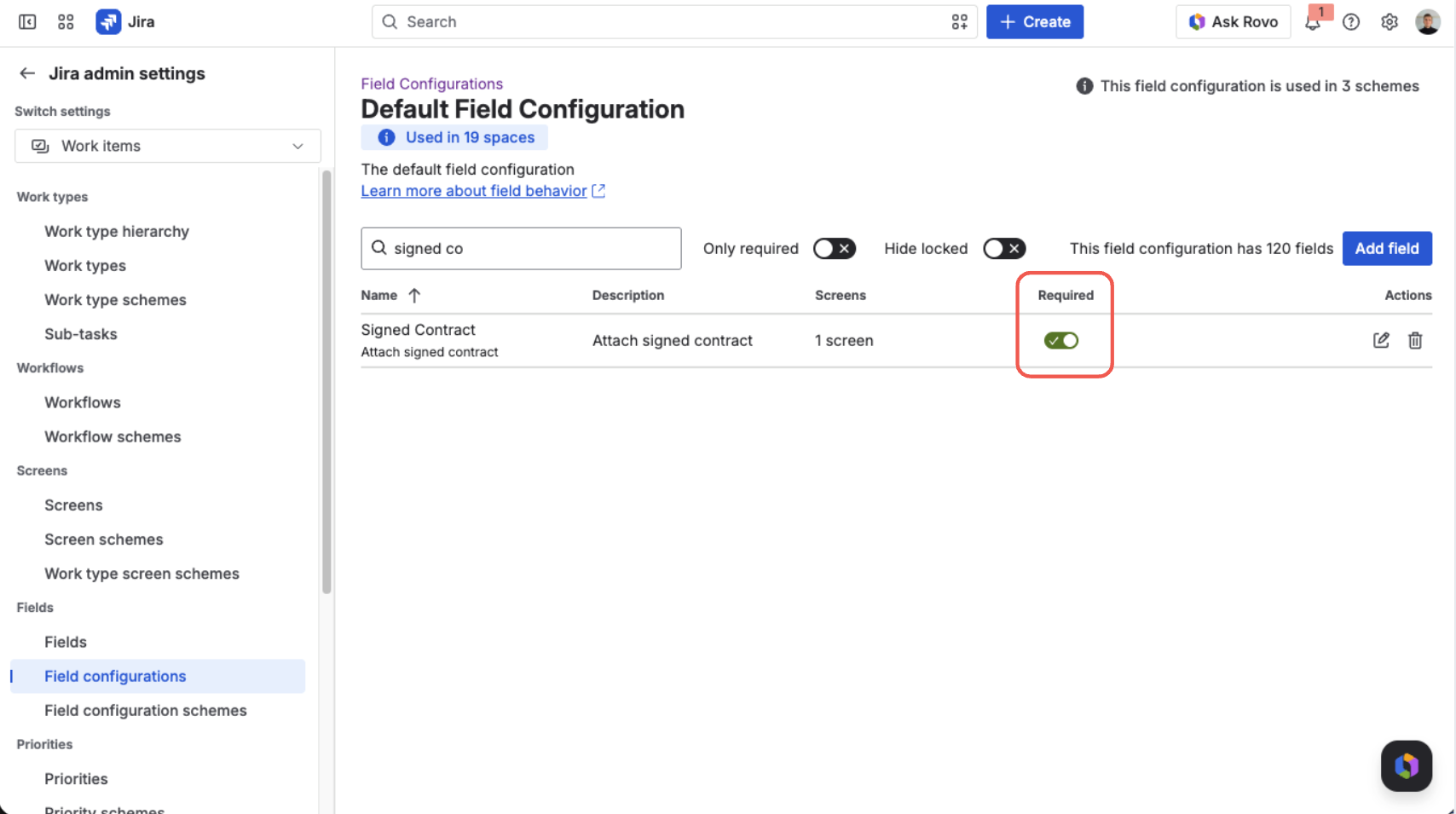
Enable the Required toggle for the field in Jira's field configuration
That's all File Field needs — Jira itself handles the enforcement from here, so there's nothing to configure in the app for this.
What users see
With the field set to required, Jira shows it with a required asterisk on the create screen and enforces that at least one file is attached before the issue can be saved. If someone tries to create, edit, or transition an issue with the field empty, Jira blocks the action and flags the field as required — exactly as it does for any other mandatory field. The check runs wherever the field is filled in: the create-issue form, workflow transition screens, and the Jira Service Management portal.
Removing the last file leaves the field empty. Attaching a file and then deleting it again before submitting doesn't satisfy the requirement — the field is treated exactly as if it had never been touched, and the form is blocked. A reference document does not satisfy the check either. The person filling in the field still has to attach a file of their own. Once a file is attached, the issue saves normally.
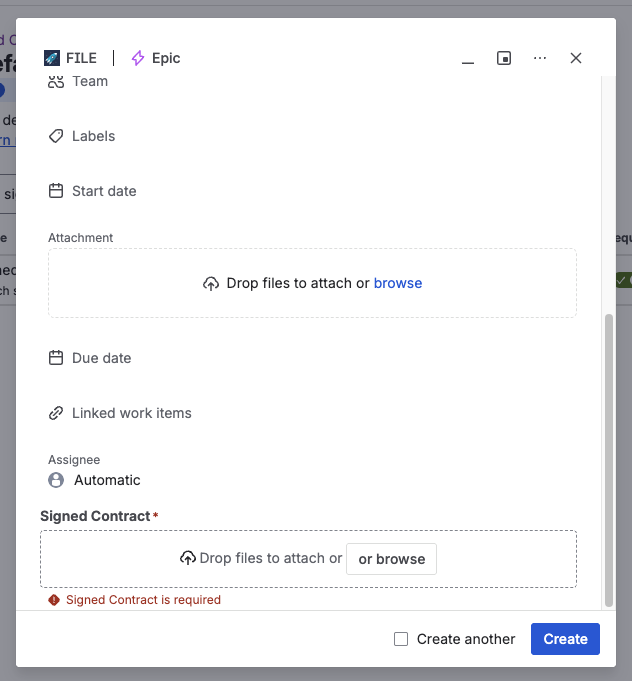
Jira flags the field and blocks saving until at least one file is attached
Require a complete set on a transition
The required setting asks whether anything is in the field. It cannot ask for three files, and it cannot ask for a contract and an invoice. When you need that, add the File Field has the required files workflow validator to a transition — usually the move into Done.
| Required field | Workflow validator | |
|---|---|---|
| Asks | Is anything in the field? | Does the field hold enough files, of the right kinds? |
| When | Whenever a screen holding the field is submitted | Only on the transition it is added to |
| Configured in | Field configuration | Workflow editor, per transition |
| Can demand a count | No | Yes |
| Can demand categories | No | Yes |
Most setups want both: the required setting so nobody creates a work item with no evidence at all, and a workflow rule so nobody closes one without the complete set.
What's next?
- Require Files on a Transition — demand a number of files, and a file per category, before a work item moves on
- Set Field Configuration — control which files are accepted into the field
- Attach, Download & Delete Files — the everyday end-user experience