Attach, Download & Delete Files
This page is for everyone who works on issues. It covers the three everyday actions on a File Field: attaching files, downloading them, and deleting them.
Attach files
- Open an issue that has a File Field, or start creating a new one.
- In the field, select one or more files from your computer.
- The files are checked against the field's upload rules. If they pass, they're uploaded right away.
There's no separate Save button — the field saves automatically once an upload succeeds. Each file then appears as a card showing its name, type, and size, with Download and Delete actions. The most recently added files are listed first.
If your administrator has turned on categories for the field, you're asked to choose a category before the files upload — pick one, or leave it as none.
If the field shows a separate section of files above the one you're adding to, those are reference documents — material an administrator published for everyone. You can read them, but they aren't yours to change and they don't count as your attachment.
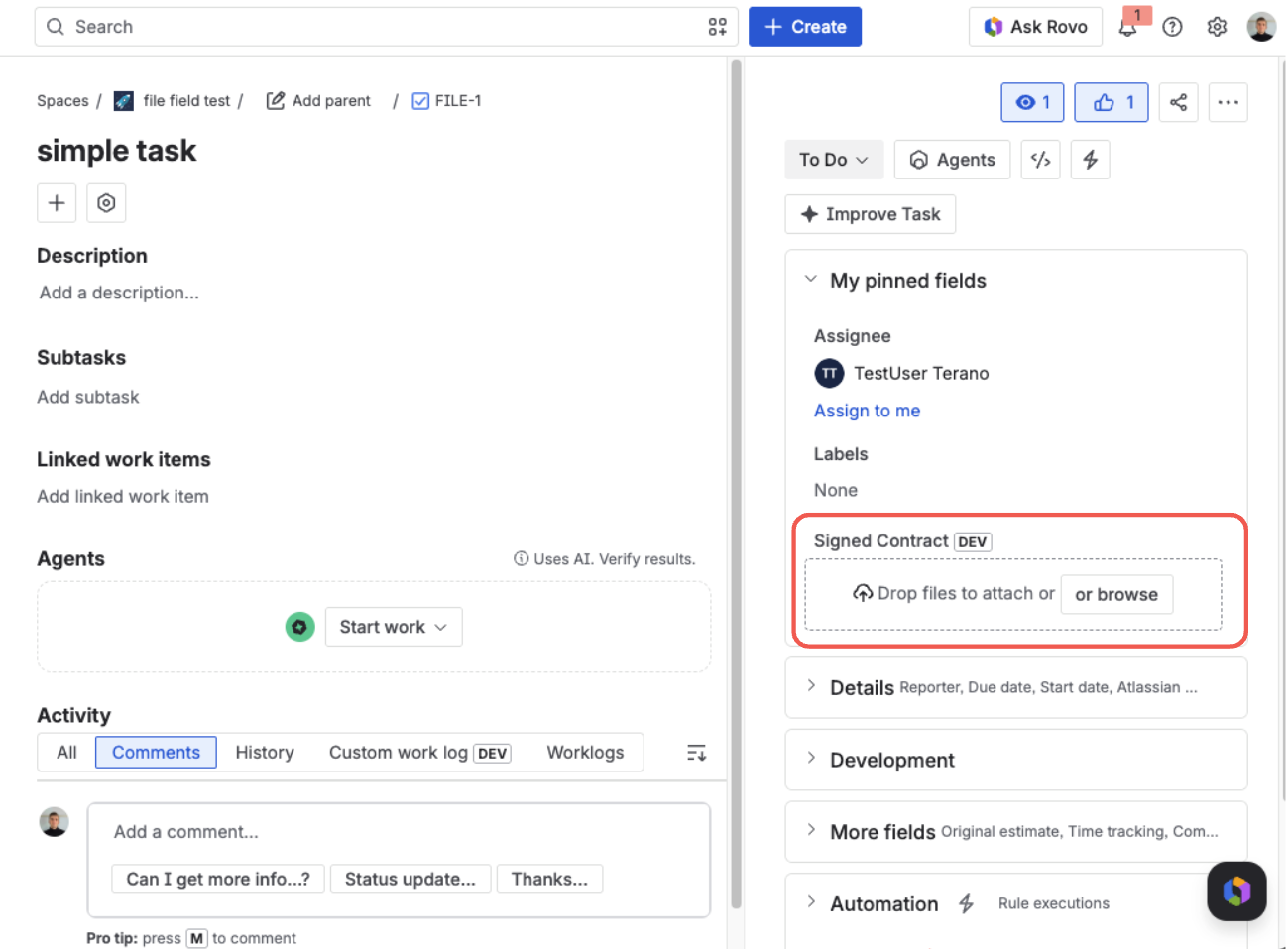
The field shows a drop zone — drag files onto it or click Browse to select them
Download a file
On the file's card, click Download. The file opens or saves through your browser as usual. You can download a file as long as you have permission to view the issue it belongs to.
If you only want to check what's inside, you don't have to download it at all — including a file you've just attached on a create or transition screen, before the form is saved. See Preview Files Without Downloading.
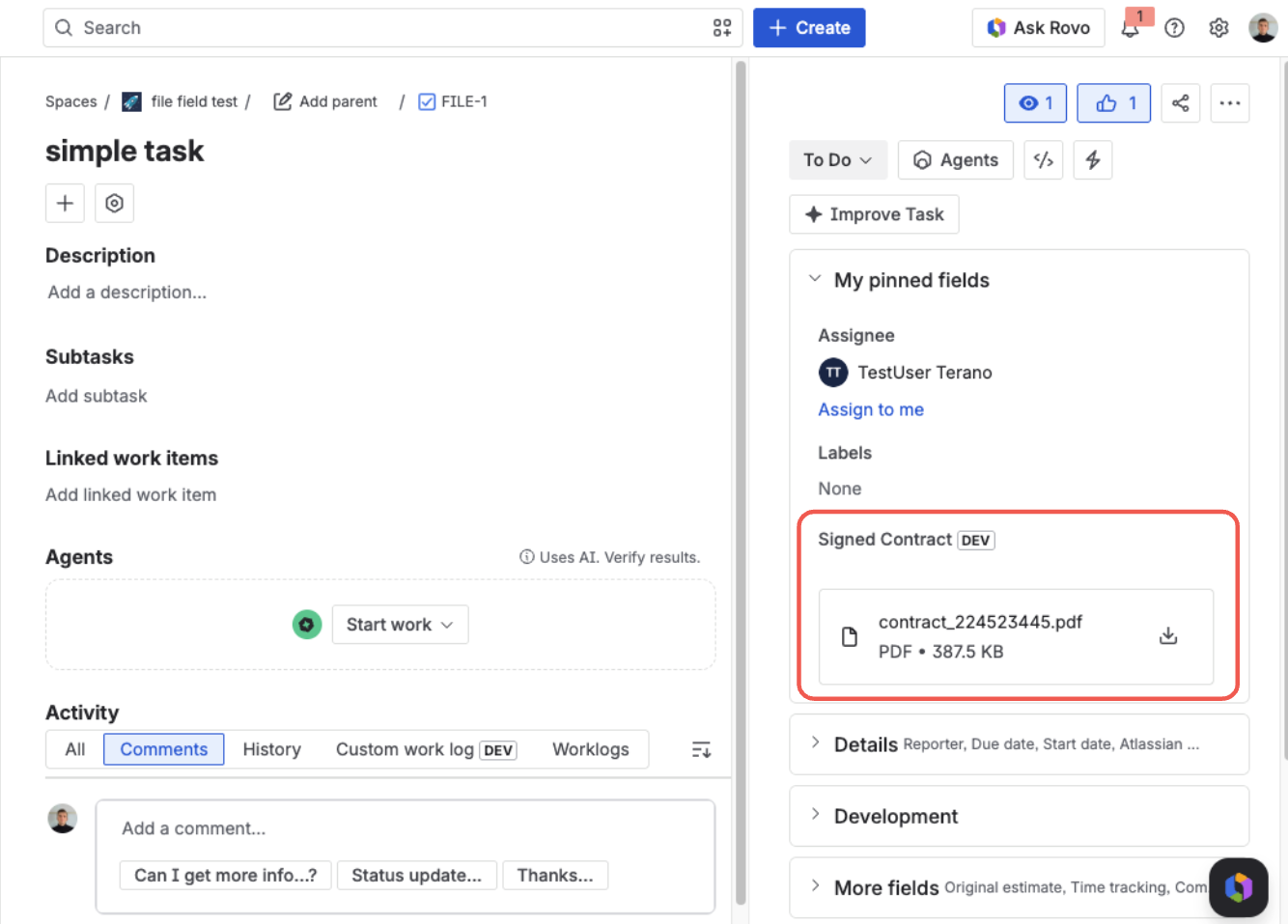
Each attached file shows its name, type, and size, with a download action on the right
Delete a file
On the file's card, click Delete. The file is removed from the field and the change is saved automatically — there's no separate Save step. Deleting a file requires permission to edit the issue.
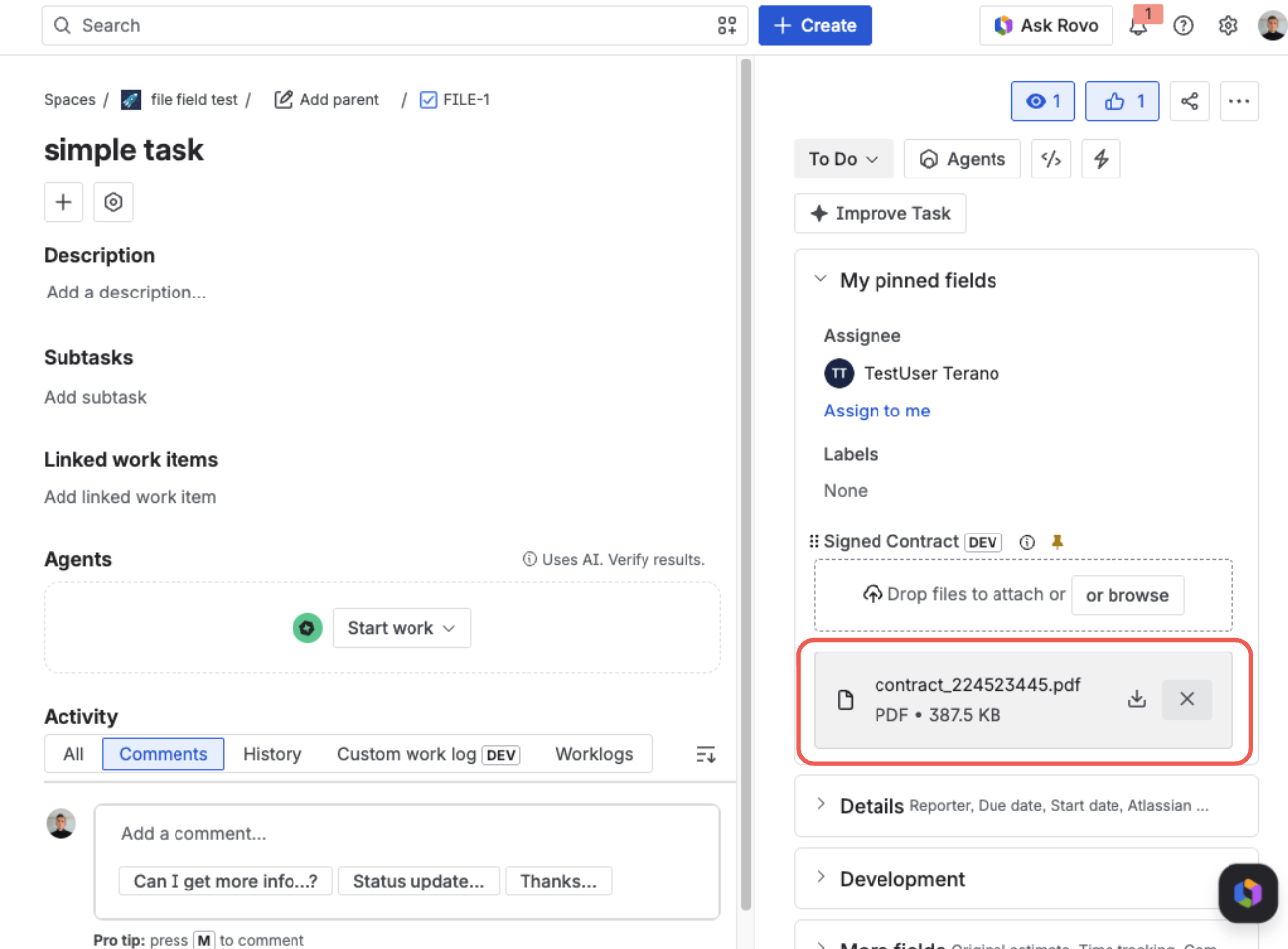
Each file shows its name, type, and size, with download and delete actions on the right
If a file is rejected
Files are validated before they're uploaded, so a file that breaks the rules is never stored. If something is wrong, File Field rejects the whole selection and shows you everything that needs fixing at once, such as:
- Wrong file type — the type isn't on the field's allowed list.
- Too large — the file is bigger than the field's maximum file size (or above the platform's ~1 GB ceiling).
- Too many files — the new files plus those already attached would exceed the maximum count.
- Empty file — the file is 0 bytes.
Fix the items listed — remove the oversized file, swap in an allowed type, or attach fewer files — and try again. Nothing is uploaded until the full selection passes.
The field only accepts files once its rules have finished loading, so give it a moment after the issue opens before attaching.
What's next?
- Preview Files Without Downloading — open an image, PDF, table, or text file in place
- Classify Files with Categories — label files so one field can hold different document types
- Use on the JSM Portal — attaching files as a customer on the service portal
- FAQ — limits, permissions, and common questions
- Read Reference Documents — templates and procedures an administrator published on the field