Find Issues by Their Files (JQL)
File Field is fully searchable in Advanced search (JQL). You can filter issues by whether anything is attached, how many files there are, what type they are, their file name, and their category — and each of these works like a built-in Jira field: it shows up in the JQL editor's suggestions, in saved filters and boards, and in automation conditions.
These searches cover the files people attach to the field. Reference documents are part of the field's configuration rather than its value, so they never appear in a JQL result.
What you can search
The field itself answers is anything attached at all?, and four search dimensions answer practical questions about the files that are attached:
| Search on | Answers | Type | Operators |
|---|---|---|---|
| the field itself | Is anything attached at all? | — | is EMPTY is not EMPTY |
FileCount | How many files are attached? | number | = != > >= < <= |
FileType | Is there a PDF / image / spreadsheet? | list | = != in not in |
FileName | Is there a file named like this? | text | ~ !~ |
Categories | Is there a file labeled Contract / Invoice? | list | = != in not in |
is EMPTY is the reliable way to find issues that are missing a required document: it matches whether the field was never filled in or its files were removed. FileType and Categories are lists, so a single issue can match several values at once (an issue with a PDF and an image matches both).
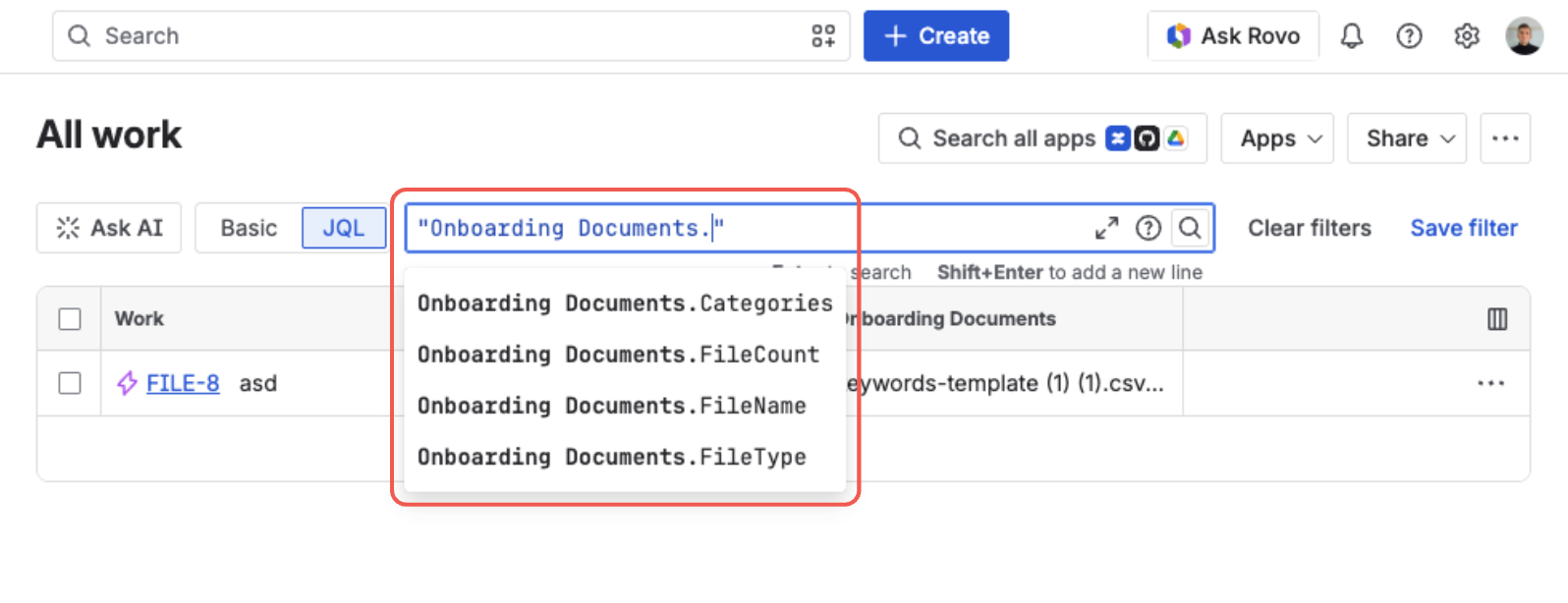
The JQL editor suggests the field's four search dimensions as you type
How a query looks
Every query follows the same pattern:
"Field name.Dimension" operator value
The examples below use the default name File Field. If your administrator named the field something else, use that name instead, for example "Signed Contract.FileCount" > 0.
The quotes go around the whole expression — field name, dot, and dimension together: "File Field.FileCount". Jira reads the field name and the dimension as one name, so quoting only the field name, as in "File Field".FileCount, doesn't work.
is EMPTY and is not EMPTY are the exception: they ask about the field as a whole, so they take no dot and no dimension — "File Field" is EMPTY.
For example, this query lists issues in a project that have fewer than three files attached:
project = FILE AND "File Field.FileCount" < 3
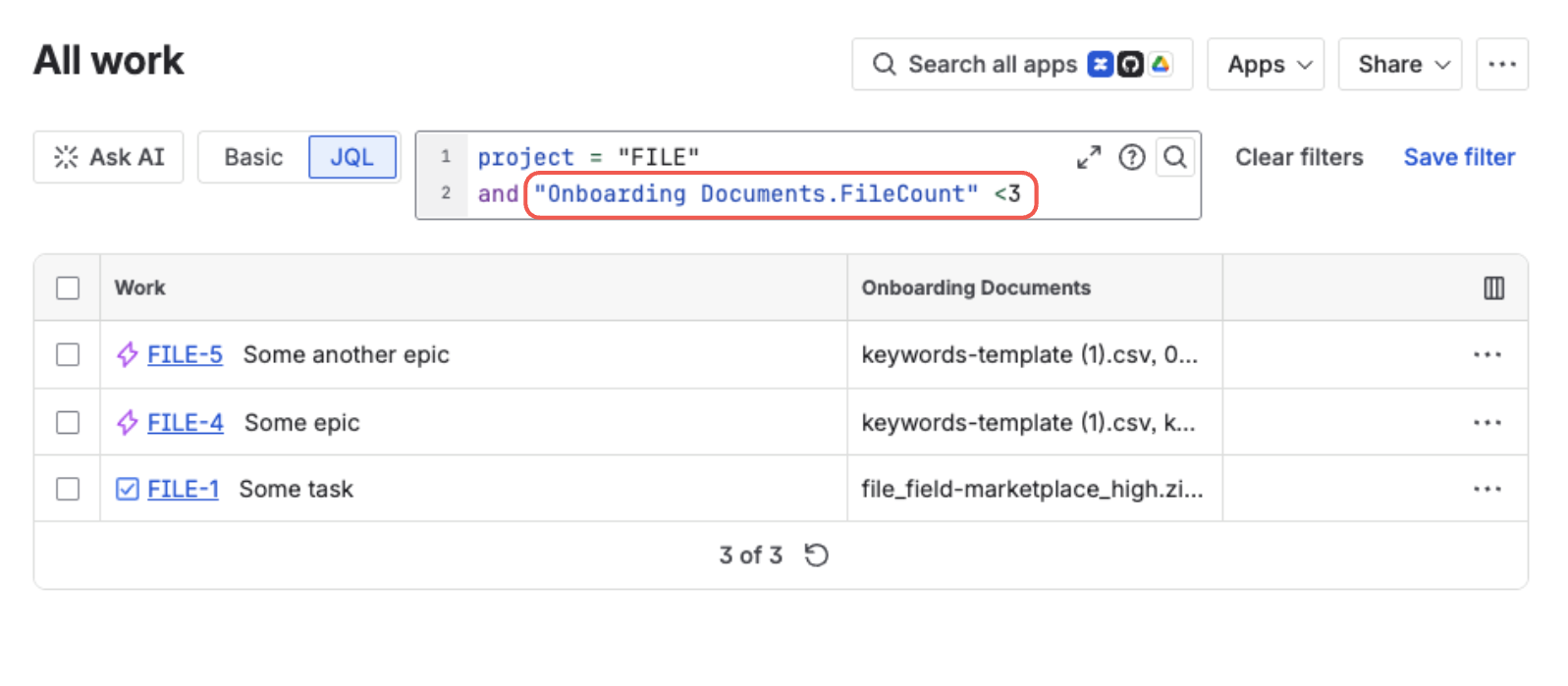
A query and its results — the matching issues, with the field's files shown as a column
Common searches
Missing or complete evidence
Use is EMPTY to find issues that are missing a required document — for example, every open issue in a project with no file attached, a ready-made "missing evidence" audit:
project = COMP AND statusCategory != Done AND "File Field" is EMPTY
Its opposite, "File Field" is not EMPTY, lists the issues that do carry at least one file. This query is an audit after the fact — to stop the same gap from being created in the first place, add the workflow validator to the transition into Done, and the work item cannot get there without its files.
Until that release, removing the last file from a field left behind an empty-but-present value. Those issues aren't matched by is EMPTY — they answer FileCount = 0 instead. Since a current version never saves that value again, "File Field.FileCount" = 0 is now exactly the query for "issues still carrying the old value":
"File Field.FileCount" = 0
To clear one, open the field for editing on the issue and save it. To cover both states in one filter while you work through the backlog:
"File Field" is EMPTY OR "File Field.FileCount" = 0
By file type
FileType groups files into broad families, so you write PDF instead of application/pdf, and every image lands under a single Image value:
"File Field.FileType" = "PDF"
The available families are:
| Value | Covers |
|---|---|
PDF | .pdf files |
Image | .png, .jpg, .jpeg, .gif, .webp and other images |
Word | Word documents — .docx, .doc |
Spreadsheet | Excel spreadsheets — .xlsx, .xls |
CSV | .csv files |
Text | plain text .txt files |
Archive | .zip archives |
Other | anything not recognized above |
By file name
FileName matches on the words in a file's name:
"File Field.FileName" ~ "invoice"
By category
If the field uses categories, search by the category name:
"File Field.Categories" = "Contract"
Use in filters, boards, and automation
Anything you can search, you can reuse:
- Saved filters and boards — save any of these queries as a filter to power a board, a dashboard gadget, or a column in a list view.
- Jira automation — the same expressions work as JQL conditions in automation rules. A common one: when an issue moves to Done and the field
is EMPTY, block the transition or add a comment about the missing document. File Field also provides its own automation actions, so a rule can fill the field as well as check it — see Use File Field in Jira Automation.
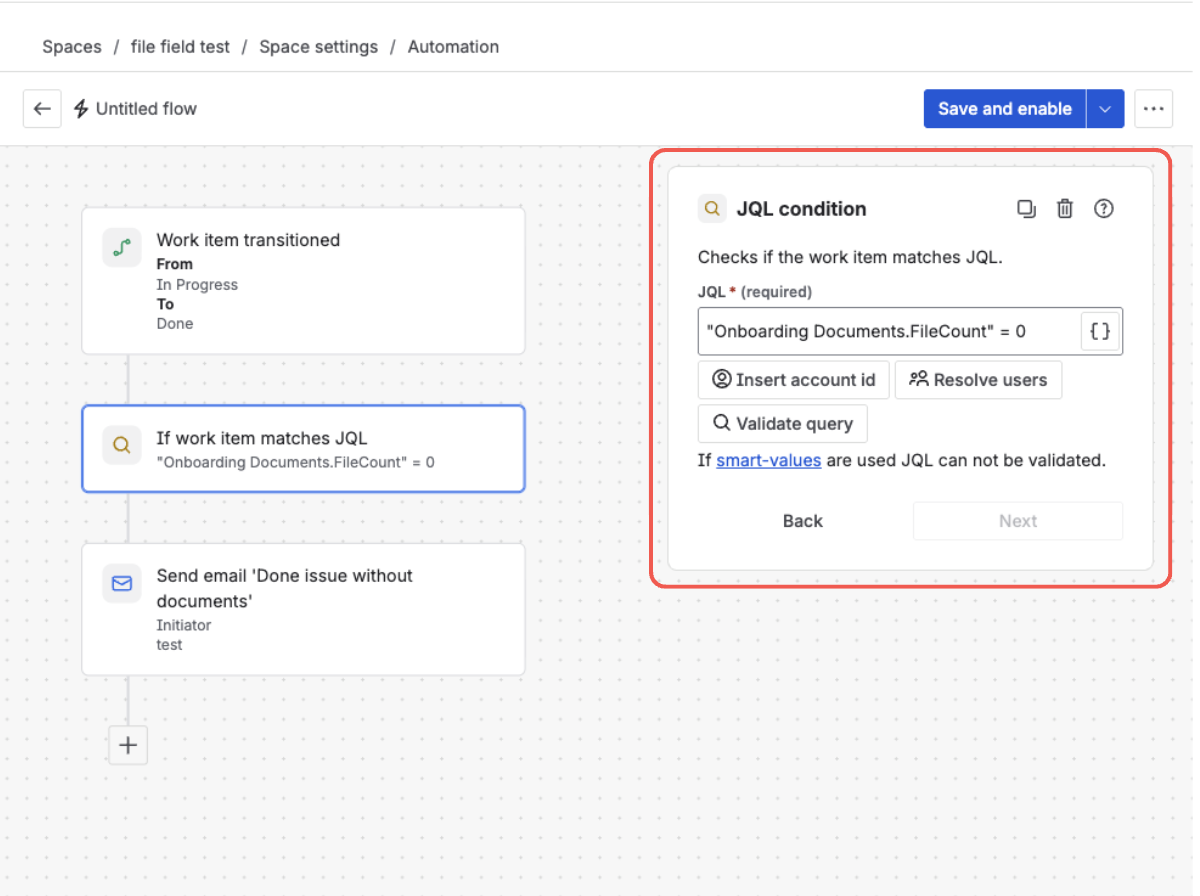
A File Field JQL condition in an automation rule — catching issues moved to Done with no file attached
Good to know
- File-name search matches whole words.
FileName ~ "report"matches a file calledreport.pdf, but won't findreportinside a longer word. Search for complete words from the file name. - Older issues index after the field is saved again. Issues whose File Field hasn't been touched since these searches were turned on start matching
FileCountandFileTypequeries once the field is edited and saved again. - Ask for "nothing attached" with
is EMPTY, notFileCount = 0. A field with no files holds no value at all, so it has noFileCountto compare against —FileCount = 0matches only issues emptied before 20 August 2026, which still carry the old value.
What's next?
- Classify Files with Categories — label files so you can filter by document type
- Attach, Download & Delete Files — the everyday end-user experience
- FAQ — limits, permissions, and common questions