Browse Deleted Issues
The Deleted Issues panel is the main operational screen of the app. It shows every captured deletion in tracked projects and gives you the tools to find, evaluate, and act on them.
Accessing the panel
The Deleted Issues panel is accessible from the project sidebar — look for the Restorify link in the project navigation. The panel is scoped to the current project by default.
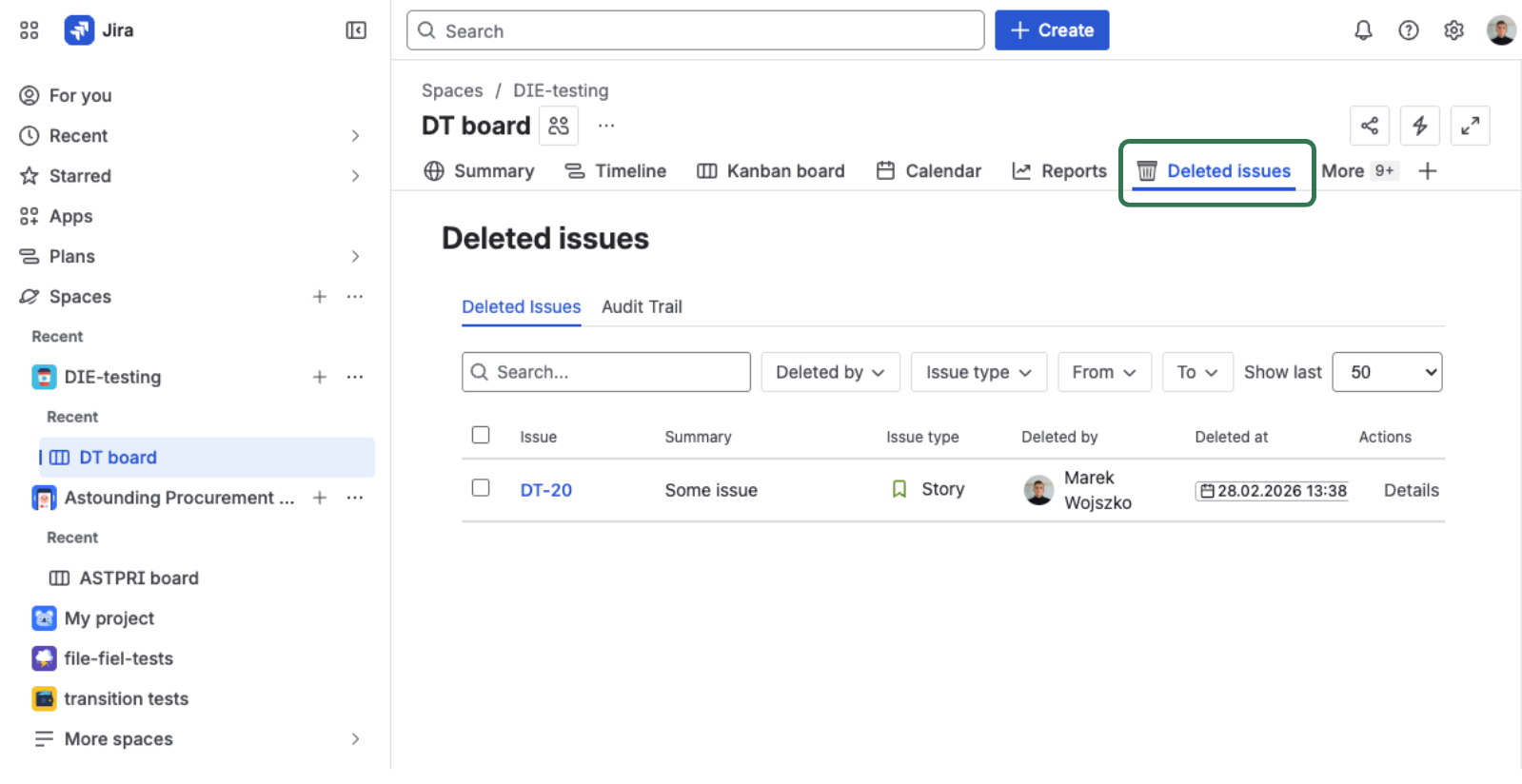
The deleted issues list
The list shows all captured deletions in the current project — sorted from newest to oldest.
Each row displays:
- Issue key and summary
- Issue type
- Who deleted the issue
- When the deletion occurred
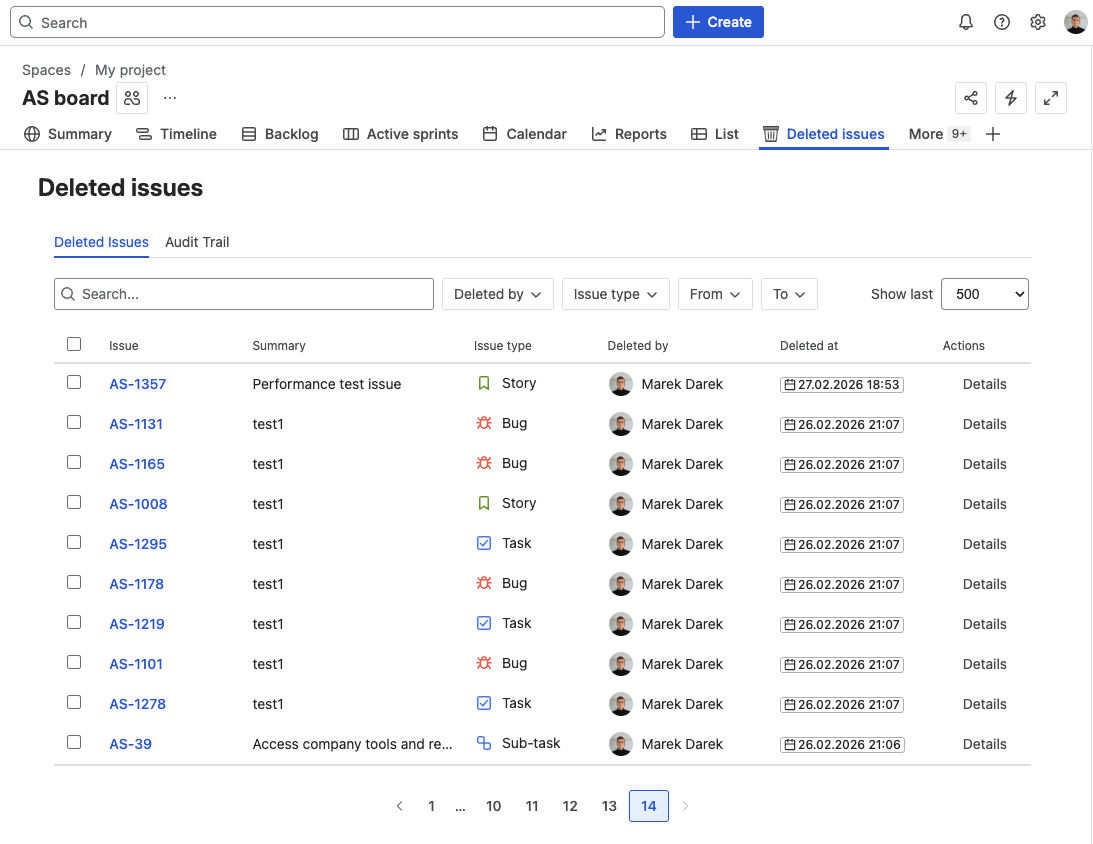
This view answers the first operational question: what disappeared, who deleted it, and when? From here you can decide whether to restore, investigate further, or permanently delete the record.
Filtering and searching
Use the filter bar above the list to narrow results. You can combine any number of filters simultaneously.
- Deleted by — filter to a specific user who deleted issues
- Issue type — narrow to a specific type (Bug, Story, Task, Epic…)
- Date range — show only deletions within a time window
- Keyword — search by issue key, summary, or issue ID
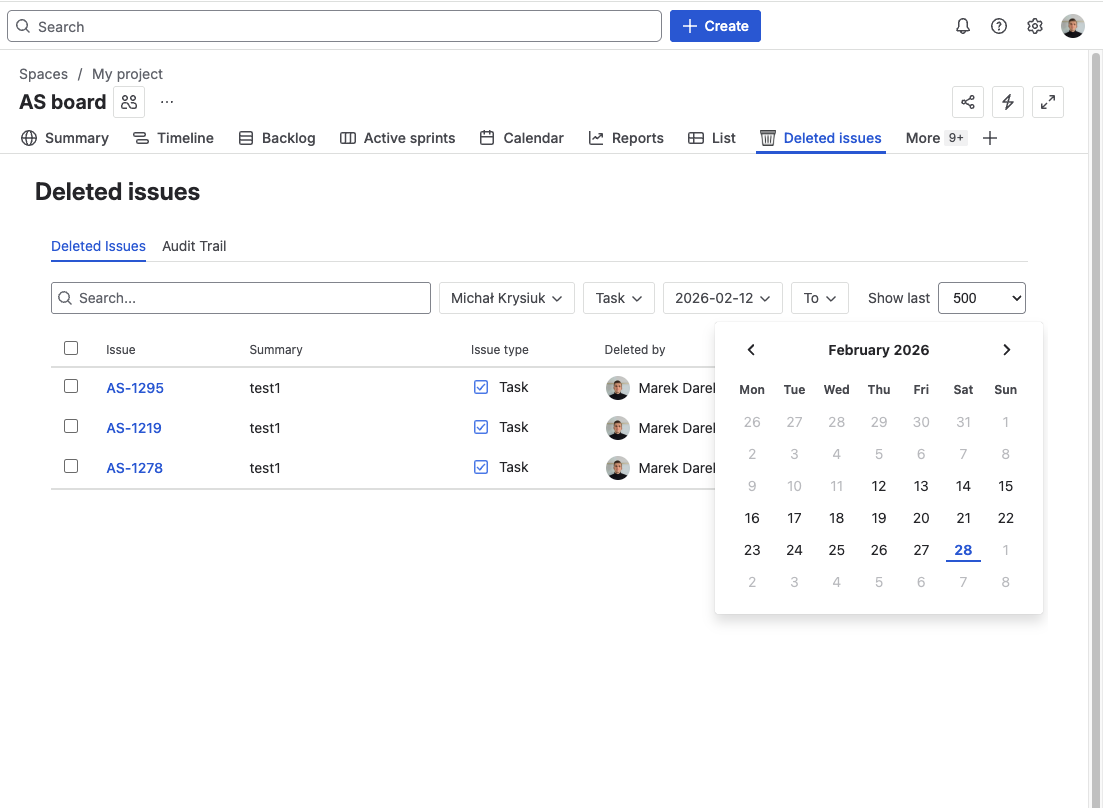
Investigative use cases:
- Did one person mass-delete something? → Filter by Deleted by
- Were any Bugs deleted this sprint? → Combine Issue type: Bug + Date range
- Looking for a specific issue? → Use Keyword with the issue key or part of the summary
- Post-incident analysis? → Set a narrow Date range around the incident window
Selecting multiple records
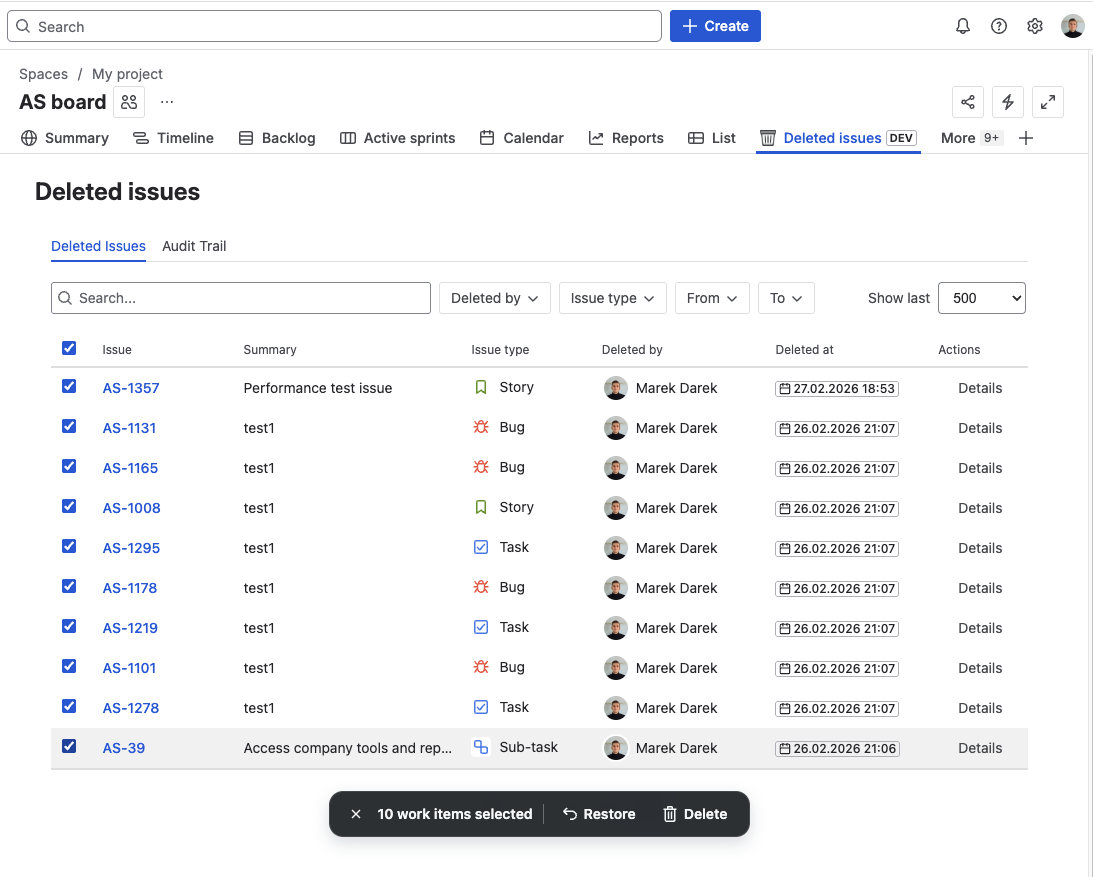
Check the checkboxes on the left of each row to select multiple records. Once selected, a bulk action toolbar appears with options to:
- Restore selected — restore all selected issues with the same options
- Delete permanently — remove all selected snapshots from the app
Opening the detail view
Click any row to open the full detail view for that record. The detail view shows the complete snapshot of the deleted issue — everything captured at the time of deletion.
Deletion Details and Issue Fields
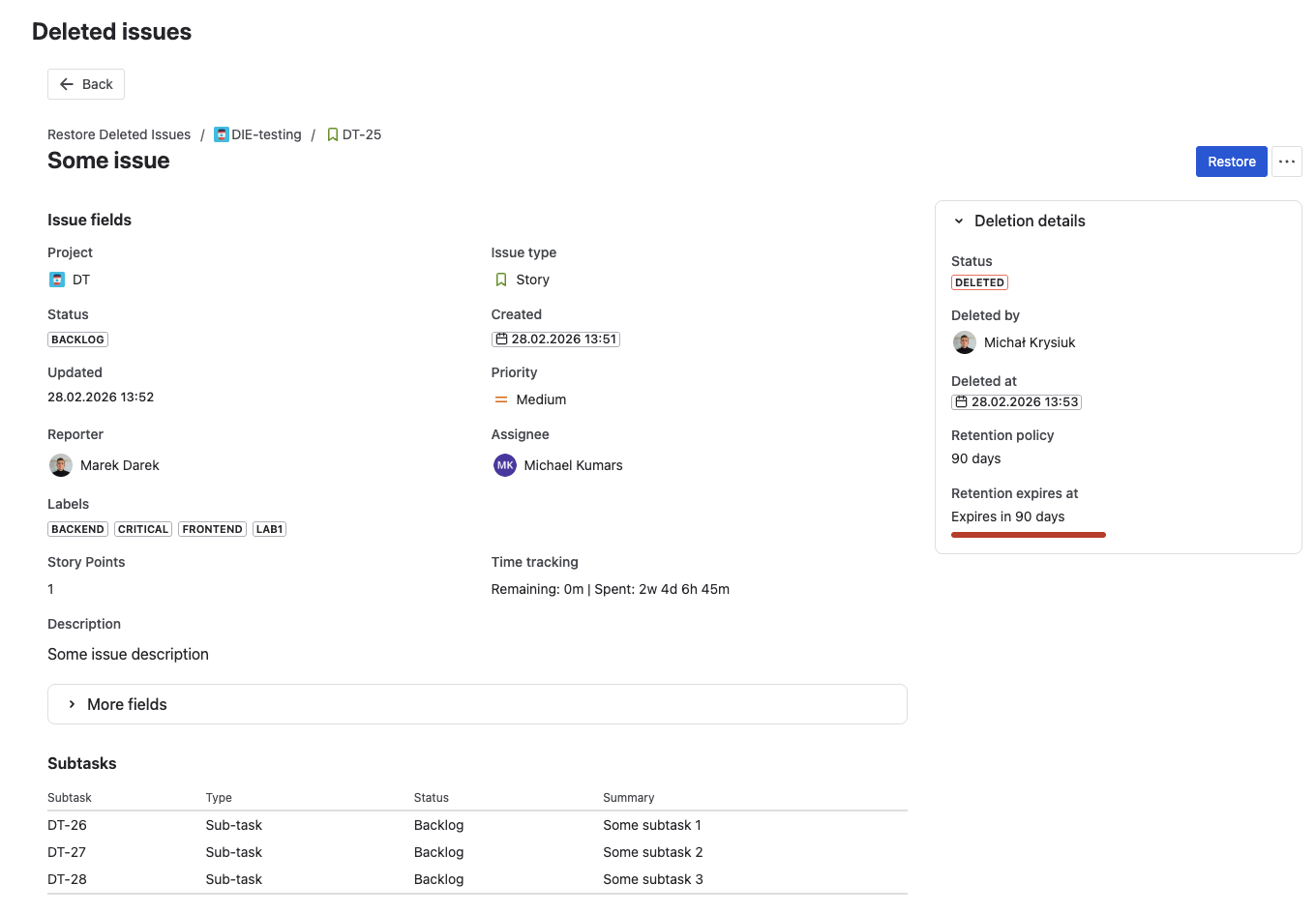
The Deletion Details section at the top shows the context of the deletion:
- Deleted by: the user who deleted the issue (with avatar)
- Deleted at: exact timestamp
- Retention expires: date when this record will be automatically removed (countdown)
This answers two questions at once: who is responsible for the deletion, and how urgent is the decision to restore or discard.
Below it, Issue Fields shows all standard and custom fields captured in the snapshot — the full description, assignee, priority, labels, and all custom field values. Fields that were empty at deletion are hidden by default. A More fields section at the bottom surfaces any remaining captured fields that don't have a dedicated display row.
Subtasks and Issue Links
Available only for Extended profile records.
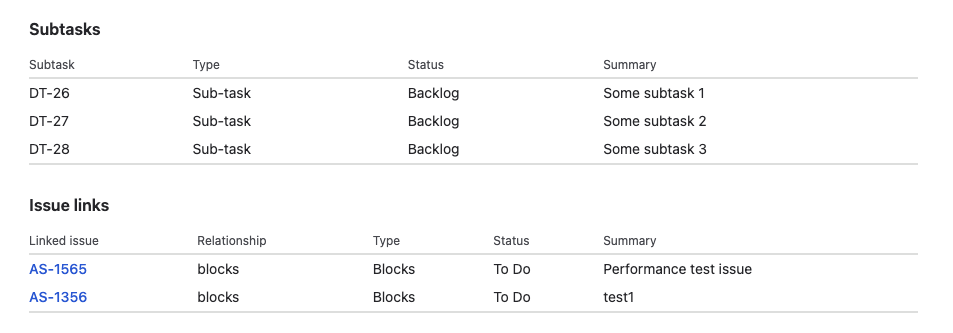
Subtasks lists each subtask of the deleted issue with its key, summary, and status at the time of deletion.
Issue Links shows all relationships to other issues — "blocks", "is blocked by", "relates to", "duplicates", etc. — with link direction and the linked issue key.
Issue Activity — Comments and Worklogs
Available only for Extended profile records.
- Comments: full comment text, author name, and timestamp for each comment
- Worklogs: time spent, author, worklog date, and any worklog comment
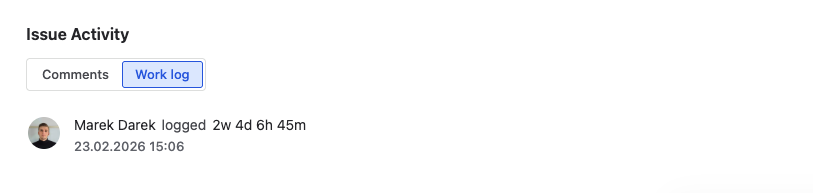
In many teams, the most valuable part of an issue isn't the fields — it's the discussion and time records. This section shows whether the backup preserves that value.
Deleted Issue History
At the bottom of the detail view, two history sections track what has been done with this record:
Restore history — every previous restore attempt, including:
- When it was attempted and by whom
- Whether it succeeded, partially succeeded, or failed
- The new issue key created (if successful)
- Details of what was and wasn't restored
Export history — every time this record was exported, including when, by whom, and in which format (JSON or CSV).

This history prevents accidental duplicate restores and gives full visibility into who has interacted with the record.
Actions available from the detail view
From the detail view header, you can:
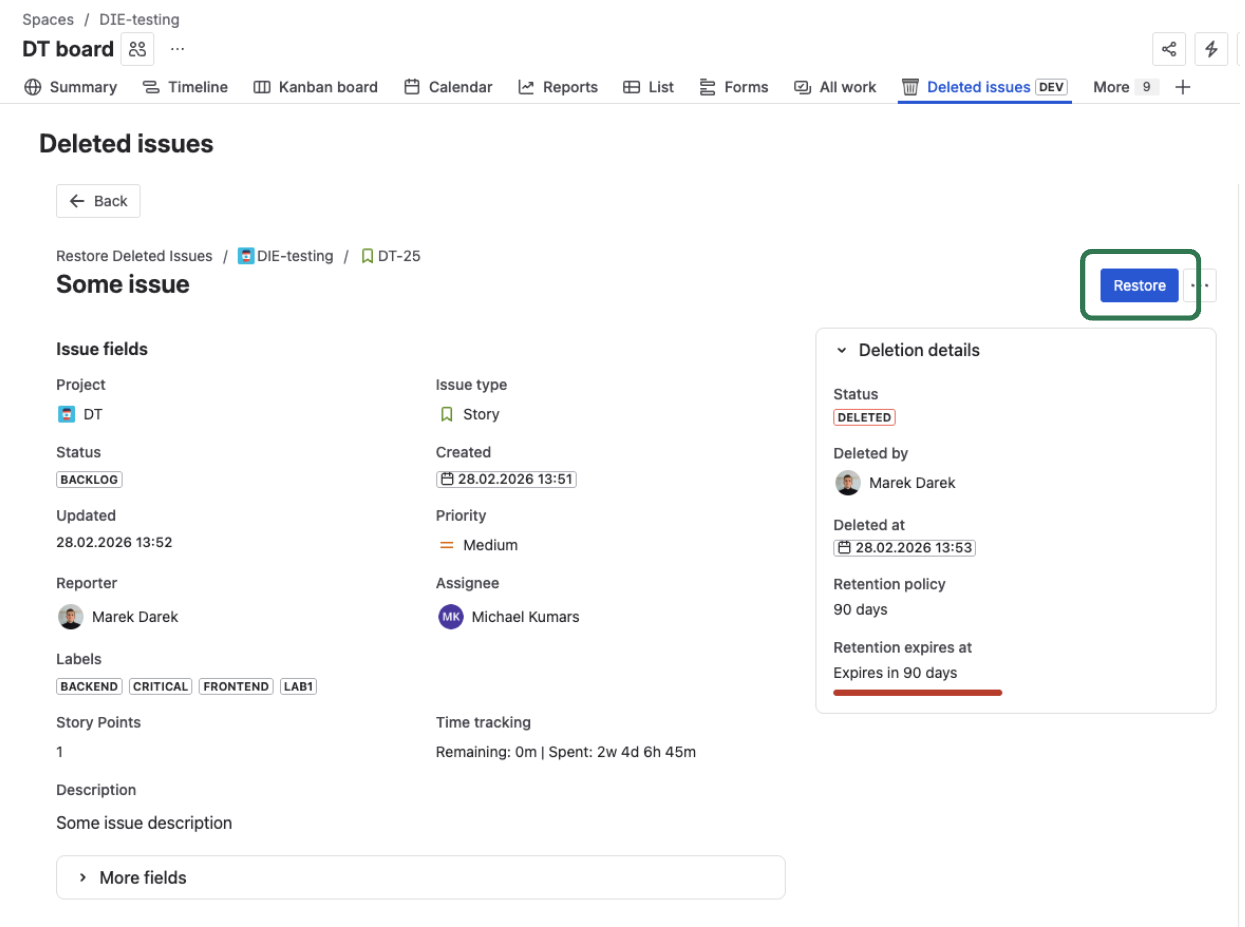
- Restore — open the restore modal for this issue (Restore an Issue)
- Export — download the snapshot as JSON or CSV (Export)
- Delete permanently — remove the record from the app (see below)
Permanently deleting a record
Delete permanently removes a snapshot from the app before its retention period expires. Use this when:
- The issue was deleted intentionally and no recovery is needed
- The snapshot has already been restored and the record is no longer useful
- You want to clean up records to reduce clutter in the list
A confirmation dialog shows the consequences before any action is taken.
Permanently deleting a record is irreversible. The snapshot cannot be recovered after deletion. This action is logged in the Audit Trail.
The panel shows nothing — what's wrong?
If the panel is empty or shows a banner instead of a list, the most likely cause is that the project has not been added to tracking yet.
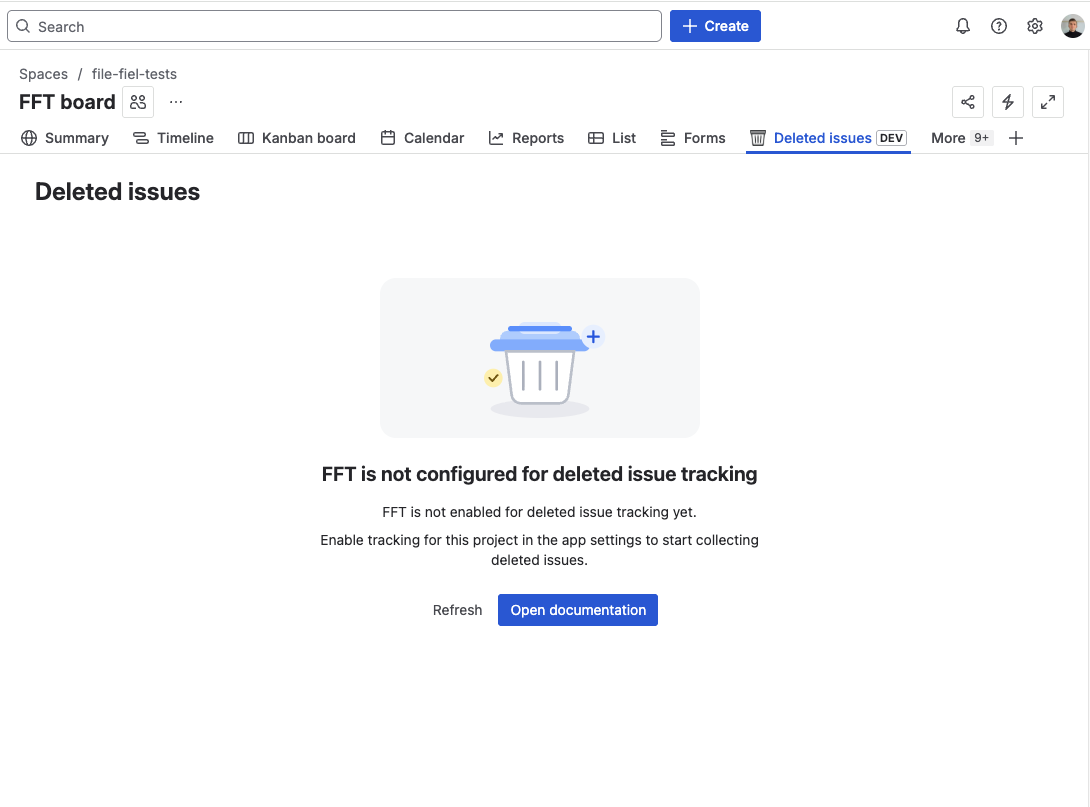
Go to App Settings → Tracking and add the project. Once added, new deletions will be captured — but deletions that happened before tracking was enabled are not retroactively available.
What's next?
- Restore an Issue — recover a single deleted issue with selective options
- Bulk Restore — recover multiple issues at once after an incident
- Export — download snapshots as JSON or CSV