Tracking Profiles
A Tracking Profile controls how much data the app captures for each issue deletion. You select the profile per project when adding it to tracking. The right choice depends on how critical the project is and how complete a restore you might need.
Basic vs Extended — at a glance
| What's captured | Basic | Extended |
|---|---|---|
| Summary and description | ✅ | ✅ |
| Issue type, status, priority | ✅ | ✅ |
| Reporter, assignee, creator | ✅ | ✅ |
| Labels, components, fix versions | ✅ | ✅ |
| Parent issue (for subtasks) | ✅ | ✅ |
| Custom fields | ✅ | ✅ |
| Comments with authors | ❌ | ✅ |
| Worklogs with duration and author | ❌ | ✅ |
| Issue links (outward and inward) | ❌ | ✅ |
| Subtasks with status | ❌ | ✅ |
| Covers issues created before app install | ✅ Always | ✅ With Project Scan |
| Project Scan required for full coverage | No | Recommended |
Basic profile
Basic profile captures the issue's complete state at the moment of deletion — all standard fields, the full description, and all custom field values.
Key strength: Works for any deleted issue in a tracked project — even issues created years before the app was installed. No additional configuration needed.
When to choose Basic:
- Projects with moderate importance where full comments and worklogs are not critical for recovery
- Staging, helper, or low-traffic projects
Extended profile
Extended profile maintains a running snapshot of each issue, updated whenever the issue is modified. When the issue is deleted, the app already has a recent full-state snapshot ready.
What Extended adds on top of Basic:
- Full comment history with per-comment author, timestamp, and content
- All worklogs: who logged time, how much, and when
- All issue links: the linked issue key, link type (blocks, relates to, etc.), and direction
- All subtasks: key, summary, and current status
Key consideration: Issues that have not been modified since the app was installed will not have an Extended snapshot until a Project Scan is run.
When to choose Extended:
- Production projects where comments and worklogs represent critical work context
- Projects subject to compliance requirements (SOX, HIPAA, GDPR)
- Projects where issue links and subtask structure are important for restore completeness
- Any project where "restore everything" is the expected outcome
Project Scan
A Project Scan covers all currently active issues in a project, ensuring each one has a full Extended snapshot. It is only needed for projects using the Extended profile.
When to run it
Run a Project Scan in these situations:
- First time enabling Extended profile on a project with existing issues
- After switching a project from Basic to Extended — to backfill Extended data for existing issues
- After a gap in tracking — if tracking was disabled and re-enabled, some issues may be missing their latest snapshot
How to run it
- Go to App Settings → Tracking.
- Find the project row.
- Click Run scan.
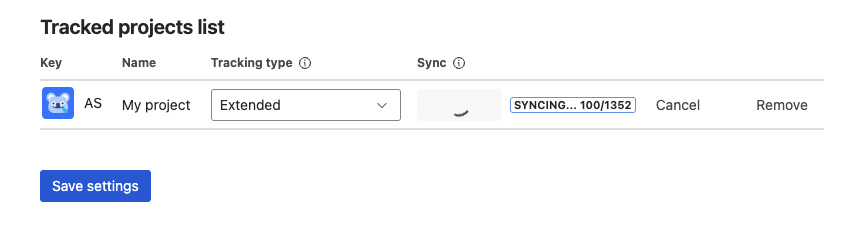
The scan runs entirely in the background. You can close the browser tab — the scan continues on the server. Return to the Tracking tab at any time to check progress.
You only need to run the scan once per project. After that, all subsequent changes keep Extended snapshots up to date automatically.
For large projects, the scan may take several minutes. You can safely leave the page and come back later to check progress.
Changing a project's profile
You can change the tracking profile for any project at any time from the Tracking tab.
- Changing from Basic to Extended: Takes effect immediately for future deletions. Run a Project Scan to cover existing issues.
- Changing from Extended to Basic: Extended data is no longer captured for new deletions. Existing records for already-deleted issues are not affected.
- Historical records always retain the profile under which they were captured.
What's next?
- Tracked Projects — manage which projects are protected
- Browse Deleted Issues — search and inspect snapshots
- Restore an Issue — recover a deleted issue