Bulk Restore
Bulk Restore lets you recover multiple deleted issues in a single operation. This is the primary response tool for incidents where automation, a departing user, or a misconfigured cleanup script deleted a large number of issues.
When to use bulk restore
Automation incident — a Jira automation deleted issues it shouldn't have → Filter by date/time of the incident → select all → restore
Departing user cleanup — a user deleted issues before leaving the organization → Filter by Deleted by → select relevant records → restore
Bulk cleanup gone wrong — an admin removed issues from the wrong project or sprint → Filter by project + date range → select all → restore
Testing cleanup — test issues were accidentally bulk-removed from a production project → Filter by issue type + date → select and restore
Selecting records and starting restore
In the Deleted Issues list, check the checkbox on the left of each row you want to restore. You can:
- Check individual rows one by one
- Use the Select all checkbox in the header to select all visible records
- Apply filters first to narrow the list, then select all filtered results
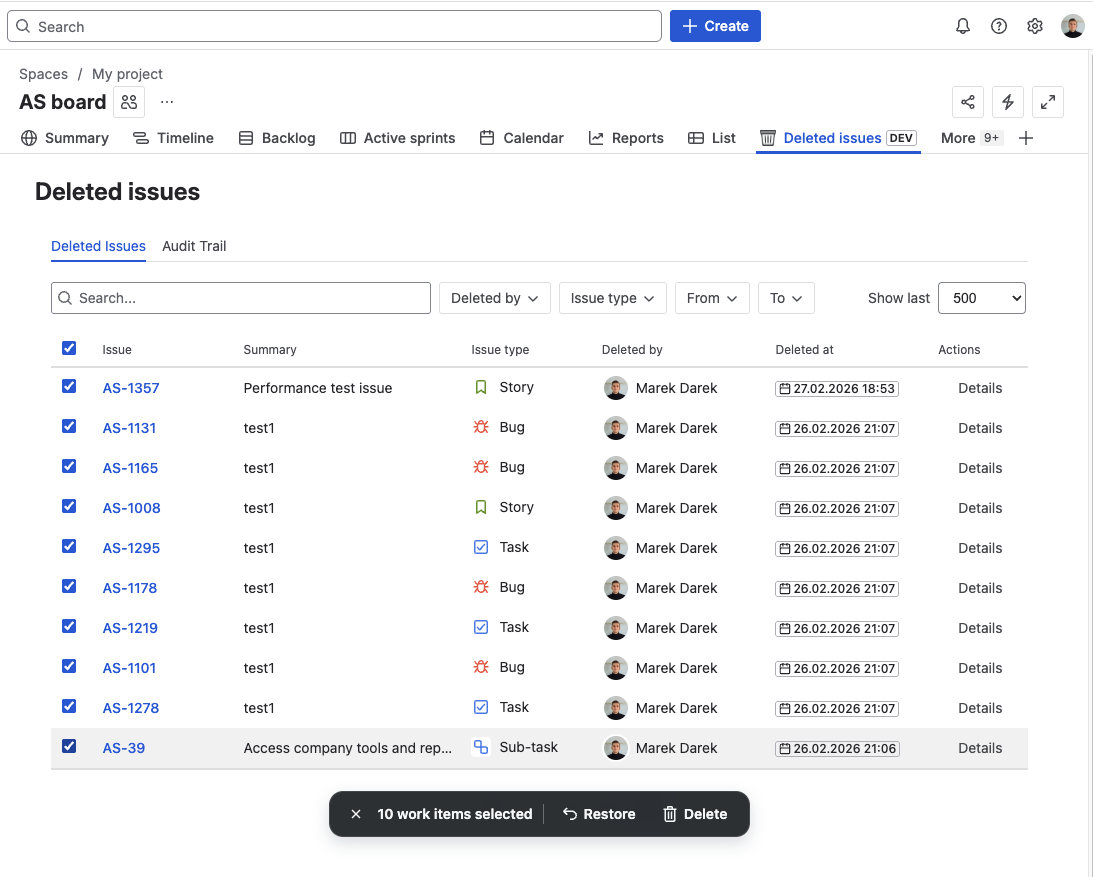
With records selected, click Restore [N] issues in the bulk action toolbar. The restore options modal opens — the same options as single restore, applied equally to all selected records. If you need different options for different issues, restore them individually.
What happens during bulk restore
Issues are restored sequentially — one at a time, in the order they appear in the list. For each issue:
- The snapshot is validated (project exists, issue type available, permissions OK)
- A new Jira issue is created
- Selected content (comments, worklogs, links, subtasks) is restored
- The result is recorded
A failure on one issue does not stop the batch — the operation continues to the next record.
Reviewing the result
After the batch completes, the result summary shows:
- Requested — total number of issues selected
- Succeeded — issues fully restored as requested
- Partial — issues created but with some content missing
- Failed — issues that could not be created
The result also lists the new Jira issue keys for all successfully created issues.
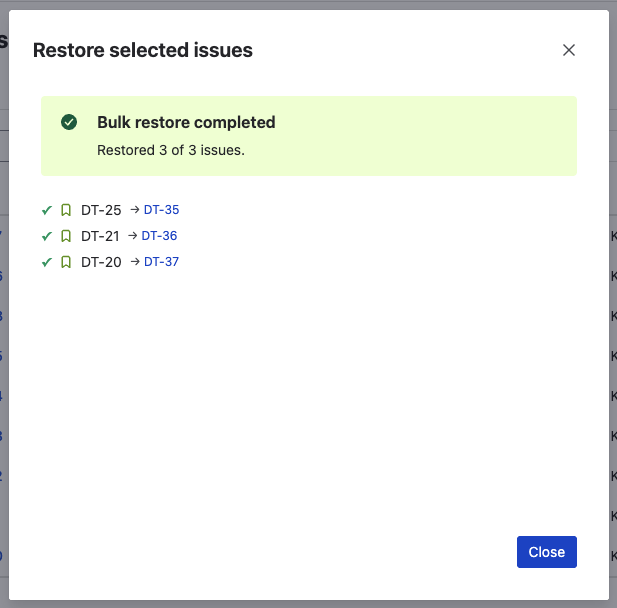
Individual failures are listed with their reasons, so you can address them separately — for example, by creating the missing project first and then re-restoring the failed record individually.
What's next?
- Restore an Issue — single issue restore with more granular options
- Export — download snapshots for compliance or reference
- Audit Trail — review bulk restore results