Tracked Projects
The Project Tracking List is where you define the scope of protection. The app only captures deletions in projects you explicitly add — nothing is tracked by default.
Required: Manage deleted issue backups permission (granted to Jira Administrators by default).
How project tracking works
When a project is added to tracking:
- Every issue deleted in that project is automatically captured at the moment of deletion.
- A full snapshot of the issue's content is stored according to the selected tracking profile.
- The snapshot is retained for the configured retention period and then automatically removed.
No per-issue setup is required — tracking is automatic and applies to all issues in the project.
Adding a project
- Go to App Settings → Tracking.
- Click Add project.
- Select the project from the dropdown. All Jira projects visible to your account are listed.
- Select the tracking profile — Basic or Extended.
- Click Add to confirm.
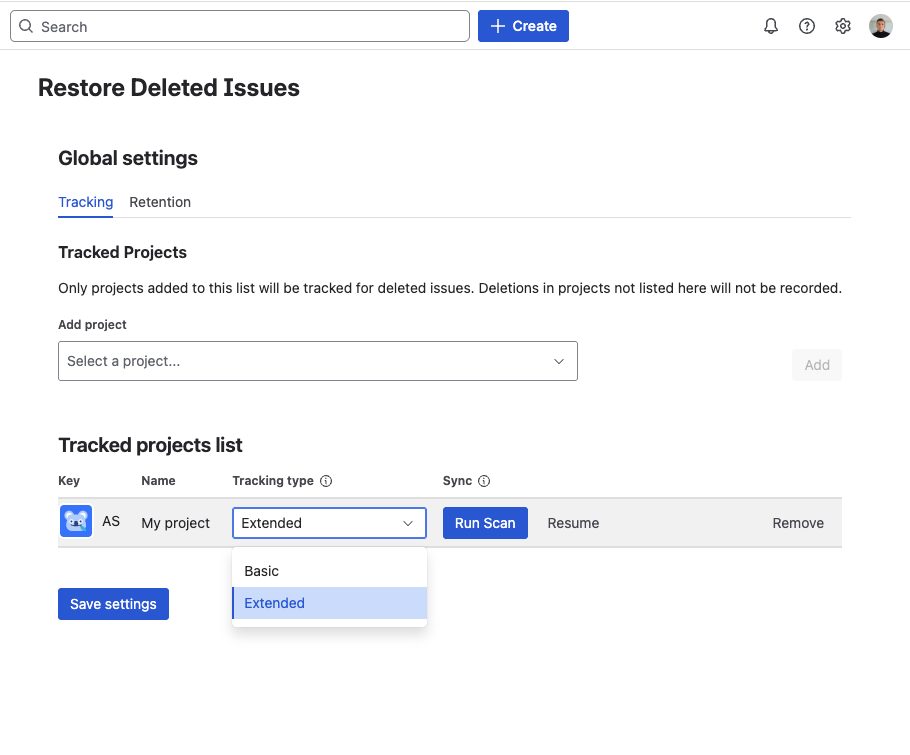
The project appears in the list immediately and tracking begins for future deletions.
Removing a project
To stop tracking a project, find it in the list and click Remove.
Removing a project from tracking does not delete existing snapshots. Records captured before removal are kept until the configured retention period expires. New deletions in the removed project are no longer captured.
Project status indicators
Each project row in the Tracking tab shows a status badge:
- Active — project is tracked and deletions are being captured normally
- Syncing — a Project Scan is running in the background (Extended profile only); deletions are still captured during this time
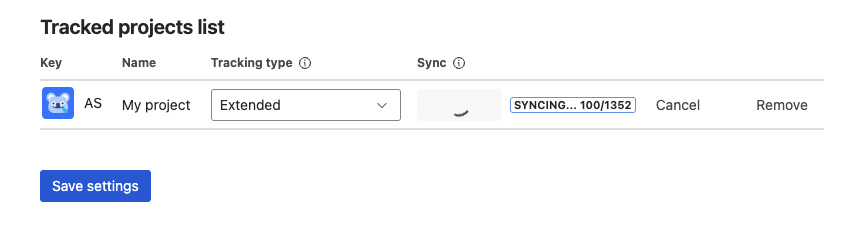
Choosing which projects to track
You do not need to track every project. A good starting point is to protect what matters most and expand from there.
Extended profile — for projects where losing data would have a real impact:
- Production or client-facing projects
- Compliance or audit-sensitive projects
Basic profile — for projects where capturing field values is enough:
- Active development or internal projects
- Staging or sandbox environments
Start with your most critical projects on Extended, cover the rest with Basic. You can change a project's profile at any time — the change applies to future deletions immediately.
Changing a project's tracking profile
To change the profile for an already-tracked project, find it in the list and select the new profile. The change takes effect immediately for all future deletions.
Historical records captured under the previous profile are not affected — they retain the snapshot depth they were captured with.
If you upgrade from Basic to Extended, run a Project Scan to build Extended snapshots for existing issues that haven't been updated since tracking was enabled.
What's next?
- Tracking Profiles — Basic vs Extended — understand what each profile captures
- Retention Policy — configure how long snapshots are kept
- Browse Deleted Issues — start using the Deleted Issues panel