Restore an Issue
Restoring an issue recreates it in Jira from the captured snapshot. You control exactly what comes back — the issue itself, its comments, worklogs, issue links, and subtasks are all optional.
Before you restore
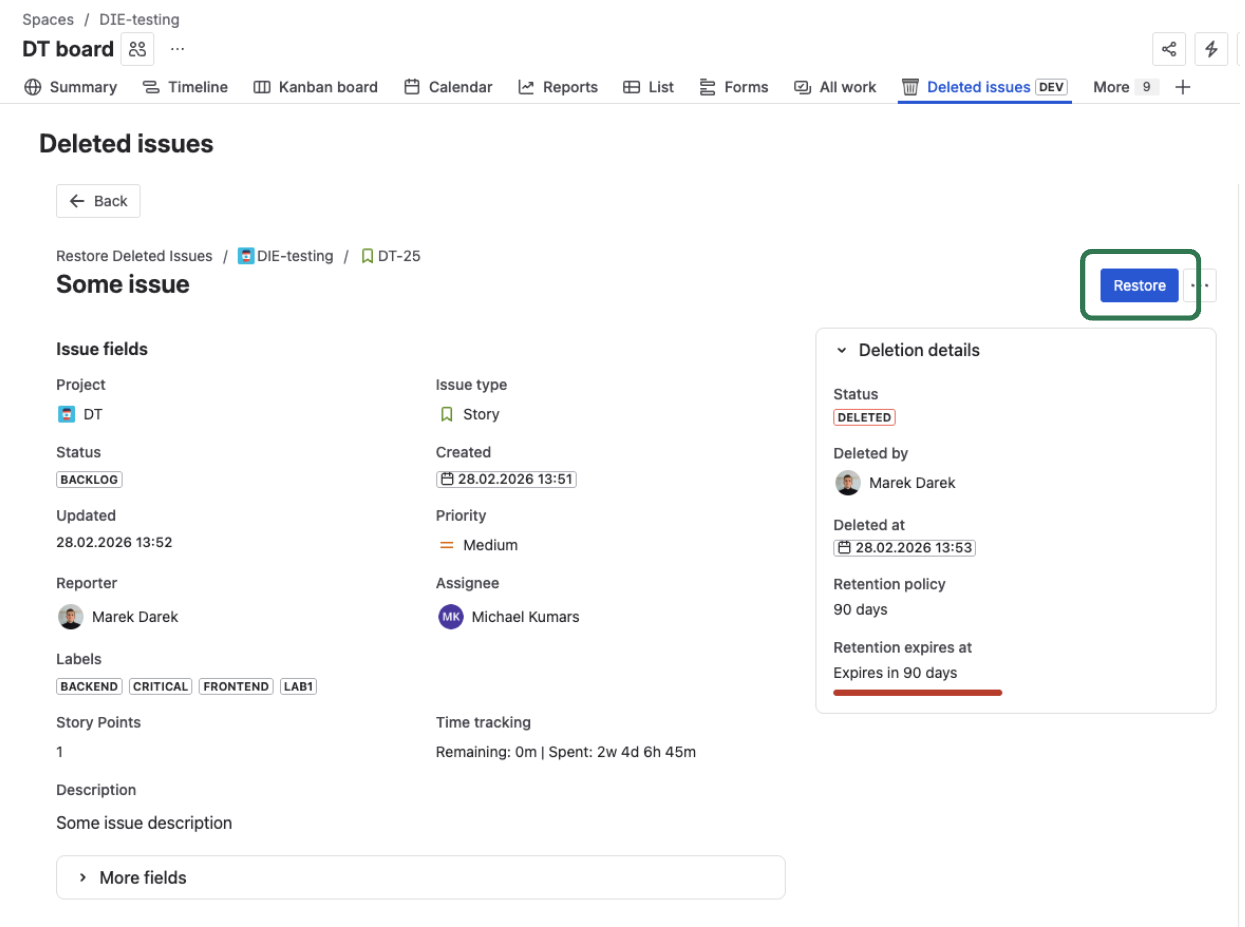
Check the snapshot first. Open the detail view to inspect what was captured: the fields, comments, worklogs, and issue links visible there are exactly what the restore will recreate.
Required: Manage deleted issue backups permission (app-level) and Create Issue permission in the target project. See Permissions.
Starting a restore
- Open the deleted issue record from the Deleted Issues list.
- Click Restore in the detail view header.
- The restore options modal opens.
Restore options
The restore modal lets you choose which parts of the snapshot to recreate:
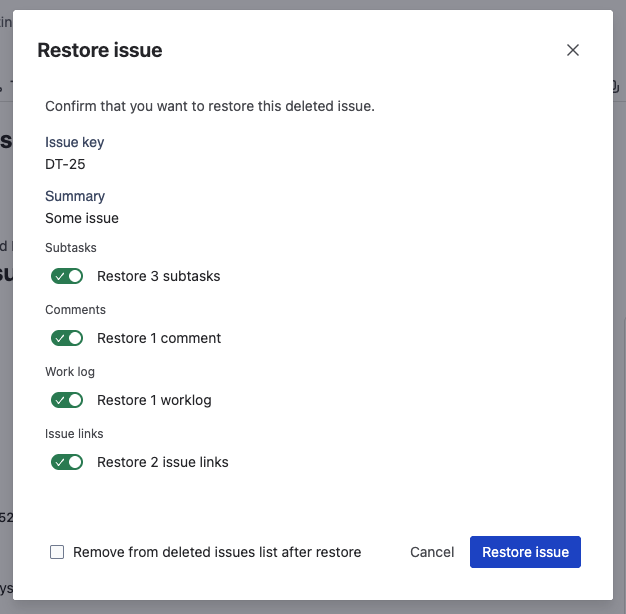
- Comments — all comments with original author attribution
- Worklogs — all time log entries with author and duration
- Issue links — all outward and inward links to other issues
- Subtasks — all subtasks restored as child issues
- Remove record after restore — deletes this snapshot from the app on success
Comments are restored with attribution: each comment is posted with a note — "Originally by [display name] on [date]" — so the authorship context is preserved even though the comment now appears under your account.
Restoring subtasks, issue links, comments, and worklogs may take longer depending on how much data was captured. If you only need the core issue back, deselect what you don't need.
Understanding the result
After restore completes, the modal shows one of three outcomes:
Success ✅
The issue was created and all requested content was restored without errors.
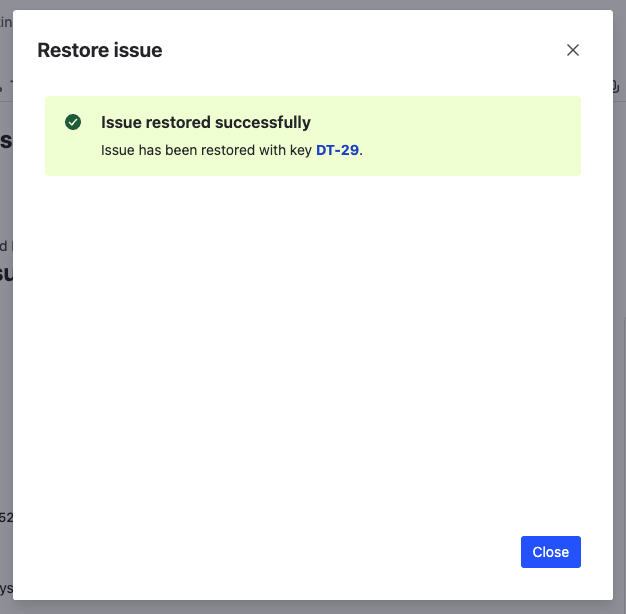
Click the new issue key to open it in Jira.
Partial ⚠️
The issue was created, but some content could not be restored. This is common when:
- A comment author's account was deactivated
- A linked issue was subsequently deleted
- A worklog's time period is in a locked sprint
The result shows exactly what was and wasn't restored, with reasons.
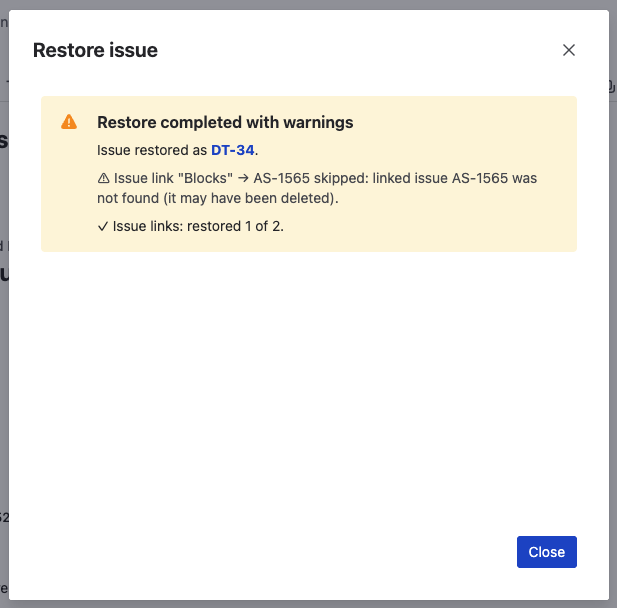
The restored issue is usable — review the warnings and manually fill in the missing parts if needed.
Failed ❌
The issue could not be created. Common causes:
- The project no longer exists
- The issue type is no longer available in this project
- You do not have Create Issue permission
The result shows the specific reason. No partial issue is left in Jira when creation fails.
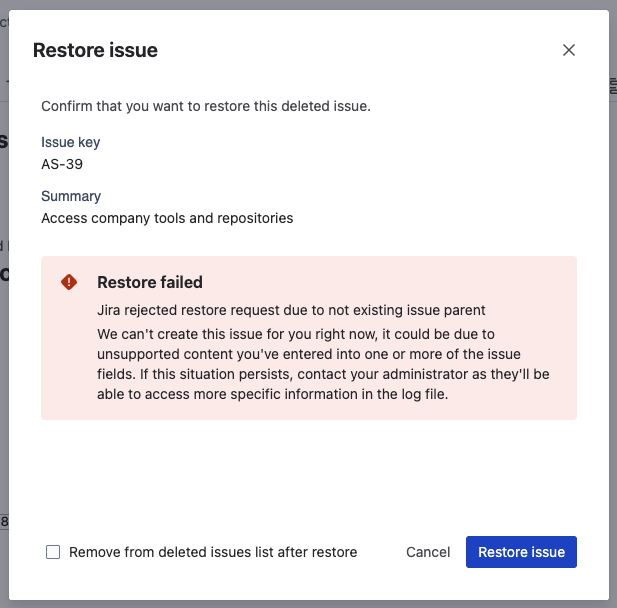
Check the Audit Trail for the specific failure reason.
About the restored issue key
The restored issue receives a new key — Jira does not allow reusing keys from deleted issues. For example, if the original was PROJ-123, the restored issue might be PROJ-456.
The original key is preserved in the snapshot metadata and visible in the detail view and restore history for reference.
Restore history
Every restore attempt — successful, partial, or failed — is recorded in the Restore History section of the detail view. The history shows:
- When the restore was attempted and by whom
- The result (success / partial / failed)
- The new issue key (if created)
- Details of what was and wasn't restored
This prevents duplicate restores and provides a full chain of custody for the record.
What's next?
- Bulk Restore — recover multiple issues at once after an incident
- Export — download snapshots for compliance or reference
- Audit Trail — review the full restore history