Billable / Non-billable worklogs
Mark each worklog logged on a Time Tracking field as Billable or Non-billable without leaving Jira. The flag flows through the Log work and Edit worklog modals, the activity view, the CSV export, and the dashboard gadget — so client-billable effort and internal time stay cleanly separated in one place.
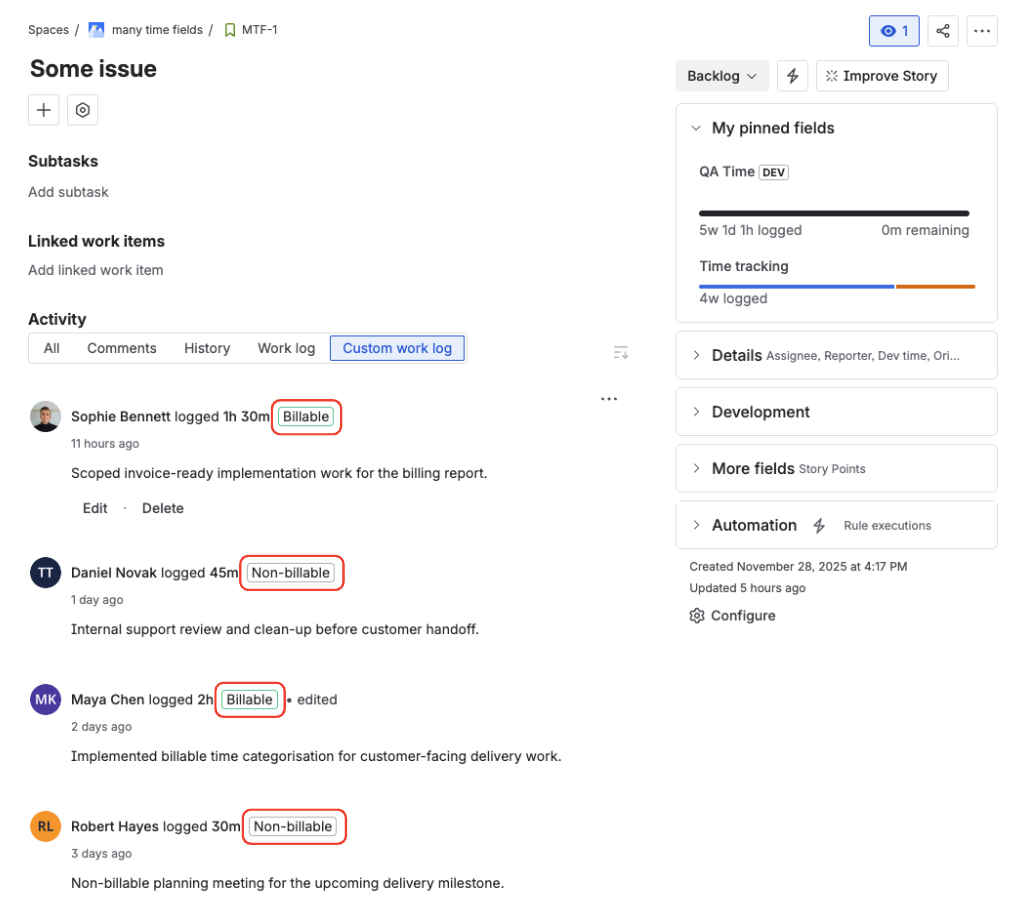
Billable and Non-billable worklogs in the Time Tracking activity view
Who it's for
- Agencies and consultancies that bill clients hourly and need a clean split between client-billable work and internal tasks (admin, reviews, training, sick leave).
- Service teams inside larger orgs that report billable utilization to finance or leadership.
- Project managers who want to know how much of a sprint's logged time is invoiceable.
- Individual contributors who already log time and want a single click to mark a worklog as non-billable.
Mark a worklog as Billable or Non-billable
When you log time against a Time Tracking field, the Log work modal shows a Billable toggle. The toggle defaults to Billable — most agency work is billable, so the rare non-billable case becomes the explicit click.
- Open the Time Tracking field's Log work modal on an issue.
- Enter the time spent (for example
1h 30m) and an optional comment. - Leave the Billable toggle ON for client-billable work, or click it once to flip to Non-billable for internal time.
- Click Save. The flag is stored on the worklog the moment it is created.
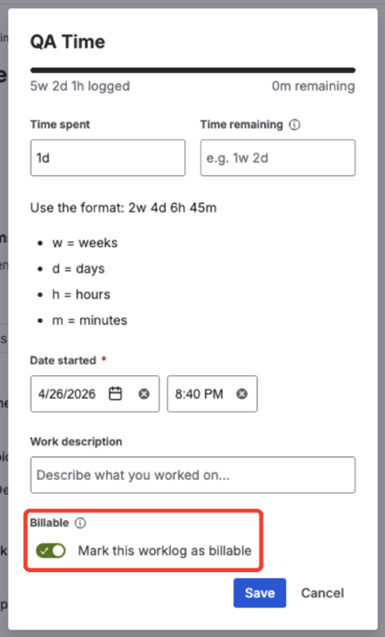
Marking a new worklog as Billable before saving it
Re-classify an existing worklog
You can change the Billable flag on any worklog you can edit.
- In the activity view, open the Edit worklog action on the worklog you want to re-classify.
- The Billable toggle pre-populates from the saved value.
- Flip the toggle and click Save. The activity view, CSV export, and dashboard gadgets reflect the change immediately.
The total time logged on the field is unchanged when you flip the flag — only filters and exports use the Billable value.
Tags in the activity view
In the Time Tracking panel on an issue, every worklog row carries a small color-coded tag:
- Green "Billable" — the worklog is invoiceable to the client.
- Grey "Non-billable" — the worklog is internal time (admin, training, sick leave).
The tag is visible to every user who can see the activity view.
Filter the activity view
A dropdown above the activity list filters the visible worklogs.
- All (default) — every worklog on this field.
- Billable — only worklogs marked as Billable.
- Non-billable — only worklogs marked as Non-billable.
The CSV export from the activity view follows the active filter — pick Billable before clicking Export CSV and the file contains only the invoiceable rows.
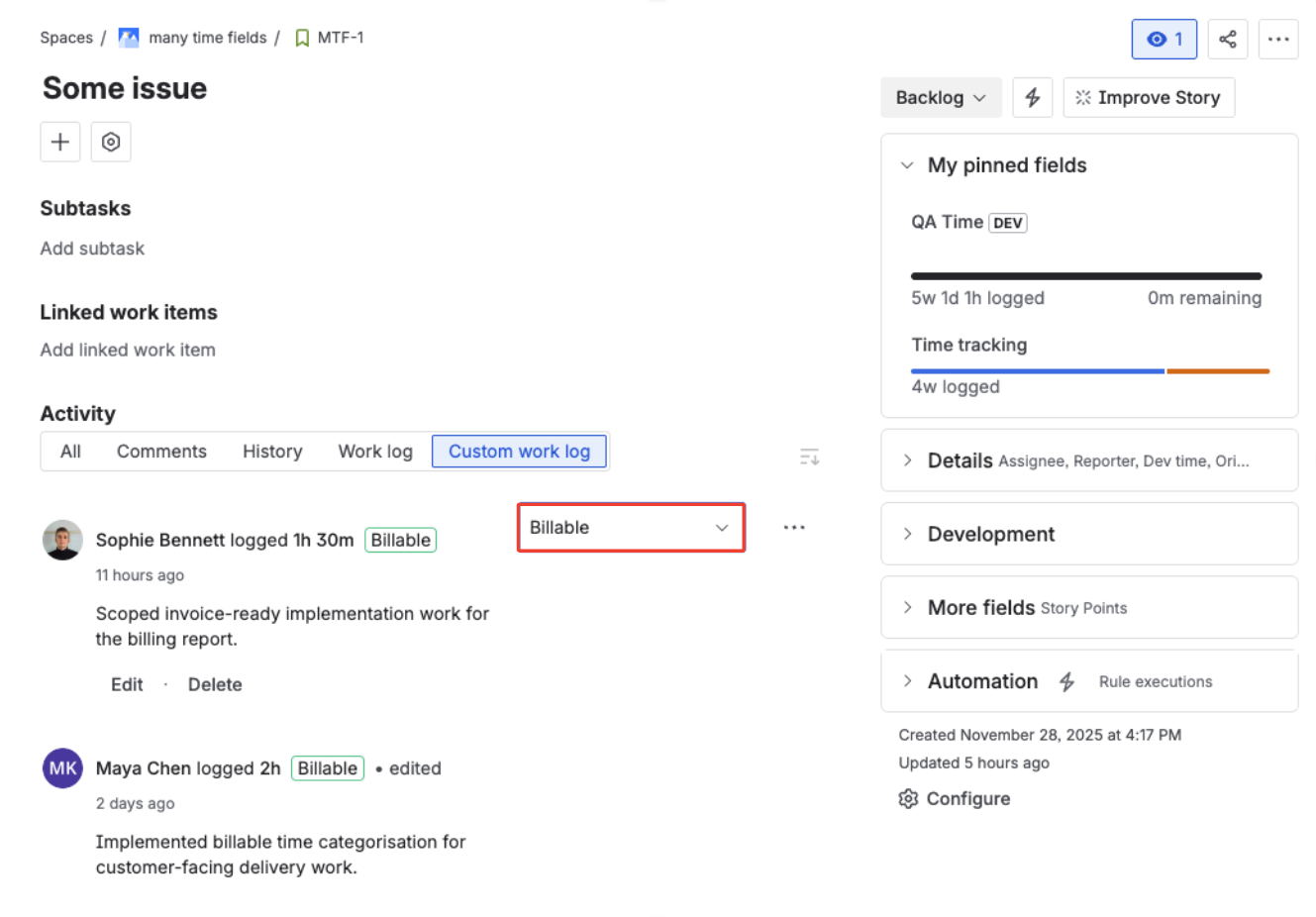
Filtering the activity view by All, Billable, or Non-billable worklogs
Export billable data
Both the activity-view CSV export and the Team time — by user dashboard gadget include the Billable flag.
- CSV export — the file gains a
Billablecolumn with valuesYes(billable) orNo(non-billable). See Export worklogs to CSV. - Dashboard gadget filter — Team time — by user gains a Billable selector in its configuration: All, Billable only, or Non-billable only. See Team time — by user.
Drop two instances of the Team time gadget on the same dashboard — one with Billable only, one
with Non-billable only. You get utilization vs internal-time split at a glance.
FAQ
Does the flag affect time totals on the field?
No. The total time logged on the field is unchanged regardless of Billable status. Only filtering and export views split the totals.
Can two worklogs on the same field have different Billable values?
Yes. The flag is stored on each worklog, not on the field or the issue, so two worklogs on the same field can have different Billable values.
Can I report on billable percentage?
Use the Team time — by user gadget twice on the same dashboard — one
with Billable only, one with Non-billable only — and compare the totals.
Will this sync to Tempo or Jira's native time tracking?
No. The Billable flag lives in the app's own worklog records and does not propagate to Tempo or Jira's native worklog model. Time totals already sync as before; the Billable flag is app-specific.