Export Jira worklogs
Get your team's time out of Jira and into a spreadsheet in one click. Every worklog logged through this app's Time Tracking and Duration fields can be exported to a CSV that opens cleanly in Excel, Google Sheets, and LibreOffice — ready for invoices, audits, monthly reports, or your BI tool of choice.
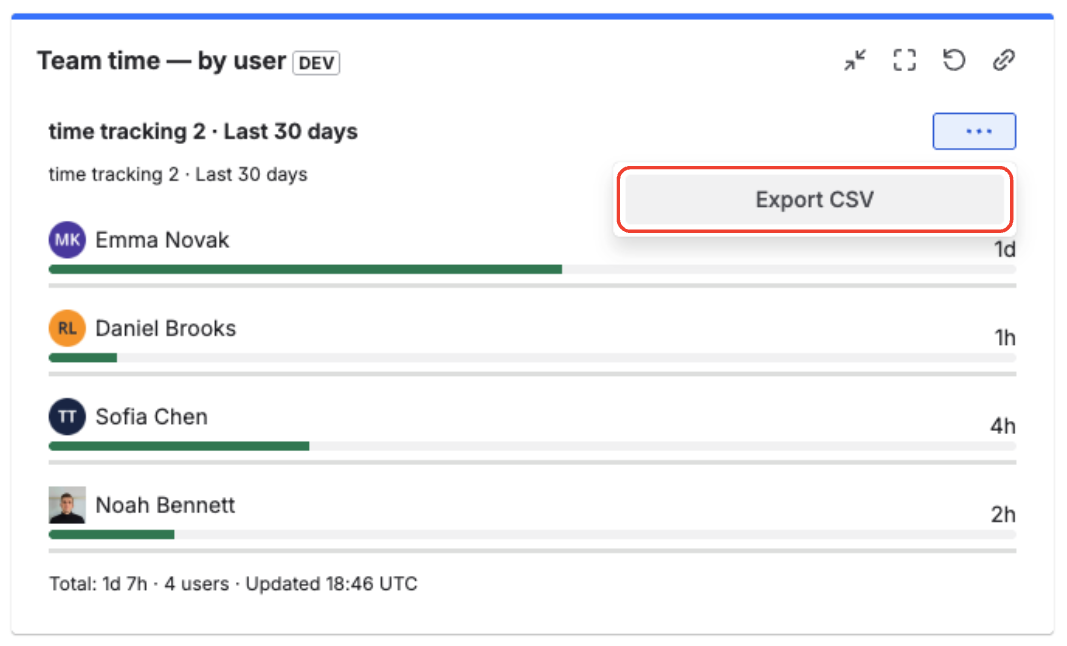
Export worklogs from the Time Tracking panel on an issue, or from the Team time dashboard gadget.
What gets exported
The CSV contains 10 columns and one row per worklog — issue key, summary, field name, user, account ID, start time,
decimal hours, formatted duration, the worklog comment, and a Billable flag. That's everything you typically need to
invoice clients, audit team time, or feed the data into another system.
Only worklogs logged through this app's Time Tracking and Duration fields are included. Native Jira time tracking worklogs are not part of this export.
Where you can export from
You can export from two places today. Both produce the same file format, so downstream templates and pipelines work the same regardless of where the export started.
From an issue
When you open a Jira issue, the Time Tracking panel shows all worklogs logged against this issue's custom fields. Export them to CSV in one click.
Open the Jira issue
Navigate to any Jira issue that has worklogs logged through the app's Time Tracking or Duration fields.
Find the Export CSV button
Locate the Time Tracking panel and look for the Export CSV button at the top right of the panel.
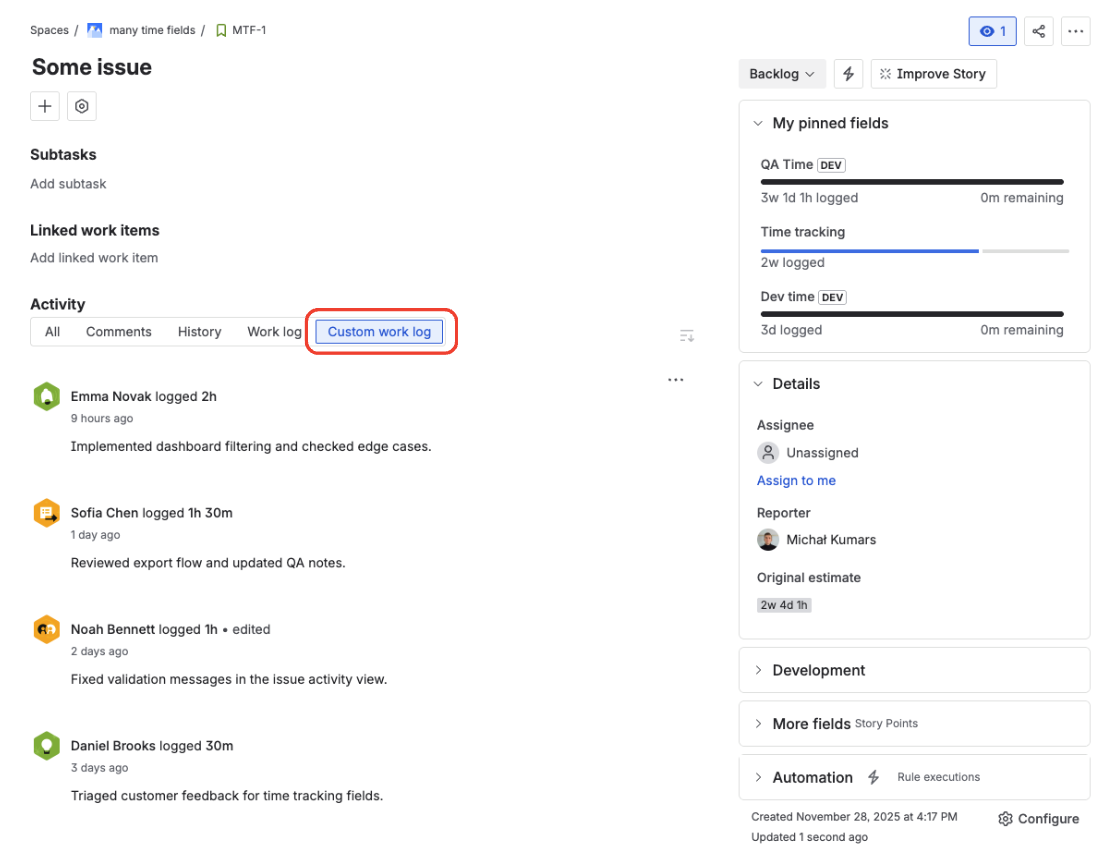
Use the Export CSV button in the Time Tracking panel.
Click Export CSV
The file downloads instantly to your machine.
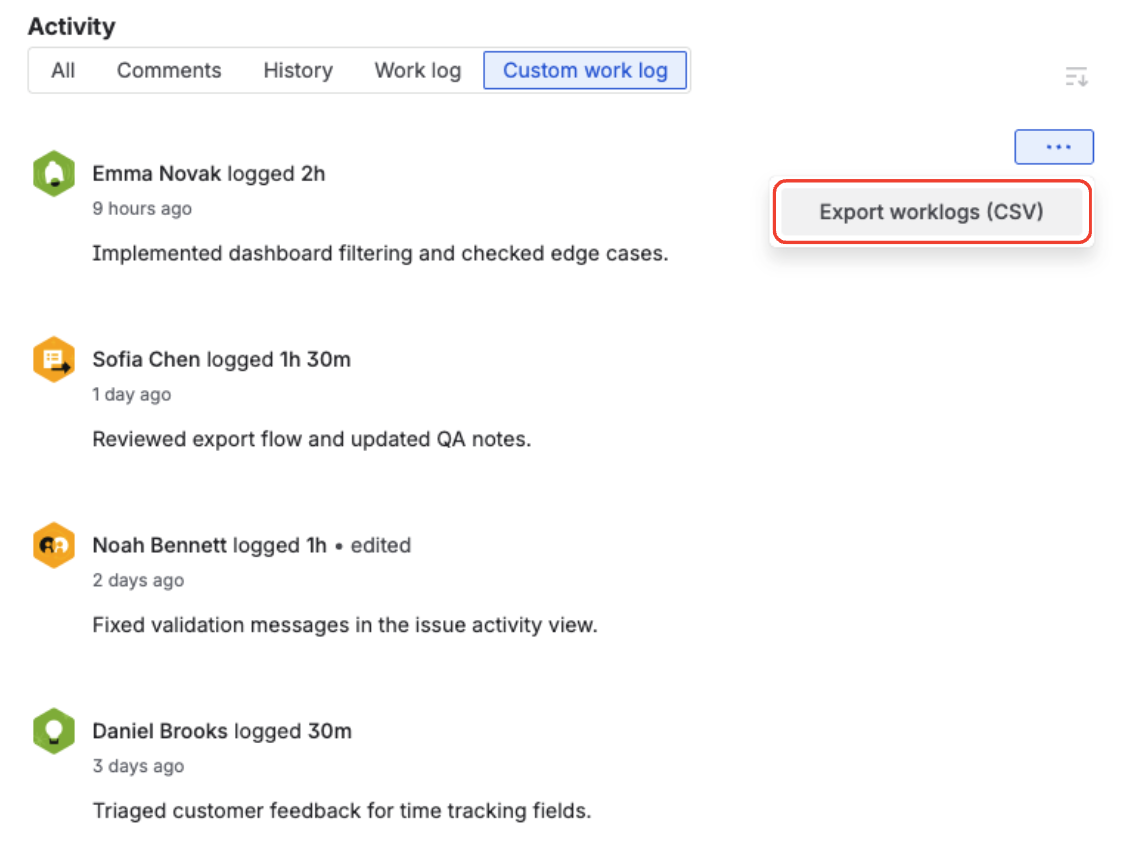
The downloaded CSV opens cleanly in Excel with multiple Time Tracking fields.
From a dashboard
When you have the Team time — by user gadget on a dashboard, you can export the underlying worklogs across all issues that match the gadget's filters.
Go to the dashboard
Open the Jira dashboard that contains the Team time — by user gadget.
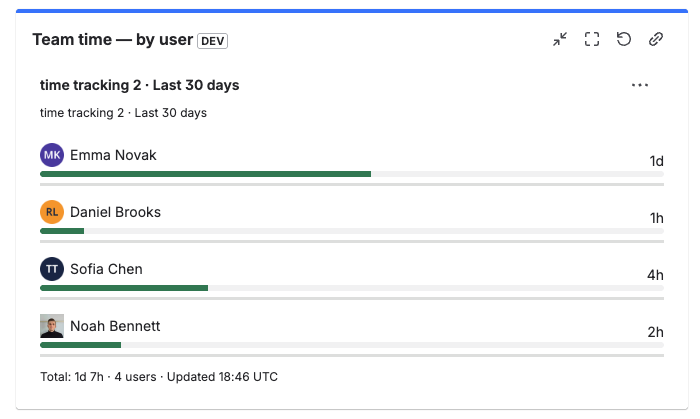
Open the dashboard where the Team time gadget is displayed.
Open More actions and Export CSV
Open the gadget's More actions menu and click Export CSV.
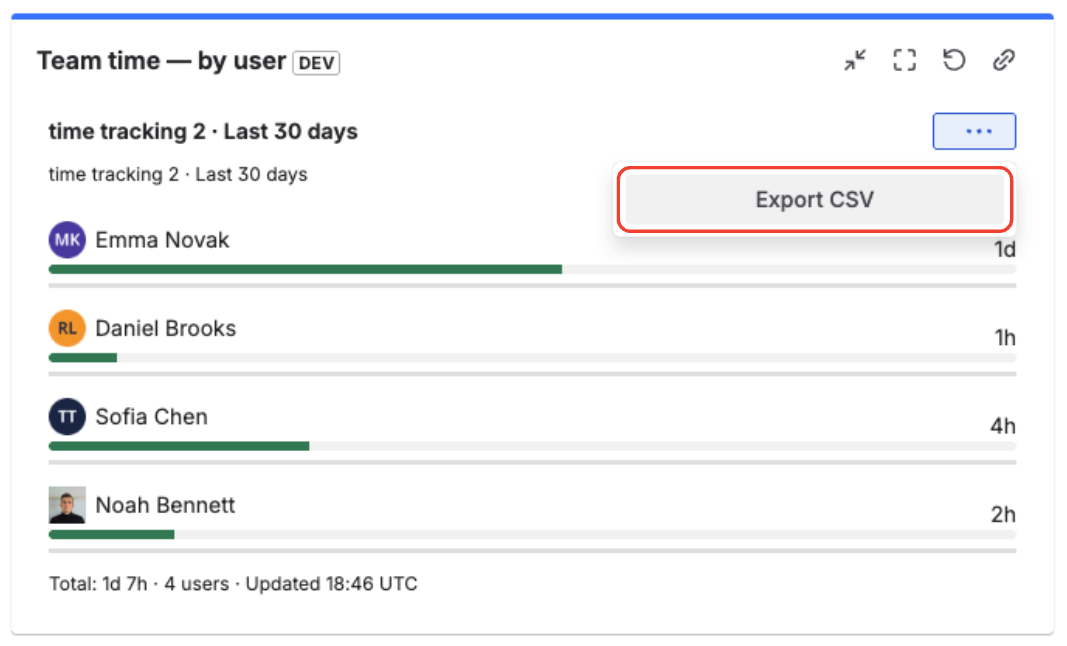
Open More actions and choose Export CSV.
After you click Export CSV, the gadget fetches all matching worklogs across the issues in scope and the file downloads automatically as soon as it's ready. For wide date ranges this can take a few seconds.
What's in the file
Each export contains the same 10 standard columns:
| Column | What it contains |
|---|---|
| Issue Key | Jira issue (e.g. ABC-123). |
| Issue Summary | Issue title at the time of export. |
| Field Name | Which Time Tracking custom field this worklog belongs to (e.g. Dev Time, QA Time). |
| User | Display name of the person who logged the time. |
| User Account ID | Atlassian account ID — useful for joining with other reports. |
| Started At | When the work was logged (ISO 8601, UTC). |
| Time Spent (h) | Duration as decimal hours (e.g. 1.50). |
| Time Spent (formatted) | Duration formatted using your field's hours-per-day and days-per-week settings (e.g. 1h 30m, 2d 4h). |
| Comment | Worklog comment, if any. |
| Billable | Yes if the worklog was flagged billable, No if non-billable. |
The file opens cleanly in Excel, Google Sheets, and LibreOffice — no import wizard needed.
Use cases
Monthly invoicing for agencies. Pull billable hours per client or project at month-end and drop them straight into your invoice template. The Field Name column lets you split rate cards (e.g. Dev Time vs QA Time) without extra parsing. Use the Billable column to filter out internal time before generating invoices.
Time audit and review. Answer "where did the team's time go last quarter?" without leaving Jira. Pivot the export by user or by field to spot patterns, blocked work, or unbalanced workloads.
Reports for stakeholders or clients. Export, format in Sheets, and send. The combination of decimal hours and formatted duration means you can pick the format that suits your audience.
Ad-hoc analysis in your BI tool. Drop the CSV into Power BI, Looker Studio, or your warehouse for one-off analysis. UTF-8 encoding and ISO 8601 timestamps mean it slots into existing data models without massaging.
Why this is safe to use
- Respects Jira permissions — you only export worklogs on issues you can see in Jira. The export runs in your user context, so nothing leaks across projects you don't have access to.
- No third-party services — data flows only between Jira and your browser. The CSV is generated locally and downloaded directly to your machine.
- Tied to your app license — the export uses the same license check as the rest of the app.
FAQ
Can I export native Jira worklogs?
No. The export only includes worklogs logged through this app's Time Tracking and Duration fields. For native Jira time tracking, use Jira's built-in tools or a marketplace timesheet app.
Why CSV and not Excel (XLSX)?
CSV opens in every spreadsheet program and slots into any data pipeline. We may add native Excel later if customers ask.
Can I choose which columns to export?
Not yet — every export contains the same 10 standard columns. If you need a custom column set, hide or reorder columns in your spreadsheet after export.
Text looks broken in Excel — why?
Open the file by double-clicking it, not via File → Open. The export includes a UTF-8 marker so Excel detects the encoding automatically when double-clicked.
What time zone is Started At?
UTC. Convert to local time in your spreadsheet if needed.
What happens if there are no worklogs to export?
Export CSV is disabled when there's nothing to export — on an issue with no logged time, or on a gadget configuration that returns no rows. Log work, widen the time range, or change the JQL filter and the action becomes available.
Does the export reflect the activity view's Billable filter?
Yes. The CSV from an issue's activity view follows the active filter — pick Billable in the filter dropdown before clicking Export CSV and the file contains only billable rows. The dashboard gadget export follows the gadget's * Billable* configuration option.
Troubleshooting
- Text renders as garbage — the file is UTF-8. Double-click the file to open it (Excel auto-detects encoding); avoid File → Open dialogs that override the encoding.
- All columns ended up in one cell — your spreadsheet's import is using the wrong delimiter. Use semicolon (
;) as the column separator if prompted.