Budget Burn — Estimate vs Actual
Budget Burn — Estimate vs Actual is a Jira dashboard gadget that compares time estimates to time spent across a JQL-scoped set of issues for one or more Time Tracking custom fields. Add it to any dashboard to answer "are we on budget?" in seconds — with progress bars, over-budget warnings, and a CSV export.
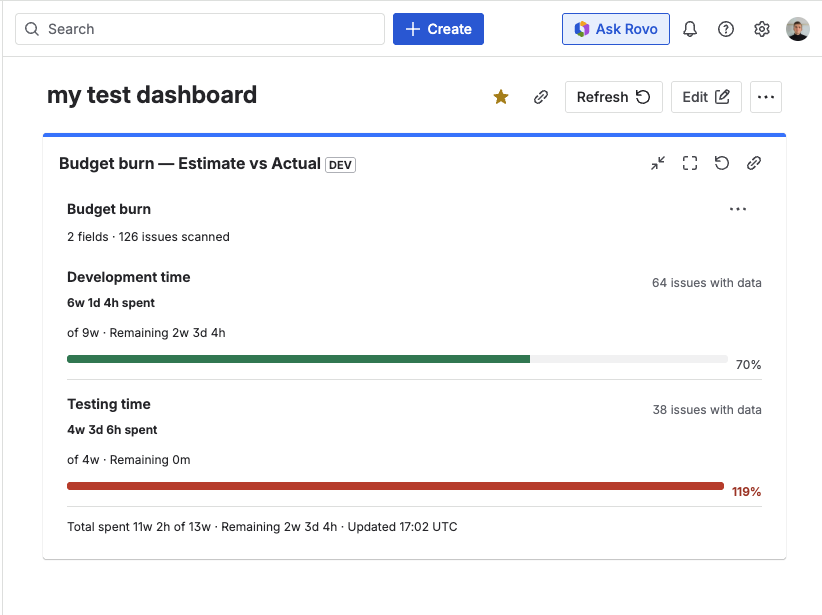
Budget Burn — two fields, one over budget.
What it does
- One row per Time Tracking field (or per project / assignee when grouped differently) showing Original estimate, Time spent, Remaining, and a progress bar sized to % used.
- Rows turn red and bold when time spent exceeds the original estimate (over 100% used).
- Works with any combination of Time Tracking fields — stack Dev, QA, and Contract Hours side by side to see the full budget picture at a glance.
- Three grouping modes: by field (flat), by project (project as header, fields as compact sub-rows), or by assignee.
- Footer shows the total spent, total estimated, total remaining, and the last refresh timestamp.
- Export the aggregated data as CSV for invoicing, audits, or external reporting.
The gadget reads estimates and time spent directly from issue fields — Original estimate, Time spent, and Remaining estimate — for each configured Time Tracking field. It does not scan individual worklog entries, which keeps it fast even on large issue sets.
Who it's for
Budget Burn is designed for Project Managers and Delivery Leads who need answers like:
- "Is this sprint on budget, or are we burning through estimates faster than expected?"
- "Which category — Dev, QA, or Contract — is over budget this cycle?"
Unlike Jira's built-in time reports, Budget Burn works with custom Time Tracking fields — so you can compare Dev, QA, and Contract Hours side by side in one view, scoped to any sprint, project, or epic via JQL.
Add the gadget to your dashboard
Open your Jira dashboard and add the gadget
Go to Dashboards in Jira's top navigation and open an existing dashboard, or create a new one. On the dashboard, click Add gadget to open the gadget picker. Search for budget burn or scroll to the Time Tracking Fields section, then click Add.
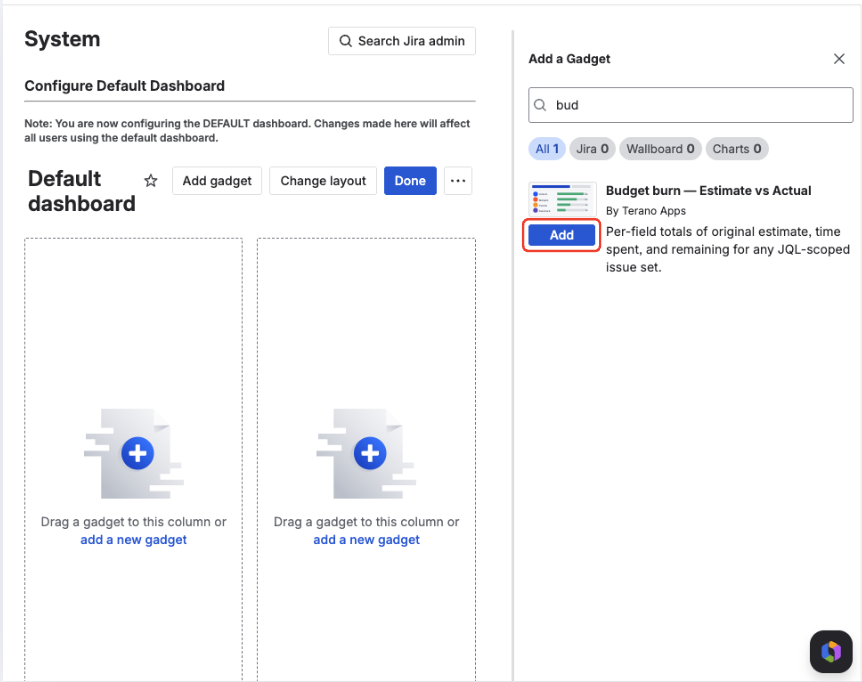
Find Budget Burn — Estimate vs Actual in the gadget picker and click Add.
Configure the gadget
The gadget opens in edit mode. Pick one or more Time Tracking fields, set an optional JQL filter, choose a grouping, and optionally set a custom title. See Configuration options below for details.
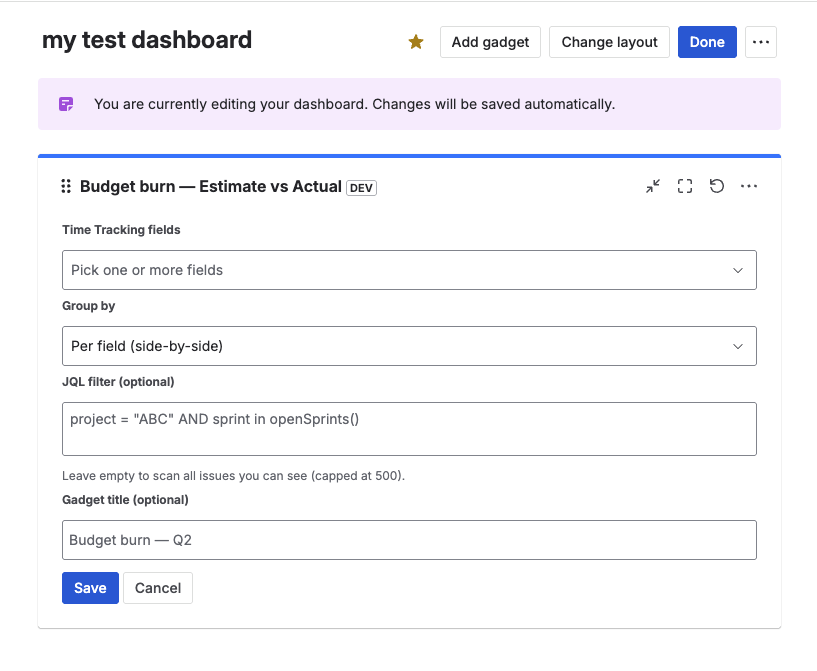
Configure the issue scope, fields, grouping, and optional title override.
Save
Click Save. The gadget switches to view mode and loads the first report.
Add multiple instances of the gadget to the same dashboard — one scoped to project = "ABC" and another to project = "DEF" — to monitor budget health across projects side by side.
Configuration options
Edit the gadget (pencil icon in the gadget header) at any time to change settings.
| Option | Type | Required | Default | Description |
|---|---|---|---|---|
| Time Tracking fields | Multi-select | Yes | — | Which Time Tracking fields to include. Select one or more (up to 10). The list shows only fields created by this app. |
| JQL filter | TextArea | No | (empty) | Scope the issue set. Empty means all issues the current viewer can access. |
| Group by | Dropdown | No | By field | How to organize rows: By field (flat), By project, or By assignee. |
| Gadget title override | Text | No | (empty) | Custom header text. Empty uses the auto title Budget Burn · X fields. |
JQL filter
Scope the gadget to a sprint, project, epic, or any other JQL dimension. Examples:
project = "ABC" AND sprint in openSprints()
project in ("ABC", "DEF") AND "Epic Link" = ABC-100
statusCategory != Done
If the JQL matches more than 500 issues, the gadget stops scanning and shows a "Result may be incomplete" banner. Narrow the filter to see a complete result.
Grouping modes
By field (default) — one row per Time Tracking field, aggregated across all matching issues. Best for comparing Dev vs QA vs Contract time in one view.
By project — issues are grouped by Jira project. Each project header shows the combined totals across all selected fields; compact sub-rows break down by field underneath.
By assignee — issues are grouped by assignee. Each person's avatar and display name is the group header; per-field sub-rows underneath show their individual breakdown.
Reading the results
The gadget has four areas:
- Header — gadget title (your override, or the auto title) plus a refresh button (↻). Click to re-run the report.
- Sub-header — greyed-out label showing the number of groups in view: "3 fields", "5 projects", "4 assignees".
- Rows — one per group/field combination. Each row shows time spent (bold), of original estimate, remaining, a progress bar, and the % used (in red when over budget).
- Footer — total spent / of total estimated · remaining ·
Updated HH:MM.
Grouping views
When Group by is set to By project or By assignee, the gadget uses a two-level layout: a group header row (with project avatar or user avatar) followed by compact per-field sub-rows indented beneath it.
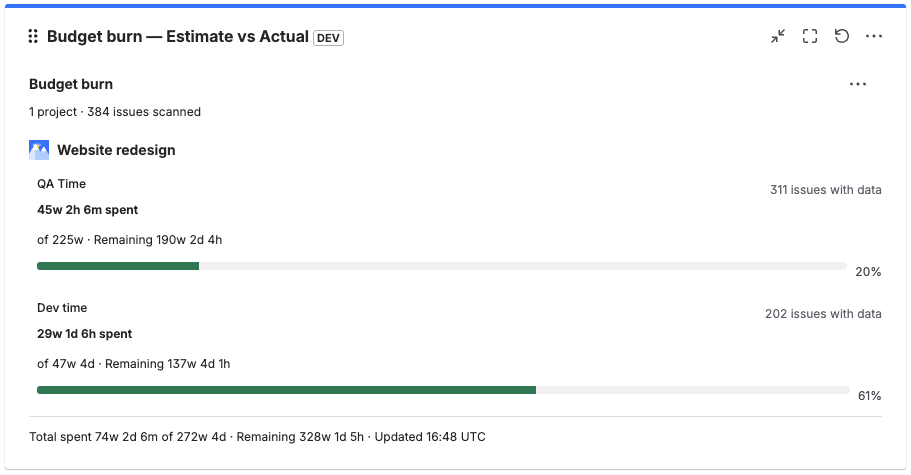
Budget Burn grouped by project — each project expands into compact per-field budget rows.
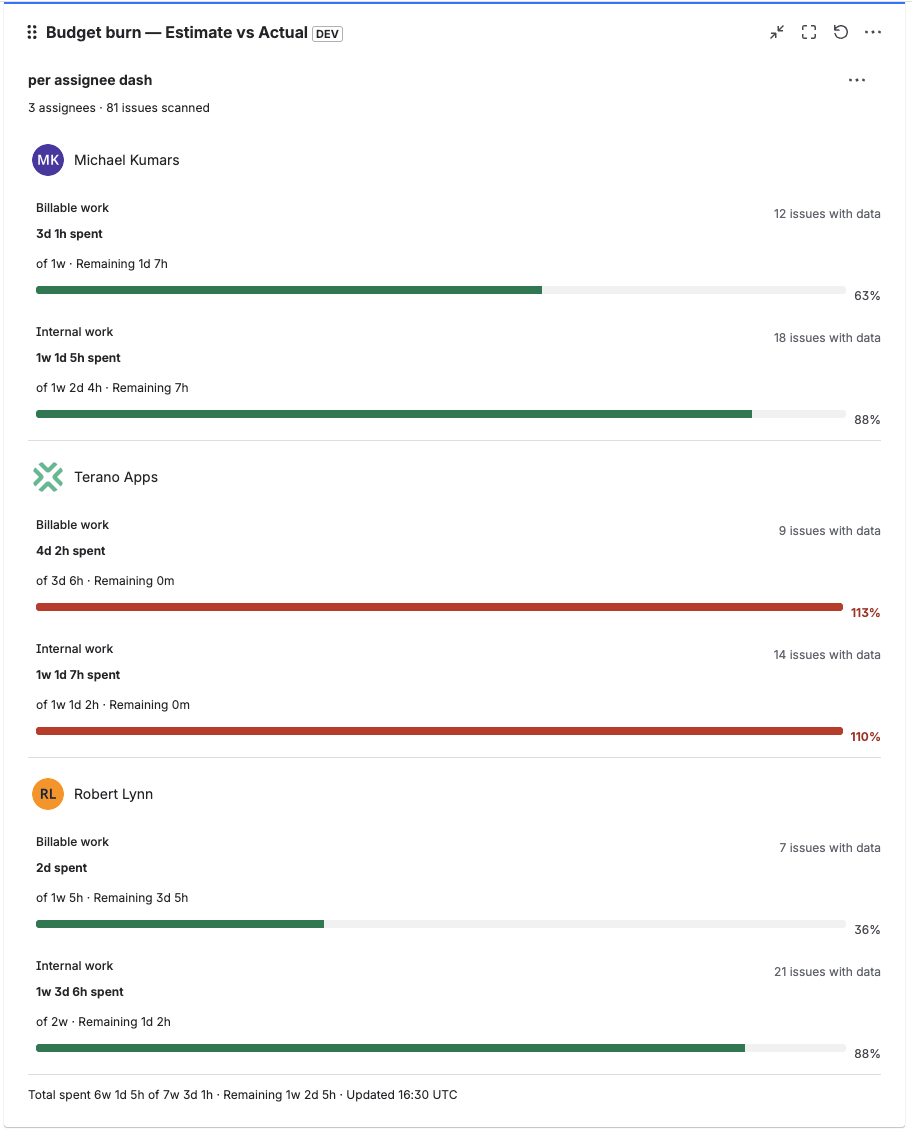
Budget Burn grouped by assignee — each person has per-field budget rows underneath.
Limits and performance
- Issue scan cap — up to 500 issues per refresh. Past this, the "Result may be incomplete" banner appears. Narrow the JQL to stay under the cap.
- Fields cap — up to 10 Time Tracking fields per gadget instance.
- Speed — the gadget reads estimate values directly from issue fields rather than scanning individual worklogs, so it stays fast on large issue sets.
- Permissions — each viewer only sees data from issues their own Jira permissions allow.
- Data source — only the custom Time Tracking fields created by this app are aggregated. Jira's built-in Time Tracking field is not included.
Export to CSV
The gadget supports exporting the aggregated budget data — original estimate, time spent, remaining, and % used — as a CSV file. See Export worklogs to CSV for details on the export flow.
FAQ
Does the gadget include Jira's built-in Time Tracking field?
No. It only aggregates the custom Time Tracking fields created by this app. For the built-in field, use Jira's native reports.
What happens when an issue has no original estimate?
The row shows No estimate instead of a progress bar. Time spent is still counted and displayed.
Can I filter by time range (This week, Last 30 days)?
Not in the current version — the gadget reads the current estimate and time-spent totals from the issue fields directly. To scope by time, use a JQL clause like sprint in openSprints() or updated >= -30d.
Can I add multiple Budget Burn gadgets to the same dashboard?
Yes. Each instance is independently configured — for example, one scoped to project = "ABC" and another to project = "DEF".
Can I export the data to CSV?
Yes. Click Export CSV in the gadget header. See Export worklogs to CSV.
Does it work in team-managed projects?
Yes — as long as the Time Tracking fields have been added to the relevant screens for the project.
Why does a row show a very high % (300%+)?
The original estimate on that issue (or group of issues) was very low relative to what was logged. Check the individual issue estimates in Jira and adjust if needed.
Do I need additional Jira permissions to use this gadget?
No. The gadget uses the same permissions the app already requests and runs every call in the viewer's own context — you only see data from issues you can already access in Jira.