Track time with the timer
Start a timer on any Time Tracking field while you work, then click Stop — the Log work modal opens prefilled with the elapsed time and your start timestamp. No more guessing when you started a task.
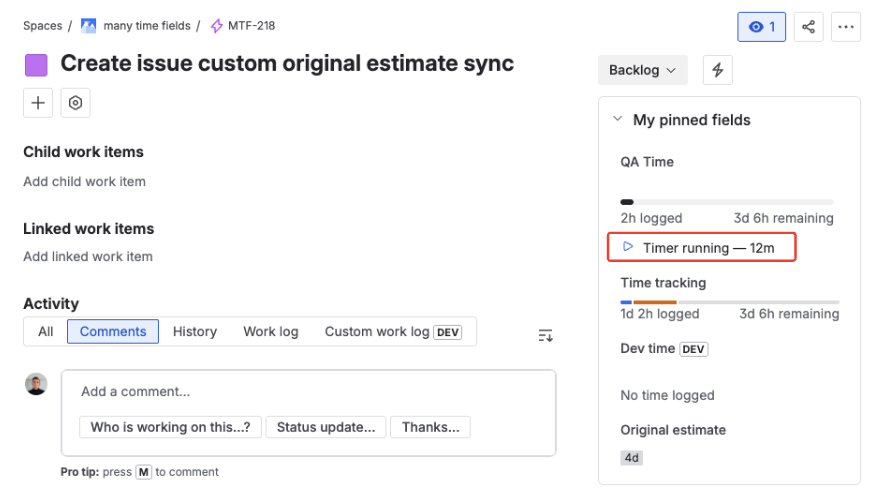
Dev Time field with a running timer.
The timer is off by default. A Jira admin must enable it in Project settings → Time Tracking Customfield → Timer before the Timer section appears in the Log work modal. See Enable the timer (admin setup) below.
Who it's for
- Developers, QA engineers, and consultants who context-switch frequently and don't want to remember start and end times.
- Freelancers and agencies billing hourly — accurate timestamps make invoicing straightforward.
- Anyone working across multiple devices — start a timer on your laptop, stop it on your desktop.
Enable the timer (admin setup)
You need project admin permission to enable the timer for a project.
Open Project settings
Open your project, then go to Project settings.
Navigate to the Timer section
Click Time Tracking Customfield in the sidebar, then open the Timer section.
Enable the timer
Toggle Enable timer to ON and save. The Timer section now appears in the Log work modal for every Time Tracking field in this project.
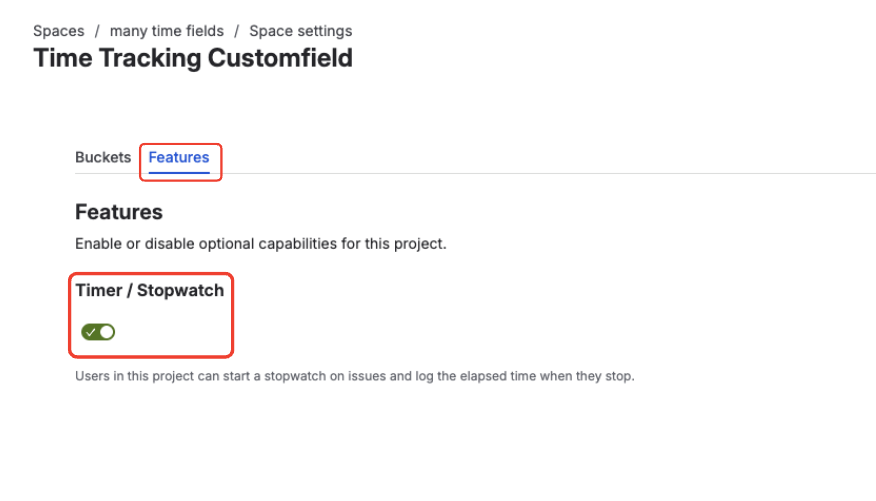
Enable timer in project settings.
Start a timer
Open the Log work modal
On the issue view, click a Time Tracking field (for example Dev Time) to open the Log work modal.
Click Start
In the Timer section at the top of the modal, click Start.
Close the modal
Close the modal. The field on the issue now shows
● Running — 00:01and the elapsed time counts up.
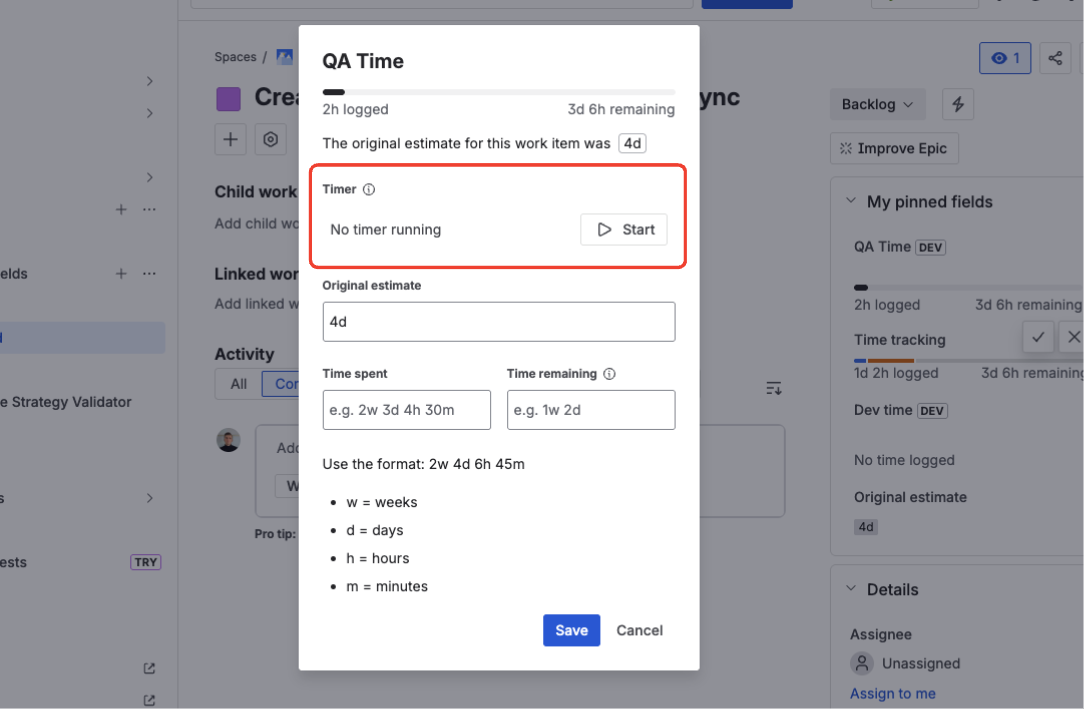
Start a timer from the Log work modal.
The timer keeps running until you stop it — closing the tab, the browser, or switching devices does not affect it.
Stop a timer and log work
Reopen the Log work modal
Click the same Time Tracking field to reopen the Log work modal.
Click Stop
In the Timer section, click Stop. The Time spent field auto-fills with the elapsed time and Date started with the timestamp when you clicked Start.
Optionally adjust the worklog
Edit the time, add a description, or flip the Billable toggle if needed.
Save the worklog
Click Save. The worklog is created and the timer is cleared.
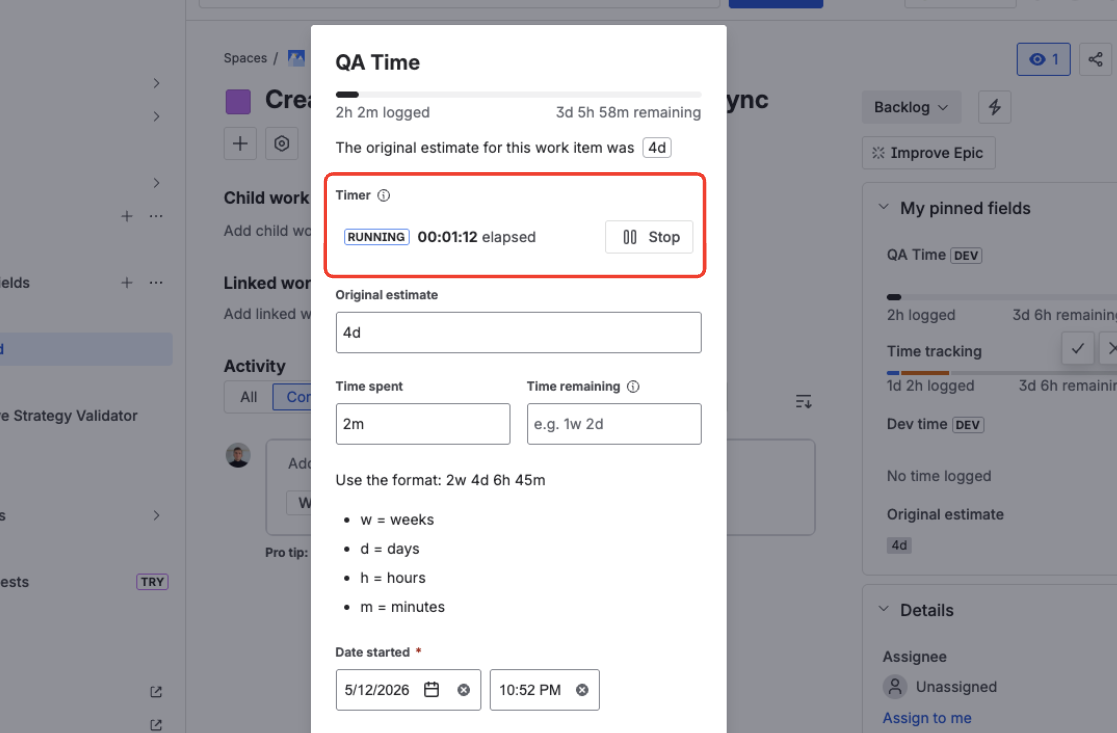
Timer ready to stop and save as a worklog.
Discard a started timer
If you started a timer by mistake or no longer want to log the time:
- To discard the timer: open the Log work modal → click Stop → close the modal without saving. The timer is cleared and no worklog is created.
- To keep the timer running: close the modal without clicking Stop. The timer continues counting in the background.
Timer keeps running across tabs and devices
Timers are stored on the issue (as a Jira issue property), not in your browser. If you start a timer on your laptop and open the issue on another device, you see the same running timer. If you close the browser tab, the timer keeps running.
Active timers are visible only to their owner. Your manager, teammates, and other users on the issue do not see that you have a timer running.
FAQ
Will my timer survive a Jira update or app reinstall?
Yes. Timers are stored as Jira issue properties, the same way as worklogs. They are not lost when the app updates.
Can my manager see that I have a running timer?
No. Active timers are visible only to their owner. Only saved worklogs appear in the activity view, dashboard gadgets, and reports.
Does an active timer count toward time logged?
No. Dashboard gadgets, CSV exports, and JQL searches see only saved worklogs. An active timer does not affect any aggregated metric until you stop it and save the worklog.
Can I run a timer on a Duration field?
No. Duration fields don't store worklogs, so the Timer section does not appear in the Duration field's edit modal.
Why don't I see the Timer section in the Log work modal?
The timer is off by default and must be enabled per project. Ask your project admin to enable it (see Enable the timer).