Getting Started
Four steps take you from an installed app to a working field you can search in JQL. You need Jira admin permissions. The app works alongside Jira's own Time Tracking, so you don't change any global settings.
Not installed yet? Start a free trial from the Atlassian Marketplace listing.
Set up your first field
Create the field
Go to Jira admin settings → Fields → Fields, select Create new field and pick Time tracking as the field type. Give it a name your team will recognise, such as "QA Estimate".
.png)
Pick Time tracking as the field type
Need a single value instead of estimate, spent and remaining? Pick Duration, see Setting up a Duration field.
Add it to screens
On the Fields page, open the field's Actions menu (⋯) and select Add field to screen.
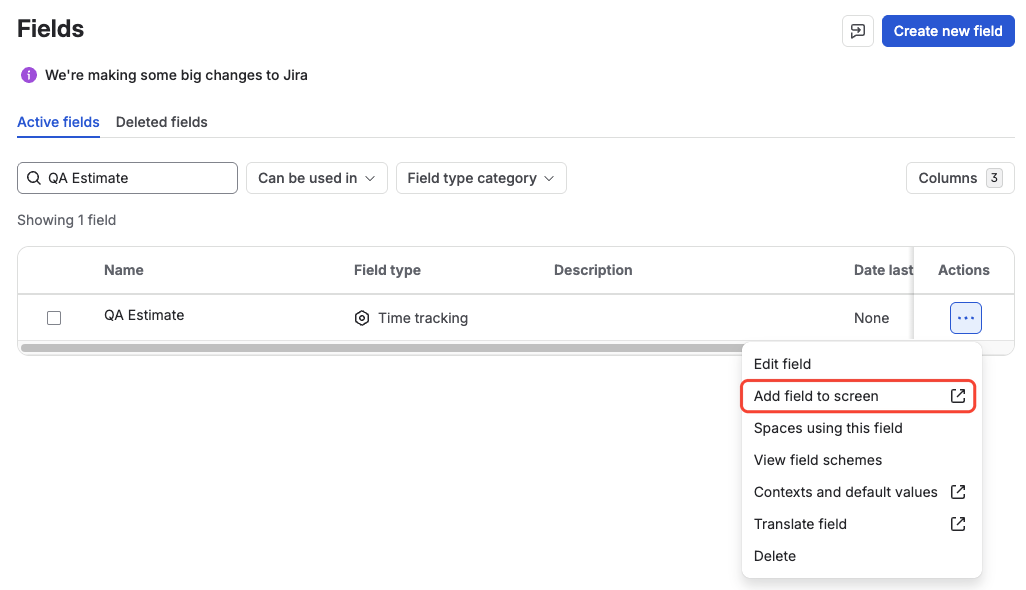
Add field to screen in the field's Actions menu
Search for the project's screens, tick the ones used to create and edit issues, and select Update. Leave Add the field to the field schemes of all projects using these screens ticked.
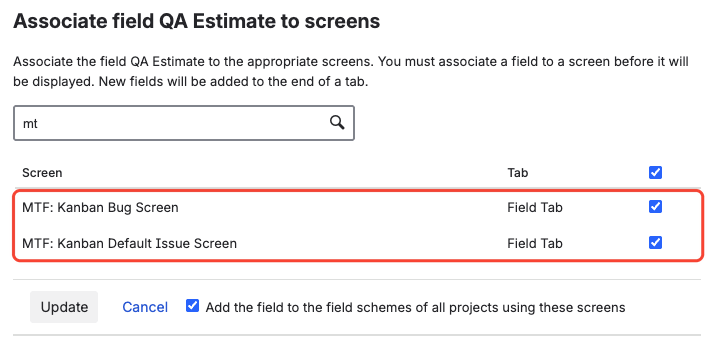
Tick the project's screens, then select Update
Enter a value on an issue
Create an issue in one of those projects and enter an estimate in Jira's format, for example
2h,1d 3hor2w..png)
The original estimate on the Create screen
Open the issue: the field shows time logged against time remaining, like Jira's own Time Tracking.
.png)
The field on the issue view
Find it in JQL
In Advanced search, start typing
"QA Estimate.and Jira suggests the field's aliases, such asTimeSpentorRemainingEstimateSeconds. Keep the quotes around the whole expression:"QA Estimate.TimeSpent" = 2d..png)
Searching by a Time Tracking field in JQL
If the issue comes back, the field is ready for more projects and teams.
Setting up a Duration field
A Duration field holds one value, such as an SLA limit or a meeting length, with no estimate, spent and remaining. You set it up the same way: pick Duration as the field type in step 1, then follow the remaining steps.
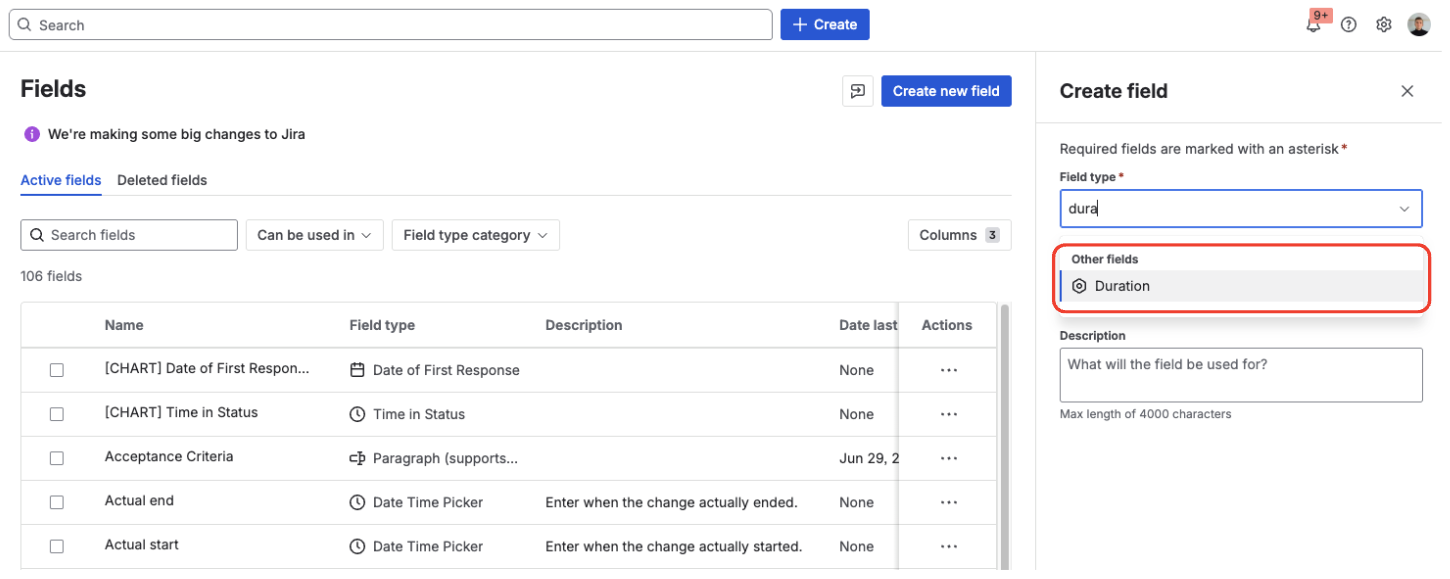
Pick Duration as the field type
The demo below walks through the whole flow, from creating the field to entering a value on an issue.