Product Tour
The app provides two field types: a full Time Tracking field and a simpler Duration field. This tour walks you through both so you can see them in action before diving into configuration.
Time Tracking field
Creating your first Time Tracking field
Choose the field type
Go to Jira settings → Issues → Custom fields and create a new custom field. In the field type list, select Time tracking.
.png)
Creating a Time tracking field
Name and assign to screens
Give the field a clear name, for example "QA Estimate", and add it to the appropriate screens (Create, Edit/View, and optionally transition screens) for the projects where you want to use it.
From this moment on, users will see the new Time Tracking field in those projects and can start working with it just like Jira's original time tracking. For more details, see the Getting Started page.
Using the field when creating an issue
When you create a new issue in a project that has your Time Tracking field (for example QA Estimate):
- Open Create issue.
- In the form, you'll see an Original estimate input for your Time Tracking field.
- Enter the planned time using Jira-style duration format, for example:
30m,2h,1d,1d 3h,2w 1d. - Create the issue.
.png)
Original estimate field on the Create issue screen
Internally, this value becomes the original estimate for that specific field, and the remaining time is set to the same value. Users simply see a friendly duration; you get structured data for reporting.
Using the field on existing issues
On an existing issue that has a Time Tracking field, you will see the same field (for example QA Estimate) with:
- the original estimate,
- the logged (spent) time,
- and the remaining time.
.png)
Time tracking field on issue view
Typical behaviour:
- If you log time through the field's editor, the time spent increases and the remaining time is reduced automatically (mirroring Jira's built-in Time Tracking).
- You can also adjust the estimate directly if plans change (for example, increase the original/remaining estimate when you discover more work).
Quick look at search & reporting
Each Time tracking field is a real, searchable time dimension in Jira. In Advanced search (JQL) you can type the field name, for example:
"QA Estimate".
and Jira will suggest all aliases, such as OriginalEstimateSeconds, TimeSpentSeconds, RemainingEstimateSeconds (numeric, in seconds) and their string counterparts OriginalEstimate, TimeSpent, RemainingEstimate.
Two simple JQL examples:
Issues with a high remaining QA estimate (more than 4 hours)
"QA Estimate".RemainingEstimateSeconds > 14400
Issues where QA time is almost used up (less than 1 hour left)
"QA Estimate".RemainingEstimateSeconds < 3600
.png)
Using Time tracking field in a JQL query
The full list of aliases and more examples are described on the **Search & Reporting ** page.
Want a visual summary directly on your Jira dashboard? Add the Team time — by user gadget to see who logged how much time per Time Tracking field, over presets like This week or Last 30 days.
Duration field
If you don't need the full original / spent / remaining workflow, the app also provides a simpler Duration field type. It stores a single time value — perfect for SLA limits, time budgets, meeting durations, or any scenario where you just need one duration without work logging.
Duration vs Time Tracking in a nutshell: Duration stores one value, Time Tracking stores three (original, spent, remaining). For a detailed comparison, see Two field types, one app.
See it in action
This interactive demo walks you through the full flow — from creating a Duration field, through adding it to screens, to using it on a real issue.
Creating a Duration field
Choose the field type
Go to Jira settings → Issues → Custom fields and choose Create custom field. In the field type list, select Duration.
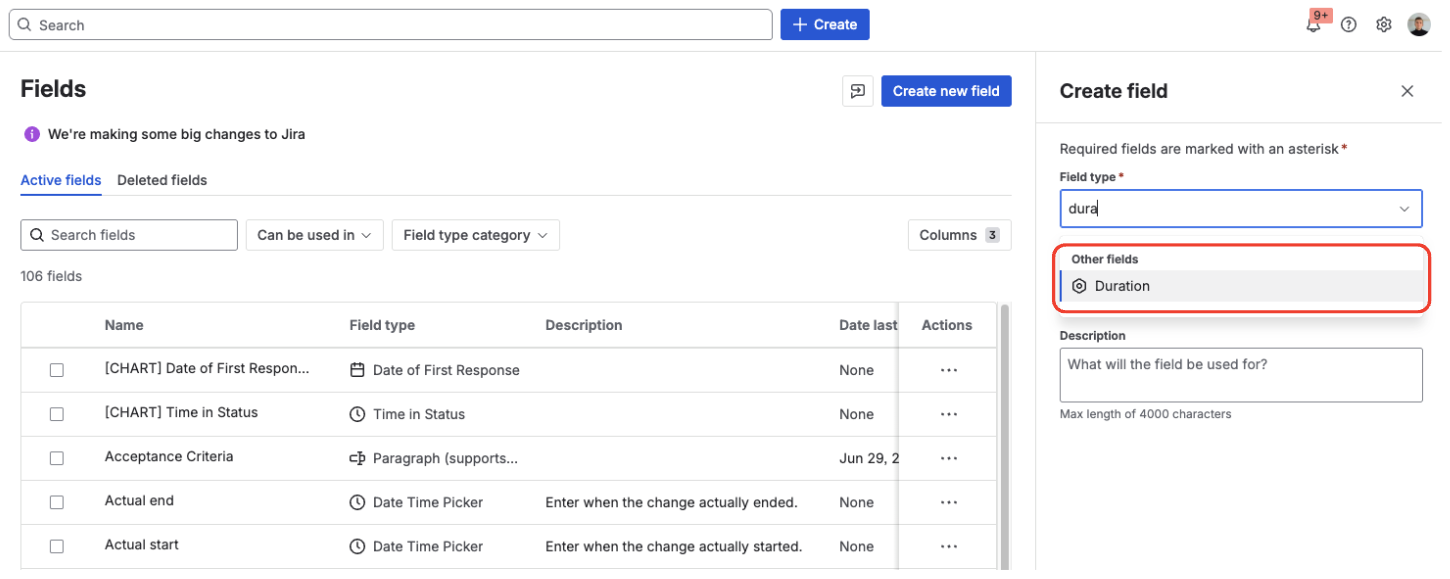
Creating a Duration field
Name and assign to screens
Give the field a name, for example "SLA Limit" or "Meeting Duration", and add it to the appropriate screens for your projects.
Using the Duration field
When creating or editing an issue, you'll see a single input where you can enter a duration:
- Use the same Jira-style format:
30m,2h,1d 3h,2w 1d. - Plain numbers are interpreted as minutes or hours, depending on configuration.
After saving, the field displays the formatted value on the issue view:
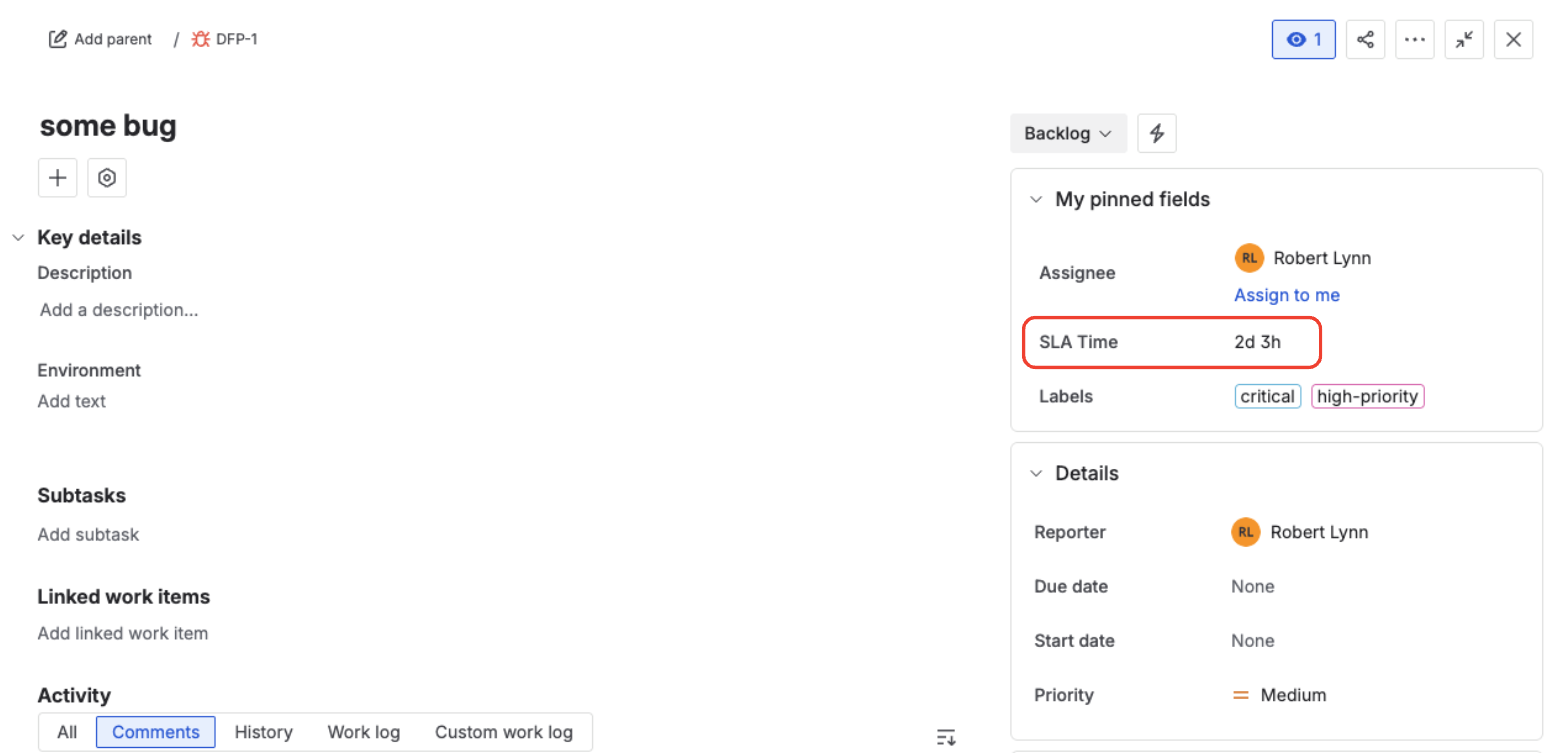
Duration field on an issue
Auto-normalization
The Duration field automatically normalizes your input. For example, if you enter 90m, the field converts it
to 1h 30m after you save or leave the input.
Normalization depends on the field's hours per day and days per week settings. With the default of 8 hours per
day, 10h normalizes to 1d 2h. See Configuration for details.
Quick look at search & reporting
Like Time Tracking fields, Duration fields are fully searchable in JQL. If your field is called SLA Limit, you can use:
Duration exceeds a threshold (more than 4 hours)
"SLA Limit".DurationSeconds > 14400
Duration contains a specific unit
"SLA Limit".Duration ~ "2w"
For the full list of aliases and more examples, see Search & Reporting.