Apply issue template
Apply an Issue Template to an existing Jira issue as part of a Jira Automation rule.
This action allows you to enrich, standardize, or complete issues that already exist — without recreating them from scratch.
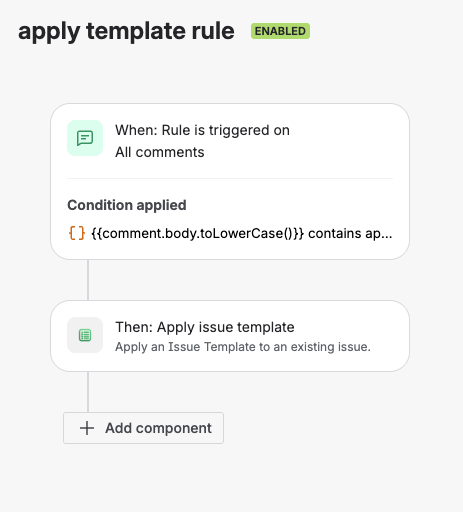
Automation rule using the Apply issue template action
Use this action when your automation needs to modify an existing issue, not create a new one.
What This Action Does
When executed, the Apply issue template action:
- Copies every field that has a value in the template into the target issue, overwriting what the issue holds — including Summary and Description
- Leaves alone the fields the template has no value for, and the fields unchecked on the template's Fields tab
- Applies dynamic fields at execution time
- Skips fields that are not available or editable in the issue context
- Sets the issue's Issue Template field to the applied template, when that field is on the issue
- Copies the template's attachments to the issue, skipping files it already holds
- Adds the template's sub-tasks under the issue when the issue is a story, task or other standard issue type, and the template's child issues when the issue is an Epic
- Recreates the template's issue links on the issue
- Preserves the issue key, issue type, project, parent and reporter
If the template has a Summary or a Description, the rule replaces the issue's own. To keep them, uncheck Summary and Description on the template's Fields tab in the Templify panel. That setting applies to every use of the template, not only to this rule.
The result matches applying the template by hand with Apply Template from the issue view, except for the placeholders described under Execution Behavior.
Add the Action to an Automation Rule
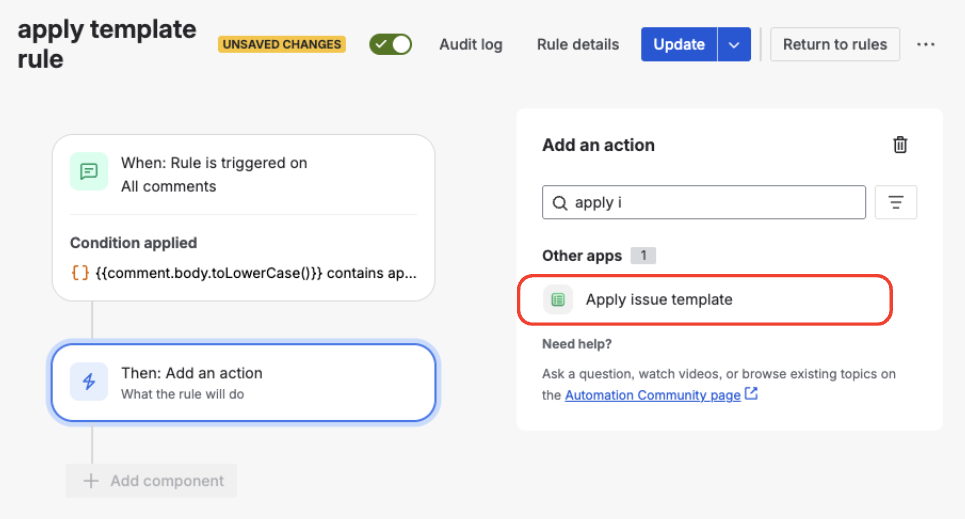
Selecting the Apply issue template action
To add the action:
Open Automation
Go to Space settings → Automation.
Create or Edit a Rule
Create a new automation rule or edit an existing one.
Add an Action
Add a new Action step to the rule.
Select the Action
Search for Apply issue template and select it. Jira lists it under Other apps.
The action is now part of your automation flow and will run whenever the rule is triggered.
Configure the Action
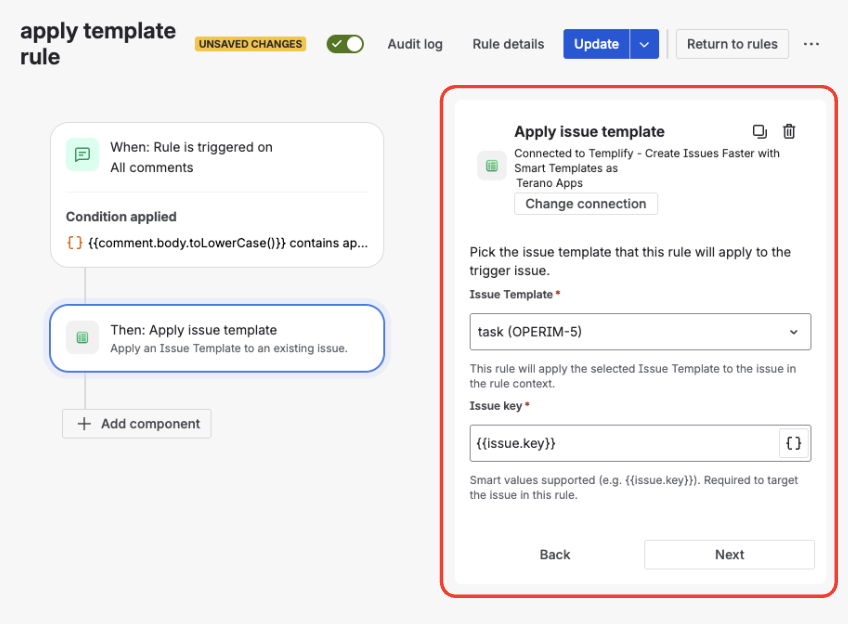
Configuring the template and issue key
Issue Template
Select the Issue Template you want to apply. The template must be available in the target issue's project (Template Availability); otherwise the action fails and the rule's audit log shows the error.
Issue key
The issue the template is applied to. By default this field is set to {{issue.key}}, the issue the rule runs on, so you can leave it unchanged in most rules.
The field accepts smart values, so a rule can also target another issue — for example the parent of the issue the rule runs on, with {{issue.parent.key}}. It is the only input of the action that accepts smart values.
Create subtasks, Create child issues, Create issue links
After you pick a template, the action shows a checkbox for each part of the template beyond its fields:
- Create subtasks — when the template has sub-tasks
- Create child issues — when the template is an Epic with child issues
- Create issue links — when the template has issue links
Each checkbox is checked by default. Uncheck one to apply the template without that part. Sub-tasks are added only to a story, task or other standard issue, and child issues only to an Epic, whatever the checkboxes say.
Execution Behavior
When the rule runs:
- The target issue is the one in the Issue key field — by default the issue the rule runs on
- Template fields are applied to that issue, and the checked parts of the template are added to it
- Dynamic fields, such as relative dates and the active sprint, are calculated at execution time
- Placeholders in the template's Summary and Description, such as
{Employee name:textfield}(dynamic text fields), are not filled in: no one sees the form that asks for them, so they are copied into the issue as written - A Current user dynamic value refers to the account the action is connected as, shown at the top of the action, not to the person who triggered the rule
- Fields not present on the issue screen are safely ignored
The issue keeps its key and identity — its fields are updated, and the template's sub-tasks or child issues are added to it.
Typical Use Cases
This action is commonly used to:
- Apply structure to manually created issues
- Enrich issues after creation based on labels, status, or comments
- Standardize issues created by external integrations
- React to user actions such as comments or field updates
- Apply different templates depending on issue state
Tracking & Visibility
Each execution of this action:
- Appears in the Usage History tab of the Issue Template
- Shows when and by whom the template was applied
- Allows direct navigation to the affected issue
This provides full traceability of automated template usage.