Usage History
Track every time a template is run — who triggered it, when it happened, and which issues were created — directly on the template itself.
What Is Usage History?
The Usage History tab (visible on any issue marked as a template) displays a chronological log of each execution:
| Column | Details |
|---|---|
| Date | Timestamp of the execution (click the header to sort). |
| Created By | Avatar and display name of the user who launched the action. |
| Issue | Root issue key plus a collapsible tree of all child and linked issues generated in that run. |
Click any issue key to open it in a new tab and inspect the structure exactly as it was created.
How It Works
Open the Template
Open an issue that is flagged as a template.
Select Usage History Tab
Navigate to the Usage History tab in the Issue Templates panel.
Review Executions
Each execution appears as a row showing date, user, and created issues.
Explore the Trail
Entries remain until the template itself is deleted, providing a permanent audit trail.
Permissions: if you can view the template, you can view its history.
How it looks?
The screenshot below shows a real Usage History panel:
- Multiple runs grouped by date and user
- Collapsible trees revealing every child and linked issue
- Direct links to each created ticket for quick inspection
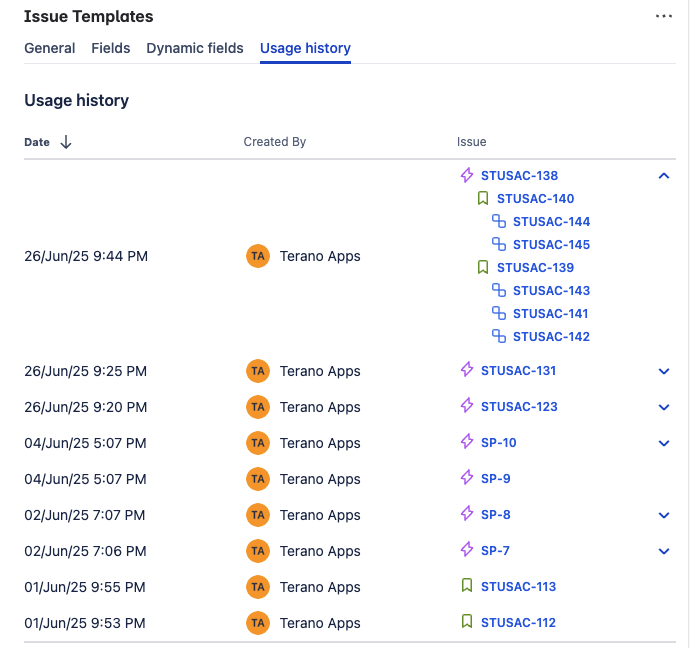
Usage history with collapsible issue trees