Configure Issue Template field
What Is the Issue Template Field?
The Issue Template Field is a app custom field managed by Templify. When visible in the Create Issue form, it enables users to choose an available template, which then automatically fills in key fields such as Summary, Description, Priority, Assignee, and much more.
This creates a seamless, native experience in Jira Cloud — especially useful for repeatable workflows.
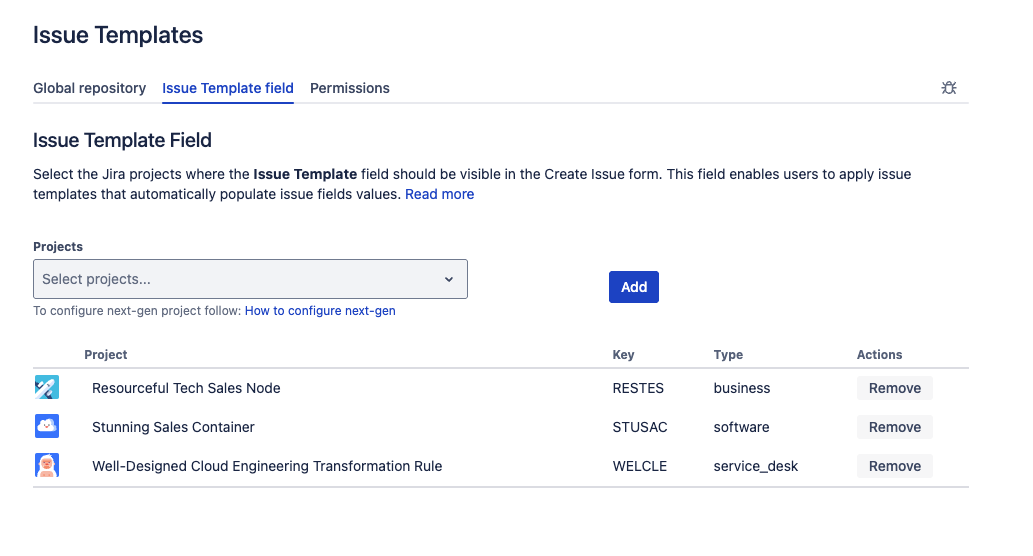
Issue Template field configuration
Configuration by Project Type
- Company-Managed Projects
- Team-Managed Projects
To enable the field, go to the Issue Template Field tab in the Templify configuration panel and:
- Use the Projects dropdown to select one or more Jira projects
- Click Add to trigger automatic configuration
Templify will:- Add the Issue Template custom field to each selected project
- Configure it on relevant screens used during issue creation
You can configure multiple projects at once. Admins still retain full control over screen schemes and can adjust field visibility as needed via Jira project settings.
Due to technical limitations in Jira Cloud, Templify cannot configure the field automatically in team-managed projects.
However, the field is fully supported once added manually. To configure it:
- Go to:
Project settings → Fields → Add field → Choose "Issue Template" - Then go to:
Project settings → Work types → Select work type → Drag the "Issue Template" field into the layout
Once this is done, Templify will detect the field and enable full template functionality in team-managed projects.
Need help? Step-by-step instructions for team-managed projects are available on the Configure Team-Managed project.
Interactive Demo
This configuration screen doesn’t use an interactive demo.
If you're setting up Templify for the first time and want to see the process in action, go to:
Back to Initial Setup — see the full interactive demo there.