Work Item Panel
The Storage Saver panel shows, on the work item itself, the files Storage Saver holds for it: moved, on their way, restored or needing attention. From the panel, people download and restore those files and move more of the work item's attachments. A moved file is no longer a Jira attachment ( see Where moved files live), so on the work item the panel is the way to it.
The panel is not there until someone adds it. Jira does not show an app's panel on a work item by itself; someone has to add it. Until then, a file moved from the project page or by a bulk move is simply gone from its work item's attachments.
Add the panel
Open the work item
Any work item whose files you want to see or move.
Select View app actions
It is under the work item's title; Atlassian's help calls it the Apps button. Jira offers to add an app's panel only to people who can edit the work item.
Select Storage Saver
The panel appears on the work item, above Activity, and stays there for everyone who can see the work item.
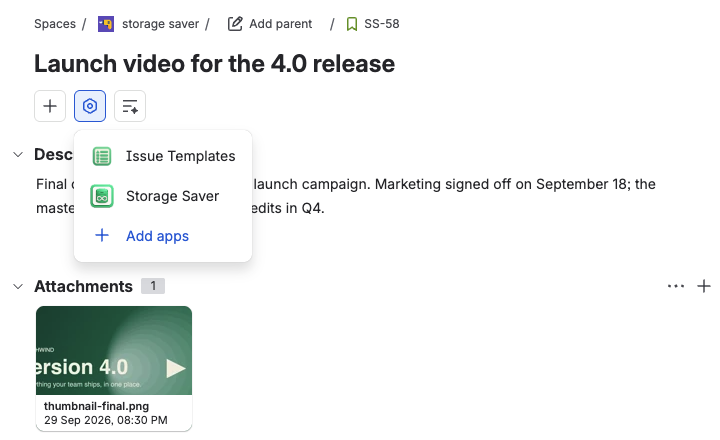
View app actions lists Storage Saver; select it to add the panel
Show the panel on every work item
Adding the panel one work item at a time does not scale to a bulk move, which moves files from every work item in a project. A Jira administrator can show the panel on all of the project's work items at once: add it to any one of them, then select Show for all work items in the panel's menu (Atlassian calls it the issue panel menu). Hide from all work items undoes it. Only Jira administrators see these two options; they are Jira's, not Storage Saver's.
Do this before the project's first bulk move, so nobody finds their files gone from a work item.
What the panel shows
From the top:
- The count line, once at least one file is moved: how many files are moved and the space they free, for example 3 files · 624 MB saved. It counts moved files only.
- A tile for each file Storage Saver holds for the work item, largest first, with the file's name and the date and time it was added in Jira. Download is a button over a moved file's preview; the tile's ⋯ menu lists what else can be done now.
- + Choose files to move, the last tile, opens the picker.
Attachments nobody has asked Storage Saver to move are not on the panel; they are in the work item's own attachments. On a work item with no attachments and nothing moved, the panel says "This work item has no attachments, and Storage Saver has nothing stored for it."
A tile's label says where its file is:
| Label | The file |
|---|---|
| No label | Is moved. Download it from the tile. |
| Queued | Waits its turn: files move one at a time across the whole site. |
| Moving | Is being copied into Storage Saver's storage. |
| Removing from Jira | Has a verified stored copy. Its Jira attachment stays on the work item until the last check passes and it is deleted. |
| Restoring | Is being put back into Jira. |
| Restored | Is a Jira attachment again. Storage Saver still keeps the stored copy. |
| Needs attention | Failed to move (red icon), or has not finished moving or restoring two hours after it was started (orange icon). The icon says why. |
While a file is on its way, the panel updates on its own; if it stops updating before the file arrives, it says "This is taking longer than usual — refresh to check again." If the panel cannot load, it says why, for example "This work item could not be read."
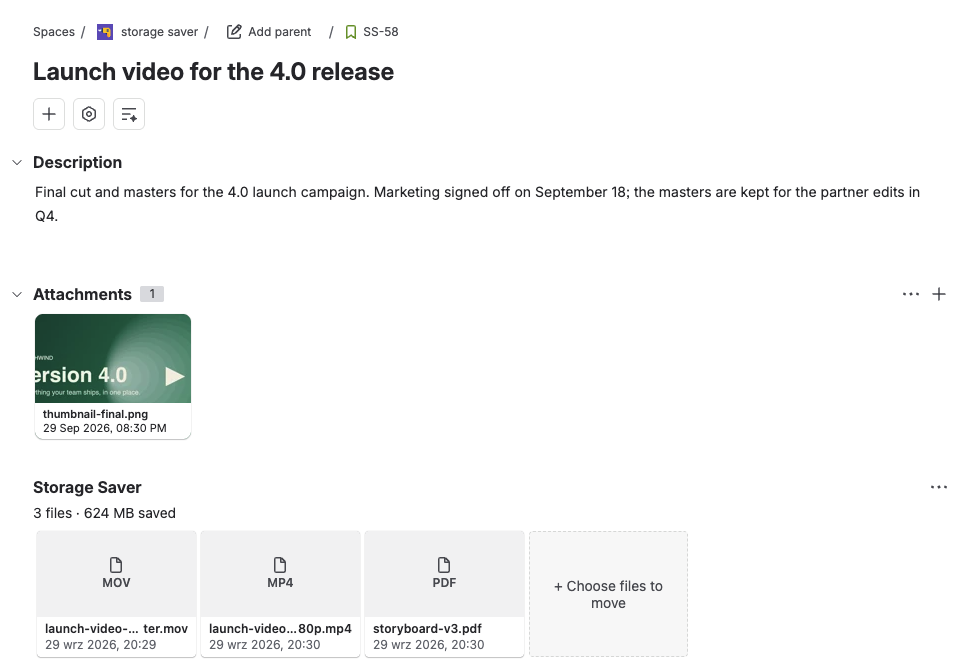
The panel with three moved files, the count line and the + Choose files to move tile
Move files from the panel
Select + Choose files to move. The picker, Move attachments to Storage Saver, lists the work item's attachments with their size and the date they were added. Files that cannot be moved are grouped under Cannot be moved with the reason, which here names the limit, for example "Too recent to move. Files must be at least 30 days old." Tick up to 25 files and press Move files. The queued files appear as tiles at once; a file refused at the press is named in a notice with its reason, and it stays in Jira.
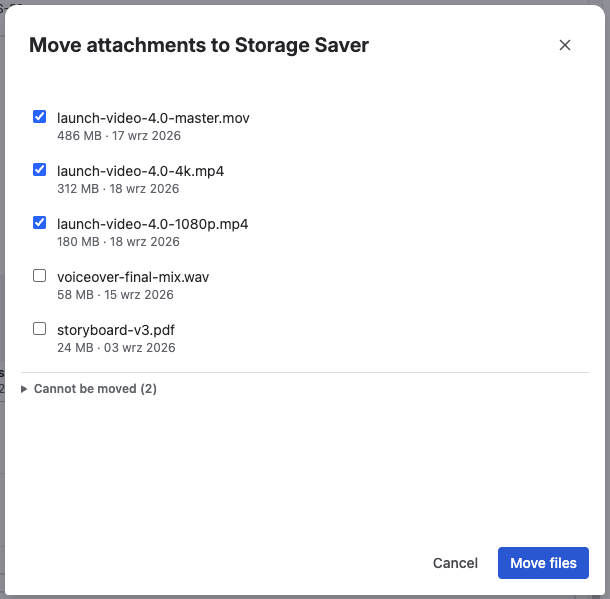
Tick the attachments to move and press Move files
The + Choose files to move tile is there for everyone who sees the panel. Whether a file can be moved is decided file by file, by the check and by the person's permission to delete that attachment ( see Permissions).
The picker leaves out attachments Storage Saver still has a record of. To move a restored file again, first press * Delete* on its tile to remove the stored copy; after a failed move, press Remove first.
Actions and the permission each checks
Seeing the panel takes seeing the work item. Each action then asks Jira, as the person pressing it, at that moment:
| Action | Where | Offered when | Jira must allow |
|---|---|---|---|
| Move | + Choose files to move | Always | For each file: Delete all attachments, or Delete own attachments for a file you uploaded |
| Download | Button over the preview | The file is moved | Seeing the work item |
| Restore | ⋯ menu | The file is moved, you hold Create attachments, and it fits the site's maximum attachment size | Create attachments |
| Delete | ⋯ menu | The file is moved or restored, and you may delete attachments on the work item | For that file: Delete all attachments, or Delete own attachments for a file you uploaded |
| Remove | ⋯ menu | The move failed, and you may delete attachments on the work item | As for Delete |
Restore puts the file back on the work item as a new attachment, with a new id, so links to the original attachment stop working; Storage Saver's record keeps the original author and date. There is no confirmation: the panel says " Restore started.", and the tile reads Restoring, then Restored. If Restore is missing from the menu, you do not hold Create attachments on the work item, or the file is larger than the site's maximum attachment size.
Delete and Remove ask for confirmation first. Delete removes the stored copy, which for a moved file is the only one. Remove clears a failed move and leaves the file in Jira. The project page compares the two.