Data & Security
Moved files leave your site's Jira storage, but not Atlassian. This page covers where they are kept, how a move keeps each file safe, what Storage Saver records, who can reach them, and what to do before you uninstall.
Files stay inside Atlassian
A moved file is copied into Storage Saver's own storage, which Atlassian hosts for the app. It no longer counts toward your site's Jira storage, but it has not left Atlassian.
- No outside server, no extra account. Storage Saver talks to no server outside Atlassian and needs no external account.
- Encrypted and kept apart. Atlassian stores what apps keep in its hosted storage encrypted on disk, and keeps each installation's data apart from every other's.
- Only attachments change in Jira. Storage Saver deletes the attachment of a file it has moved and adds one back on a restore. It never edits a work item's text and never adds comments.
How a move works
Every file takes the same path, wherever the move starts.
Check
Storage Saver reads the whole work item, every field and every comment, and takes the file only if it is not used in the text, is old enough for the minimum age, and is no larger than 500 MB. On the panel and the project page, the person moving it must also be allowed to delete that attachment in Jira.
Copy
It copies the file into its own storage, checking the byte count against the size Jira reports.
Verify
It checks that the stored copy is there, with the same size and checksum as the original.
Delete
Right before the delete, it checks the work item again, and deletes the Jira attachment only if it can still confirm that the file is unused.
If a step fails, the file stays in Jira: nothing changes the Jira attachment before the last step.
- Temporary errors are retried, up to four attempts per file. A move that still does not succeed is marked Needs attention on the panel and the project page, and listed on the admin page's Saved files tab.
- At the last step, if the check cannot confirm that the file is unused, or Jira refuses the delete for good, Storage Saver discards its copy and the file stays in Jira as it was, with no entry in the app.
Files move one at a time across the whole site. A move that has not finished two hours after it was started, waiting included, counts as stuck and is marked Needs attention too.
What Storage Saver records
For each file it moves, Storage Saver keeps a record in its own storage:
- The file: its name, size and type, and the id of the Jira attachment it was.
- Its origin: the work item's key and project at the time of the move, when the file was added in Jira, and who added it.
- The move: who moved it and when, when and how it was checked for use in the text, when the stored copy was verified, when the Jira attachment was deleted, the attempts it took, and the file's SHA-256 checksum.
- What followed: a restore (when it was asked for and finished, who restored it, and the new attachment's id), the deletion of the stored copy, or a failed move (when, and why).
People are recorded by Atlassian account and by the name Jira showed at the time. Delete removes the stored copy, not the record, so the recovery manifest still lists the file. Storage Saver's own copy of an exported manifest or project list is deleted a day after the export; the file you downloaded is yours to keep.
Who can reach a stored copy
Storage Saver grants no access of its own: each download, restore and delete asks Jira, as that person and at that moment, and goes ahead only on a yes. Permissions lists what Jira must allow for each action. Two places, both for administrators only, name files on work items the viewer cannot see: the project page and the recovery manifest.
The recovery manifest
The recovery manifest is the list of every file Storage Saver has a record of, exported as a file you keep. It lists the files; it does not contain them. After an uninstall, it is how moved files are found again: nothing else can rebuild that list.
The file is plain text. Its first line gives when and by whom it was exported, your site's and the installation's IDs, the number of records, and whether the export is complete. Then comes one line per record, with every field listed above, and a line for any record Storage Saver cannot read.
Export it
Open the Recovery manifest tab
Go to Jira settings → Apps → Storage Saver and select Recovery manifest. Only Jira administrators can open it.
Press Export the manifest
The file downloads, and Manifest exported gives the number of records and a checksum to keep with the file: "Check the file you downloaded against this SHA-256".
Manifest exported with gaps means the file misses records (an export covers up to 5,000) or the site and installation IDs that a recovery request quotes. Export again, and if the gaps remain, contact support before you uninstall.
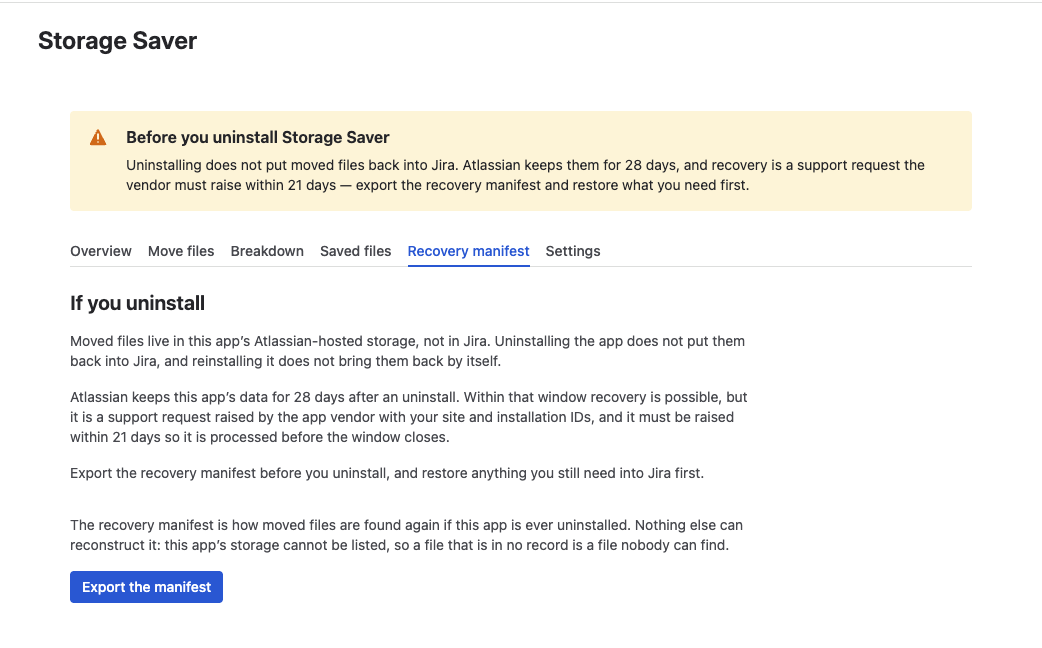
The Recovery manifest tab: export the manifest before you uninstall
If you uninstall Storage Saver
Uninstalling Storage Saver does not put moved files back into Jira. The app warns about this under If you uninstall on the Recovery manifest tab and, once it holds a file or a move needs attention, under Before you uninstall Storage Saver above the admin page's tabs. What happens to the files:
- Atlassian keeps the app's data, including the stored copies and Storage Saver's records, for 28 days after an uninstall. Reinstalling the app does not bring that data back by itself.
- Within that time, recovery is a support request that Terano Apps, as the app's vendor, raises with Atlassian, quoting your site and installation IDs. It must be raised within 21 days of the uninstall, so that it is processed before the 28 days end.
Before you uninstall
Restore what you still need
Restore files one at a time from the work item's panel or the project page, and download any file larger than your site's maximum attachment size.
Export the recovery manifest
Export it after the restores, so that it lists every file as it stands.
Keep the file
Keep it with the checksum the tab showed, so you can check later that the file has not changed. A recovery request quotes the site and installation IDs it holds.
Already uninstalled and need files back? Contact us at once, with the date you uninstalled and the IDs from your recovery manifest. With your consent, Terano Apps asks Atlassian to link your earlier installation's data to Storage Saver installed again on your site, within 21 days of the uninstall.