Project Page
The project page is Storage Saver's page in a project's settings. It lists the files Storage Saver holds for that project, and it is where administrators pick more files to move, up to 25 at a time. Attachments nobody has asked Storage Saver to move are not on the page; its picker lists them.
To open it, open Space settings for the project (next to the project's name in the sidebar, select More actions, then Space settings), then select Storage Saver in the settings sidebar. It opens for the project's administrators and for Jira administrators (see Permissions).
What the page shows
The page has one tile for each file Storage Saver holds for the project, with the file's name, its work item's key and summary (select them to open the work item), and a line with the file's size, the date it was added in Jira and who added it. A moved file carries no label; any other state is labeled as on the work item panel, and a Needs attention tile has an icon in its corner that says why.
Above the tiles:
- Search files or work items finds a file by its name or its work item's key.
- Added by (who attached the file in Jira), Attachment type, Date added (when it was added in Jira) and * Status* filter the list. Added by, Attachment type and Status show how many files each option matches.
- Sort offers Newest first (the default), Oldest first, Largest first, Smallest first and File name. The two date orders go by when the file was moved to Storage Saver, not by the date on its tile.
- A count line gives the matching files and their total size, for example 39 files · 3.5 GB.
The page shows 48 tiles at a time; Show more adds the next ones.
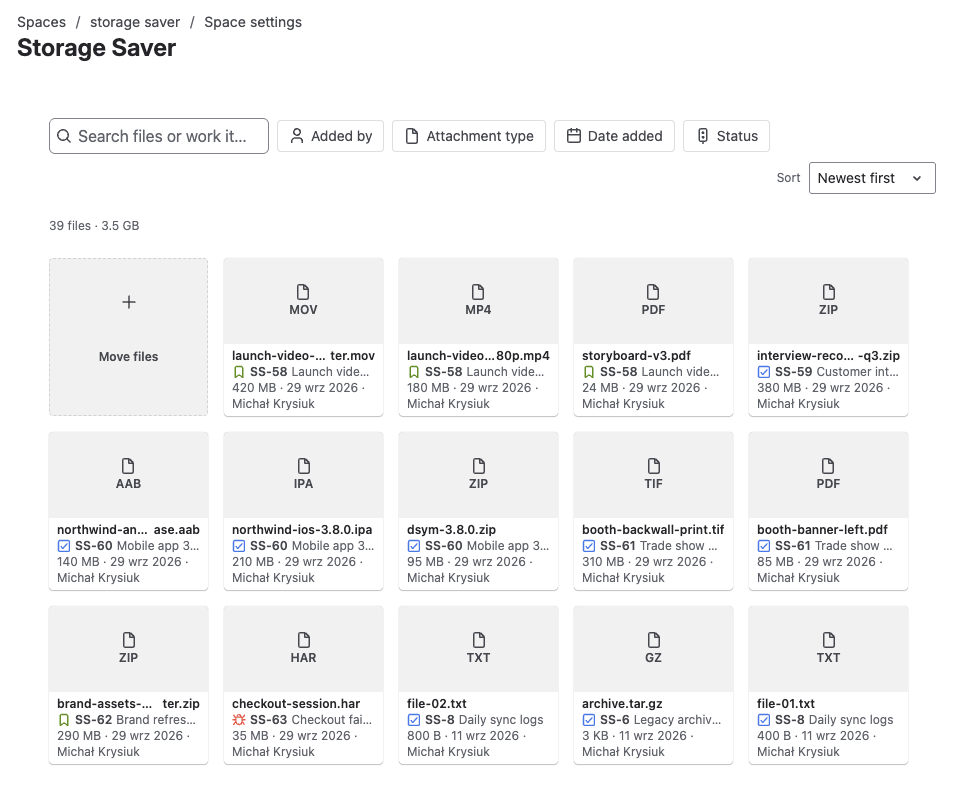
The project page lists every file moved out of the project
Move files from the project
Open the picker
Select the Move files tile, the first tile, marked with a plus sign. The picker, Move files to Storage Saver, lists the files still in Jira on the project's work items that you can see, largest first. On a large project it reads the work items in stages: while its status line says "partial list", press Keep reading to load more.
Choose the files
Tick up to 25 files, for example a work item's three large files; the search box, Type and Sort help you find them. A file marked Checked on move can be ticked, but the picker could not rule out that its work item's text uses it, so the check at the move decides. The storage report counts these files under Needs checking.
Move them
Press Move 3 files (the button counts what you ticked). A receipt shows each file as Waiting, Sending, then Queued, or Not moved with the reason. Stay on the page until it is complete: "Files not yet sent stay in Jira if you leave this page."
Follow the files
Each file's tile reads Queued, then Moving, then Removing from Jira, and loses its label once the file is moved. Every file is checked once more right before its Jira attachment is deleted, so a file can still stay in Jira ( see How a move works).
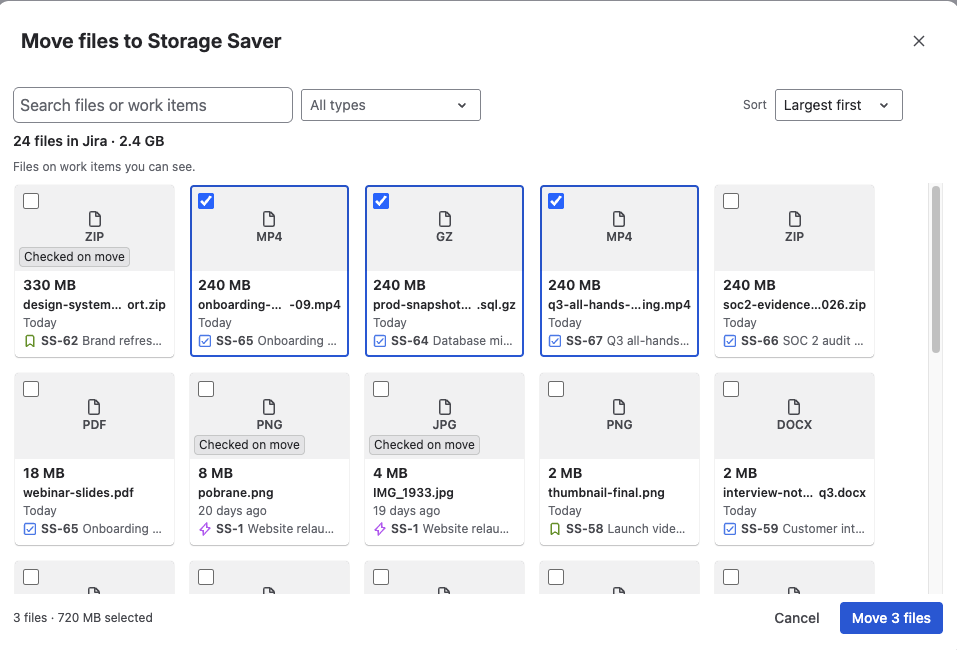
Tick up to 25 files; the button counts what you ticked
From a work item with more than 200 files, the picker lists the 200 largest; move the rest from the work item's panel.
Files the picker will not take
They are grouped under Cannot be moved, each with its reason:
| Reason shown | What it means |
|---|---|
| "Too large to move." | Over 500 MB, the largest file Storage Saver moves. |
| "Used in the description or a comment. Remove it from the text to move it." | The work item's text uses the file, for example an image pasted into a comment. |
| "Too recent to move." | Younger than the minimum age. |
| "You do not have permission to delete attachments on this work item." | Moving takes Delete all attachments, or Delete own attachments for a file you uploaded. |
| "Being moved to Storage Saver." | A move of this file is already on its way. |
| "A previous move of this file did not finish. Open the work item to see it." | Clear the failed move with Remove (below), then pick the file again. |
Act on a stored file
Download is a button over a moved file's preview, shown when you point at the tile. Restore, Delete and * Remove* are in the tile's ⋯ menu, which lists only what the file's state allows; your Jira permissions on the work item are checked when you press.
| Action | Offered on | What it does | Confirmation | Jira must allow you |
|---|---|---|---|---|
| Download | A moved file | Downloads it under its original name. | None | To see the work item |
| Restore | A moved file | Puts it back into Jira as a new attachment. | None | To see the work item, and Create attachments |
| Delete | A moved file, or a restored one whose stored copy is kept | Deletes Storage Saver's stored copy. | Delete file from Storage Saver | To see the work item, and Delete all attachments, or Delete own attachments for a file you uploaded |
| Remove | A move that failed: a Needs attention tile with a red icon | Clears the failed move. | Remove file from Storage Saver | As for Delete |
On a work item Jira no longer shows you, only the project's administrators and Jira administrators can use Delete and Remove, from this page.
Restore
Restore puts the file back on its work item as a new attachment, with a new id, so links to the original attachment stop working. Before it puts the file back, Storage Saver checks the stored copy against the size and checksum it recorded when the file was moved. Storage Saver's record keeps the original author and date, and the tile keeps showing them. There is no confirmation: the tile reads Restoring, then Restored. From then on, download the file from the work item; Storage Saver keeps its stored copy until someone presses Delete.
A restore must fit within 500 MB and within the site's maximum attachment size, which a Jira administrator sets in Jira's attachment settings (see Atlassian's Configure file attachments). A larger file is refused with a message naming the largest attachment the site accepts, and it can still be downloaded. Without Create attachments, pressing Restore shows "You do not have permission to add attachments to this work item."
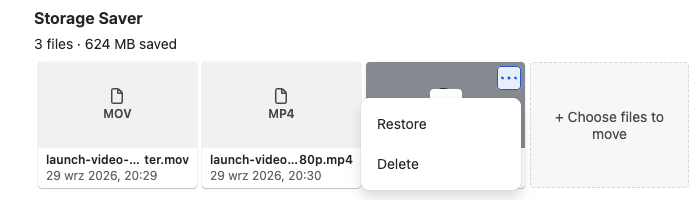
The ⋯ menu lists only what the file's state allows
Delete or Remove
| Delete | Remove | |
|---|---|---|
| What goes | The stored copy, for good. For a moved file it is the only copy, as the confirmation says: "File is no longer in Jira. Deleting it here removes the only copy — it cannot be restored or downloaded after this." For a restored file, the Jira attachment stays as it is. | Storage Saver's record of the failed move, and any copy it made. The file stays in Jira, untouched. |
| Afterwards | The tile is gone. A restored file is then an ordinary attachment that can be moved again. | The tile is gone, and the file can be picked and moved again. |
Remove checks the work item when you press it. If the file is no longer among its attachments and Storage Saver holds a verified copy, nothing is removed: that copy is the only one, so the file is shown as moved. If the copy was never verified, Remove is refused and the file stays on the admin page's Saved files tab.