Storage Report
The Overview tab of the Storage Saver admin page is the storage report for the whole site. It shows how much attachment storage the last scan found against the site's storage limit, how much of it can be moved now, and when the site reaches its limit, with and without moving. Once you enter how many users the site pays for, it also shows what Premium would cost instead. Nothing is moved from this tab; it tells you where to start.
To open it, go to Jira settings → Apps → Storage Saver. The admin page opens on the Overview tab. Only Jira administrators can open it (see Permissions).
When a scan runs
The figures come from a scan. It reads every work item with attachments in every project Storage Saver is allowed to browse, and puts each file in one group.
- The first scan starts on its own when you install Storage Saver on a site that has never been scanned.
- After that, a scan runs only when a Jira administrator starts one, with Scan again beside the Attachment storage heading. On a site with no scan yet, the button reads Start scan. There is no schedule.
- One scan runs at a time. While it runs, the button is off. The scan runs in the background, so you can leave the page and come back.
A banner above the figures says what the scan is doing:
- No scan has run yet: no scan has ever run on this site. Press Start scan.
- Scan starting: a scan is about to begin. After an install, the banner reads "Storage Saver started a scan when it was installed. It can take a few minutes to begin while Jira finishes setting the app up."
- Scan in progress: how many projects have been read so far, with a progress bar. During the first scan, the figures are what has been read so far, and each tile's caption starts with "So far"; the forecast waits until every project is read. During a later scan, the previous scan's figures stay on screen until the new one completes.
- The last scan did not finish: the scan stopped, and the banner says why. A scan that makes no progress for two hours counts as stopped too, and the banner then reads "The last scan stopped responding before it finished." Press * Scan again*; a new scan reads every project from the start.
- These figures are more than 30 days old: see When to scan again.
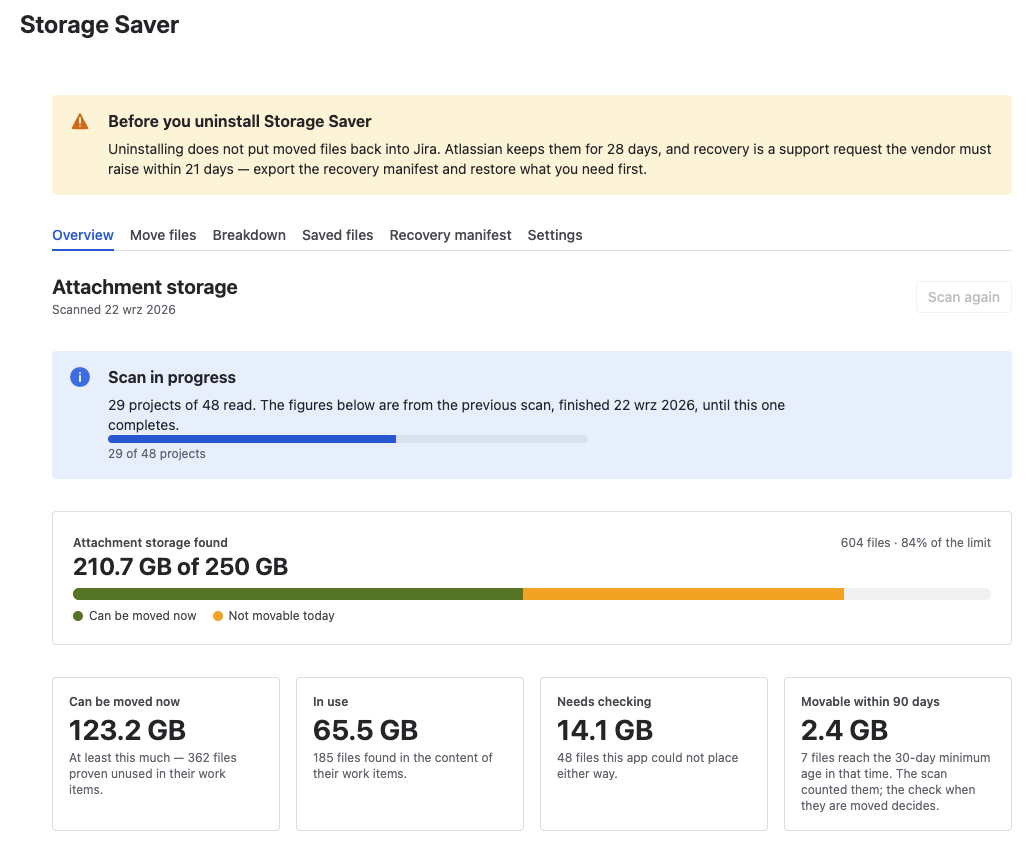
During a later scan, the previous scan's figures stay on screen until the new one completes
The meter and the tiles
Once a scan has finished, its date appears under the Attachment storage heading, and every figure on the tab comes from that scan.
The meter, Attachment storage found, shows the storage the scan found against the site's storage limit, with the number of files and the share of the limit they take. The part that can be moved now is drawn in green inside the bar; the rest is labeled Not movable today. The limit is 250 GB, the limit on Jira Cloud Standard, unless you change * This site's storage limit (GB)* on the Settings tab (on the Free plan, enter 2). The bar changes color as the site nears its limit and again when it reaches it; past the limit, a mark shows where the limit falls.
Below the meter, one tile per group:
| Tile | Which files | What happens to them |
|---|---|---|
| Can be moved now | Files the scan proved unused in their work item's text: it read the whole work item, every field and every comment, and did not find the file there. They are also old enough for the minimum age and no larger than 500 MB. | Ready to move. The tile says "At least this much", because a file under Needs checking can turn out to be movable too. |
| In use | Files the scan found in their work item's text: the description, a comment or another field, for example an image pasted into a comment. | They stay in Jira. Once someone takes a file out of the text, it can be moved. |
| Needs checking | Files the scan could not place either way: the work item uses some file in its text and this one was not checked on its own, the work item could not be read in full, or the file could not be identified in the text. | Each is checked at the moment it is moved, and moved only if it is not in use. |
| Movable within 90 days | Only when the scan counted with a minimum age above 0: files still younger than the minimum age that reach it within 90 days of the scan. On the Move files tab, the Not old enough yet column counts these files without the 90-day window. | They stay in Jira until they are old enough. As the tile says, the check when they are moved decides. |
Files larger than 500 MB have no tile. Storage Saver cannot move them, and What these figures cover counts them.
Every file is checked again when it is moved, so what moves can differ from these figures.
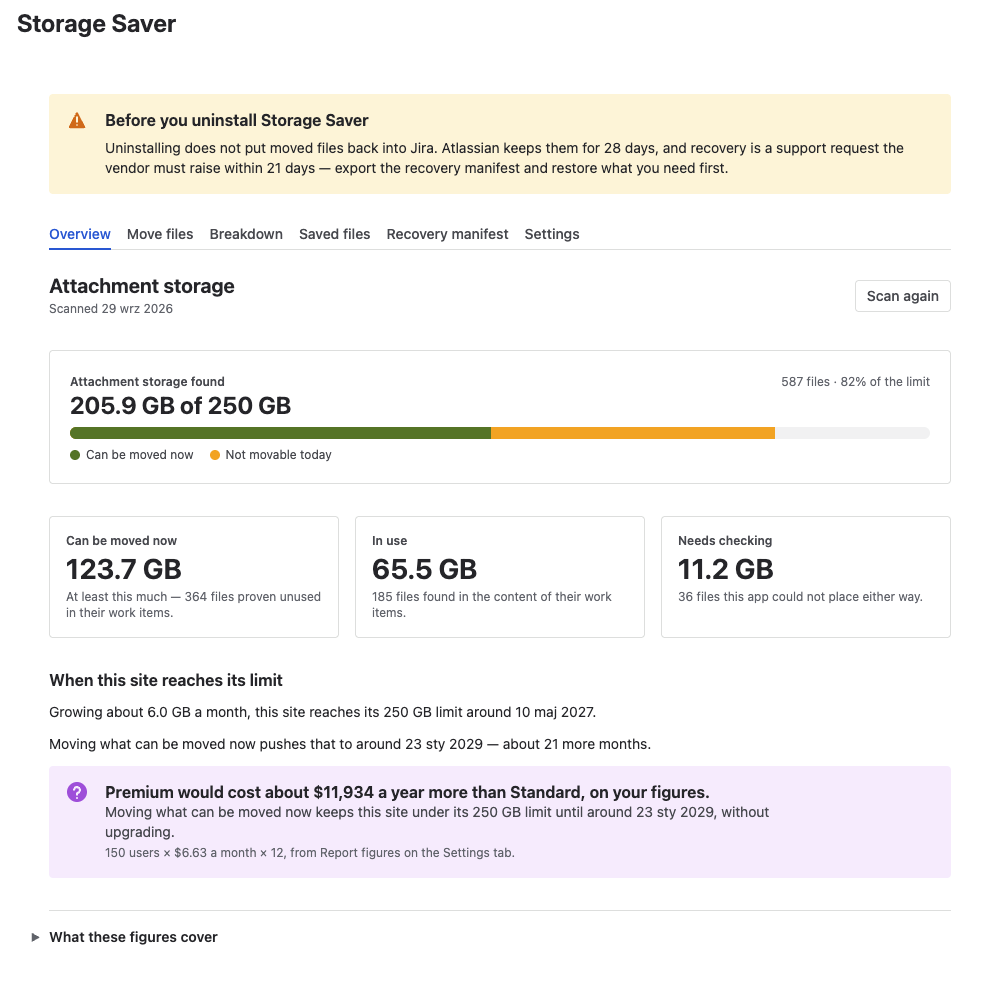
The Overview tab after a finished scan
When this site reaches its limit
This section forecasts when the site reaches its storage limit at its present growth, and how much later that comes if you move what can be moved now.
- Growth is the average monthly growth over the twelve full calendar months before the current one, worked out from the upload dates of the files the scan found. Deleted files, and files already moved, are not among them, so the real rate may be higher.
- The date is the room left under the limit divided by that growth, counted forward from today.
- After moving takes the Can be moved now figure off the storage found and counts again. Needs checking is not taken off.
What the section says depends on the site:
| When | The section says |
|---|---|
| The site is under its limit | How much it grows a month and around which date it reaches the limit; then, if anything can be moved now, how much later that date comes, for example "about 8 more months". |
| The site is at or over its limit | How far over it is and how much it grows a month; then whether moving what can be moved now brings it back under the limit, and until when. |
| No date can be projected | Why: files were uploaded in fewer than three different months, none was uploaded in the last twelve months, or the first scan is still running. |
Two settings feed the forecast (see Settings): This site's storage limit ( GB), which every date is measured against and which redraws the report from the same scan as soon as it is saved, and the minimum age, which decides what counts as Can be moved now and reaches the report only after Scan again.
The Premium comparison
File storage on Premium is unlimited, so once Users this site pays for, under Report figures, holds a number, the section also shows what Premium would cost instead; until then it asks for that number and offers **Go to Settings . The box gives how much more Premium would cost a year than Standard, "on your figures" (your user count, times * *Premium price over Standard, per user per month (US dollars), times 12, with the working on a line under it), and how long moving what can be moved now keeps the site under its limit without upgrading, when the forecast can say so. The price starts at a value the app fills in from list prices; replace it with the figure from your own quote ( see Settings).
What these figures cover
The expander What these figures cover, at the foot of the tab, lists what the figures include and leave out: files larger than Storage Saver can move, what makes up In use and Needs checking, projects the scan could not read ( with the reason, for example that your site's data security policy blocks the app), work items it could not read in full, projects and work items it is not allowed to browse, and the minimum age the scan used. It also says that growth is measured from files that still exist, and that a moved file is no longer a Jira attachment: Jira search, automation rules and other apps that read attachments no longer see it.
The report and Jira's own storage figure
The storage report counts what the scan could read. As the tab itself says, "The storage found is what this app could read, not Jira's own storage figure." Jira's own figure is in Atlassian Administration, under Site settings → * Storage* (see Atlassian's Track storage and move data across apps), and the two can differ.
After a move, Jira's own storage figure is not updated at the moment of the move; it catches up later. The storage report does not change with a move at all: its figures come from the last scan, so files moved since then stay in them until a new scan finishes.
When to scan again
Press Scan again on the Overview tab when:
- The figures are more than 30 days old. The tab keeps showing them, under the banner These figures are more than 30 days old, which reminds you that files have been added, and older files have aged past the minimum, since that scan.
- You changed the minimum age. Until the next scan, the dialog that confirms a bulk move warns The scan used a different minimum age.
- You have moved files and want figures without them.
- You want a bulk move to take newer files. A bulk move takes only files uploaded before its scan started.
Saving Report figures needs no new scan.