Move Whole Projects
A bulk move takes one project at a time and moves every file in it that passes Storage Saver's check, whoever uploaded it, so nobody has to pick files one by one. A Jira administrator starts it from the admin page's Move files tab; each start is a run, which the tab follows until it ends. Every file takes the same path as any other move: checked, copied, the copy verified, and only then the Jira attachment deleted.
Before you start
- A finished scan. The tab lists projects from the last scan that finished, and only those projects can be moved in bulk. While a scan is running, no bulk move can start: each row says "Wait for the scan to finish before moving files."
- Newer files wait for the next scan. A bulk move takes only files uploaded before its scan started. To include newer ones, press Scan again on the Overview tab first and let the scan finish.
- What moving means. A moved file is no longer a Jira attachment, so tools that read attachments stop seeing it ( see Where moved files live). It stays reachable from its work item through Storage Saver.
- Where people will find the files. After the run, the files are gone from their work items' attachments; people reach them through the Storage Saver panel, which Jira does not show until someone adds it. Show the panel on every work item in the project first (see Work Item Panel).
- The minimum age. The run applies the minimum age set on the Settings tab when you confirm the move, and keeps it until the run ends. If anything on your site reads recent attachments, set it first ( see Settings).
- Whose files move. A bulk move does not use your own work item permissions: it moves the project's files whoever uploaded them, including files on work items you cannot see, and records you as the person who moved each one. See Permissions.
What the tab lists
The table Projects with the most to move lists up to ten projects: those where the last scan found the most storage that could move, counting Can be moved now and Needs checking together. Other projects have no Move files… button in this report.
| Column | What it shows |
|---|---|
| Project | The project's name and key. |
| Can be moved now | Storage in files the scan proved unused in their work item's text. |
| Needs checking | Storage in files the scan could not place either way. The run checks each one and moves it only if it is not in use. |
| Not old enough yet | Only when the scan counted with a minimum age above 0: storage in files younger than it. The run does not move them. |
Each row ends with a Move files… button. When a button is off, the reason is under it: "Wait for the scan to finish before moving files.", "A bulk move is already running." or "The last scan found nothing here that a run could take."
Every scan builds the table afresh. To reach a project that is not listed, move the files of the projects above it and press Scan again, or pick the project's files on its project page, up to 25 at a time.
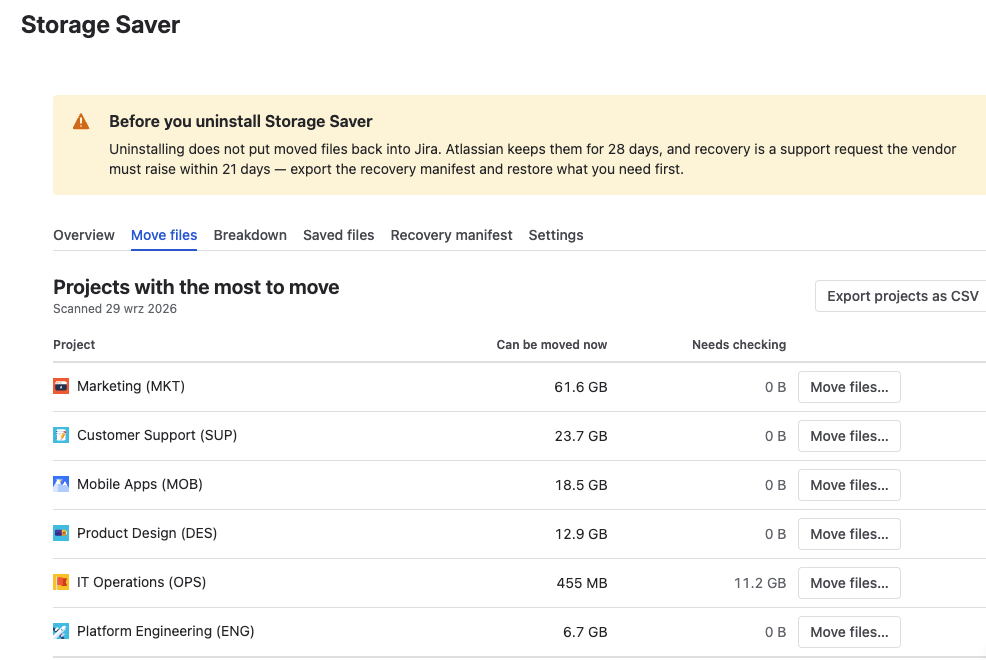
The projects with the most to move, each with its own Move files… button
Move a project's files
Open the Move files tab
Go to Jira settings → Apps → Storage Saver and select the Move files tab.
Pick the project
Press Move files… in the project's row. Nothing moves yet; the button opens a dialog first.
Read the dialog and confirm
The dialog shows what the last scan found in the project, under Can be moved now and Needs checking, and the minimum age the run applies. Every file is checked again before it moves, so the result can differ from these figures. If the project needs more than one press, the dialog says so ( see How much one press moves).
Press Move files to start the run, or Cancel.
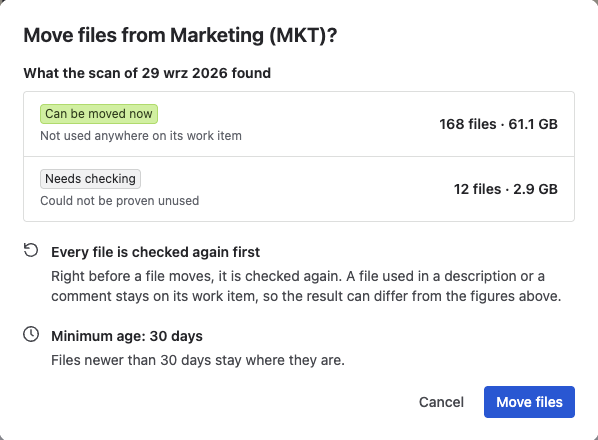
Nothing moves until you press Move files
Follow the run
The run appears above the table, and its counters grow as it reads the project's work items:
- Work items read: how far the run has got.
- Queued: files that passed the check and are on their way out of Jira.
- Refused by the check: files that stay in Jira, for example because they are used in a work item's text. A list below the counters names them with the reason.
- Left alone, newer than the scan: files uploaded after the scan started.
- Could not be queued: files the run could not hand over. A note says what to do.
The run carries on if you leave the page.
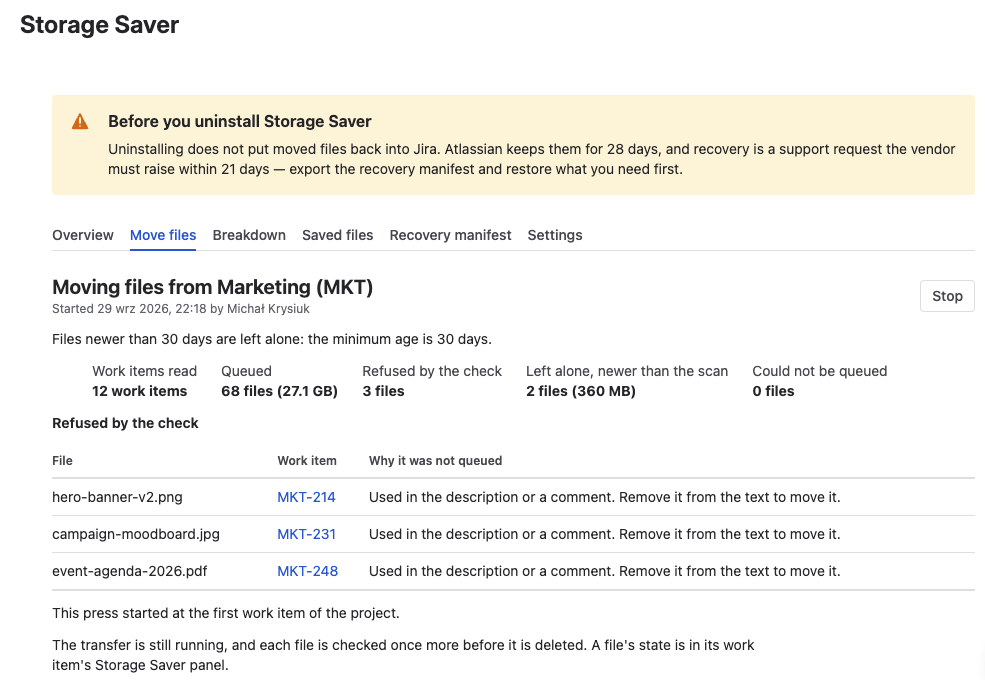
A run in progress, with what it has queued and what the check refused
Read the result
When the run ends, it moves below the table under Last bulk move, headed with the number of files it queued and their size, and stays there until the next run replaces it. The queued files go on moving one at a time after the run has ended. Each file's state shows on the project page and on its work item's Storage Saver panel; on a work item without the panel, a moved file is simply gone from the attachments until someone adds the panel ( see Work Item Panel).
How much one press moves
One press queues about 850 files. When a project holds more than that under Can be moved now and Needs checking, the dialog says Takes more than one press, and a run that reaches the limit ends with Stopped at the limit of one press: "This press queued as many files as one run can. Files already queued will still be moved. Pressing Move files… again continues from where it stopped, unless a newer scan has finished since."
For the rest, press Move files… in the same row again once the run has ended. The new press carries on after the last work item the earlier run decided, and the dialog says Continues the earlier run. It starts again at the first work item instead when a newer scan has finished (the dialog then says Starts again at the first work item) or when a run on another project came in between. Either way nothing is moved or counted twice: files the earlier run moved are no longer on their work items.
Repeat until a run ends without reaching the limit. A work item with more files than one press can ever take is skipped and counted under Could not be queued; the run names it, and its files have to be moved from the work item itself.
Stop a run
Press Stop in the run's section. The dialog Stop this bulk move? says how many files are already queued and that they "will still be moved; nothing more will be queued." Press Stop to confirm.
- The run ends after the work item it is on. Until then, the section says "A stop was requested by", followed by the name of the administrator who pressed it.
- Stopping never takes back a file that is already queued: it still moves. A moved file can be restored, one file at a time, from its work item's panel or the project page.
- Any Jira administrator can stop a run, not only the one who started it.
- The result then reads Stopped. Pressing Move files… again goes on as How much one press moves describes.
One at a time
Only one bulk move runs at a time, and files move one at a time across the whole site, moves and restores alike. A run can queue hundreds of files, so a move or restore started from a panel or a project page meanwhile waits its turn.
Export the project figures
Once a scan has finished, press Export projects as CSV beside the table's heading. It downloads the figures of the last finished scan for every project it read, not only the ten in the table: one row per project, sorted by project key. The file holds figures only, never file names. The tab confirms how many projects were exported, and that "The file lists figures only, never file names, and the download link works for an hour."
The columns of the exported file
| Columns | What they count |
|---|---|
project_key, project_name | The project. |
files, bytes | Every file the scan found in the project, and their size. |
can_be_moved_now_files, can_be_moved_now_bytes | Can be moved now. |
checked_when_moved_files, checked_when_moved_bytes | Needs checking. |
in_use_files, in_use_bytes | In use. |
not_old_enough_files, not_old_enough_bytes | Files younger than the minimum age the scan used. |
too_large_files, too_large_bytes | Files larger than 500 MB. |
Sizes are in bytes.
If a move does not finish
- A file refused by the check has not failed: it stays in Jira, and the run's Refused by the check list says why.
- A queued file whose move fails or gets stuck is handled like any other move: its tile on a panel or the project page reads Needs attention, and for a queued file that happens two hours after it was queued. The Saved files tab does not list each run file that has waited that long; it counts them in one line.
- If the last check before the delete cannot confirm that a file is unused, or Jira refuses the delete for good, Storage Saver discards its copy and the file stays in Jira as it was, with no entry in the app.