Storage Breakdown
The admin page's Breakdown tab shows where the attachment storage the last scan found sits: which files are the largest, how old the files are, and what kinds of files they are. Nothing is moved from this tab. Use it to decide what to move first, then move it from a project page, a work item's panel or a bulk move.
To open it, go to Jira settings → Apps → Storage Saver and select the Breakdown tab. The date of the scan comes first. Before the first scan, the tab says "No scan has finished yet. Start one on the Overview tab."; during it, the figures fill in as projects are read.
Largest files
The Largest files list shows up to ten of the largest files the scan found that Storage Saver can act on, largest first.
| Column | What it shows |
|---|---|
| File | The file's name. |
| Work item | The work item's type and key. Select it to open the work item. |
| Size | The file's size. |
| Added | When the file was uploaded to Jira. |
| Status | Can be moved now, In use or Needs checking, the groups explained in Storage Report. |
The list names only files on work items you can see, and a note under it counts the rest, for example "2 more of the largest files are on work items you cannot view, so they are not listed." It also leaves out files Storage Saver cannot act on, as the note under it always says: "This list covers only files this app can act on. A larger attachment may exist that is too large to move, or not yet old enough."
By age
The By age table shows how much storage sits in files of each age, measured on the day the scan started, and how many files that is. The rows follow the minimum age the scan used:
| With a minimum age, for example 30 days | With no minimum age |
|---|---|
| Under 30 days | Newer than the scan, only when some files were uploaded after the scan started |
| 30 days to 1 year | Under 1 year |
| 1 to 2 years | 1 to 2 years |
| 2 to 3 years | 2 to 3 years |
| Over 3 years | Over 3 years |
By file type
The By file type table shows the same storage by kind of file, with the number of files: Images, Documents, Spreadsheets, Presentations, PDFs, Archives, Videos, Audio and Other, in that order, listing only the types the scan found. A file's type comes from what Jira reports about it, or from its name when Jira cannot tell.
Both tables count every file the scan found, including files that cannot be moved.
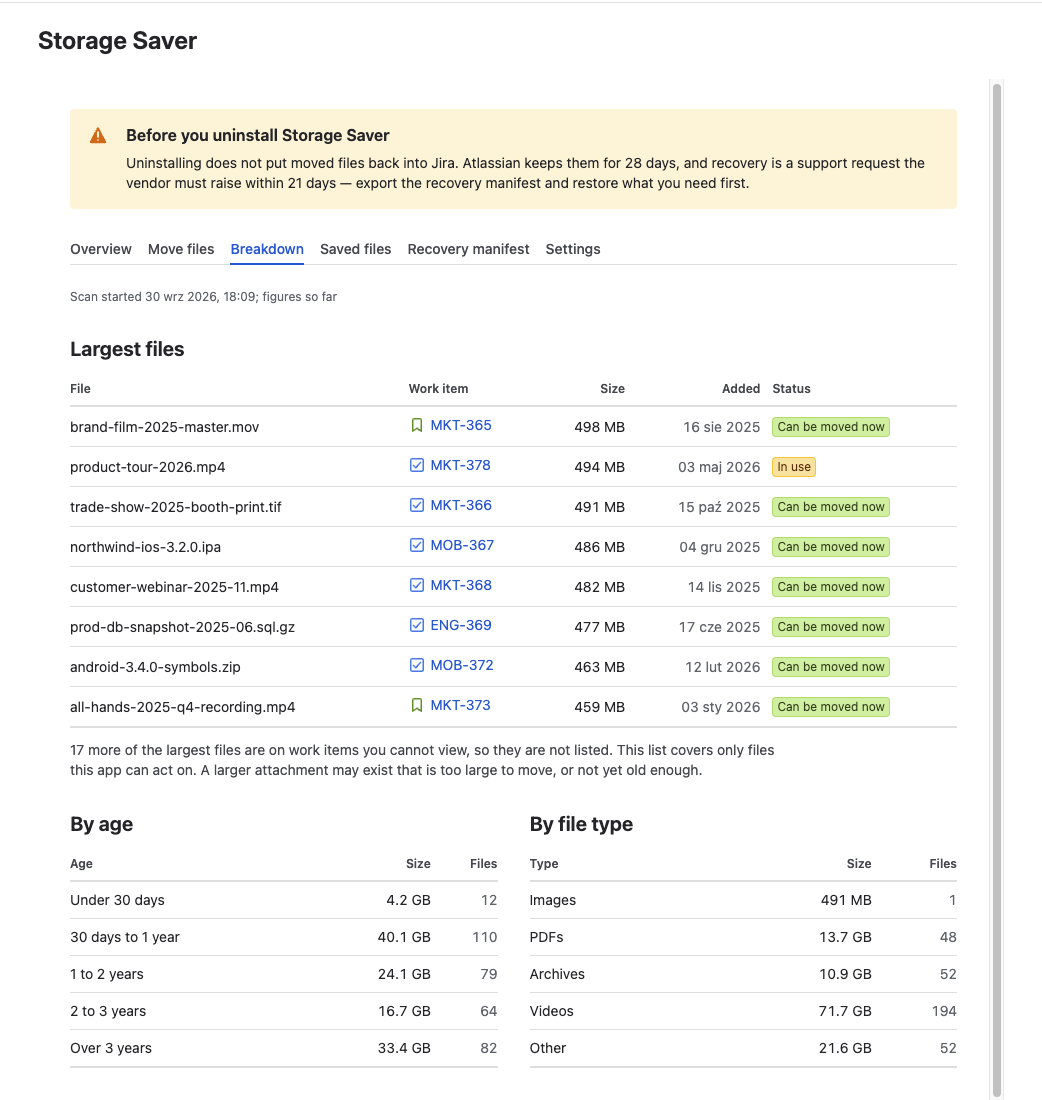
The Breakdown tab: the largest files, and storage by age and by file type
Decide what to move
- Start with the largest files. They are where a single move frees the most space. For each file in **Largest files
**:
- Can be moved now or Needs checking: move it from its project's Storage Saver page (open Space settings for the project, then Storage Saver in the settings sidebar), where the picker lists the files still in Jira largest first, up to 25 per pick; see Project Page. Or move it from the work item's Storage Saver panel. A file under Needs checking moves only if the check finds it unused.
- In use: the file is used in its work item's text, for example an image pasted into a comment. Open the work item from the list to find where; once someone takes the file out of the text, it can be moved.
- Look for types with much storage in few files. In By file type, a type whose size is large for its number of files holds large files, so a few moves free much of that storage.
- See what a minimum age holds back. Files younger than the minimum age stay in Jira. After a scan with a minimum age set, the first row of By age, for example Under 30 days, shows how much storage sits in files younger than it. See Settings.
- Move whole projects when no single file stands out. The Move files tab ranks projects by how much they have to move; see Move Whole Projects.
The tab shows the last scan's figures, so a file you move stays in the list until the next scan.