Settings
The admin page's Settings tab holds everything you can change in Storage Saver: the minimum age a file must reach before it can be moved, and the three figures the storage report is calculated from. Every setting applies to the whole site. Only Jira administrators can change them, because only they can open the admin page ( see Permissions).
The largest file Storage Saver moves, 500 MB, is fixed rather than set, and a restore must also fit your site's own attachment size limit in Jira.
Change a setting
Open the admin page
Go to Jira settings → Apps → Storage Saver. The page opens on the Overview tab.
Select the Settings tab
The admin page's tabs are Overview (Storage Report), **Move files ** (Move Whole Projects), Breakdown (Storage Breakdown), **Saved files **, Recovery manifest (Data & Security) and Settings, the last one. Settings has two sections, Minimum age and Report figures; the Report figures fields appear once the storage report has loaded.
Change a field and save its section
Type the new value into the field: the number of days under Minimum age, or one of the three figures under Report figures (each is described below). Then, under Minimum age, press Save. Under Report figures, press Save figures. Each button saves its own section only, so a change in both sections takes both presses. A message confirms the save; a value the field does not accept is not saved, and the field says what it takes.
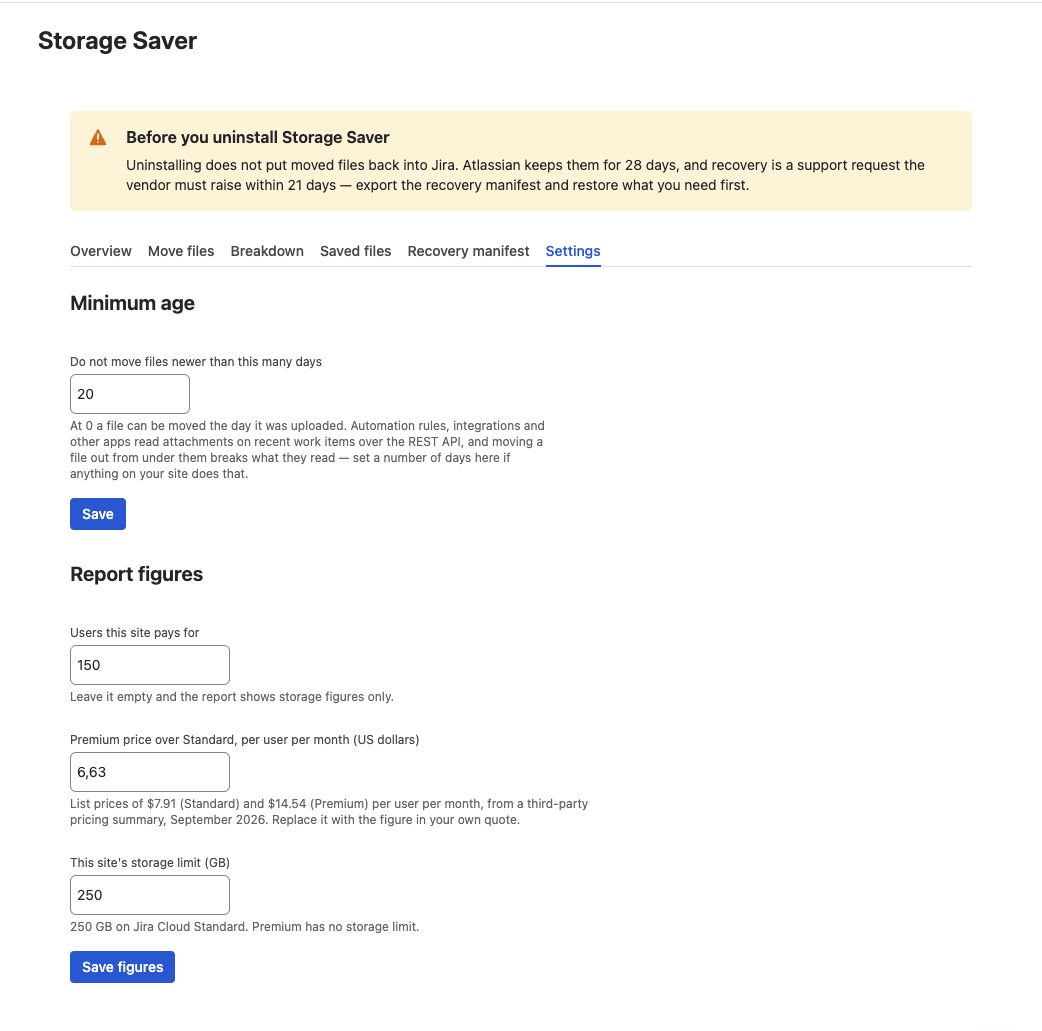
The Settings tab
Minimum age
Do not move files newer than this many days keeps a file in Jira until it is that many days old. The default, 0, lets a file move on the day it was uploaded.
Set it if automation rules, integrations or other apps read the attachments of recent work items: a moved file is no longer a Jira attachment, so they no longer see it. New moves use a saved value at once; the storage report uses it after Scan again on the Overview tab.
Report figures
The storage report uses three figures that no scan can find. Save figures redraws the report at once, without a new scan.
- Users this site pays for: turns on the comparison with the cost of Premium. Empty by default.
- Premium price over Standard, per user per month (US dollars): the price difference that comparison uses. Replace the default with the figure from your own quote.
- This site's storage limit (GB): the limit the report measures the site against. 250 by default, the limit on Jira Cloud Standard; enter 2 on the Free plan.
Storage Report explains how the forecast and the comparison are worked out.