Key Concepts
Understanding these fundamental concepts will help you create effective rules and troubleshoot issues when they arise. This guide explains the building blocks of Formify and how they work together.
What is a Rule?
A rule is a single instruction that modifies field behavior based on conditions. Think of it as an if-then statement:
"If [conditions are met], then [perform action] on [target field]"
For example:
- "If Priority is not High, then hide the Root Cause field"
- "If Status = Done, then lock the Fix Versions field"
- "If user is in Developers group, then require the Technical Details field"
Each rule has four key components:
- Target field - Which field the rule affects
- Scope - Which issues the rule applies to (by issue type)
- Conditions - When the rule should trigger
- Action - What the rule does to the field
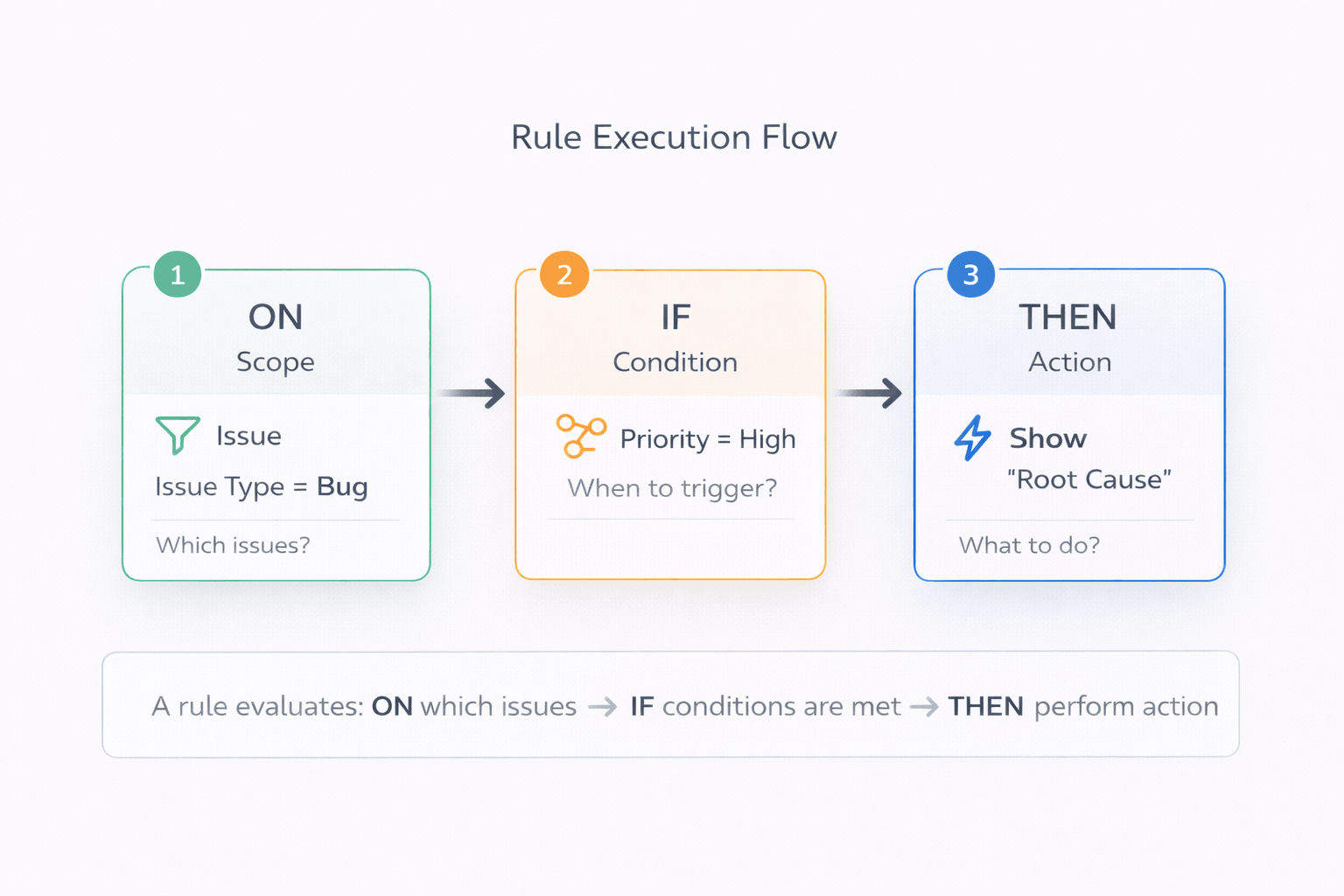
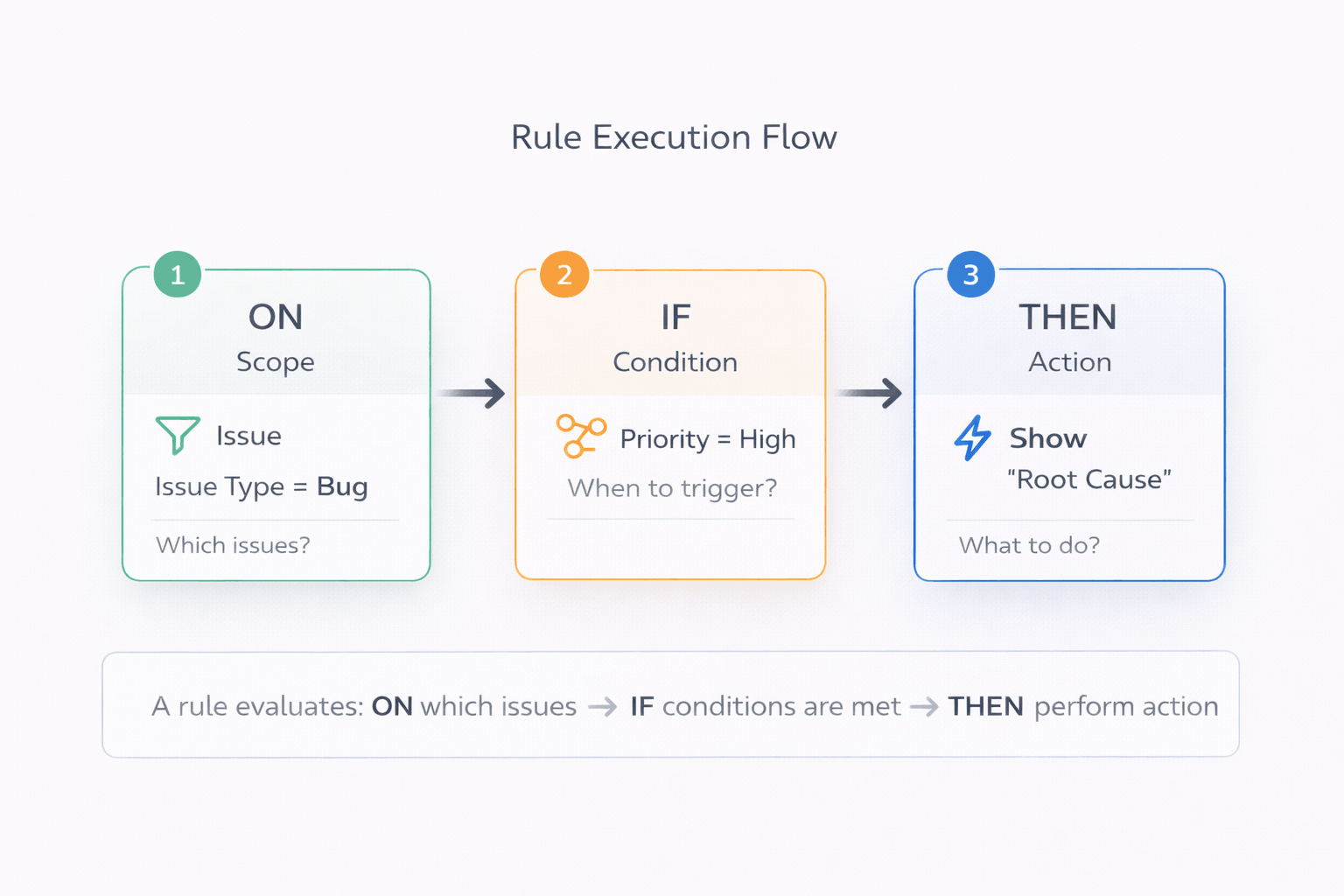
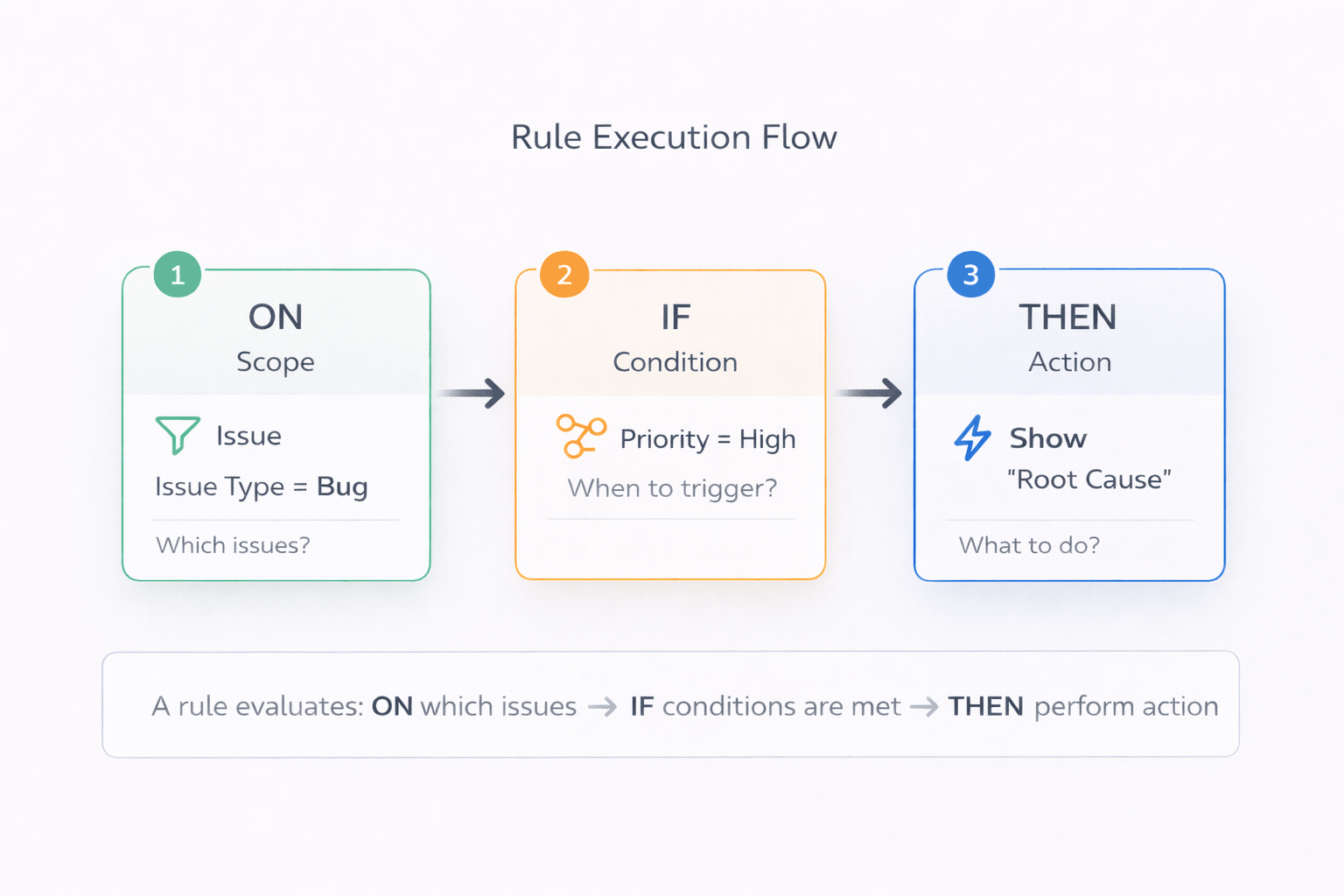
Rule execution flow: ON → IF → THEN
Rules are evaluated in real-time as users interact with forms. When conditions change (like selecting a different priority), rules re-evaluate instantly and actions update immediately.
Screens - Where Rules Apply
Screens are the three locations in Jira where users interact with fields. Each screen has slightly different capabilities and use cases.
Global Issue Create
The create issue dialog where users create new issues.
When to use:
- Progressive disclosure - show fields only when relevant
- Pre-fill values based on project or issue type
- Dynamic required fields
- Clean dropdown options
Capabilities: All actions supported (show/hide, required, lock, set value, change labels/descriptions, limit options)
Issue View
The issue detail page where users view and edit existing issues.
When to use:
- Lock fields based on status or role
- Role-based field visibility
- Context-aware field labels
Capabilities: Most actions supported, including Lock Field. Not supported: Make Field Required, Set Field Value, Field Validation. Runs in Jira Software projects.
On Issue View, empty read-only fields are automatically hidden by Jira. If you lock a field that has no value, users won't see it at all.
Issue Transition
Status transition dialogs when moving issues between workflow states.
When to use:
- Transition-specific validation (require fields before transition)
- Status-based field visibility
- Pre-fill transition fields, such as a sign-off date or the user who made the transition
- Ensure data completeness at workflow gates
Capabilities: Most actions supported. Runs in company-managed Jira Software projects.
Scope - Which Issues Are Affected
Scope determines which issues the rule applies to, filtering by issue type.
How Scope Works
Every rule has a scope defined by:
- Project - Always the project where the rule is configured (automatic)
- Work type (Issue Type) - Bug, Story, Task, Epic, or custom types
Example scopes:
- "Apply to Bug issues only"
- "Apply to Story and Epic issues"
- "Apply to all issue types in this project"
Why Scope Matters
Scope is the first filter. If an issue doesn't match the scope (wrong issue type), the rule doesn't evaluate at all - conditions are never checked, and actions never execute.
Flow:
- User creates/views an issue
- Is it the right issue type? (scope check)
- No → Rule doesn't apply, skip it
- Yes → Continue to conditions
- Are conditions met?
- No → Action doesn't execute
- Yes → Execute action
Scope vs Conditions: Scope filters by issue type (which kinds of issues). Conditions filter by field values, context, or user (when within those issue types). Use scope for broad filtering, conditions for specific triggers.
Conditions - When Rules Trigger
Conditions determine when a rule should execute its action. Conditions evaluate field values, context, or user attributes.
Field-Based Conditions
Trigger based on values in other fields on the form: Summary, Description, Issue type, Priority, Assignee, Reporter, Labels, and custom text, URL, number, select list, radio buttons, multi-select list and checkboxes fields.
Operators (which ones you get depends on the field type):
- Equals, not equals
- Contains
- Is one of (select lists, radio buttons), contains any of (multi-select lists, checkboxes)
- Is empty, is not empty
Examples:
- "When Priority = High"
- "When Team (select list) is one of Backend, Platform"
- "When Affected Platforms (checkboxes) contains iOS"
- "When Assignee is empty"
See Operators by Field Type for the full list.
Status Conditions
Trigger based on the work item's status, on the Issue View and Transition screens. Rules are set up per project, so there is no project condition.
Examples:
- "When the work item is in status Done" (lock fields to prevent edits)
- "When the work item is not in status Building" (hide deployment-related fields)
In a transition dialog, the status is the one the work item is leaving, not the target status.
User-Based Conditions
Trigger based on who is viewing/editing the form.
Available filters:
- Group membership - "When user in Developers group"
- Project role - "When user has Administrator role"
- Permissions - "When user has Edit Issues permission"
Examples:
- "Hide a field from everyone outside the Managers group"
- "Require approval only for non-Administrators"
- "Lock field for everyone except Release Managers"
Combining Conditions
You can add several conditions to one rule. They are joined by one operator:
AND (the default): every condition must be met
- Priority equals High AND Current user is in group Managers
- Issue is in status Done AND Current user has role Administrators
OR (switched with the AND menu between two conditions): any one condition is enough
- Priority equals High OR Priority equals Highest
- Summary contains backend OR Summary contains API
One operator per rule. The choice covers all of a rule's conditions, whatever their type, so one rule can't mix AND and OR. Learn more in Combining Conditions.
Actions - What Rules Do
Actions define what happens to the target field when conditions are met.
Show / Hide Field
Control field visibility based on conditions.
When to use: Progressive disclosure - show fields only when relevant
Example: "Hide 'Root Cause' field when Priority is not High", so Root Cause appears only for High
Note: An action applies only while its conditions are met; otherwise the field is as Jira shows it, and fields on the screen are visible. So to show a field only in some cases, hide it with the opposite condition. A Show field rule brings back a field that another rule hides. Hiding is not access control: the value stays readable in search, list views and the REST API, so data that some users must not see needs Jira permissions or issue security levels
Make Field Required
Enforce validation conditionally.
When to use: Require fields only in specific contexts
Example: "Require 'Business Justification' when the Cost Band select list equals Over 10,000"
Note: Not supported on Issue View screen due to API limitations
Lock Field (Read-Only)
Prevent editing by making fields read-only.
When to use: Guard rails to prevent accidental changes
Example: "Lock 'Fix Versions' when Status != Building"
Note: Works on all three screens for most fields. Status, Issue type and Request type can't be locked; Due date, Target start and Target end only on Create; Resolution only on Transition
Set Field Value
Automatically populate field values.
When to use: Reduce manual data entry, ensure consistency
Value types:
- Static values - "Set Priority = 'High'"
- Smart Values - "Set Due Date = 3 business days from today"
Example: "Set Assignee = Team Lead when Priority = Critical"
Change Field Label
Modify the field name displayed to users.
When to use: Context-aware labeling for clarity
Example: "Change 'Description' label to 'Steps to Reproduce' when Issue Type = Bug"
Change Field Description
Update the help text shown below the field.
When to use: Provide context-specific guidance
Example: "Change 'Priority' description to 'P1/P2 only for bugs' when Issue Type = Bug"
Limit Field Options
Show only specific options in select/multi-select fields.
When to use: Prevent invalid selections, clean dropdowns
Supported fields: Priority, Issue Type, and select list, multi-select, radio buttons and checkboxes fields, plus Fix Versions on Issue Transition. On Issue View: Priority and the select list, multi-select, radio buttons and checkboxes fields
Example: "Show only 'P1' and 'P2' priorities when Issue Type = Bug"
Smart Values - Computed Field Values
Smart Values are expressions that calculate field values automatically. They're used with the "Set Field Value" action.
Smart Values work on date, date-time and user fields and on Labels. Each one is a single expression in double curly
braces, for example {{today().plusBusinessDays(3)}}.
Date Calculations
Calculate dates relative to today or to another date field on the screen.
Functions:
today(),now(),tomorrow(),yesterday()- Current and nearby datesnextWeek(),nextMonth(),startOfWeek(),endOfWeek(),endOfMonth()- Dates relative to todayaddDays(date, days),addWeeks(date, weeks)- Add calendar days or weeksdate.plusBusinessDays(days),subtractBusinessDays(date, days)- Add or subtract business days (Monday-Friday)
Examples:
- "Set Due Date =
{{today().plusBusinessDays(1)}}" (next business day) - "Set Start Date =
{{addWeeks(startOfWeek(), 1)}}" (Monday next week) - "Set Review Date =
{{subtractBusinessDays(field("duedate"), 3)}}" (3 business days before the due date)
Field References and Users
field("fieldId")- Copy the value of another field on the same screen, for example a date or a usercurrentUser()- The user filling in the form
Examples:
- "Set Approver =
{{currentUser()}}" - "Set Developer =
{{field("assignee")}}"
Different Values in Different Situations
Smart Values have no if() or comparisons. Create one Set Field Value rule per value and give each rule its own
conditions, for example "Set Assignee = Team Lead when Priority = Critical".
Smart Values use double curly braces like Jira Automation, with Formify's own set of functions. See every function in Using Smart Values.
Execution Model - How Rules Work at Runtime
Understanding when and how rules execute helps you design effective rules and troubleshoot issues.
When Rules Evaluate
Rules evaluate at two key moments:
1. Screen Load
- User opens create dialog, issue view, or transition dialog
- All rules for that screen evaluate
- Conditions evaluate
- Actions execute if conditions are met
2. Field Changes
- User changes a field value (priority, component, etc.)
- Rules that reference that field re-evaluate
- Actions update in real-time
Real-Time Updates
Rules don't wait for form submission. Changes apply instantly:
- User selects "Priority = High"
- Rules with Priority conditions re-evaluate immediately
- Fields show/hide, become required, update values - all in real-time
- No page refresh needed
This is powerful for user experience. Users get immediate feedback about what they need to fill. The form adapts to their input as they work, guiding them naturally through the process.
Rule execution timeline: from screen load to real-time field changes
Putting It All Together
Let's see how all these concepts work together in a practical example.
Example Rule: Root Cause for High-Priority Bugs
Business requirement: "We need root cause analysis for high-priority bugs, but not for routine bugs or other issue types."
Rule configuration:
| Component | Value | Explanation |
|---|---|---|
| Screen | Global Issue Create | Apply when creating issues |
| Target Field | Root Cause | The field we want to show conditionally |
| Scope | Bug issue type | Only applies to Bugs (not Stories, Tasks, etc.) |
| Condition | Priority not equals High | Triggers when Priority is anything but High |
| Action | Hide field | Hides Root Cause until Priority is High |
How it works:
- User creates Bug → Scope matches
- Priority = Medium → Condition met → Root Cause is hidden
- Priority changes to High → Condition not met → the rule applies nothing, and Root Cause appears
- Priority changes back to Medium → Condition met → Root Cause is hidden again
Forms stay clean while ensuring data quality where it matters.
How Concepts Relate
Every rule is built on three essential pillars:
Three pillars of every Dynamic Screen Rule
WHERE defines the screen context - which Jira surface the rule operates on (Issue Create, Issue View, or Transition).
WHEN specifies the conditions - the criteria that must be met for the rule to trigger (Priority = High, Status = Open, User in group, etc.).
WHAT determines the action - what happens to the target field when conditions are met (Show/Hide, Required, Lock, Set Value, etc.).
Together, these three pillars form a complete rule that makes your Jira screens dynamic and context-aware.
Next Steps
Now that you understand the fundamental concepts:
Learn to configure rules:
- Creating Your First Rule - Detailed step-by-step configuration guide
- Defining Conditions - Master all condition types and logic
- Defining Actions - Explore all seven action types
- Using Smart Values - Learn the expression language
See practical examples:
- Use Cases & Examples - Ready-to-use configurations
- Dynamic Required Fields - Conditional validation examples
- Field Locking on Transitions - Lock fields during transitions
Understand the details:
- Rule-Based Approach - Deep dive into how rules work
- Screens & Contexts - Detailed screen capabilities
- Condition Types - Comprehensive condition reference
Ready to create more complex rules? Start with Creating Your First Rule.