Defining Field Validations
Field validation rules enforce data quality, consistency, and business rules automatically at the point of data entry. They validate field values in real-time and display custom error messages when validation fails, preventing invalid data from entering your Jira instance.
Formify provides 15 validation types across four categories:
- Presence Validations - Control whether fields must have or lack values
- Date Validations - Enforce date constraints, SLA deadlines, and date sequencing
- Number Validations - Validate numeric thresholds, ranges, and quality gates
- Text Validations - Enforce text length, content requirements, and quality standards
Each validation type provides immediate feedback with customizable error messages, helping users submit correct data the first time.
Why Field Validation Matters
Traditional Jira provides only basic "required field" functionality—a simple yes/no toggle that doesn't account for context. Workflow validators exist but only trigger on transitions, not during data entry. ScriptRunner offers validation through Groovy scripts, but requires coding expertise and ongoing maintenance.
Field validation rules provide a better approach:
- Catch invalid data immediately as users type, not after submission
- Enforce SLA deadlines and business rules automatically
- Provide clear, actionable error messages explaining what's wrong
- Apply conditional logic - different validation for different contexts
- No coding required - configure through visual interface
- Maintain data consistency with cross-field validation
Competitive Advantage
Unlike Jira's basic required fields or workflow validators, you get:
- 15+ validation types with conditional logic
- Custom error messages without Groovy scripts
- Real-time feedback as users type
- No ScriptRunner purchase needed
- Centralized management alongside other rules
Choosing the Right Validation
Use this quick reference to select the appropriate validation type:
| Goal | Validation type | Example |
|---|---|---|
| Ensure field has a value | Must not be empty | Story Points required for all Stories |
| Ensure field is cleared | Must be empty | Resolution Date must be empty when an issue is reopened from Done |
| Enforce SLA deadlines | Date at least X days from today | Due Date at least 1 day from today for Critical tickets |
| Prevent past dates | Date after today | Start Date must be in the future |
| Prevent future dates | Date before today | Incident Date must be in the past |
| Ensure date sequencing | Date after another field | End Date must be after Start Date |
| Validate date dependencies | Date before another field | Review Date must be before Release Date |
| Enforce minimum thresholds | Number greater than | Story Points must be > 0 |
| Enforce maximum limits | Number less than | Story Points must be < 100 |
| Validate numeric ranges | Number between | Estimate must be between 1-40 hours |
| Prevent zero values | Not zero | Budget must be non-zero |
| Enforce minimum content length | Minimum text length | Incident summary must be ≥15 characters |
| Enforce maximum content length | Maximum text length | Summary must be ≤100 characters |
| Require specific keywords | Must contain text | Summary must contain a tag (e.g., "[Customer]") |
| Prevent forbidden content | Must not contain text | Description must not contain placeholder text (e.g., "TODO") |
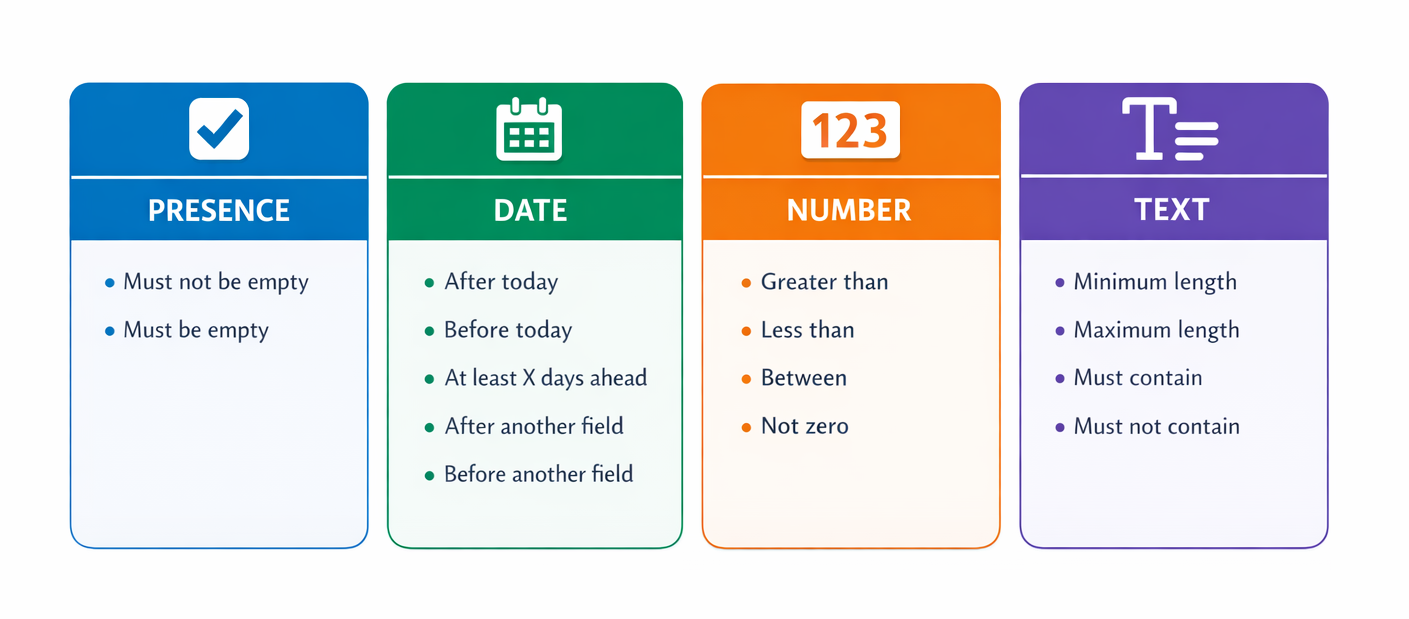
Validation Categories
When configuring a validation rule, the system automatically shows only validation types compatible with your target field. For example, date fields show date validations, number fields show number validations, and so on. This ensures you only see relevant options for the field you're configuring.
1. Presence Validations
Presence validations control whether fields must have values or remain empty. These are the most commonly used validations, replacing traditional "required field" configuration with conditional, context-aware requirements.
Must not be empty
Ensures a field has a value — equivalent to "required field" but with conditional logic.
When to Use
- Conditional required fields - Require data only in specific contexts
- Data completeness gates - Ensure critical information is captured
- Quality standards - Enforce minimum data requirements before progression
- Context-aware forms - Make fields required based on issue type, priority, status, or user role
How It Works
When conditions are met, the validation applies and the field must contain a value:
- Empty values → validation fails → shows custom error message
- Text: Non-empty strings (whitespace-only = empty)
- Select: Selection required
- Multi-select: ≥1 option selected
- Date/Number: Value must be set (zero is valid for numbers)
Common Gotchas
- Zero is valid for number fields — use "Not zero" to prevent zero
- Whitespace-only text counts as empty (prevents bypassing validation)
- Can't validate hidden fields — ensure field is visible when validation applies
- Not on fields Jira doesn't share with apps on that screen — in a transition dialog: Due Date, Components, People, Target start and Target end; on Global Issue Create: Original Estimate. Jira doesn't give apps their values there, so a Must not be empty validation on them always fails and blocks the form, even when the field is filled. The same happens for a field that isn't on that screen
Configuration
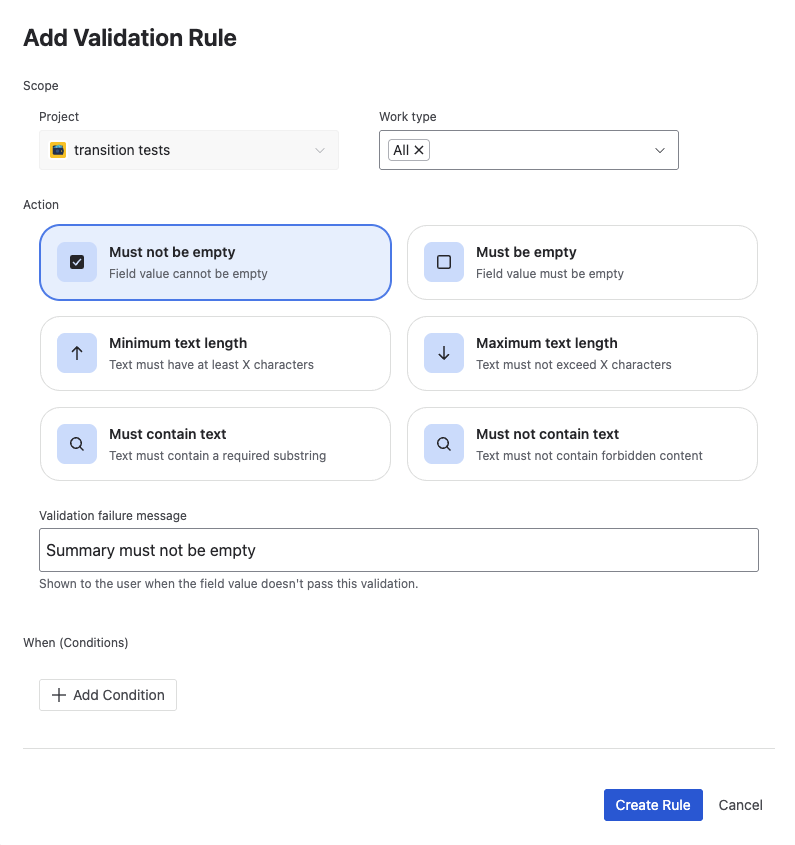
- Validation type: Must not be empty
- Error message (optional): Default is "This field must not be empty" Best practice: Explain why the field is required and when it's needed
- Parameters: None
Example 1: Story Points quality gate — Require estimation for all Stories
Business need: All Stories must have Story Points estimated before sprint planning. This ensures accurate capacity planning and prevents unestimated work from entering sprints.
Configuration:
- Target field: Story Points
- Screen: Global Issue Create
- Conditions: Issue Type = Story
- Validation: Must not be empty
- Error message: "Story Points are required for all Stories to support sprint planning and capacity estimation. Please estimate this Story before saving."
Result: When creating Stories, users must provide Story Points. The error message guides them on why it's required.
Why it works: The validation enforces your team's estimation standard automatically. Combined with conditional logic, you can require Story Points only for Stories, not for Bugs or Tasks.
Supported Field Types
All field types support presence validation:
- Text fields (Summary, Description, custom text)
- Select fields (Priority, Issue Type, custom select)
- Multi-select fields (Components on Global Issue Create only, Labels, custom multi-select)
- Date fields (Due Date on Global Issue Create only, custom date fields)
- Number fields (Story Points, custom number fields)
- User fields (Assignee, Reporter, custom user pickers)
- All other Jira field types
Must be empty
Ensures a field is cleared or has no value. Less common than "must not be empty" but critical for workflow state management and data consistency.
When to Use
- State management - Ensure fields are cleared when transitioning between states
- Data consistency - Prevent invalid field combinations
- Workflow enforcement - Require users to clear fields before certain transitions
- Audit compliance - Ensure sensitive data is removed in certain contexts
How It Works
When conditions are met, the validation applies and the field must be empty:
- Any non-empty value → validation fails → shows custom error
- Text: Empty string or null
- Select: No selection made
- Multi-select: No options selected
- Date: No date set
- Number: No number entered (zero counts as non-empty)
Common Gotchas
- Required fields can't be empty — creates conflict, remove native required status first
- Zero counts as non-empty for number fields
- Use with transitions to enforce state cleanup
Configuration
- Validation type: Must be empty
- Error message (optional): Default is "This field must be empty" Best practice: Explain why the field must be cleared
- Parameters: None
Example 1: Clear Resolution Date when reopening — Maintain data consistency
Business need: When reopening a resolved issue, the Resolution Date must be cleared because the issue is no longer resolved.
Configuration:
- Target field: Resolution Date
- Screen: Issue Transition (the reopen transition from Done; Resolution Date on its screen)
- Conditions: Issue is in status Done (the status the work item is leaving)
- Validation: Must be empty
- Error message: "Resolution Date must be cleared when reopening an issue. Please remove the Resolution Date before transitioning to In Progress."
Result: Users can't reopen issues without clearing Resolution Date, maintaining data consistency.
Why it works: Prevents stale Resolution Dates from remaining on active issues, ensuring accurate reporting on resolved vs. open issues.
Supported Field Types
All field types support presence validation. Most commonly used with:
- Date fields (Resolution Date, Due Date)
- User fields (Assignee, Reviewer)
- Number fields (Story Points, Estimate)
- Select fields (Resolution, Status-dependent fields)
2. Date Validations
Date validations enforce date constraints, SLA deadlines, and date sequencing. They're essential for project planning, SLA compliance, and maintaining date consistency across related fields.
Validate Due Date on the Global Issue Create screen. Jira doesn't give apps the Due Date value in a transition dialog, so date validations on Due Date have no effect there. Don't add a Must not be empty validation on Due Date to a transition: it always fails and blocks the transition, even when Due Date is filled.
Technical Note: All date validations use timezone-safe "YYYY-MM-DD" string comparison, ensuring consistent behavior regardless of user timezone.
Date after today
Ensures a date field contains a future date—any date after the current day (12:00 AM tomorrow or later).
When to Use
- Future planning - Ensure dates represent future events
- SLA compliance - Prevent setting deadlines in the past
- Workflow gates - Require future dates for planning activities
- Data quality - Catch accidental past date selections
How It Works
When conditions are met, the field value must be a date after today:
- Comparison: Dates at day-level precision (ignores time)
- "Today" = current date in user's timezone
- "After today" = tomorrow or any future date
- Today's date fails validation
Configuration
- Validation type: Date after today
- Error message (optional): Default is "Date must be after today" Best practice: Explain why future dates are required
- Parameters: None
Example 1: Future release dates — Prevent data entry errors
Business need: Release Date must be in the future because we can't release software in the past. This prevents data entry errors when planning releases.
Configuration:
- Target field: Release Date
- Screen: Global Issue Create
- Conditions: Issue Type = Release
- Validation: Date after today
- Error message: "Release Date must be in the future. Please select a date after today for this upcoming release."
Result: Release dates must be tomorrow or later, preventing accidental past date selection.
Pro Tip: To allow today's date, use "Date at least X days from today" with X=0 instead. "After today" strictly means tomorrow or later.
Supported Field Types
- Due Date (system field)
- Start Date, End Date (system fields if enabled)
- Custom date picker fields
- Custom datetime fields
Date before today
Ensures a date field contains a past date—any date before the current day (yesterday or earlier).
When to Use
- Historical dates - Ensure dates represent past events
- Incident reporting - Require incident dates in the past
- Audit compliance - Validate historical data entry
- Data quality - Prevent future dates for past events
How It Works
When conditions are met, the field value must be a date before today:
- Comparison: Dates at day-level precision (ignores time)
- "Today" = current date in user's timezone
- "Before today" = yesterday or any past date
- Today's date fails validation
Configuration
- Validation type: Date before today
- Error message (optional): Default is "Date must be before today" Best practice: Explain why past dates are required
- Parameters: None
Example 1: Incident date must be in the past — Ensure accurate incident timelines
Business need: When reporting incidents, the Incident Date must be in the past because we can't report incidents that haven't happened yet. This ensures accurate incident timelines.
Configuration:
- Target field: Incident Date
- Screen: Global Issue Create
- Conditions: Issue Type = Incident
- Validation: Date before today
- Error message: "Incident Date must be in the past. If the incident occurred today, please wait until tomorrow to report it, or contact your administrator."
Result: Incident Date must be yesterday or earlier, ensuring incidents represent past events.
Supported Field Types
- Due Date (system field)
- Custom date picker fields
- Custom datetime fields
Date at least X days from today
Ensures a date field is at least X days in the future from today. This is the most powerful date validation for SLA enforcement, planning horizons, and lead time requirements.
When to Use
- SLA enforcement - Require minimum lead time for critical work
- Planning horizons - Ensure adequate planning time before deadlines
- Capacity management - Prevent last-minute work from bypassing triage
- Business rules - Enforce organizational policies for advance notice
How It Works
When conditions are met, the field value must be at least X days from now:
- Calculation: minimum_date = today + X days
- Comparison: field_date must be ≥ minimum_date
- X=0 allows today's date
- X=1 requires tomorrow or later
- X=2 requires day-after-tomorrow or later
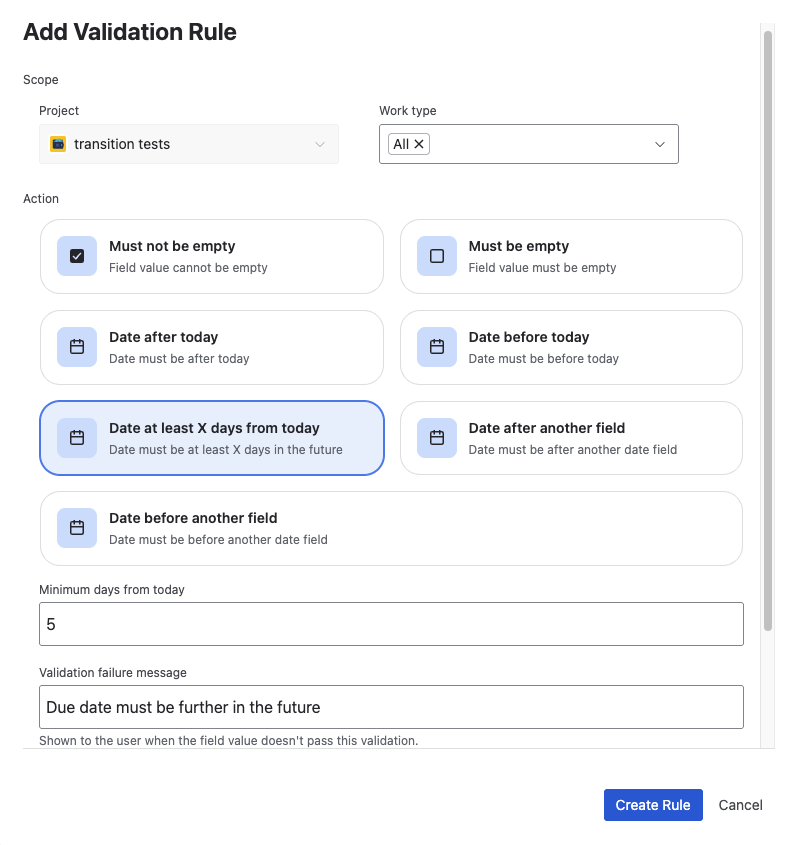
Configuration
- Validation type: Date at least X days from today
- Number of days: Enter a positive integer (0, 1, 2, 3, ...)
- 0 = allows today (useful for "today or later" validation)
- 1 = allows tomorrow (not today)
- 2 = allows day-after-tomorrow (not today or tomorrow)
- Error message (optional): Default is
"Date must be at least {X} days from now"Best practice: Explain why the lead time is required and reference your SLA
Example 1: Critical ticket SLA - 2 hours minimum — Automated SLA enforcement
Business need: Critical priority tickets require a Due Date at least 2 hours from creation time to allow for proper triage, assignment, and initial investigation. This prevents hasty responses and ensures quality work.
Configuration:
- Target field: Due Date
- Screen: Global Issue Create
- Conditions: Priority = Critical
- Validation: Date at least X days from today
- Days: 0 (to enforce minimum hours, we'll use custom message to clarify 2-hour policy)
- Error message: "Critical tickets require Due Date at least 2 hours from now to allow time for triage and assignment. Please select a date/time at least 2 hours in the future."
Result: Critical tickets can't have Due Dates sooner than 2 hours away, enforcing your SLA policy automatically.
Why it works: Automated SLA enforcement—no manual oversight needed. Users get immediate feedback if they select dates too soon.
Pro Tip: The validation works at day-level precision, not hour/minute precision. For "2 hours" requirements, use 0 days and explain the hour requirement in your error message. Most teams find day-level precision sufficient for planning purposes.
Supported Field Types
- Due Date (system field)
- Start Date, End Date (system fields if enabled)
- Custom date picker fields
- Custom datetime fields
Date after another field
Ensures a date field is chronologically after another date field. Critical for maintaining date sequencing and dependencies (e.g., End Date must be after Start Date).
When to Use
- Date sequencing - Ensure logical date order (end after start, finish after begin)
- Dependencies - Validate dependent dates (Review after Development, Release after Testing)
- Project planning - Maintain milestone order
- Data consistency - Prevent impossible date combinations
How It Works
When conditions are met, the target field must contain a date after the comparison field:
- Comparison: target field > comparison field
- Both fields must have values for validation to apply
- If comparison field is empty, validation passes (fail-safe behavior)
- Same date fails validation ("after" means strictly later, not equal)
Configuration
- Validation type: Date after another field
- Select comparison field: Choose the field that must come before the target field Example: If target is End Date, choose Start Date as comparison field
- Error message (optional): Default is
"Date must be after {field name}"Best practice: Explain the relationship and why it matters
Example 1: End Date after Start Date — Maintain valid timelines
Business need: Project End Date must be after Start Date to represent valid project timelines. This prevents data entry errors and ensures accurate Gantt charts and roadmaps.
Configuration:
- Target field: End Date
- Screen: Global Issue Create
- Conditions: Issue Type = Epic OR Project
- Validation: Date after another field
- Comparison field: Start Date
- Error message: "End Date must be after Start Date. Please ensure your project timeline has End Date later than Start Date."
Result: Users can't save issues with End Date before/equal to Start Date, maintaining valid timelines.
Why it works: Catches data entry errors immediately. Prevents impossible date ranges from entering your system.
Pro Tip: Be careful not to create circular dependencies (A after B, B after A). Such configurations make it impossible to satisfy all validations.
Supported Field Types
Date fields compared to other date fields:
- Due Date, Start Date, End Date (system fields)
- Custom date picker fields
- Custom datetime fields
Date before another field
Ensures a date field is chronologically before another date field. Mirror of "date after field" for reverse dependencies.
When to Use
- Reverse dependencies - Validate dates that must precede others
- Deadline enforcement - Ensure milestones come before deadlines
- Sequential validation - Maintain order from earlier perspective
- Data consistency - Prevent impossible date combinations (from earlier date's viewpoint)
How It Works
When conditions are met, the target field must contain a date before the comparison field:
- Comparison: target field < comparison field
- Both fields must have values for validation to apply
- If comparison field is empty, validation passes (fail-safe)
- Same date fails validation ("before" means strictly earlier, not equal)
Configuration
- Validation type: Date before another field
- Select comparison field: Choose the field that must come after the target field Example: If target is Start Date, choose End Date as comparison field
- Error message (optional): Default is
"Date must be before {field name}"Best practice: Explain the relationship and why it matters
Example 1: Start Date before End Date — Same constraint, different perspective
Business need: Project Start Date must be before End Date. Same constraint as "End Date after Start Date" but validated from Start Date's perspective.
Configuration:
- Target field: Start Date
- Screen: Global Issue Create
- Conditions: Issue Type = Epic OR Project
- Validation: Date before another field
- Comparison field: End Date
- Error message: "Start Date must be before End Date. Please ensure your project timeline has Start Date earlier than End Date."
Result: Same effect as "End Date after Start Date" but applied to Start Date field instead.
Choosing After vs. Before: Both validations achieve the same goal (maintaining date order). Choose based on which field users fill first. If users fill Start Date before End Date, validate "Start Date before End Date". If users fill End Date first, validate "End Date after Start Date".
Supported Field Types
Date fields compared to other date fields:
- Due Date, Start Date, End Date (system fields)
- Custom date picker fields
- Custom datetime fields
3. Number Validations
Number validations enforce numeric thresholds, ranges, and quality gates. Essential for story point estimation, budget controls, capacity management, and any numeric business rules.
Technical Note: All number validations handle both integers and decimals, and validate against numeric values or numeric strings.
Number greater than
Ensures a number field exceeds a minimum threshold. Most common number validation for quality gates and minimum requirements.
When to Use
- Quality gates - Require minimum values (Story Points > 0)
- Budget thresholds - Enforce minimum budgets for certain work types
- Capacity management - Ensure adequate resource allocation
- Business rules - Implement organizational minimums
How It Works
When conditions are met, the field value must be strictly greater than your threshold:
- Comparison: field_value > threshold_value
- Works with integers and decimals (5.5 > 5, 5.1 > 5)
- Supports negative numbers (-5 > -10)
- Zero is a valid comparison threshold
Configuration
- Validation type: Number greater than
- Threshold value: Enter a number (integer or decimal)
- Most common: 0 (require positive values)
- Can use negative numbers if needed
- Error message (optional): Default is
"Value must be greater than {threshold}"Best practice: Explain why the minimum exists and what it represents
Example 1: Story Points must be positive — Enforce estimation discipline
Business need: All Stories must have Story Points greater than 0. Zero-point Stories indicate missing estimation. This ensures all Stories are estimated before sprint planning.
Configuration:
- Target field: Story Points
- Screen: Global Issue Create
- Conditions: Issue Type = Story
- Validation: Number greater than
- Threshold: 0
- Error message: "Story Points must be greater than 0. Please estimate this Story before saving. If this Story requires no effort, consider whether it should be a Story at all."
Result: Story Points must be at least 1 (or 0.5 if using half-points), preventing zero or negative estimates.
Why it works: Enforces estimation discipline. Zero-point Stories often indicate incomplete grooming or misunderstanding of the work involved.
Pro Tip: Strictly greater than, not equal. If threshold is 0, zero fails validation. If you need to allow zero, remove this validation or use "Not zero" instead.
Supported Field Types
- Story Points (system field if enabled)
- Time Tracking fields (Original Estimate, Remaining Estimate)
- Custom number fields
- Custom decimal fields
Number less than
Ensures a number field is below a maximum threshold. Used for caps, limits, and maximum requirements.
When to Use
- Maximum limits - Enforce caps on values (Story Points < 100)
- Budget controls - Prevent excessive budgets without approval
- Capacity constraints - Ensure values stay within limits
- Reasonableness checks - Catch data entry errors (estimates that are too large)
How It Works
When conditions are met, the field value must be strictly less than your threshold:
- Comparison: field_value < threshold_value
- Works with integers and decimals
- Supports negative numbers
- "Less than 100" means 99.99... or lower, not 100
Configuration
- Validation type: Number less than
- Threshold value: Enter a number (maximum allowed value)
- Common: 100 (Story Points sanity check), 1000000 (budget cap)
- Error message (optional): Default is
"Value must be less than {threshold}"Best practice: Explain why the maximum exists
Example 1: Story Points sanity check — Encourage Story splitting
Business need: Story Points exceeding 40 indicate Stories that are too large and should be split. This validation catches oversized Stories early.
Configuration:
- Target field: Story Points
- Screen: Global Issue Create
- Conditions: Issue Type = Story
- Validation: Number less than
- Threshold: 41
- Error message: "Story Points must be less than 41. Stories larger than 40 points should be split into smaller Stories. Please break this down into multiple Stories."
Result: Story Points capped at 40, encouraging Story splitting.
Why it works: Large Stories create estimation uncertainty and delivery risk. This validation enforces a "split large Stories" policy automatically.
Supported Field Types
- Story Points (system field if enabled)
- Time Tracking fields
- Custom number fields
- Custom decimal fields
Number between
Ensures a number field falls within a specified range (inclusive). Useful for bounded estimates, acceptable ranges, and multi-threshold validation.
When to Use
- Bounded estimates - Ensure values within acceptable range (Story Points 1-40)
- Percentage validation - Ensure percentages between 0-100
- Rating scales - Validate ratings within scale (1-5 stars)
- Acceptable ranges - Enforce business rule ranges
How It Works
When conditions are met, the field value must fall between your minimum and maximum thresholds:
- Range validation: min_value ≤ field_value ≤ max_value
- Both bounds are inclusive (1-10 includes both 1 and 10)
- Minimum must be less than maximum
- Works with integers and decimals
Configuration
- Validation type: Number between
- Minimum value: Enter the lower bound of acceptable range
- Maximum value: Enter the upper bound of acceptable range (must be greater than minimum)
- Error message (optional): Default is
"Value must be between {min} and {max}"Best practice: Explain the range and why it exists
Example 1: Story Points range — Single validation for both bounds
Business need: Story Points must be between 1-40. Points below 1 indicate missing estimation, and points above 40 indicate Stories that should be split.
Configuration:
- Target field: Story Points
- Screen: Global Issue Create
- Conditions: Issue Type = Story
- Validation: Number between
- Minimum: 1
- Maximum: 40
- Error message: "Story Points must be between 1-40. Values below 1 indicate missing estimation. Values above 40 indicate Stories that should be split into smaller pieces."
Result: Story Points must be 1-40 inclusive, enforcing estimation quality standards.
Why it works: Single validation enforces both minimum (must estimate) and maximum (must split large Stories).
Supported Field Types
- Story Points (system field if enabled)
- Time Tracking fields
- Custom number fields
- Custom decimal fields
Not zero
Ensures a number field is not exactly zero. Simpler than "greater than 0" because it allows negative numbers.
When to Use
- Non-zero requirements - Ensure field has a non-zero value
- Allowing negatives - When both positive and negative numbers are valid, but not zero
- Budget validation - Prevent zero budgets (both costs and credits are valid)
- Delta validation - Ensure changes have magnitude (positive or negative change, but not zero change)
How It Works
When conditions are met, the field value must not equal zero:
- Simple check: field_value ≠ 0
- Positive numbers pass (1, 5.5, 1000)
- Negative numbers pass (-1, -5.5, -1000)
- Only zero fails (0, 0.0, 0.00)
Configuration
- Validation type: Not zero
- Error message (optional): Default is "Value must not be zero" Best practice: Explain why zero is invalid
- Parameters: None
Example 1: Budget must be non-zero — Allow both expenses and credits
Business need: Budget must be non-zero. Zero budgets indicate missing budget estimation. Both expenses (positive) and credits (negative) are valid, but zero is not.
Configuration:
- Target field: Budget
- Screen: Global Issue Create
- Conditions: Issue Type = Feature OR Epic
- Validation: Not zero
- Error message: "Budget must be non-zero. Please enter estimated costs (positive) or credits (negative). Zero indicates missing budget estimation."
Result: Budget can be positive or negative, but not zero, ensuring budget estimation is complete.
Why it works: Some features have costs (positive budget), others generate savings (negative budget). Zero indicates no estimation was done.
Pro Tip: This validation allows negative numbers. If you want only positive numbers, use "greater than 0" instead.
Supported Field Types
- Story Points (system field if enabled)
- Time Tracking fields
- Custom number fields
- Custom decimal fields (budget, cost, adjustment fields)
4. Text Validations
Text validations enforce content quality, length requirements, and format standards. Essential for ensuring meaningful summaries, descriptions, and text fields meet your organization's quality standards.
Technical Note: All text validations handle both plain text and Atlassian Document Format (ADF) fields, extracting text content for validation.
Minimum text length
Ensures a text field has at least X characters. Most common text validation for enforcing content quality and meaningful descriptions.
When to Use
- Content quality - Ensure meaningful summaries and descriptions
- Minimum requirements - Require adequate detail in text fields
- Data completeness - Prevent overly brief or empty text
- Searchability - Ensure enough content for search indexing
How It Works
When conditions are met, the field text must contain at least X characters:
- Counts visible characters (letters, numbers, punctuation, spaces)
- Whitespace-only text counts as length 0 (fails minimum length > 0)
- Handles both plain text and ADF (extracts text from rich content)
- Case-insensitive (both "ABC" and "abc" count as 3 characters)
Configuration
- Validation type: Minimum text length
- Minimum length: Enter a positive integer (number of characters)
- Common values: 10-50 for summaries, 50-200 for descriptions
- Consider user experience: too high frustrates users, too low allows poor quality
- Error message (optional): Default is
"Text must be at least {length} characters"Best practice: Explain why the minimum exists and give examples
Example 1: Incident summary quality — Prevent vague descriptions
Business need: Incident summaries must be at least 15 characters to ensure meaningful descriptions for triage and reporting. Single-word summaries like "Bug" or "Error" lack sufficient detail.
Configuration:
- Target field: Summary
- Screen: Global Issue Create
- Conditions: Issue Type = Incident
- Validation: Minimum text length
- Length: 15
- Error message: "Incident summary must be at least 15 characters to ensure meaningful description. Please provide specific details about the incident (e.g., 'Login page returns 500 error on submit')."
Result: Incident summaries must be 15+ characters, preventing vague descriptions.
Why it works: Forces users to provide meaningful context. "Bug" (3 chars) fails, "Login error 500" (16 chars) passes.
Supported Field Types
- Summary (system field)
- Description (system field, ADF)
- Custom text fields (single-line)
- Custom paragraph fields (multi-line)
- Custom rich text fields (ADF)
Maximum text length
Ensures a text field does not exceed X characters. Used for enforcing brevity, preventing overly long text, and maintaining display consistency.
When to Use
- Brevity enforcement - Ensure concise summaries and labels
- Display constraints - Prevent text overflow in UI elements
- Data consistency - Maintain consistent field lengths
- Character limits - Enforce external system limits (e.g., 280 chars for Twitter integration)
How It Works
When conditions are met, the field text must not exceed X characters:
- Counts visible characters (same logic as minimum length)
- Handles both plain text and ADF
- Case-insensitive
Configuration
- Validation type: Maximum text length
- Maximum length: Enter a positive integer (maximum number of characters)
- Common values: 100 for summaries, 280 for social media integration, 500 for short descriptions
- Error message (optional): Default is
"Text must not exceed {length} characters"Best practice: Explain why the maximum exists
Example 1: Summary brevity — Ensure full display in dashboards
Business need: Summaries must not exceed 100 characters to ensure they display fully in dashboards and lists without truncation.
Configuration:
- Target field: Summary
- Screen: Global Issue Create
- Conditions: (All issue types)
- Validation: Maximum text length
- Length: 100
- Error message: "Summary must not exceed 100 characters to ensure full display in dashboards. Please keep summaries concise and specific."
Result: Summaries capped at 100 characters, ensuring consistent display.
Why it works: Long summaries get truncated in UI, losing information. This forces users to be concise upfront.
Supported Field Types
- Summary (system field)
- Description (system field, ADF)
- Custom text fields
- Custom paragraph fields
Must contain text
Ensures a text field contains a required substring. Case-insensitive search for required keywords, prefixes, or content.
When to Use
- Required keywords - Ensure text includes specific terms
- Format validation - Require a tag or prefix (e.g., "[Customer]")
- Content standards - Ensure specific information is present
- Compliance - Require disclaimers or standard language
How It Works
When conditions are met, the field text must contain your search string:
- Case-insensitive substring search
- "jira" matches "JIRA", "Jira", "jira"
- "[customer]" matches "[Customer] Login fails" and "Login fails [CUSTOMER]"
- Partial word matching: "test" matches "testing", "attest", "test"
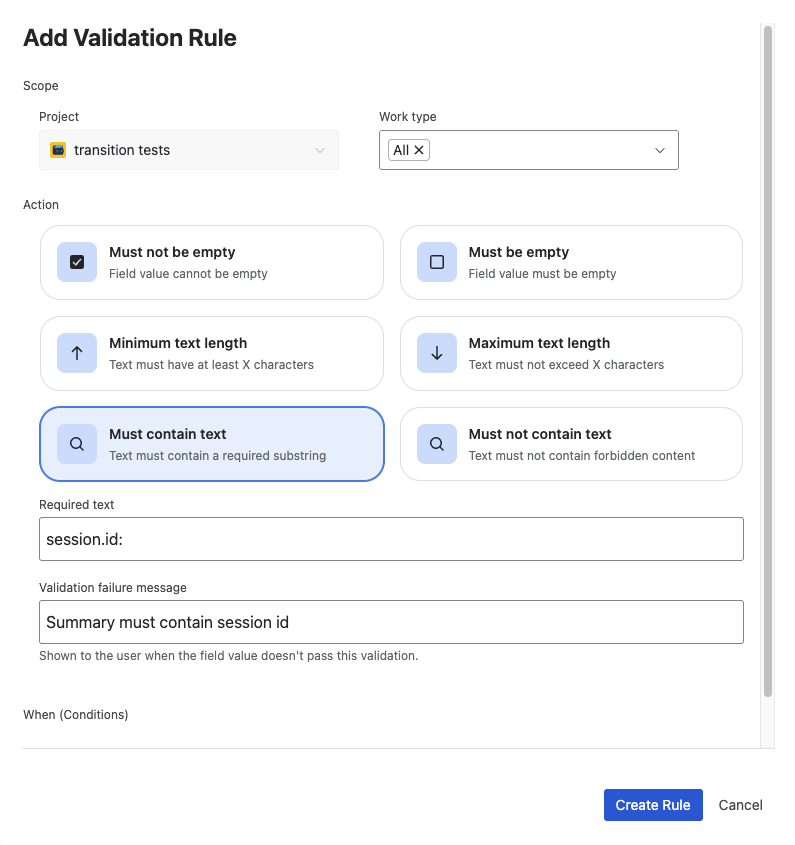
Configuration
- Validation type: Must contain text
- Required text: Enter the substring that must appear in the field
- Case-insensitive
- Can be a word, phrase, or pattern
- Error message (optional): Default is
"Text must contain '{search_text}'"Best practice: Explain why the text is required
Example 1: Customer tag required — Ensure traceability
Business need: Summaries of bugs reported through Customer Support must contain the "[Customer]" tag, so the team can find customer-reported bugs at a glance.
Configuration:
- Target field: Summary
- Screen: Global Issue Create
- Conditions: Issue Type = Bug, Origin = Customer Support
- Validation: Must contain text
- Required text: "[Customer]"
- Error message: "Add the [Customer] tag to the summary of bugs reported through Customer Support."
Result: Bug summaries from Customer Support must include "[Customer]" somewhere in the text.
Why it works: Customer-reported bugs are easy to search and filter by the tag.
Pro Tip: Substring matching means "test" matches "testing", "latest", "attest". If you need exact word matching, add spaces: " test " (won't match "testing").
Supported Field Types
- Summary (system field)
- Description (system field, ADF)
- Custom text fields
- Custom paragraph fields
Must not contain text
Ensures a text field does NOT contain forbidden substring. Opposite of "must contain" for preventing specific content.
When to Use
- Forbidden content - Prevent specific words or phrases
- Placeholder detection - Catch "TODO", "TBD", "XXX" placeholders
- Profanity filtering - Block inappropriate language
- Compliance - Prevent disclosure of sensitive information
How It Works
When conditions are met, the field text must NOT contain your search string:
- Case-insensitive substring search (same as "must contain")
- If search string is found → validation fails
- "TODO" matches "TODO", "todo", "Todo", "still todo"
Configuration
- Validation type: Must not contain text
- Forbidden text: Enter the substring that must NOT appear in the field
- Case-insensitive
- Error message (optional): Default is
"Text must not contain '{search_text}'"Best practice: Explain why the text is forbidden
Example 1: Prevent TODO placeholders — Catch incomplete work
Business need: Descriptions must not contain "TODO" when issues transition to Done. TODO placeholders indicate incomplete work.
Configuration:
- Target field: Description
- Screen: Issue Transition (Description on the Done transition's screen only)
- Conditions: none
- Validation: Must not contain text
- Forbidden text: "TODO"
- Error message: "Description must not contain 'TODO' when marking issues Done. Please complete all TODO items or remove placeholder text before marking this Done."
Result: Can't mark issues Done if description contains "TODO".
Why it works: Catches incomplete work before marking Done. Forces cleanup of placeholder text.
Supported Field Types
- Summary (system field)
- Description (system field, ADF)
- Custom text fields
- Custom paragraph fields
Validation vs. Required Fields vs. Workflow Validators
Understanding when to use validation rules versus other Jira validation mechanisms helps you choose the right tool for each use case.
- Quick Comparison
- When to Use Each
- Combining Approaches
| Feature | Validation Rules | Native Required Fields | Workflow Validators |
|---|---|---|---|
| Timing | Real-time as users type | On form submit | On transition |
| Feedback | Immediate with custom messages | Generic "required" on submit | Transition blocked with message |
| Conditional logic | Yes - based on conditions | No - always required | Yes - per transition |
| Validation types | 15+ types | Only "has value" | Varied (depends on validator) |
| Custom error messages | Yes - specific, actionable | No - generic message | Yes - but shown after attempt |
| Cross-field validation | Yes - date/number comparisons | No | Yes - via ScriptRunner |
| No coding required | Yes - visual configuration | Yes - checkbox | Complex validators need ScriptRunner |
| Works on | Create, Transition | Create, Transition, View | Transition only |
| Performance | Client-side, instant | Client-side, instant | Server-side, may be slow |
| Maintenance | Centralized with other rules | Per-screen configuration | Per-transition configuration |
| Best for | Context-aware data quality | Simple always-required fields | Workflow state gates |
| Difficulty | Moderate | Easy | Difficult |
Use Validation Rules when:
- You need conditional validation (not just "always required")
- You want threshold validation (dates, numbers, text length)
- You need custom, actionable error messages
- You want real-time feedback as users type
- You need cross-field consistency checks
- You want centralized rule management
- You need multiple validation checks per field
Use Native Required Fields when:
- Field must always be required (no conditions)
- Simple "must have a value" is sufficient
- You don't need custom error messages
- Native Jira required field behavior is acceptable
- Simplest configuration is priority
Use Workflow Validators when:
- Validation is tied to specific transitions (not general data entry)
- You need workflow state-specific validation
- You're already using workflow validators and prefer consistency
- Validation logic is workflow-centric (e.g., "can only transition if assignee is set")
You can use multiple validation mechanisms together for comprehensive validation:
Validation Rule + Required Field
- Required field ensures always-required
- Validation rule adds conditional threshold
- Example: Field always required, but must be > 0 when Priority = High
Validation Rule + Workflow Validator
- Validation rule checks data quality on Create
- Workflow validator checks workflow state on transition
- Example: Story Points validated on create, also checked during transition to Done
Multiple Validation Rules
- Combine "must not be empty", "greater than 0", and "less than 100"
- Result: Comprehensive validation with multiple constraints
- Each rule has its own error message for clear feedback
The Validation Gate Field
The Validation Gate Field is a special application field provided by Formify. It acts as a gate that blocks form submission when any validation rule fails, preventing invalid data from being saved.
What It Is
The Validation Gate Field is a dedicated app field that automatically reflects the overall validation status of an issue:
- Validation passed = All validation rules pass → form submission allowed
- Validation failed, with the failing rules' error messages = One or more validation rules fail → form submission blocked
How It Works
- User fills out an issue form (Create or Transition)
- Validation rules evaluate based on current field values
- If all rules pass: Validation Gate Field shows "Validation passed" → submission proceeds
- If any rule fails: Validation Gate Field is marked invalid and lists the error messages → Jira rejects the submission with "Validation Gate: rules are not satisfied. Please check the form fields."
- Field updates in real-time as user changes field values
The system automatically tracks all validation results. You don't need to configure individual validation rules to interact with this field—it works out of the box.
Critical Setup Requirement
The Validation Gate Field must be added to your screens (Global Issue Create, Transition screens). It doesn't need to be marked as required.
When a validation rule fails, the field itself rejects the form: Jira won't save the work item or complete the transition until the rules pass.
Visual Example
Here's how the Validation Gate field appears in the Create Issue form:
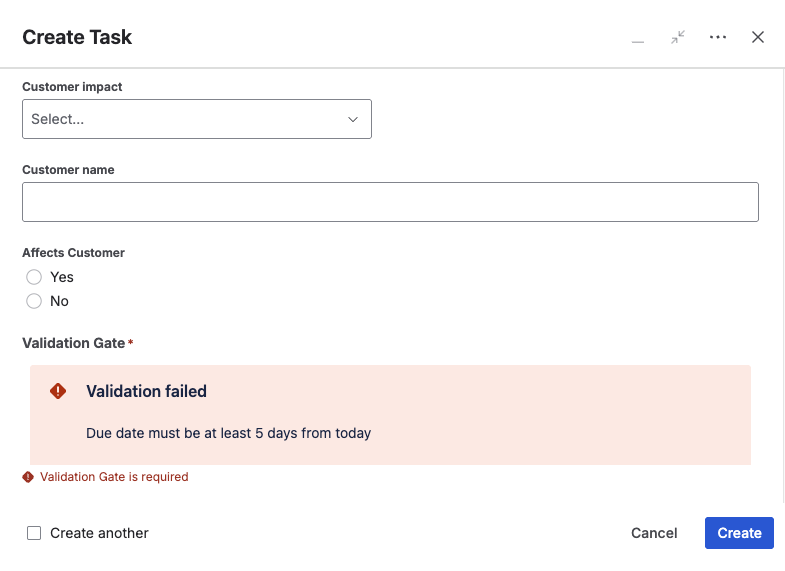
The field automatically updates as users fill out the form, providing real-time validation feedback.
Setting It Up
Add the Validation Gate application field to the appropriate Jira screens where you want validation enforcement:
- Global Issue Create screen
- Issue Transition screens
Validations run on these screens in Jira Software and Jira Work Management projects only. They don't run in Jira Service Management projects: neither on the customer portal nor when agents create requests. Transition validations run in company-managed Jira Software projects.
The field is pre-configured by the app—no additional setup, naming, or configuration is required. Simply add it to your screens and it will start enforcing validations automatically.
Combining Multiple Validations
You can apply multiple validation rules to the same field, creating sophisticated validation logic. All validation rules are AND-ed together—every rule must pass for validation to succeed.
How It Works
Multiple Rules on Same Field:
- Configure multiple validation rules targeting the same field
- Each rule can have different conditions
- Each rule evaluates independently
- If any rule fails, validation fails
- User sees all failing validation error messages
Evaluation Order:
- A failing rule doesn't stop the others: every validation rule whose conditions are met is checked
- The order of the rules on the Validation tab doesn't change the result
Common Combination Patterns
| Pattern | Validations | Result |
|---|---|---|
| Bounded number range | "Must not be empty" + "Number greater than" + "Number less than" | Enforces presence and range. Example: Story Points required, > 0, < 100 |
| Date sequencing + future | "Date after today" + "Date after another field" | Enforces both future dates and sequencing. Example: Due Date must be future AND after Start Date |
| Text quality standards | "Must not be empty" + "Minimum text length" + "Must contain text" | Enforces presence, quality, and format. Example: Summary required, ≥15 chars, contains "[Customer]" |
| Conditional validation tiers | Rule 1: Basic (all), Rule 2: Enhanced (high-priority), Rule 3: Strict (critical) | Progressive validation based on conditions |
Example: Story Points comprehensive validation — Three rules working together
Rule 1: Story Points must not be empty
- Condition: Issue Type = Story
- Validation: Must not be empty
- Message: "Story Points are required for all Stories."
Rule 2: Story Points must be positive
- Condition: Issue Type = Story
- Validation: Number greater than
- Threshold: 0
- Message: "Story Points must be greater than 0."
Rule 3: Story Points must be reasonable
- Condition: Issue Type = Story
- Validation: Number less than
- Threshold: 41
- Message: "Story Points exceeding 40 should be split into smaller Stories."
Combined Result:
- Story Points must: (1) have a value AND (2) be > 0 AND (3) be < 41
- Valid range: 1-40 (or decimals like 0.5, 1.5, etc.)
- Any violation shows appropriate error message
Next Steps
Now that you understand field validation rules, explore related topics to build comprehensive form control:
Ready to get started? Create your first validation rule by navigating to Space settings → Apps → Dynamic Screen Rules → Select a field → Validation tab → Add Rule. Start with simple presence or threshold validations, then expand to more sophisticated cross-field and conditional validations as you get comfortable.