Accessing Configuration
Formify is set up per project, in the project's settings. Each project has its own rules, so changing one project's forms never affects another. Only the people who configure rules need extra permissions: the rules run for everyone who opens the form.
Open Formify
In your project, open Space settings and select Dynamic Screen Rules under Apps: that is Formify's name in Jira's menus.
You need the Administer spaces permission in the project, or Jira admin rights. In company-managed projects, configuring rules needs Jira admin rights (the Administer Jira global permission): Formify builds the field list from the project's screen and workflow schemes, which Jira shows to Jira admins only. If you don't see Space settings, or Dynamic Screen Rules is missing under Apps, ask your Jira admin for access or to install the app (see Installation & Setup).
The field list
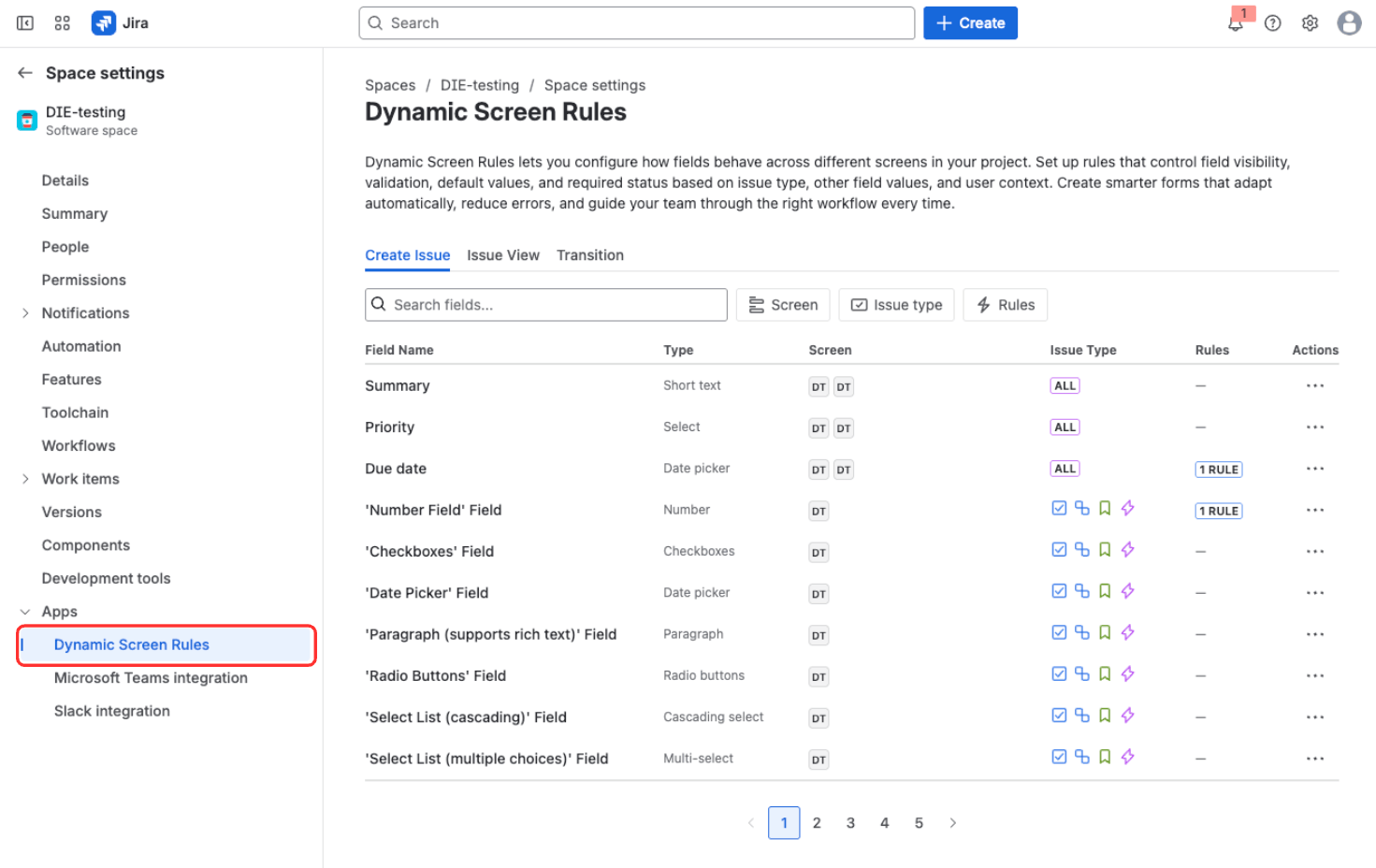
The field list on the Create Issue tab
The tabs at the top are the screens a rule can work on: Create Issue, Issue View and Transition. A rule belongs to one screen, so a rule made on Create Issue does not change the issue view. A team-managed Jira Software project gets Create Issue and Issue View only, because Jira runs no rules on its transitions; other team-managed projects show the Create Issue list alone, without tabs.
Projects with a customer portal also show a JSM Portal tab, but rules for the portal can't be created there yet. Create Issue rules run in Jira Software and Jira Work Management projects only, not in Jira Service Management projects: neither on the customer portal nor when agents create requests. Issue View rules run in Jira Software projects only, and Transition rules in company-managed Jira Software projects only.
Each row is a field from the project's screens, with its type, the screens and work types it appears on, and how many rules it has. Use the search box or the Screen, Issue type and Rules filters to narrow the list. Team-managed projects have no screens, so their list has no Screen column or filter.
Select a field's name, or Configure rules in its ⋯ menu, to open its rules.
A field's rules
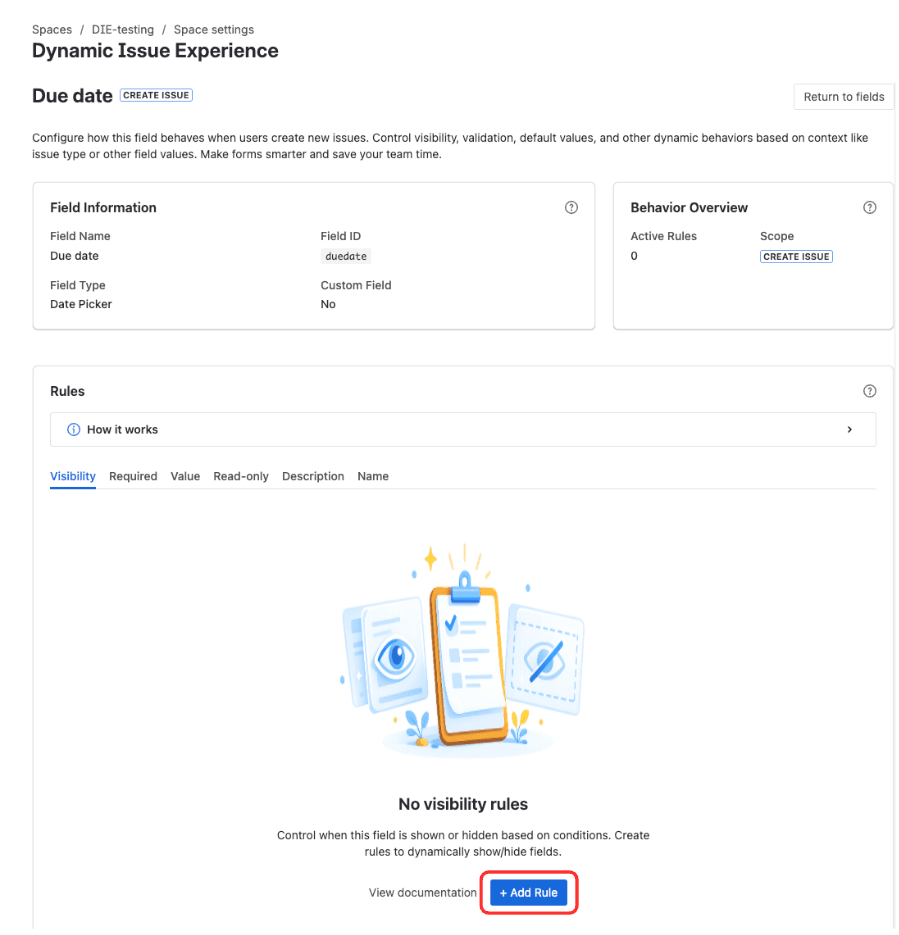
A field with no rules yet
The two cards at the top show the field's details and how many rules are active. Below them, Rules has one tab per kind of rule: Visibility, Options, Required, Value, Read-only, Description, Name and Validation. Which tabs you see depends on the screen and the field type; Options, for example, only appears on fields with a list of options to choose from. Each tab has its own Add Rule button.
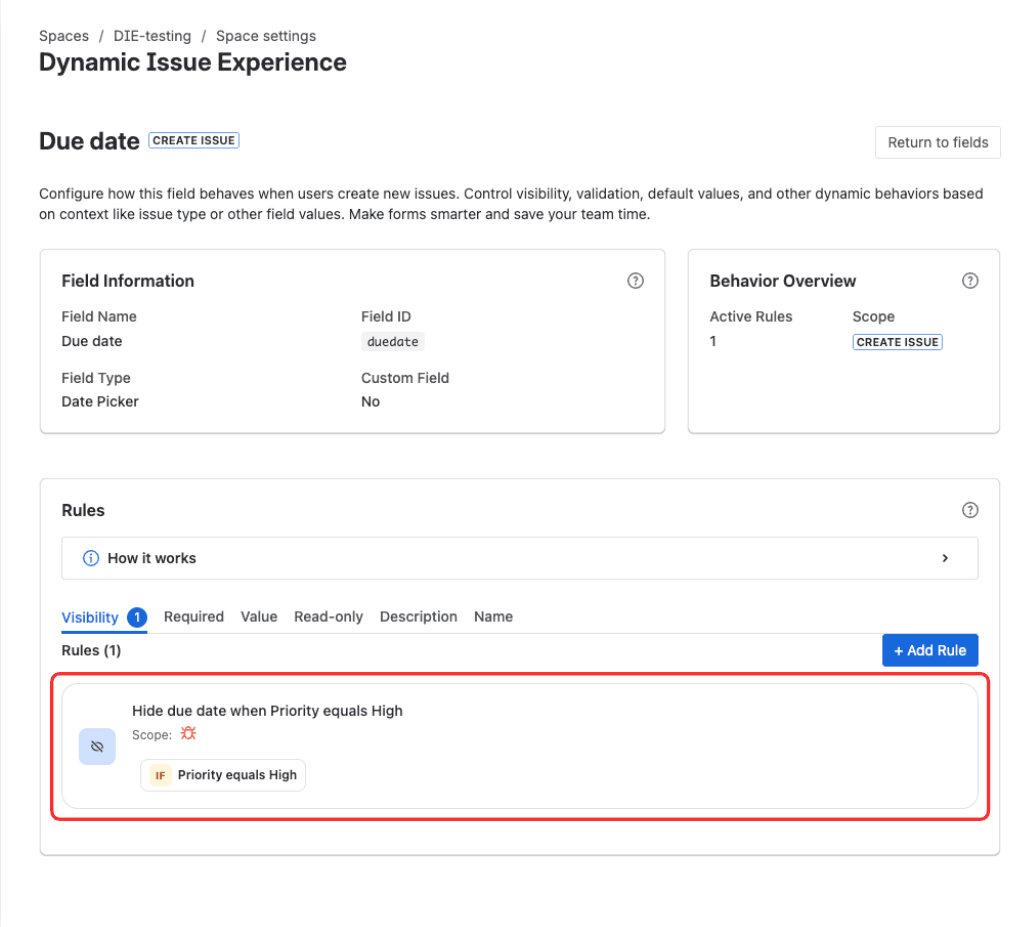
A saved rule on the Visibility tab
Each rule is a card that reads as a sentence, such as "Hide due date when Priority equals High", with its scope and conditions underneath. The card's ⋯ menu holds:
- Edit rule to change it.
- Disable to stop the rule without losing it. The card is marked DISABLED, and Enable turns it back on.
- Move up and Move down, when a tab has more than one rule.
- Delete rule to remove it.
Return to fields takes you back to the field list.