Recurring Tasks in Jira Cloud: From One Task to a Whole Epic With Sub-tasks
Some work comes back on a calendar: the monthly patch round, the sprint release checklist, the quarterly access review. For one task, Jira Cloud now has a built-in answer. For an Epic whose Stories have Sub-tasks and link to each other, the built-in answer stops halfway, and the choice is between a rule that spells out every work item and a template that holds the tree. We set up all three on a Jira Cloud site in October 2026 and counted what each run produced.
TL;DR
- One recurring task: open it and choose Set to recur. No app, no rule to write.
- A recurring Epic with Sub-tasks: Set to recur copies the Epic and its direct children only. Build a Scheduled Automation rule that creates each work item and keeps the keys in variables, and leave the JQL box unticked.
- A recurring Epic that keeps changing or several teams reuse: keep the tree as a template in an app like Templify and let the rule run one action. Jump to the template setup.
Does Jira Cloud have recurring tasks?
Yes. Any work item can be set to repeat with Set to recur, which Jira saves as an Automation flow called "Clone on a schedule" (Atlassian docs). Older Community threads that say Jira has no recurring tasks describe an older Jira.
Open the work item you want to repeat
Select the Automation button (the lightning bolt) on the work item, or open the Due date field, and choose Set to recur.
Pick how often
The choices are Daily, Every weekday, Weekly, Every 2 weeks and Monthly. Then decide whether the next copy appears on the schedule or only once the current one is completed, and when the series ends.
Save
Jira creates the "Clone on a schedule" flow for you. You can find it with your other Automation rules if you need to change or stop it.
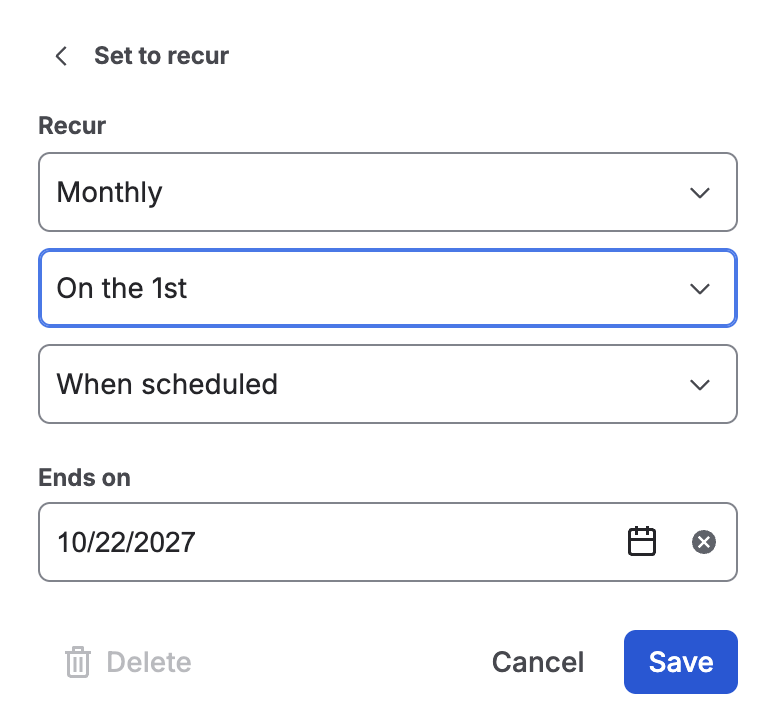
Set to recur on our test Epic: monthly, on the 1st, on the schedule
For a weekly report or a monthly invoice check, stop here. The rest of this guide is about the case where the repeating thing is a tree.
What Set to recur does with an Epic
We set it on an Epic with two children, a Story and a Task, each with one Sub-task, and the Task linked to the Story. The first run created:
- a new Epic with a new Story and a new Task under it;
- no Sub-tasks, and no link between the new Task and Story;
- an Epic with exactly the original name, so every month looks the same in a list;
- one Due date on every copy, a month after the run.
The docs add that attachments and web links aren't copied either. If your checklist lives in Sub-tasks, or the order of work lives in links, you need to build the recurrence yourself.
A Scheduled rule that builds the whole Epic
Automation's Scheduled trigger runs a rule at a fixed interval or on a cron expression (triggers reference). The rule then creates each work item in turn. Atlassian documents the pattern in a KB article on creating Stories, Tasks and their Sub-tasks from one rule; the recurring version only swaps the trigger.
Create a rule with the Scheduled trigger
Go to Settings → System → Global automation and create a rule. On the trigger's Basic tab, set Run flow every 1 Months, On the First day of month and a time.
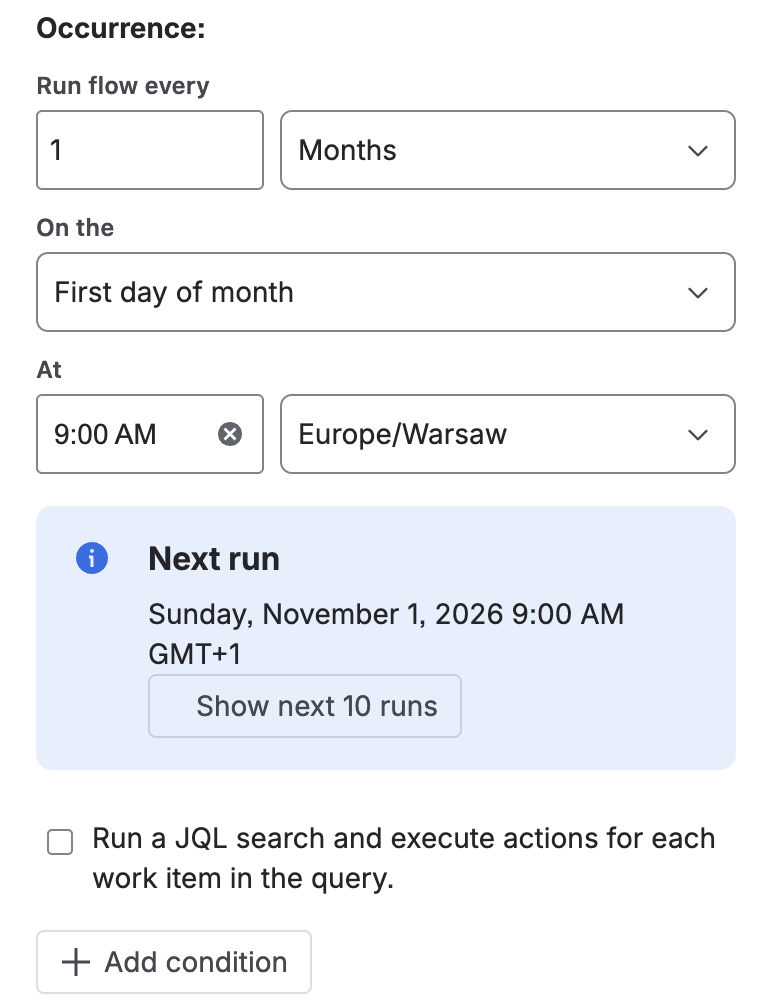
Monthly, on the first day, with the JQL box left empty
Leave the JQL box unticked
Run a JQL search and execute actions for each work item in the query sounds harmless, but with it ticked the actions run once for every work item the query returns. A rule that only creates work should start with nothing in focus.
Create the Epic and keep its key
Add Create work item for the Epic. A Summary of Monthly maintenance – {{now.format("MMMM yyyy")}} produced "Monthly maintenance – October 2026" on our site. Then add Create variable named epicKey with the value {{createdIssue.key}}. The variable matters: {{createdIssue}} always points at the item created last, so without it the Stories can't find their Epic once the second item exists.
Add the children, one action each
Each Story or Task gets its own Create work item with Parent set to {{epicKey}} and a Due date such as {{now.plusDays(14)}}. If it has Sub-tasks, store its key in another variable and create the Sub-tasks with that variable as Parent.
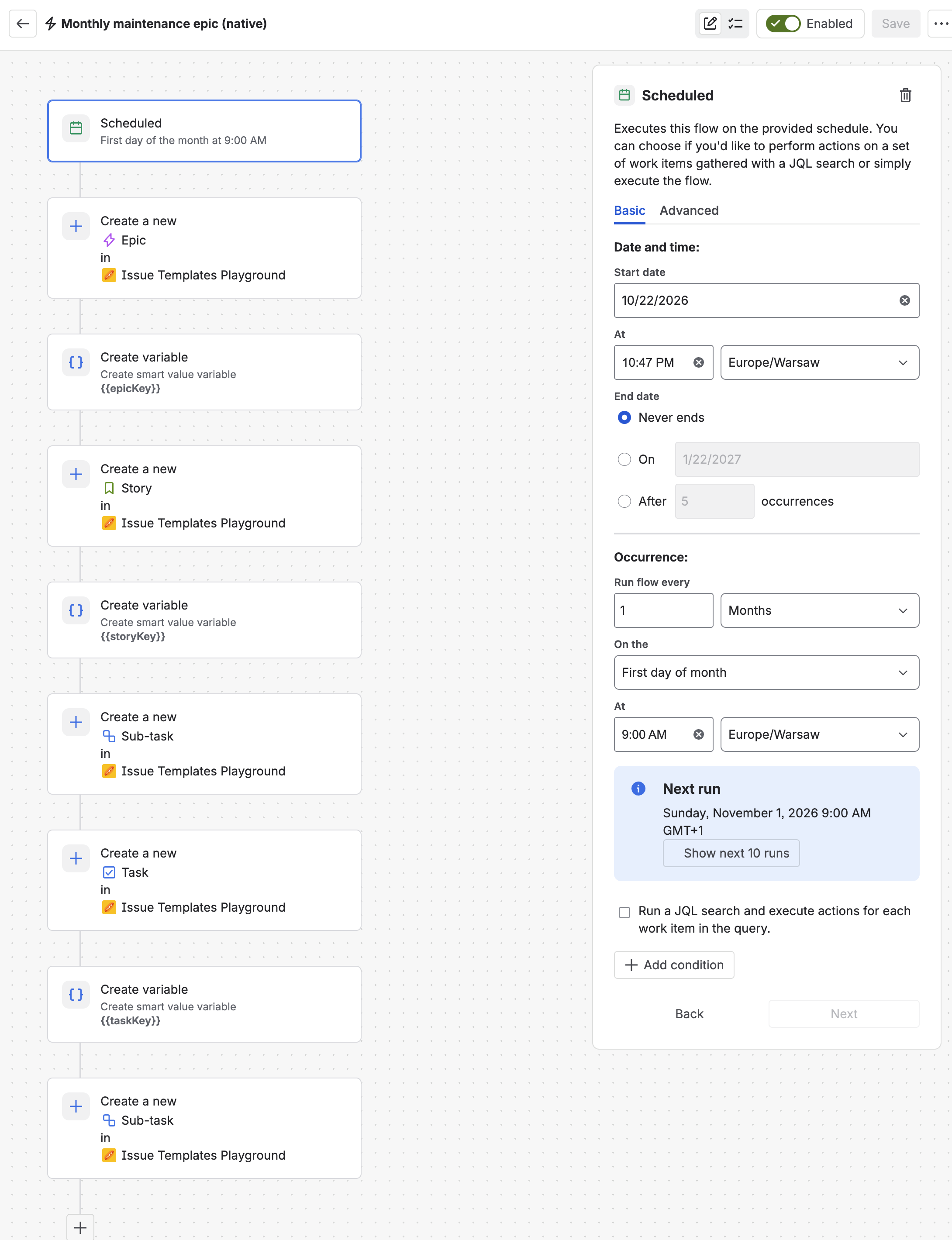
Five work items, three variables: eight components after the trigger
Link the children if the order matters
A rule with no work item in focus has nothing to link from. Add a Branch of type JQL with key = {{taskKey}}, and inside it Link work items ("relates to", {{storyKey}}). Each link costs a branch and an action.
Test it today
Under ••• choose Run scheduled flow now. It only runs an enabled rule, so once you test, the schedule is live too.
One timing detail: {{now}} is UTC (date smart values). A rule set for 00:30 on the first in a time zone ahead of UTC still runs on the last day of the previous month in UTC and names the Epic after it. A run a few hours into the day avoids that.
Why not the Clone work item action?
It looks like the shortcut: clone last month's Epic on a schedule. But the Automation action "will not clone work item links or comments" (actions reference), and Atlassian's recipe for Sub-tasks adds a separate branch with another clone. The manual Clone from a work item's menu can include child work items, but a rule doesn't use that dialog. For the difference between the two, see how to clone a Jira issue.
What a run costs
Automation usage is counted in steps: every trigger, condition, action, branch and loop that runs (how usage is calculated). From 3 December 2026, steps above your plan's allowance are billed at $0.50 per 1,000. Our five-item Epic logged 9 entries per run in the audit log, and 11 with one link. A rule can hold at most 65 conditions, branches and actions (service limits), so a long checklist eventually splits into several rules.
Once a month, nine steps is nothing. The cost that grows is the maintenance: every new Sub-task in the checklist is a new action, a new Parent value and sometimes a new variable, edited in the rule rather than in Jira.
| Set to recur | Scheduled rule with variables | Scheduled rule + template | |
|---|---|---|---|
| Sub-tasks | Not copied | Yes, one action each | Yes, from the template |
| Links between children | Not copied | One branch and action per link | Recreated between the new copies |
| Month in the Epic name | No | Smart value in the Summary | A branch that edits the Summary |
| Due dates | One date for all, +1 month | A smart value per item | Relative dates per item |
| To change the checklist | Edit the original work items | Edit the rule | Edit the template's work items |
| Audit log entries per run | 8 | 9 (11 with one link) | 2 (4 with the rename) |
| Needs an app | No | No | Yes |
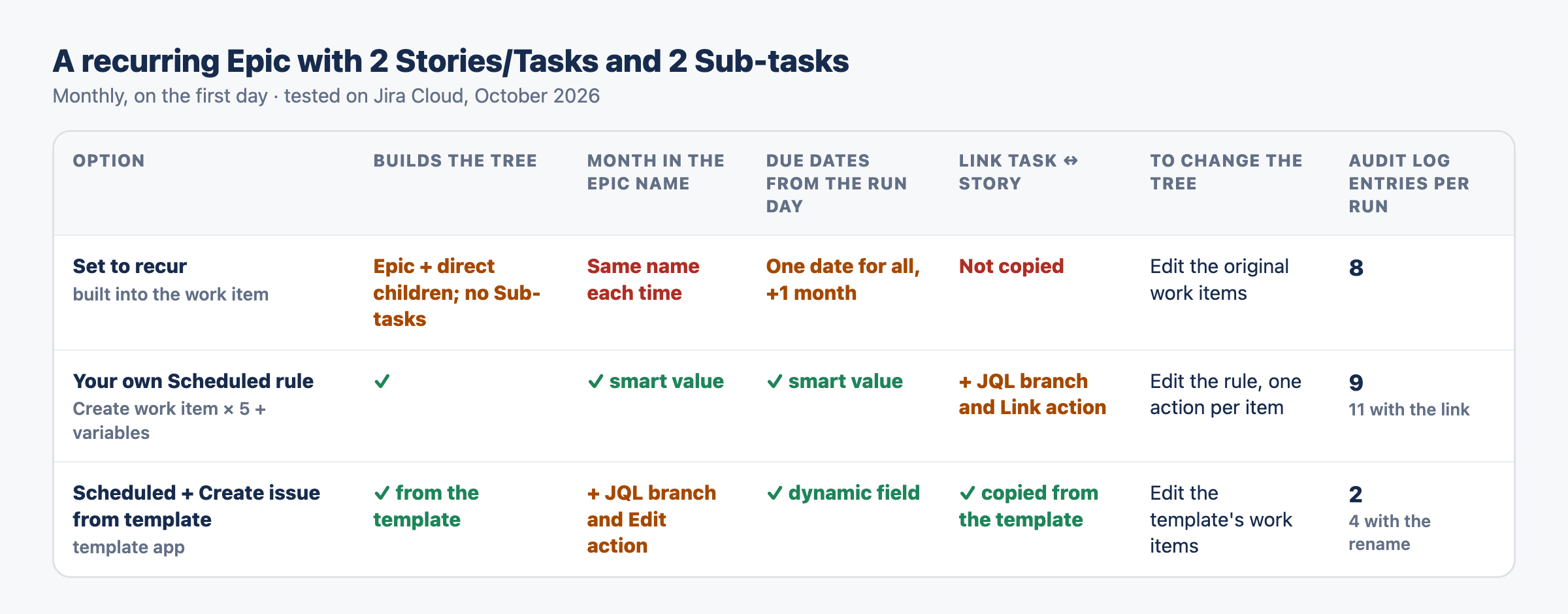
The same comparison as we ran it, with the counts taken from each flow's audit log
Recurring work from a template
A template moves the structure out of the rule. The Epic and its children are ordinary work items in Jira, and the rule only decides when to copy them. Templify is the app we build at Terano Apps, so read this section with that in mind; everything above works without it.
Build the Epic once
Create the Epic with its Stories, Tasks, Sub-tasks and links the way you want them every month. Mark the Epic as a template from its Issue Templates panel. On the Dynamic fields tab of the Epic and of each child, set a relative Due date, such as now + 21d on the Epic and now + 14d or now + 7d on the children (dynamic fields docs).
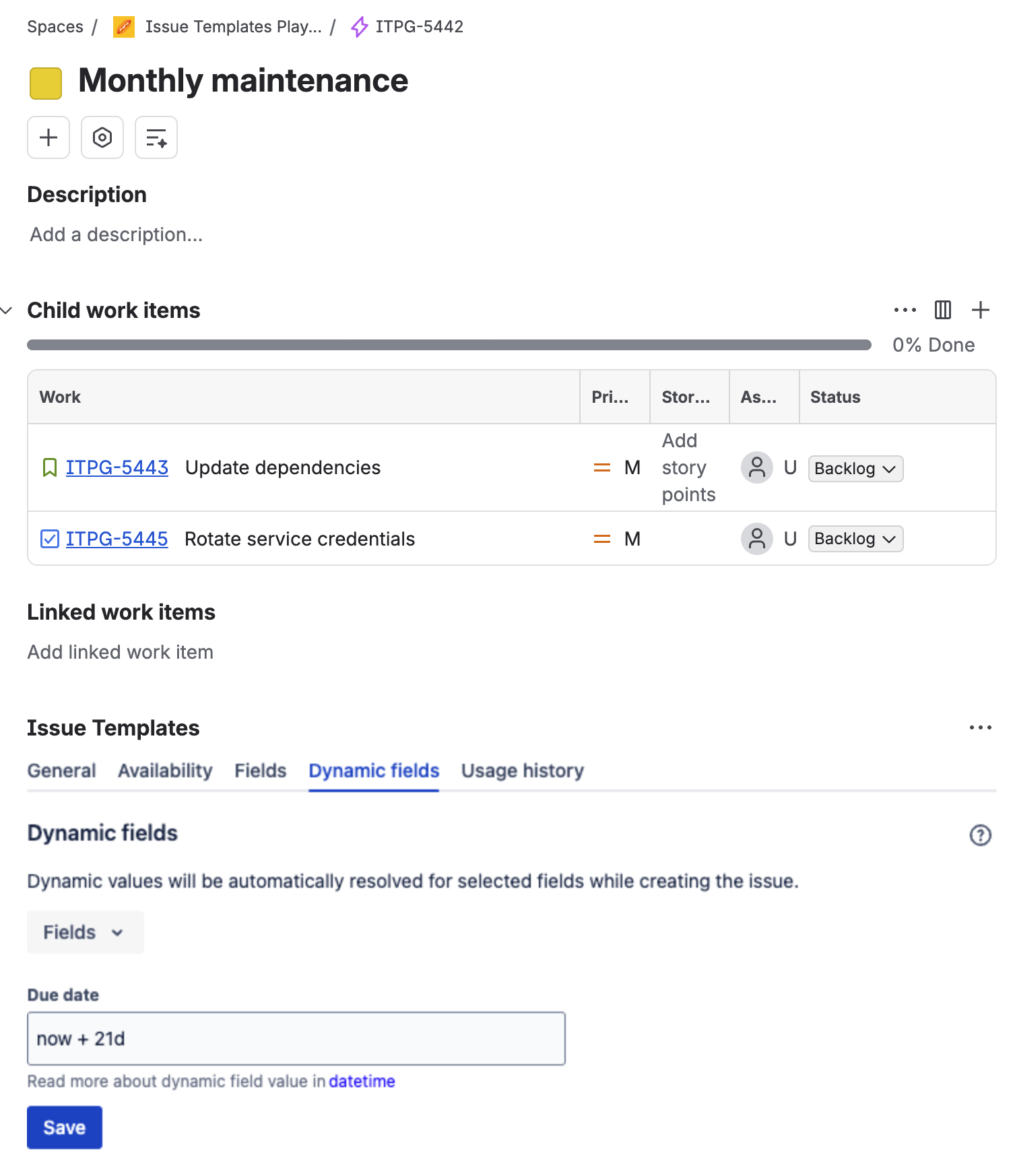
The template Epic, with its Due date counted from the day each copy is made
Schedule one action
Create a rule with the same Scheduled trigger, JQL box unticked, and add Create issue from template with the template selected (action docs). Target project picks the space for the copy; left empty, the copy goes to the template's own space.
Add the month to the name (optional)
Add a Branch of type JQL that finds the Epic just created, for example project = OPS AND issuetype = Epic AND summary ~ "Monthly maintenance" AND key != OPS-12 AND created >= -5m, and inside it Edit work item fields with the Summary Monthly maintenance – {{now.format("MMMM yyyy")}}. Keep the key != <template key> part: in our first run the template itself was minutes old, matched the query, and got renamed along with the copy.
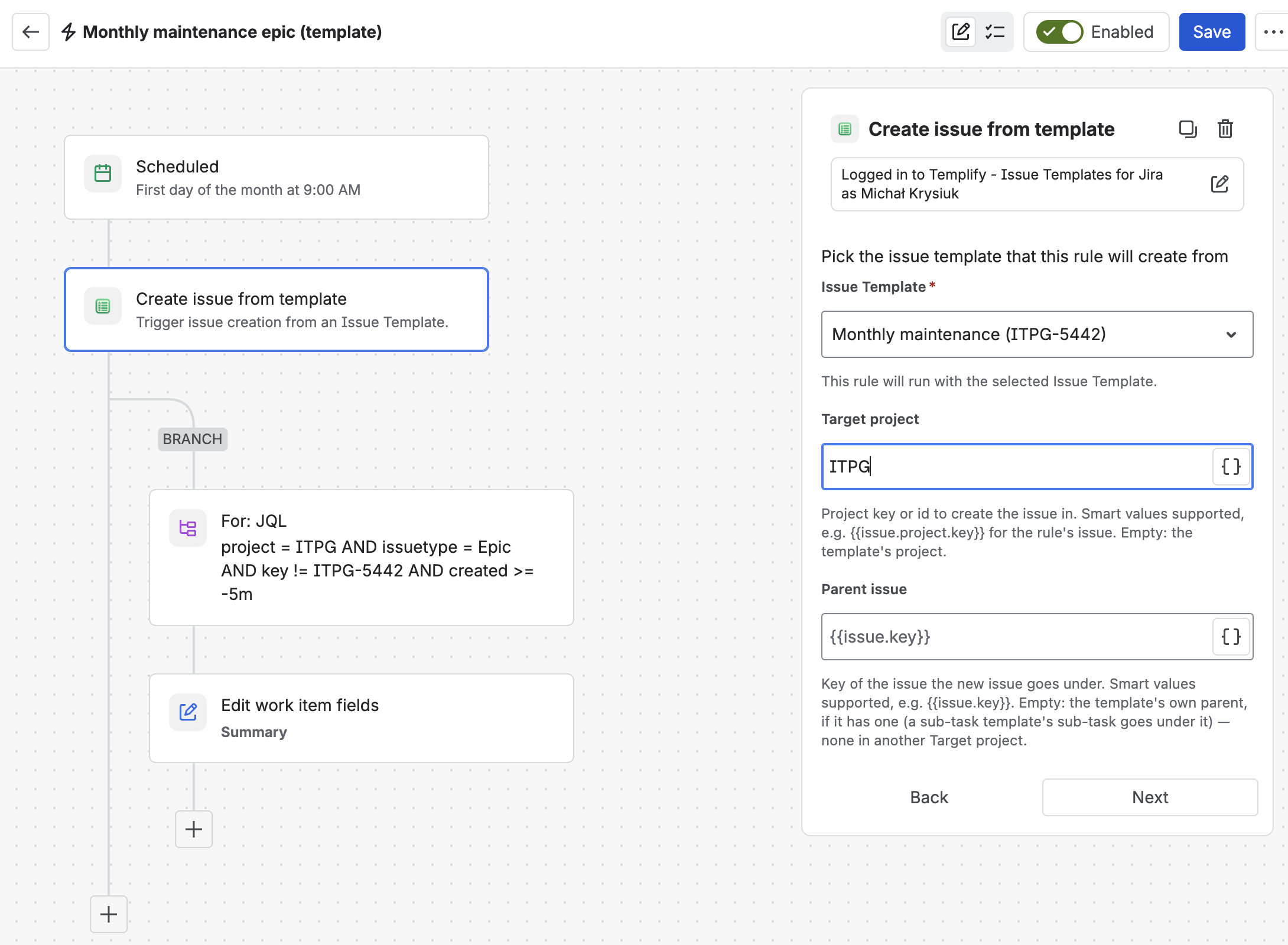
Scheduled trigger, one template action, one branch for the name
Check the first run
Use Run scheduled flow now again. Our run created the Epic, both children and their Sub-tasks, with Due dates 21, 14 and 7 days out, and the new Task linked to the new Story rather than to the template's Story.
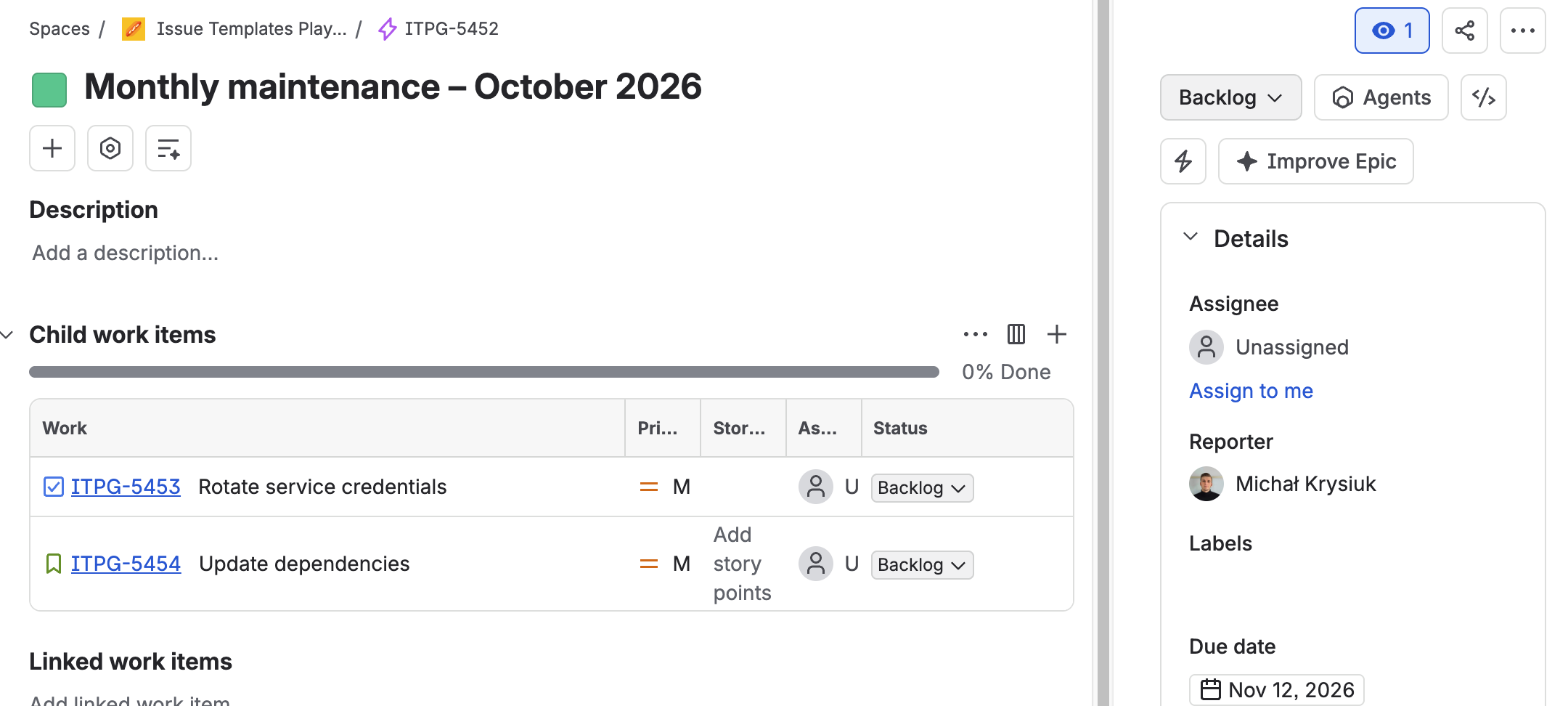
The October copy, due three weeks after the run
One limit: text placeholders such as {Version:textfield} stay as written when a rule creates the work, because nobody is there to fill in the form. Templates you schedule should use dynamic fields, not placeholders.
When the checklist changes, you edit the template's work items, and next month's copy follows. The rule doesn't change. To create the same tree on demand rather than on a schedule, see Jira Epic templates; for other rule triggers, see Automation with issue templates.
Keep the recurring Epic in Jira, not in the rule
Templify copies a whole Epic, with Stories, Sub-tasks, links and relative Due dates, from one Automation action. Free trial on the Atlassian Marketplace.
Start free trial on MarketplaceWhich one to use
- A single task that repeats: Set to recur. It is built in and takes a minute.
- An Epic with Sub-tasks, links or staggered Due dates that rarely changes: a Scheduled rule with variables. It costs nothing extra beyond Automation usage, and you see every step in one place.
- An Epic whose checklist changes, or one that several teams copy: a template, so the people who own the checklist edit work items instead of an Automation rule.
We also published these test results, with the threads that prompted them, as a companion article on the Atlassian Community.
FAQ
Can Jira Cloud create recurring tasks without an app?
Yes. Set to recur on a work item repeats it daily, every weekday, weekly, every two weeks or monthly. For more control, an Automation rule with a Scheduled trigger and a Create work item action does the same job.
Does Set to recur copy Sub-tasks?
In our test on an Epic, no. It copied the Epic and its direct children, without their Sub-tasks and without the links between them, and gave every copy the same Due date.
Why does my scheduled rule create duplicate Epics?
Usually because Run a JQL search and execute actions for each work item in the query is ticked on the trigger, so the actions run once for each work item the query finds. Untick it for a rule that only creates work. Also check that the same work isn't scheduled twice, for example by Set to recur and by your own rule.
How do I put the month in a recurring Epic's name?
Use a smart value in the Summary: {{now.format("MMMM yyyy")}} gives "October 2026". Schedule the rule a few hours into the day, because {{now}} is in UTC.
How do I test a scheduled rule without waiting?
Choose Run scheduled flow now from the rule's ••• menu. It only works on an enabled rule, so the schedule starts as well.
How many Automation steps does a recurring Epic use?
Each trigger, action, branch and condition that runs counts as one. For our five-item Epic the audit log showed 9 components per run when every item was its own action, 11 with one link, and 2 with a single template action.
Repeat the whole Epic, Sub-tasks included
Mark the Epic as a template once and schedule one Automation action. Templify copies the Stories, Sub-tasks, links and Due dates every time. Free trial on the Atlassian Marketplace.
Start free trial on Marketplace