Jira Epic Templates: Create Project Hierarchies Automatically
Every sprint, release, or project kickoff starts the same way — someone manually creates an Epic, adds Stories, fills in subtasks, assigns fields. Fifteen minutes of repetitive work, repeated across every team, every cycle. A Jira epic template replaces that routine with a single click: one template generates the complete Epic, Story, and Task hierarchy with all fields pre-filled.
Quick answer
- Jira Cloud has no built-in Epic template feature — but you can create reusable Epic structures using a template app like Templify.
- Mark any Epic with child issues as a template. When you create from it, the full hierarchy (Stories, Tasks, subtasks, links) is generated in one action.
- Combine with dynamic fields and Jira Automation to auto-generate project structures on triggers like sprint start or label assignment.
What you will learn
- What an Epic template is and how it differs from cloning or a native Jira Automation rule.
- Four ready-to-use hierarchy patterns — sprint kickoff, feature release, incident response, and client onboarding — with the full child-issue structure for each.
- A step-by-step guide to building your first Epic template in Templify, including dynamic fields and cross-project hierarchies.
- A comparison table of all four approaches to creating Epic hierarchies in Jira Cloud.
Why manual Epic creation doesn't scale
The math is straightforward. A sprint kickoff Epic with three Stories and six subtasks takes 10–15 minutes to create manually. At two-week sprints, that is 5–6 hours per year of pure data entry — for one team. Multiply by the number of teams, add release Epics, onboarding Epics, and incident response Epics, and the overhead compounds quickly.
The time cost is only part of the problem. Manual creation introduces variance: one sprint gets five Stories, the next gets three because someone forgot a step. Fields are left empty because the creator didn't know which components to set. Subtasks are missing because copying structures from last sprint is tedious and error-prone.
The hidden cost
Inconsistent Epic structures break downstream processes. Sprint velocity becomes unreliable when Stories are missing. Release dashboards show incomplete progress when subtasks aren't created. Stakeholders lose trust in the board because it doesn't reflect the real work.
This is a common pain point across Jira Cloud teams — Atlassian Community threads on creating child issues automatically and Epic hierarchy management confirm that Jira Cloud has no native Epic template feature.
If you are still evaluating how to approach templates in general — native Jira options, cloning, or dedicated apps — see our step-by-step comparison of all three approaches.
What is an Epic template?
An Epic template is a reusable blueprint that defines a complete issue hierarchy: the Epic itself plus all its child Stories, Tasks, and subtasks — each with their own field defaults, descriptions, assignees, and dynamic values.
When you create from an Epic template, the entire tree is generated in one action. Parent-child relationships are preserved automatically. Issue links (blocks, relates to, is caused by) are recreated. Fields like priority, components, labels, and story points are pre-filled on every child issue — not just the Epic.
Each Story under the epic should follow a consistent format — see the Jira user story template for a copy-paste ready version with four team examples, so every child issue in the hierarchy starts with the same As a / I want / So that structure.
This is different from cloning. A clone copies a single issue's current state. An Epic template is a maintained blueprint — update the template once, and every future hierarchy creation uses the updated structure.
Four Epic template patterns your team can use
Release cycle
Ship every release with the same quality gates. No skipped regression, no missing changelog.
Best for: Teams shipping versioned releases on a regular cadence
Feature delivery
Every feature follows the same path from spec to production — across design, eng, and QA.
Best for: Product teams with cross-functional squads (design, eng, QA)
Incident response
Trigger the full SRE incident process the moment severity is assigned. Nothing falls through.
Best for: SRE, DevOps, and platform teams with on-call rotations
Client onboarding
Every new client gets the same 30-day ramp. Dynamic fields auto-fill client name, CSM, and start date.
Best for: SaaS, professional services, and customer success teams
Each pattern uses dynamic text fields to personalize the hierarchy at creation time — sprint name, feature name, client name, incident ID — so every generated structure is contextual, not generic.
Release cycle template: complete field reference
Here is a fully detailed Release Cycle Epic template with all field defaults — the same structure shown in the pattern above. You can recreate it in your Jira instance in under ten minutes.
| Level | Issue type | Summary | Priority | Due date | Assignee |
|---|---|---|---|---|---|
| Root | Epic | Release {version} | High | now + 10d | Creator |
| L1 | Story | Code freeze & stabilization | High | now + 2d | Unassigned |
| L2 | Subtask | Cut release branch from main | High | now + 1d | Unassigned |
| L2 | Subtask | Merge pending PRs or defer to next release | Medium | now + 1d | Unassigned |
| L2 | Subtask | Bump version numbers | Medium | now + 2d | Unassigned |
| L1 | Story | QA sign-off | High | now + 6d | Unassigned |
| L2 | Subtask | Run full regression suite | High | now + 5d | Unassigned |
| L2 | Subtask | Verify staging environment matches production config | High | now + 5d | Unassigned |
| L2 | Subtask | Sign off on go/no-go checklist | Critical | now + 6d | Creator |
| L1 | Story | Deploy & communicate | High | now + 10d | Unassigned |
| L2 | Subtask | Production deploy + smoke test | Critical | now + 8d | Unassigned |
| L2 | Subtask | Write changelog and release notes | Medium | now + 9d | Creator |
| L2 | Subtask | Notify stakeholders and update status page | Medium | now + 10d | Creator |
Each issue also carries component and label defaults — Engineering stories get component Engineering, QA stories get QA, and all Stories share the release label. These fields are omitted from the table for readability but are configured on every child issue in the template.
Notice the deliberate defaults: the go/no-go sign-off is assigned to Creator (the release manager who triggers the template), while individual tasks like "Run full regression suite" are left unassigned so the QA lead can distribute work. Due dates cascade logically — code freeze on day 1–2, QA through day 6, deploy on day 8, comms by day 10.
All now + Xd expressions and Creator references are Templify dynamic field expressions — they resolve at creation time so every generated hierarchy gets fresh dates and the correct reporter.
How to build an Epic template in Templify
Create the Epic structure in Jira
Create a new Epic in your project with the summary, description, priority, and components you want every instance to have. Add child Stories as you normally would — each with their own summary, description, and field values. Under each Story, add subtasks with individual defaults for assignee, labels, and story points.
Build the structure exactly how you want every new project to look. This is the blueprint — every field you set here becomes a default in the template.
Mark the Epic as a template
Open the Epic and find the Templify panel in the issue view. Click Set as Template. Templify automatically includes all child issues in the template — Stories, subtasks, and any issue links between them.
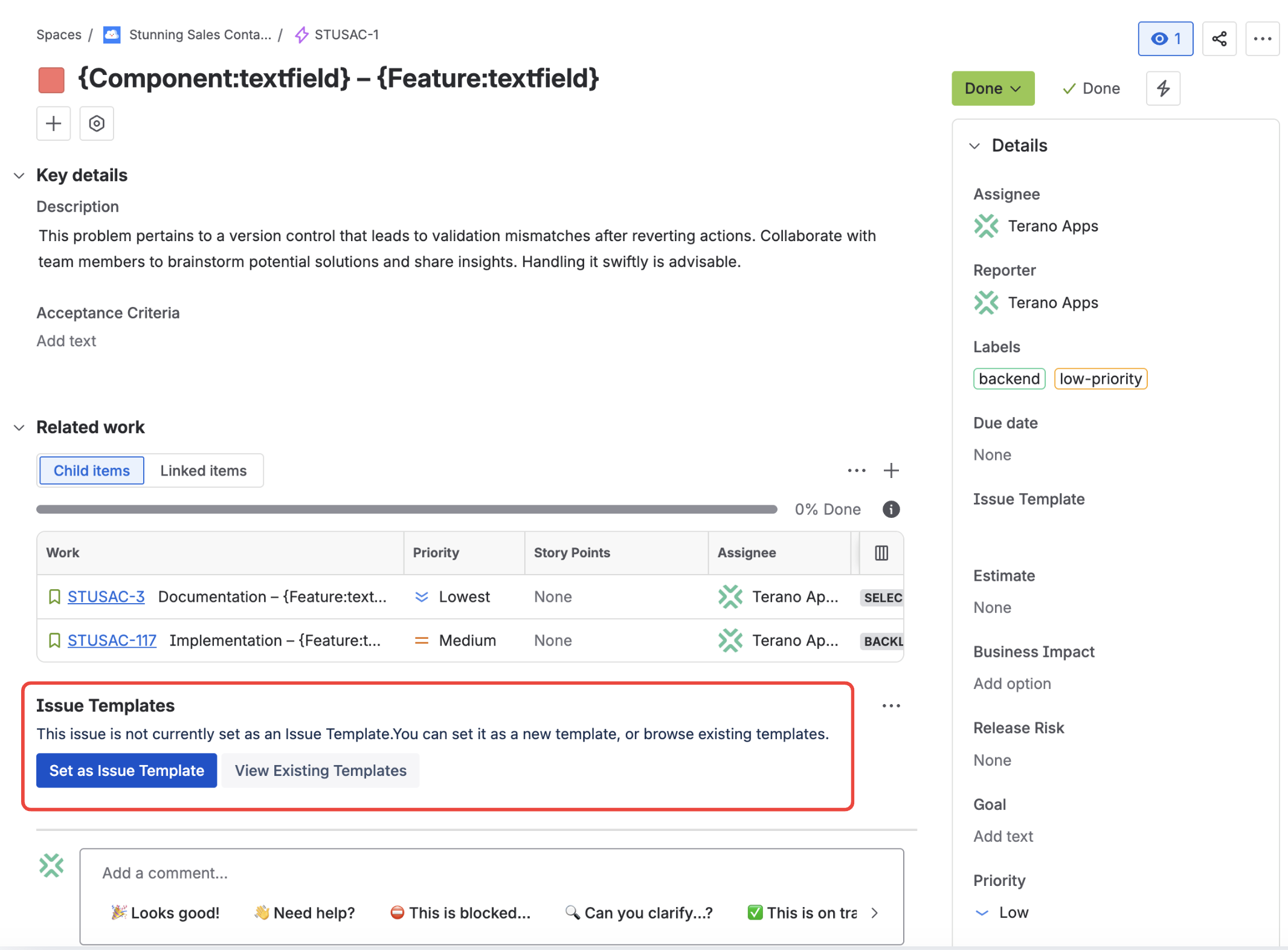
For the full walkthrough, see the Create Issue using Template docs.
Configure dynamic fields on child issues
Open each child issue in the template and set dynamic expressions where you want context-aware defaults:
now + 7dfor due dates relative to creationCreatorto assign the reporter automatically- Select a board (e.g.,
SP board) to place tasks in the board's active sprint
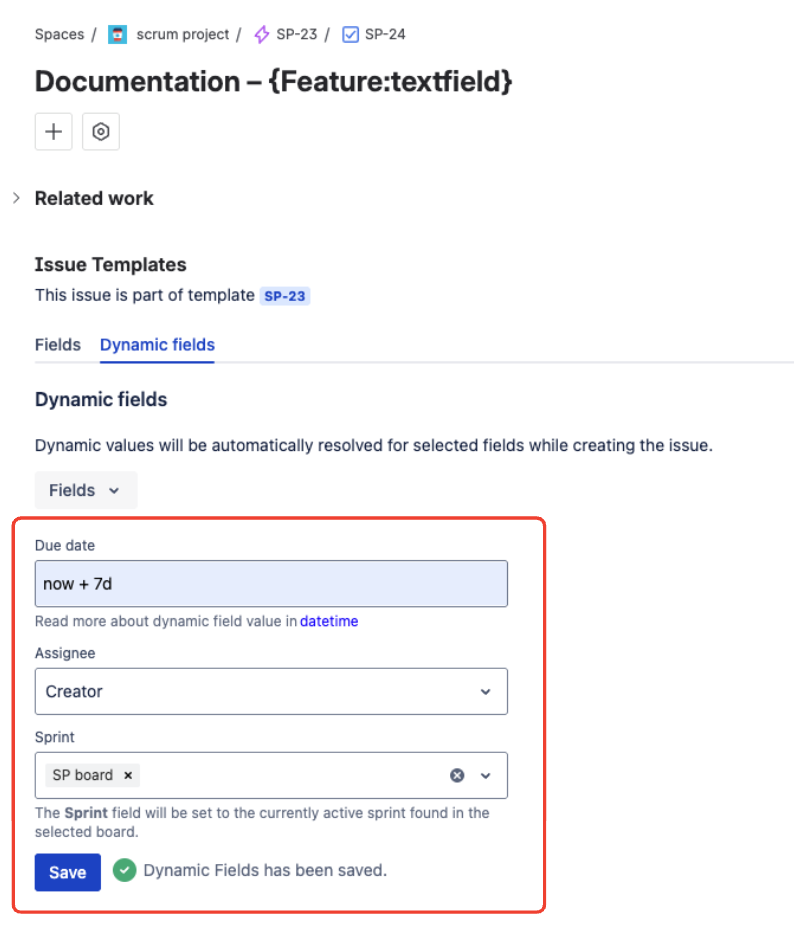
Dynamic expressions are evaluated at creation time, so each generated hierarchy gets current dates, users, and sprint context. See the full list in the dynamic fields reference.
Set template availability
By default, a template is available in the project where it lives. To share an Epic template across all projects, enable it in the Global Repository.
Cross-project hierarchies
Child issues in the hierarchy can belong to different projects. A single Epic template can generate Stories across Frontend, Backend, and QA projects — all linked to the same parent Epic.
Create a project hierarchy with one click
Open the template Epic and click Create issue in the Templify panel. A hierarchy preview appears showing every child issue that will be created. Toggle individual children on or off — skip the Post-Mortem Story for a minor incident, or remove the Docs Story when shipping an internal tool.
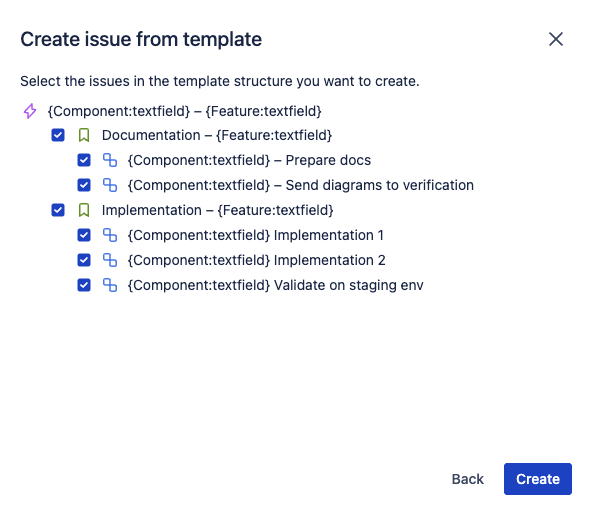
Click confirm — the full hierarchy is created in seconds. Every issue has its fields pre-filled, parent-child links intact, and issue links preserved.
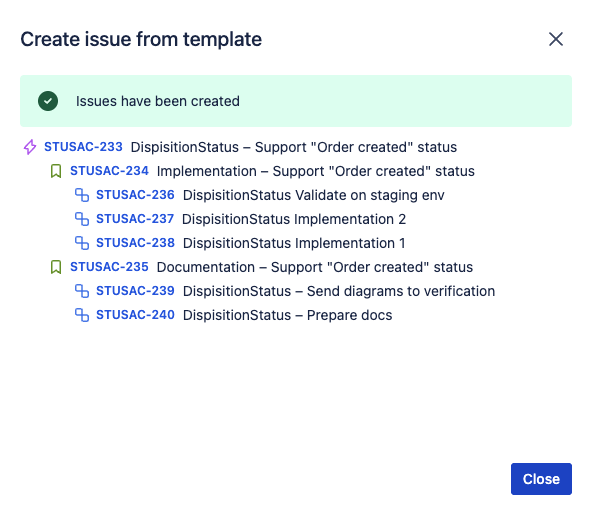
See it in action
This interactive demo walks through creating an issue hierarchy from a template — from selecting the template to reviewing the hierarchy preview to the final result on the board:
Comparing approaches: how to create Epic hierarchies in Jira Cloud
Before committing to an approach, here is how the four main options compare specifically for creating Epic hierarchies with child issues:
| Criteria | Manual creation | Clone Epic | Automation rule | Epic template (Templify) |
|---|---|---|---|---|
| Child issues created | One by one | Whole tree — tick Child work items | One rule — every item its own action | Full tree in one click |
| Time per hierarchy | 10–15 min | 2 min (Epic only) | ~30 sec (after setup) | ~10 sec |
| Fields pre-filled on children | No | Copied from the source | Per action, field by field | All children individually |
| Dynamic fields | No | No | Smart values only | Full expression set |
| Setup effort | None | None | ~1 hour for a three-level tree | 5 minutes |
| Template update | N/A | Re-edit source issue | Edit the flow, action by action | Update one template |
| Selective child creation | Yes (manual) | No — children come as a set | Not per run, unless you build a prompt | Yes — toggle per child |
| Cross-project children | Yes (manual) | Children follow the parent | Yes — space is set per action | Yes — built-in |
| Failure risk | Human error | Last release’s values carried over | A misplaced variable, visible only after a run | Atomic — all or nothing |
Automate Epic creation with Jira Automation
You can trigger Epic template creation automatically using Jira Automation's Create issue from template action. A single automation rule replaces the entire manual process.
A typical setup:
- Trigger: Issue created with label
sprint-kickoff, or Sprint started - Action: Create issue from template → select your Sprint Kickoff Epic template
- Result: The full hierarchy is generated automatically as a new Epic — no manual intervention. It is not placed under the triggering issue, and with Sprint started, which carries no issue, it lands in the template's project.
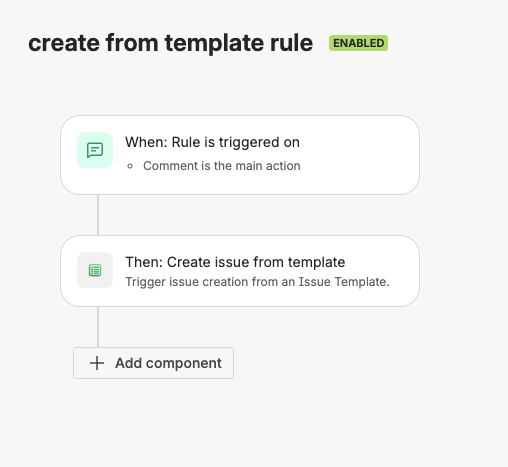
This is one action producing the result that would otherwise be ten create actions and four variables wired up by hand. The template defines the structure once; the automation rule just triggers it.
Deep dive: automation + templates
For a detailed comparison of the native rule versus Templify's automation actions — including four workflow patterns, a step-by-step native setup, and a maintenance cost analysis — see Jira Automation Issue Templates: Epic–Task Workflows.
- Templify docs: Create issue from template action
Why not just build the automation rule?
You can build the whole hierarchy with native Jira Automation, and — contrary to what a lot of threads claim — it takes one rule, not a chain. Atlassian documents the pattern: create the parent, store its key in a variable with {{createdIssue.key}}, then create each child with Parent pointed at that variable. We built it on a live instance and it produced the full Epic → Story → subtask tree in a single run. The step-by-step version, with screenshots of the rule and its output, is in our companion article on the Atlassian Community.
So the cost isn't the number of rules. It's what the rule becomes:
- The structure is the flow. An Epic with three Stories and six subtasks is ten Create work item actions and four Create variable steps in a fixed order — roughly fourteen components in a list where nothing shows what hangs off what. The hierarchy exists only in the variable names and in the Parent field inside each panel.
- The order is load-bearing. Each variable has to be captured before the next create overwrites
{{createdIssue}}. Get it wrong and nothing complains: the rule saves, the rule runs, and a subtask lands under the wrong parent. - You can loop one level, and only one. A branch on All created work items can give every created Story the same subtasks, but branches cannot be nested — so a tree where each Story gets different children is unrolled by hand, and a rule tops out at 65 components.
- It belongs to an admin. Automation lives in project or Jira admin settings, while the shape of the process usually belongs to the team running it. Every "we added a step" becomes a request to somebody else.
When the native rule is enough
If the hierarchy is small and fixed, runs on a schedule or a trigger, and is maintained by a single admin — the native rule is the answer, and no app improves on it. It gets expensive when the structure changes often, varies from run to run, or has to be owned by the team rather than by whoever can edit automation.
Cost is part of this decision. Native automation is included in your plan (usage is metered monthly). A template app is a Marketplace subscription that scales with user count. Use the Templify pricing calculator to estimate whether the admin hours saved justify the subscription for your team size.
Decision signal: if the same Epic hierarchy pattern changes more than once a quarter, or has to differ from run to run, the maintenance of the rule will outrun what it saves.
Epic template tips from real teams
Start with 2–3 templates
Identify your most repeated workflows — sprint kickoff, feature delivery, incident response. Build templates for those first. Expand only after teams use them consistently for a full quarter.
Name templates clearly
Use a consistent naming convention: [Team] – [Process]. Examples: "Engineering – Sprint Kickoff", "CS – Client Onboarding". Clear names prevent duplicate templates and make the template picker usable.
Use dynamic dates, not fixed
Set due dates as relative expressions (now + 14d) instead of static dates. Every generated hierarchy gets dates relative to when it was created — no manual date adjustment needed.
Review templates quarterly
Processes evolve. A quarterly template review catches outdated steps, missing subtasks, and unused templates. Use audit logs to identify which templates are actively used and which can be retired.
Assign template owners
Every template should have one owner — the person responsible for keeping it current. Without an owner, templates drift and become unreliable. Template ownership lives at the team level, not the Jira admin level.
Don't over-nest
Three levels (Epic → Story → Subtask) is the sweet spot for most teams. Four levels add complexity without proportional value. If you need deeper structures, consider splitting into linked Epics instead.
Frequently asked questions
Can child issues in an Epic template belong to different projects?
Yes. Templify supports cross-project hierarchies. A single Epic template can generate Stories in a Frontend project, Backend project, and QA project — all linked to the same parent Epic. This is useful for platform teams where work spans multiple Jira projects. See the Create Issue Hierarchies guide for details.
Can I choose which child issues to create?
Yes. When you create from an Epic template, a hierarchy preview shows every child issue with a toggle. Deselect any child you don't need for this instance — for example, skip the "Post-Mortem" Story for a minor incident, or remove the "Docs" Story for an internal tool. The rest of the hierarchy is created as configured.
Does it work with team-managed projects?
Yes. Templify's hierarchy creation works in both company-managed and team-managed Jira Cloud projects. Team-managed projects have some field behavior differences — see the team-managed configuration guide for setup details.
How deep can the hierarchy go?
Templify follows Jira's native hierarchy model: Epic → Story → Subtask (three levels). You can also add issue links (blocks, relates to) between any issues in the template, which gives you cross-referencing without deeper nesting. For most workflows, three levels plus issue links covers the full structure.
How do I create an Epic with child Stories automatically in Jira?
Jira Cloud has no native "create Epic with children" feature, but there are two practical approaches. (1) Build a Jira Automation rule: one rule can create the whole tree, capturing each parent's key in a variable with {{createdIssue.key}} and pointing the next create at it (Atlassian documents the pattern) — the cost is that every item is its own action, so a three-level tree runs to roughly fourteen components in a flat list. (2) Use a template app like Templify to define the full hierarchy once and generate it with one click. See the full comparison table above for a detailed breakdown of each approach.
Can I duplicate an Epic with all subtasks in Jira Cloud?
Jira Cloud's native Clone feature copies the Epic but does not copy child issues (Stories, Tasks, subtasks). This is a known limitation — you get the Epic with its fields, but the entire child structure is lost. An Epic template solves this: the template preserves the full hierarchy, and every "Create from Template" action generates all children with their individual field defaults.
How many Epic templates should my team have?
Start with two or three templates for your most repeated workflows — typically sprint kickoff and feature delivery. Resist the urge to template everything on day one. After one quarter of consistent use, review usage data in the audit logs and expand to additional patterns only where the data shows repetitive manual creation.
Related reads
- How to Create Issue Templates in Jira Cloud (Step-by-Step) — choosing between Automation, Clone, and template apps
- Jira Automation Issue Templates: Epic–Task Workflows — the native rule vs Templify actions, with four workflow patterns
- Jira Issue Templates in Jira Cloud: Native vs App — decision framework for native vs app-based templates
- Jira Template Governance: Permissions, Audit Logs, and Access Control — managing template access at scale
Stop building Epics from scratch
Create your first Epic template in under five minutes. One click generates the full hierarchy — Stories, subtasks, fields, and links — every time.
Try Templify free on Marketplace