How to Clone a Jira Issue (and When You Need a Template Instead)
Jira's clone is more powerful than most people give it credit for — in Jira Cloud it can copy the entire issue, from comments to child work items. So the interesting question isn't how to clone a Jira issue (that part takes two clicks). It's knowing exactly what Clone carries, how to clone in bulk or across projects, and where cloning quietly becomes the wrong tool for the job.
Quick answer
- Native Clone (⋯ Actions → Clone) copies the whole issue — fields, comments, attachments, links, and child work items when you tick them. The one thing it leaves out is worklogs (logged time).
- Clone always starts from an existing issue and copies a point-in-time snapshot, so the copy inherits last time's values — dates, assignee, fix version.
- Need many at once, or a copy in another project? The issue view has no bulk or cross-project clone, but Jira Automation's "Clone issue" action does both.
- When you create the same structure again and again, a snapshot of an old issue is the wrong starting point. A reusable template builds it from scratch, with fresh values, as a standard your team can reuse.
How to clone a Jira issue in Jira Cloud
Jira Cloud has a built-in Clone action. It creates an independent copy of an existing issue in the same project, which you can then edit on its own.
Open the issue
Open the Jira issue you want to copy. You need permission to create issues in that project.
Open the Actions menu
Click the ⋯ (More actions) menu in the top-right corner of the issue view and choose Clone.
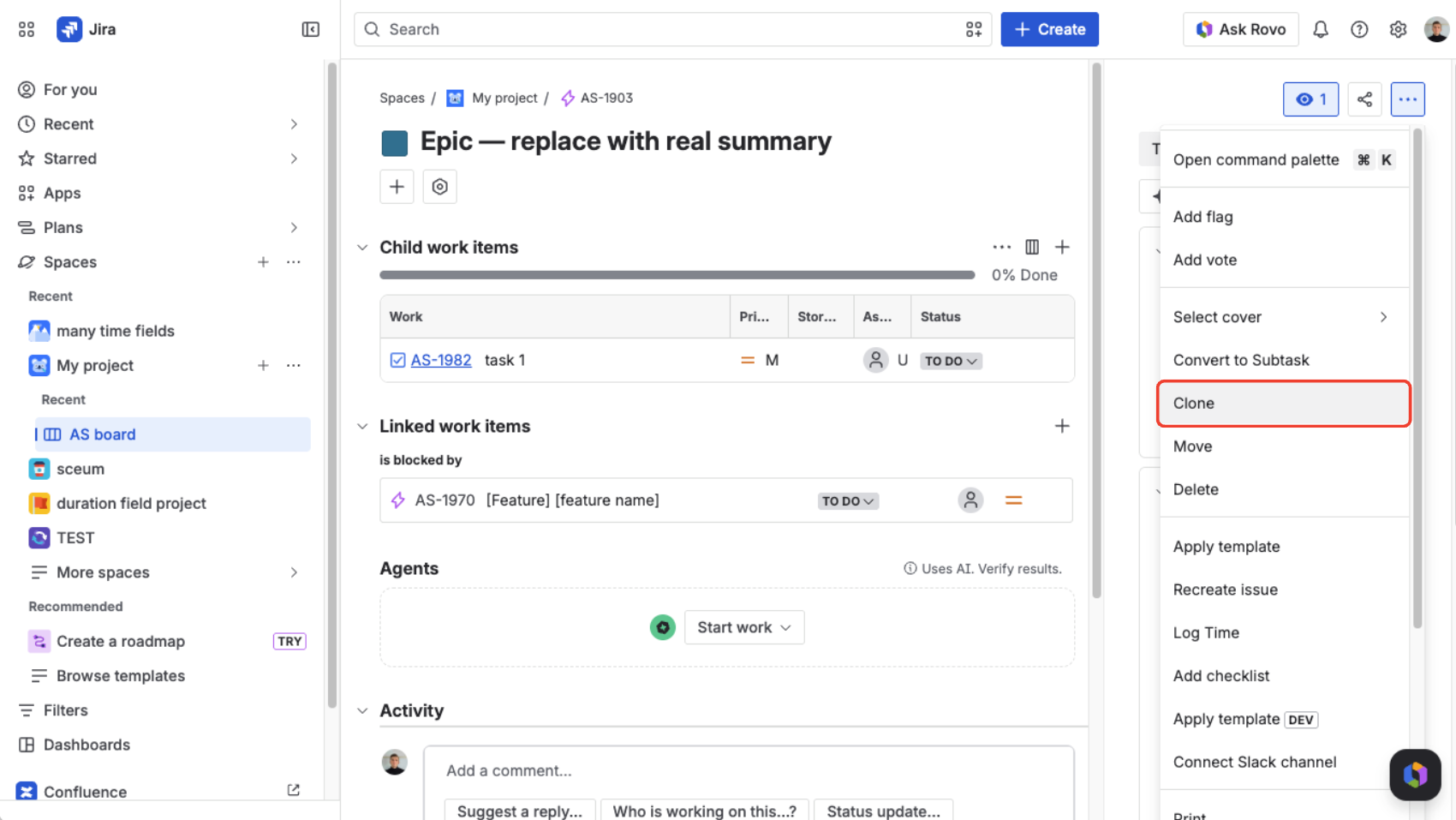
Choose what to include
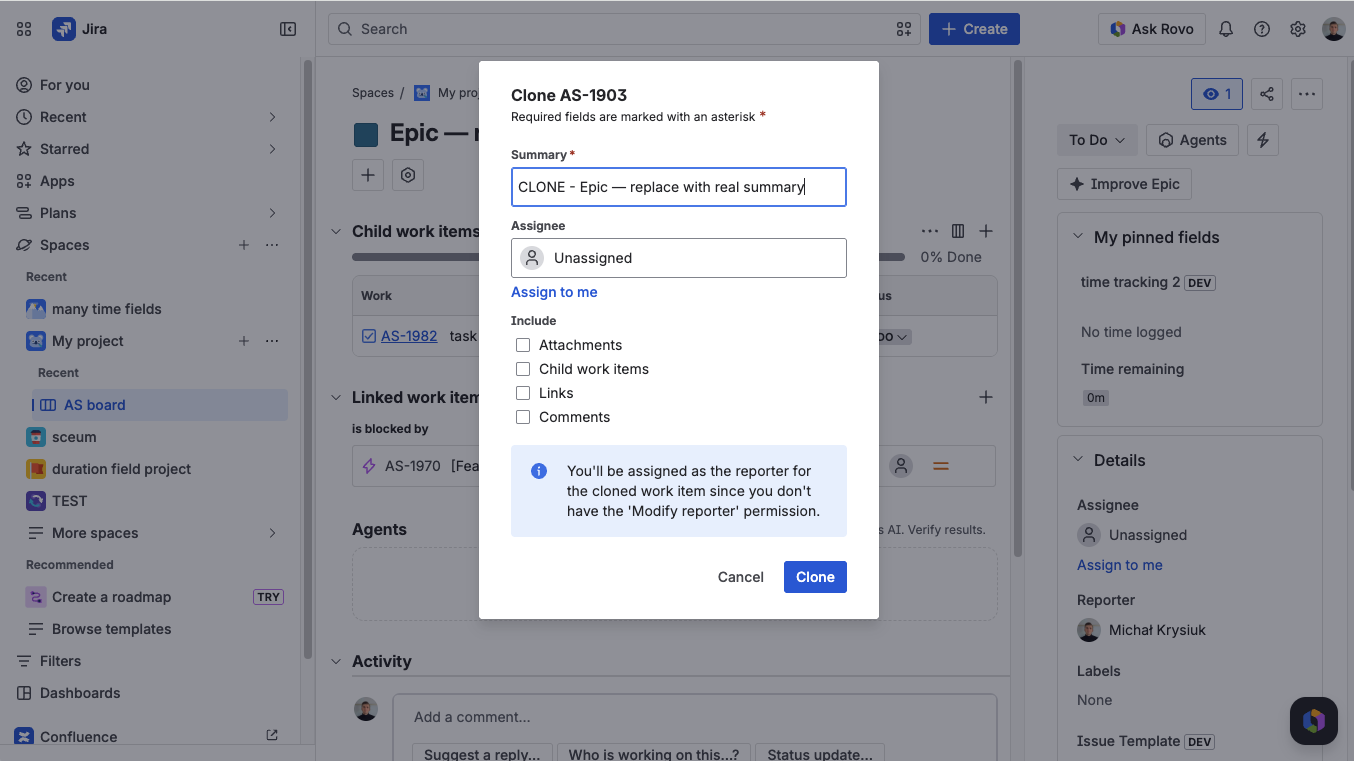
Jira opens a Clone dialog. The summary defaults to a CLONE - prefix, and an Include section lets you tick what comes along: Attachments, Child work items, Links, and Comments. Choose what you need, then click Clone.
Open the new issue
Jira creates the copy and links you to it. From here you can reassign it, move it through the workflow, and edit fields — the clone is fully independent of the original.
That is the whole native flow. For a one-time copy, you are done.
What Clone actually copies (more than you'd expect)
The thing people underestimate: that Include section means Clone is a thorough copy, not a shallow one. Tick the boxes and the clone brings:
- Child work items — subtasks, and the child issues under a parent. Cloning is not limited to the top-level issue; you can bring the hierarchy with it.
- Comments, Attachments, and Issue links — each is its own checkbox, so you decide what travels.
- The issue's field values — summary (with the
CLONE -prefix), description, assignee, labels, fix version, and the rest.
The one notable thing it does not carry is worklogs — logged time stays with the original. (You can see this in the dialog above: time tracking is not one of the Include options.)
A few more things happen automatically:
- The status resets. The clone starts at the first step of your workflow with its resolution cleared — it does not inherit the original's status.
- It's linked back. Jira adds a Clones / is cloned by link between the copy and the original, so the lineage is always traceable.
- It's a brand-new issue. Your issue-created automation rules fire on it, and the reporter is notified by default — handy, or a surprise, depending on your setup.
A clone is a fork, not a link
The moment you clone, the copy is fully independent — change the original later and the clone won't follow, and vice versa. The Clones link records that they're related, but nothing keeps them in sync. For a one-off that is exactly what you want. It is also why cloning the same issue over and over quietly drifts: every copy is frozen at the moment you made it, carrying that day's values, and they diverge from there.
How to clone many issues at once (Jira Automation)
There is no bulk-clone button in the issue view, and Jira's bulk-change tools edit or move issues but don't clone them. The native way to clone at scale is Jira Automation, which has a dedicated Clone issue action.
A typical rule:
Pick a trigger
Use a Scheduled trigger with a JQL filter (e.g. clone every issue in a saved filter), or a manual/issue trigger — whatever fits the job.
Add the Clone issue action
Add the Clone issue action and set the destination project and any field overrides you want on the copies.
Branch for child work items
To bring subtasks along, add a branch over the children with its own Clone issue action, pointing the new parent at the freshly cloned issue.
This is genuinely useful for recurring and bulk work — and unlike the manual Clone, the Automation action can target a different project, so it doubles as your cross-project clone. The trade-offs are worth knowing up front:
- It is less thorough than the manual Clone — by default it copies fields but not attachments, issue links, or comments; you add extra rule steps for those.
- You are building and maintaining a rule, and branching gets awkward for deep Epic → Story → Sub-task trees (no deeply nested branches).
- Like the manual Clone, it still copies snapshot values from a source issue rather than generating fresh ones.
How to clone a Jira issue to another project
Here is where the manual Clone falls short: Actions → Clone always creates the copy in the same project as the original. You have three options:
- Just Move it. If you don't need to keep the original where it is, skip cloning entirely — use Actions → Move to send the issue to the target project.
- Clone, then Move. If you need a copy in another project, clone first (it lands in the original project), then Move the clone. Jira walks you through mapping the issue type, status, and any fields that differ between projects — which is where mismatched types and required fields surface.
- Automate it. The Automation Clone issue action (above) can create the copy straight into another project in one step — the closest thing to a true cross-project clone, as long as you accept that it skips attachments, links, and comments unless you add steps for them.
Where clone stops being the right tool
First, the good news: for a genuine one-off — duplicating a bug to reproduce it against another release, or spinning up a quick variant of a ticket — native Clone is exactly the right tool. Use it and move on.
The friction only shows up when you clone the same thing repeatedly. And notice that none of those limits are about capability — clone copies hierarchies, fields, comments, the lot. They are structural:
It always needs a source issue
Clone copies something that already exists. To "clone the standard onboarding epic," you first have to find the right issue to clone from — and trust that it is the canonical one.
It copies the past
Every clone carries the source's old values — dates, assignee, release. You fix the same fields by hand on every copy.
There's no source of truth
Five people clone five slightly different versions. Six months on, your "standard" issue has drifted and no two copies match.
It isn't discoverable
A new teammate has no way to know which issue to clone. The standard lives in tribal knowledge, not anywhere they can find it.
When you are cloning the same structure again and again, those aren't clone bugs to work around — they are signs you have crossed from duplicating into standardizing. And standardizing is what templates are for: a named definition you create from scratch, with fresh values, that anyone on the team can apply on demand.
Clone vs. a reusable template — which do you actually need?
It's a workflow decision, not a feature contest. Clone and a template app overlap on capability; they differ on where the structure comes from and how repeatable it is.
| Native Clone | Reusable template | |
|---|---|---|
| Best for | A one-off duplicate of an existing issue | The same structure, created repeatedly |
| Starts from | An existing source issue you must find | Nothing — built from scratch |
| Field values | Copied as-is (a snapshot, stale next time) | Fresh each time (dynamic fields) |
| Source of truth | None — which issue is "the right one"? | One named, central definition |
| Team can discover it | No | Yes — pick it on the Create screen |
| Bulk / scheduled | Via the Automation Clone action | Via the template + Automation |
A purpose-built template app like Templify covers that right-hand column. You mark any issue — or a whole Epic hierarchy — as a template once, and creation stops being a copy of the past. A few things a clone simply can't do:
Fresh values, not stale ones
A clone copies last release's due date and assignee. A dynamic field is calculated at creation instead — a due date of now + 5d, the active sprint, or the current user — so every issue starts current. Expressions resolve on child issues too, so an entire hierarchy dates itself.
Prompt for what changes
A clone duplicates fixed text. With dynamic text fields you embed placeholders in the summary or description — Onboard {Manager:user} before {Start Date:date} — and Jira asks for just those values on creation, filling the rest. Perfect for the parts that differ every time, including dropdowns like {Stage:select(Dev,Staging,Prod)}.
Generate the structure on demand
Mark an Epic → Story → Sub-task tree as a template once, then create it from scratch — with or without its hierarchy and links, your choice each time — in any project or board. No source issue to find, no clone-and-move.
Built into the Create screen
Pick the template from a dropdown right in Jira's native Create form, or set it as the default for a project and issue type so new issues are prefilled automatically. A clone is never an option on the Create screen.
And because the template is one central definition rather than a copy scattered across projects, you update it once and the next use reflects the change — no drift. Keep it in a global repository so it is available and governed across projects, or use Apply Template to push its values onto an issue that already exists — neither of which cloning can do.
Clone duplicates a moment in time. A template defines the standard once and produces a fresh, consistent copy whenever you need it — which is what you were really reaching for every time you cloned the same issue.
FAQ
Does cloning a Jira issue copy its subtasks and child issues?
Yes. The Clone dialog has an Include section — tick Child work items and the clone brings the issue's subtasks and child issues, not just the top-level issue.
Does cloning copy comments and attachments?
Yes, both are options in the Clone dialog's Include section, alongside issue links. You choose what travels with the copy.
Does cloning a Jira issue copy worklogs?
No. Logged time (worklogs) is not copied — it stays on the original issue. Time tracking is not one of the Clone dialog's Include options.
Does cloning a Jira issue trigger automation or notify people?
Yes. A clone is a newly created issue, so any issue-created automation rules run on it and the reporter is notified by default. If that is not what you want, add a condition to skip clones in your rules, or adjust the rule's notification settings.
Is cloning the same as copying or duplicating a Jira issue?
Effectively, yes — "copy" and "duplicate" are informal names for the same operation. Jira's term is Clone, in the issue's ⋯ Actions menu. There is no separate "duplicate" button.
How do I copy a Jira issue to another project?
There is no direct cross-project clone. Either Move the issue (if you don't need to keep the original), or clone it first and then use Actions → Move on the clone, mapping the issue type, status, and fields to the target project.
Can I clone multiple Jira issues at once?
Not from the issue view. Use Jira Automation's "Clone issue" action — trigger it on a schedule or a JQL filter, and add a branch to clone child work items along with each parent.
If Clone copies everything, why use a template instead?
Because Clone always starts from an existing issue and copies its current values as a snapshot. A template builds the structure from scratch with fresh values, as a single named standard your team can reuse — no source issue to find, no stale fields to fix, no drift.
Related reads
- Jira Epic Templates: Create Project Hierarchies Automatically — generate a full Epic breakdown from scratch, no source issue needed
- Jira Subtask Templates: How to Standardize Child Issues — apply a saved subtask set to any issue
- How to Create Issue Templates in Jira Cloud (Step-by-Step) — Automation, Clone, and template apps compared
- Jira Issue Templates in Jira Cloud: Native vs App — when native features are enough, and when they are not
Stop re-cloning the same issues
Define any issue or Epic hierarchy as a reusable Templify template — then create it from scratch in one click, with fresh dynamic fields, in any project.
Try Templify free on Marketplace