Multiple Time Tracking Fields in Jira: The 2026 Guide
Most teams hit the same wall: Jira lets you track time in exactly one place per issue, but real work splits across Dev, QA, support, and billable vs internal. If you need multiple time tracking fields on a single Jira issue, native Jira won't get you there alone. This guide covers what native time tracking does well, every workaround teams try (with honest trade-offs), and how to get true multiple time tracking fields with JQL, reporting, and worklog support intact — building on our complete Jira time tracking guide.
TL;DR
Native Jira gives you one Time Tracking field per issue — Original Estimate / Time Spent / Remaining, plus worklogs. The common workarounds (number fields, subtasks-per-phase) each break either JQL, reporting, or hierarchy. A dedicated app adds unlimited Time Tracking and Duration custom fields that keep Jira's 2h 30m format, expose full JQL aliases, and optionally sync back to native time tracking. Skip ahead to the ready-to-use setups for Dev/QA, billable, SLA, and contract hours.
How time tracking works in Jira natively
Before reaching for a workaround, it's worth being precise about what native Jira already does — because it does it well and you should keep it.
Every Jira issue has a single Time Tracking field made of three values, plus worklogs that feed it:
| Native ingredient | What it does |
|---|---|
| Original Estimate | The up-front guess at total effort (1d, 4h 30m). |
| Time Spent | The sum of all logged work; grows every time someone logs work. |
| Remaining Estimate | Recalculated automatically as work is logged. |
| Worklog | Each "Log work" entry — author, date, duration, comment — that rolls into Time Spent. |
Worklogs are the heart of it: every log adds onto Time Spent and Remaining recalculates. Built-in time-tracking reports and Scrum boards read these values directly. Story points are often used alongside as an estimation proxy — but they measure complexity, not time.
What native time tracking does well: zero setup, consistent with worklogs, and fully wired into Scrum boards and reports. None of that changes with the rest of this guide — the question is only what happens when one field per issue isn't enough.
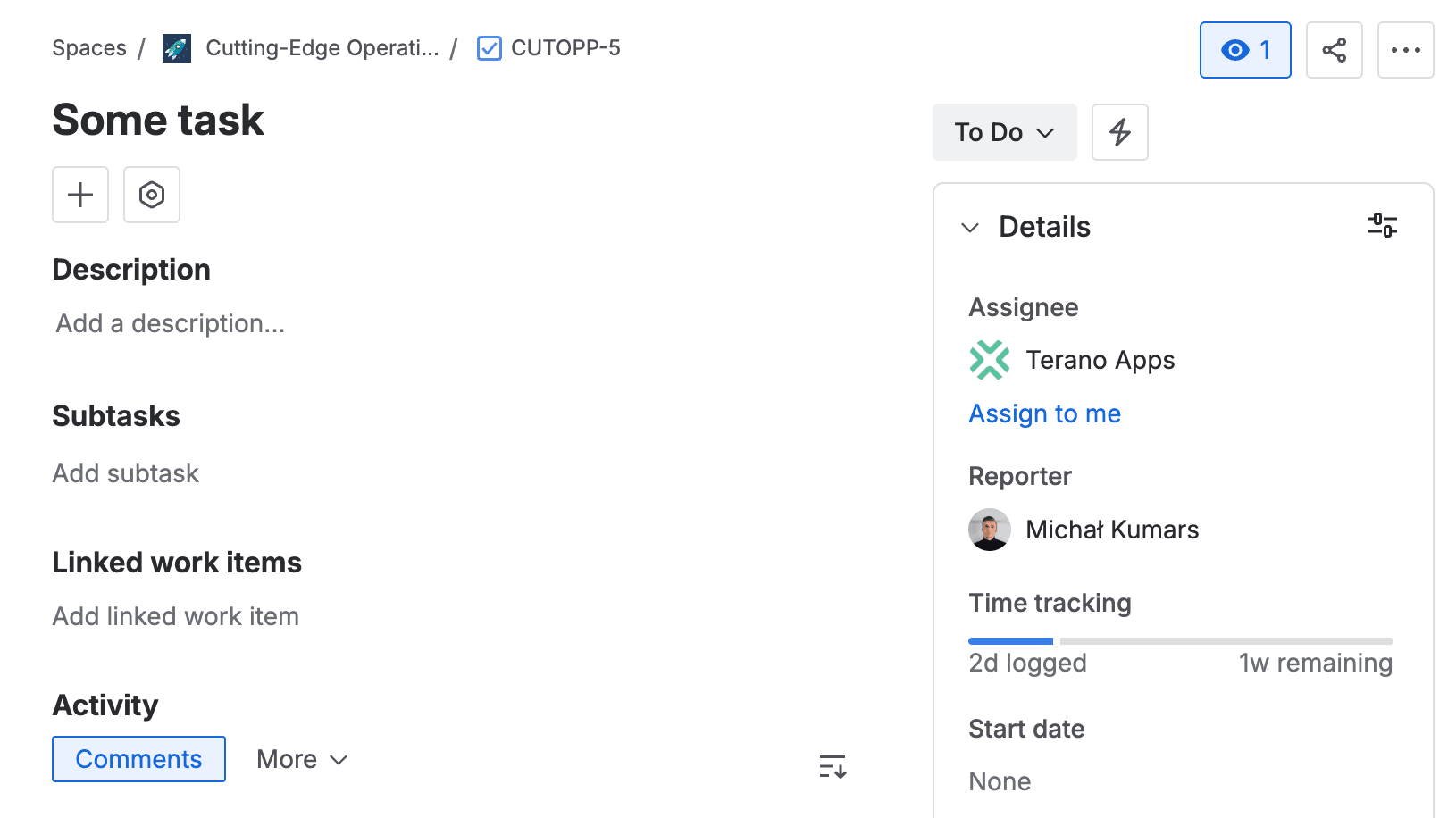
Does Jira support multiple time tracking fields out of the box?
No. Jira Cloud allows exactly one Time Tracking field per issue, and unlike most custom field types you cannot create a second instance of it. There is one estimate, one spent, one remaining — full stop.
This is a long-standing limitation. The community feature requests for native multi-field time tracking (for example JRACLOUD-94778 and JRACLOUD-67720) have been open for years and remain unresolved. Teams that need to separate, say, development time from QA time have two realistic paths:
- A workaround built from fields or subtasks you already have.
- A dedicated app that adds real, queryable time tracking fields.
Let's look at each workaround honestly — what it costs as well as what it gives you — before the app.
Workaround 1: Number (or text) custom fields for hours
The fastest workaround: create Dev Hours, QA Hours, and Support Hours as Number custom fields and have people type hours by hand.
Pros
- Built-in — no app, nothing to install.
- Trivial to add to a screen.
- Sums in some dashboard gadgets.
Cons
- No Jira time format. A field shows
2.5, not2h 30m— and people constantly disagree on whether30means minutes or hours. - No estimate / spent / remaining. It's one flat number, not tracking — there's nowhere to record both the plan and the actual.
- No link to worklogs. Nothing rolls up from "Log work"; the number and reality drift apart immediately.
- Weak JQL. You can only compare numerically (
"Dev Hours" > 4) — no time-aware aliases, no> 4hnotation. - Text fields are worse. They break sorting and aggregation entirely.
If you want to try it before judging it, here's the full setup — it's the same flow you'll reuse later for real time tracking fields, which makes the contrast easy to feel.
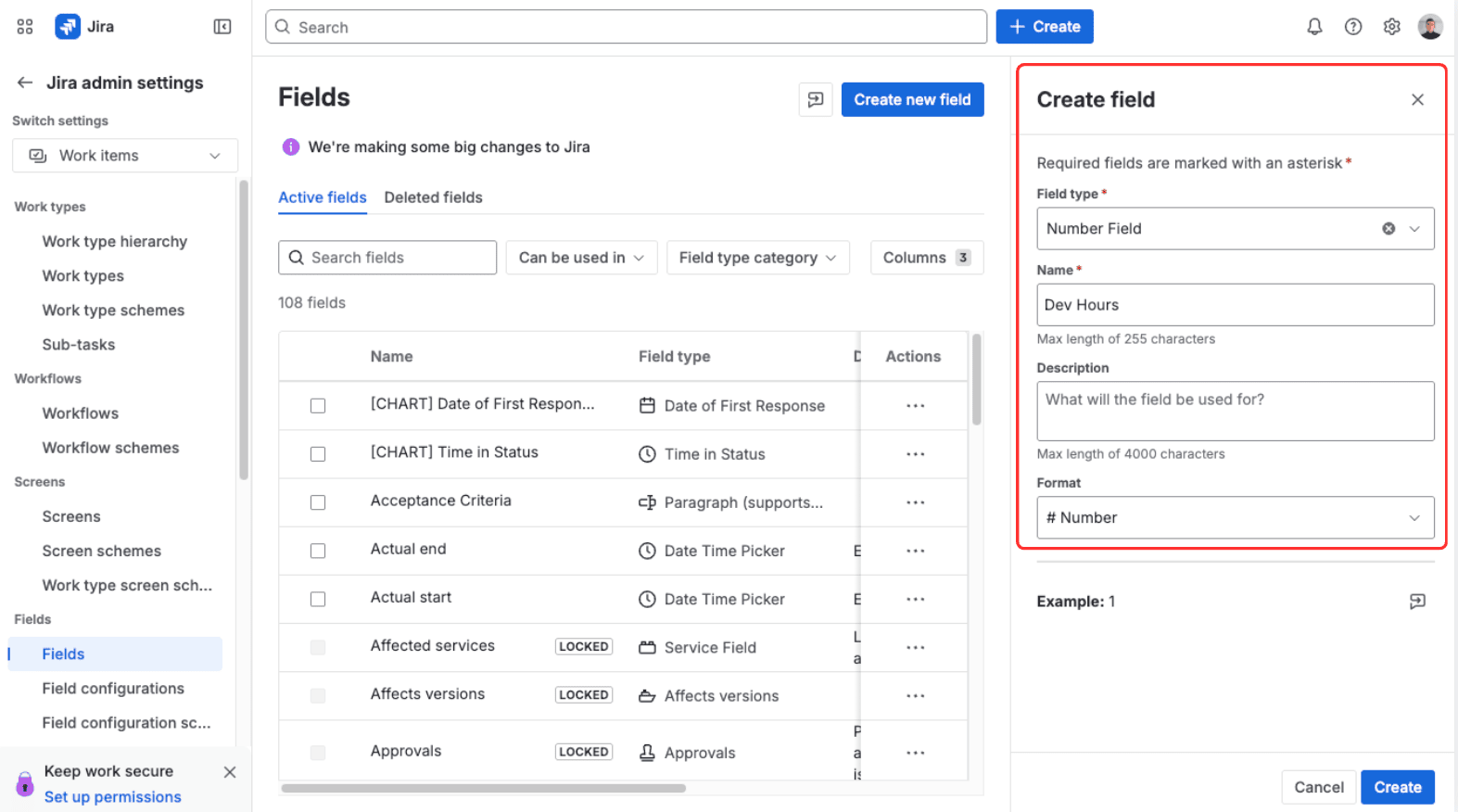
Create a Number custom field
Go to Jira admin settings → Work items → Fields → Create new field and pick Number as the type. Name it for the work it tracks — for example Dev Hours — and add a short description so people know whether to enter hours or minutes.
Add it to your screens
Associate the field with the screen schemes of the projects where it should appear, so it shows on both the create and view screens. Repeat the whole process for every phase you want to track separately (QA Hours, Support Hours).
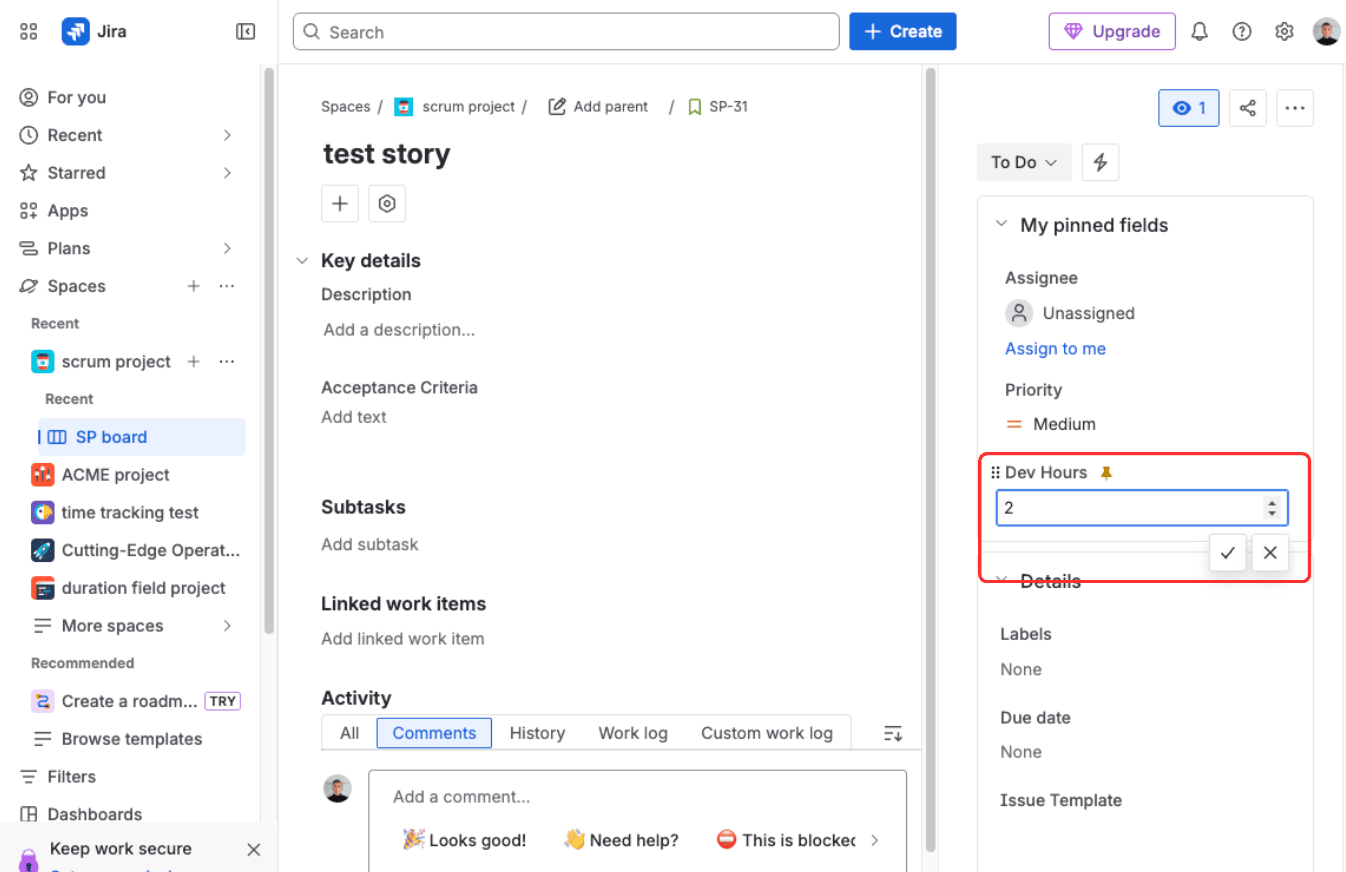
Enter hours on the issue
The field now appears on the issue, where people type a plain number by hand. This is where the trade-offs become obvious — the value is 2.5, not 2h 30m, and nothing connects it to logged work.
The first workaround to rot
Number fields are the fastest workaround and the first to rot — nobody keeps two sources of truth (the field and the worklog) in sync, so within a sprint the numbers and the actual logged work disagree.
Workaround 2: Subtasks per phase with native time tracking
A cleaner-feeling approach: give each phase its own subtask (a Dev subtask, a QA subtask), each carrying native Time Tracking, and read the rollup on the parent.
Pros
- Uses real time tracking and worklogs per subtask.
- The parent shows a rolled-up total.
- Works with boards and the native reports.
Cons
- Subtask explosion. Every issue multiplies by the number of phases — boards and backlogs balloon.
- Rollup only sums. You lose "how much went to QA vs Dev" at the field/JQL level; the parent shows one combined number.
- JQL by phase needs conventions. Filtering "QA time across the project" relies on naming conventions or labels — brittle and easy to break.
- Reporting confusion. Parent estimate vs sub-estimates double-count or conflict in standard reports.
- Doesn't scale to multi-project, cross-team reporting.
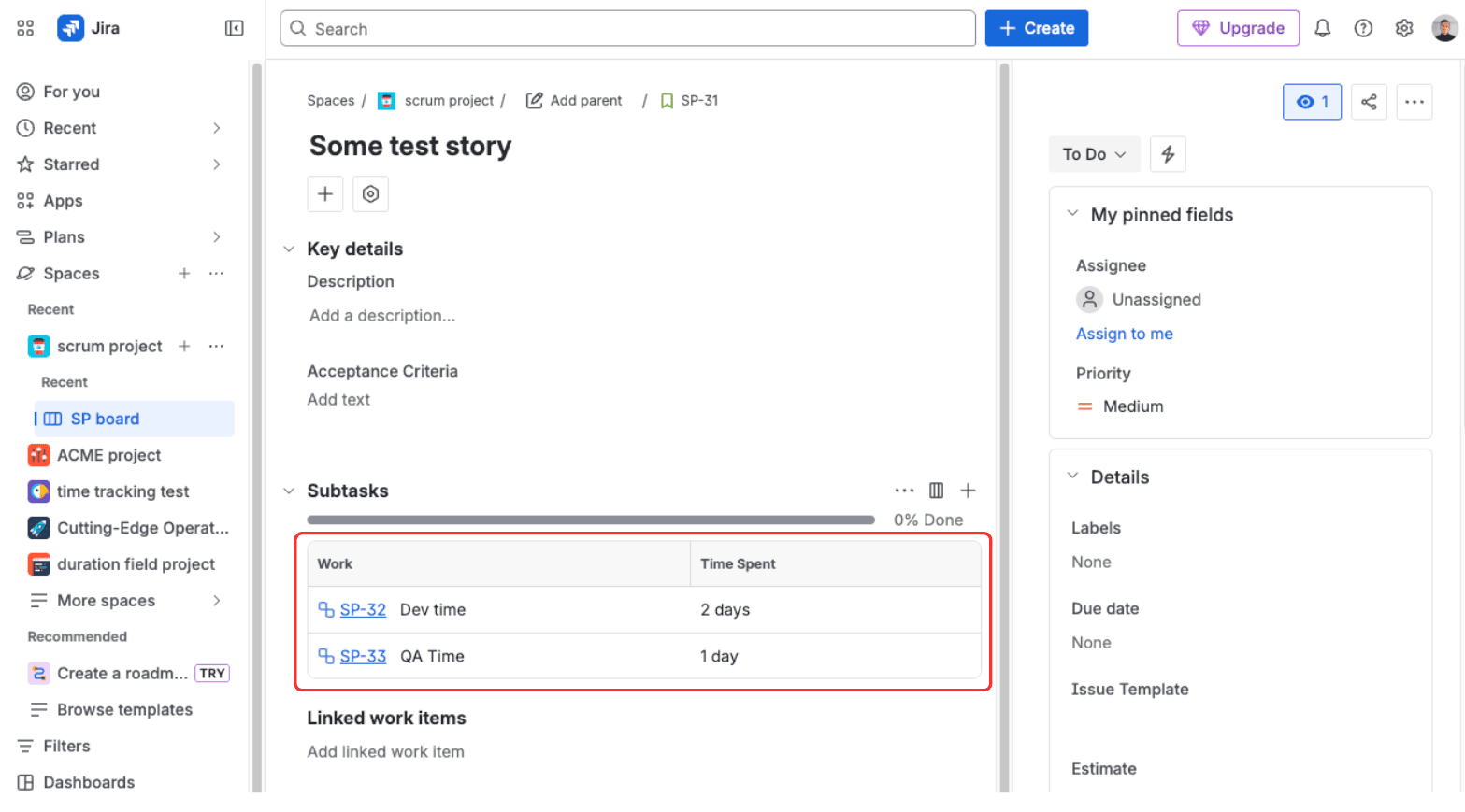
How to get real multiple time tracking with Time Tracking Fields
The workarounds all trade away one of the three things native time tracking gives you: the 2h 30m format, the estimate/spent/remaining structure, or the worklog link. Time Tracking Fields for Jira takes the other path — it adds as many real time tracking fields as you need, each behaving like Jira's own.
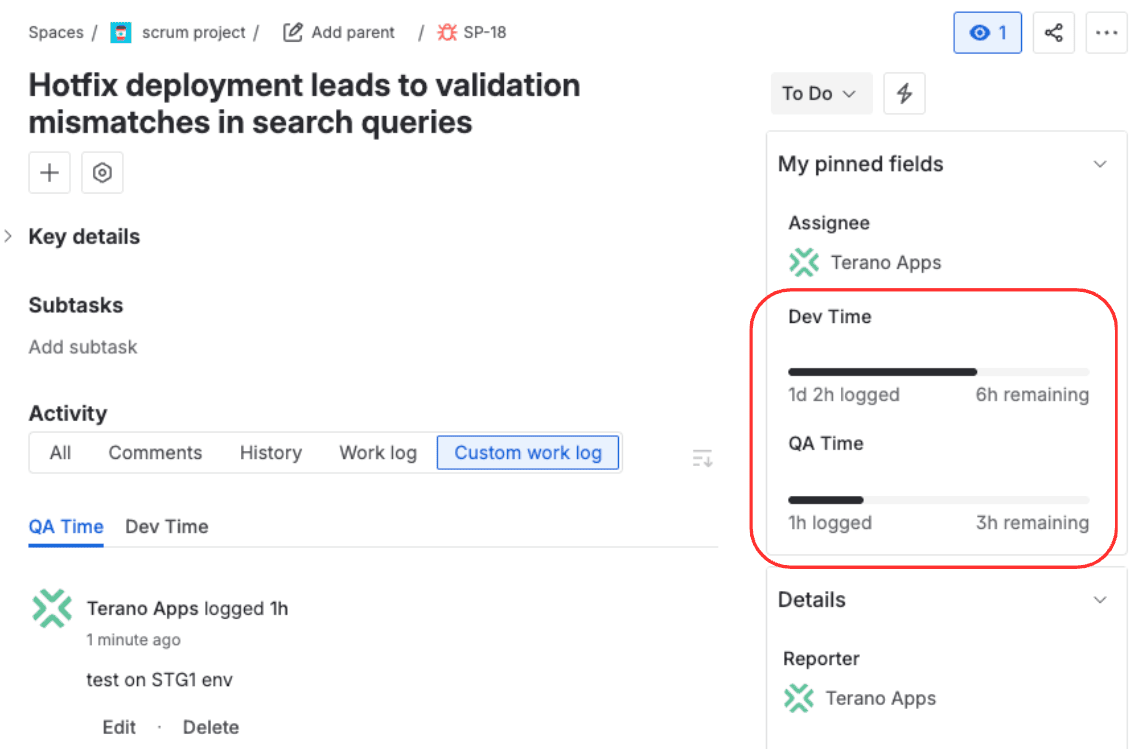
What the app adds
- Unlimited Time Tracking fields per issue — one per work type (Dev, QA, Support, Billable).
- Duration fields — a single time value (SLA, response time, meeting length) with no worklog overhead.
- Jira-style format with auto-normalization —
90mbecomes1h 30m;1d 3hworks as expected. - Full JQL aliases —
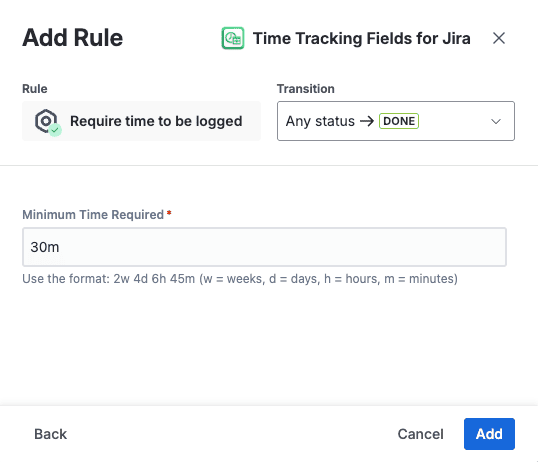
.TimeSpentSeconds,.OriginalEstimateSeconds,.RemainingEstimateSecondsfor Time Tracking fields;.Durationand.DurationSecondsfor Duration fields. - Workflow validator — "Require time to be logged" blocks a transition until time is entered, as a data-quality gate.
- Optional sync to native — push a chosen custom field into Jira's native Time Tracking so Scrum boards and reports still see it.
- First-class everywhere — automation, dashboards, CSV export, and Jira Service Management all read the fields.
- Configurable hours/day and days/week per field.
- Your data stays in Atlassian — the app runs inside Atlassian's infrastructure, so time data never leaves to an external server.
Two field types you can create
There are two field types, and picking the right one is the whole game:
| Field type | What it stores | Use it for |
|---|---|---|
| Time Tracking field | Original Estimate + Time Spent + Remaining, fed by worklogs | Effort: Dev, QA, Support, Contract hours |
| Duration field | A single time value, no worklogs | Intervals: SLA limit, first response time, meeting or downtime length |
Rule of thumb: if you're measuring effort that people log work against, use a Time Tracking field. If you're measuring an interval — one number, no logging — use a Duration field.
How to create a Time Tracking field, step by step
Install Time Tracking Fields from the Marketplace
Add Time Tracking Fields for Jira from the Atlassian Marketplace. It installs as a Jira Cloud app — no scripts, no external setup.
Create the custom field
Go to Jira admin settings → Work items → Fields → Create new field and pick Time Tracking (or Duration) as the type. Name it for the work it tracks — for example QA Time.
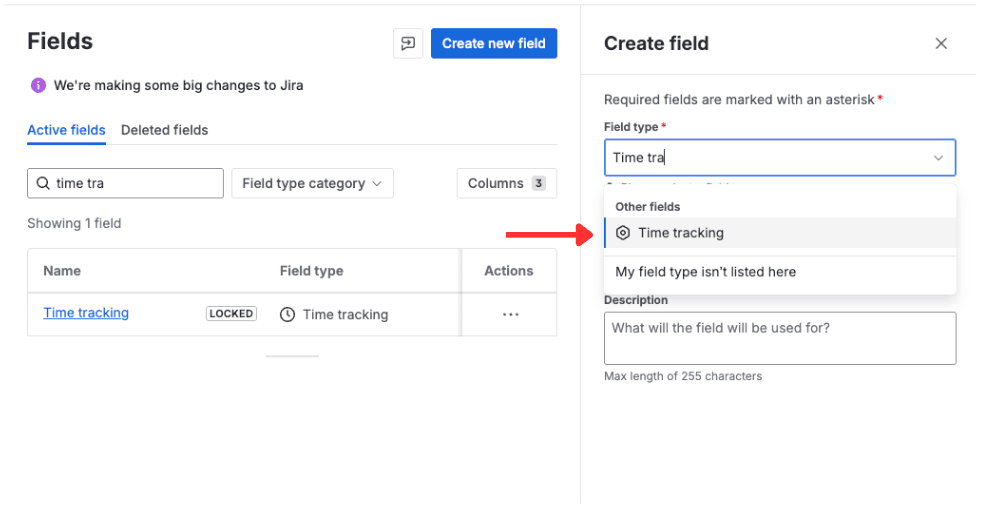
Add it to your screens
Assign the field to the screen schemes of the projects where it should appear, so it shows on the issue view and in the editor.
Configure hours and optional sync
Set the field's hours/day and days/week, and — if Scrum boards need to see it — turn on the optional sync that feeds a chosen field into Jira's native Time Tracking.
Create an issue and fill in the estimate
Open the Create issue dialog in a project you mapped to the screen and confirm the new field appears — enter an initial value such as 4h as its original estimate. If the field is missing here, it usually isn't on that project's screen scheme yet; go back to the screen step and verify the mapping for that issue type.
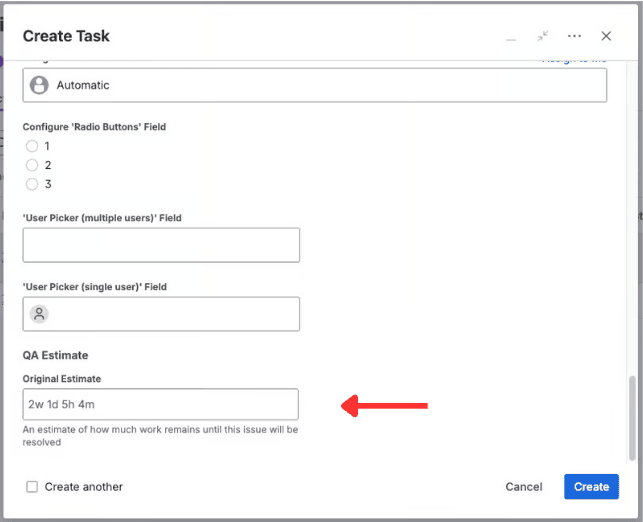
Check the value and log work on the issue
Open the issue you just created and confirm the field shows the estimate you entered, with its own progress bar. Then log work against it — click the field's Log work action and enter, say, 2h. The field increases its time spent and recalculates remaining, exactly like Jira's native Time Tracking.
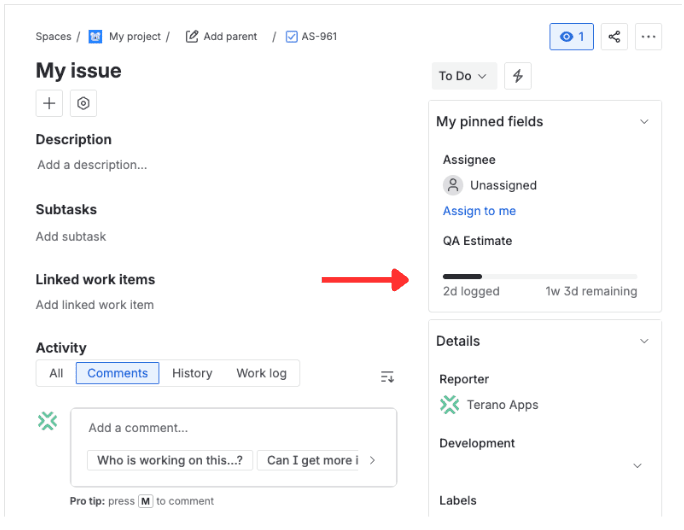
Query it with JQL
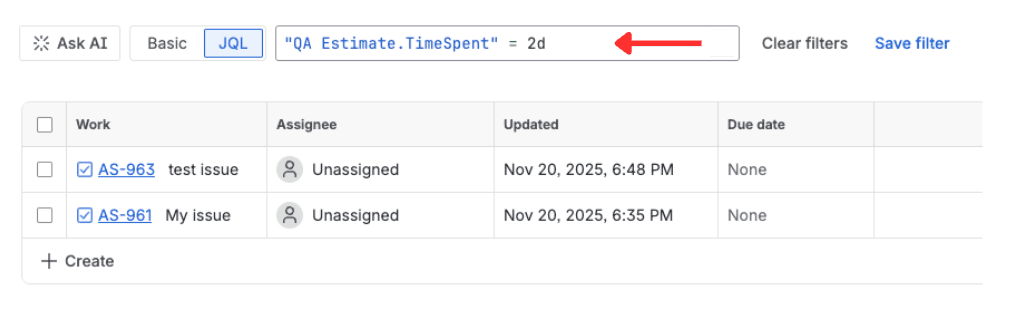
The field is immediately JQL-ready through its second-based alias — for example "QA Time.TimeSpentSeconds" > 14400 returns issues with more than four hours of QA time logged.
Add multiple time tracking fields without scripts
Free trial of Time Tracking Fields for Jira — unlimited Time Tracking and Duration fields for Dev, QA, billable, and SLA time, all JQL-ready.
Start free trial on Marketplace4 ready-to-use time tracking field setups
The JQL examples below are meant to become reusable reporting building blocks, not one-off searches. Once a query returns the right issues, save it as a Jira filter and use it in dashboard gadgets, automation conditions, subscriptions, or CSV exports. Replace the field names with your own buckets, then adjust the thresholds and date bounds for the view your team needs.
.png)
Setup 1 — Dev vs QA effort (engineering)
Create Dev Time and QA Time as Time Tracking fields. Now a single issue records both, separately, with real estimate/spent/remaining each.
"Dev Time.TimeSpentSeconds" > 0 AND "QA Time.TimeSpentSeconds" = 0
This surfaces issues that got development time but never any QA — a clear quality-gap signal. (JQL compares a field against a literal value, so build gap reports like this rather than comparing two fields to each other.) Add a Definition-of-Done gate that requires QA Time spent > 0 before an issue can move to Done. See the deeper walkthrough in separating Dev, QA, SLA, and contract time on one issue.
Setup 2 — Billable vs Internal hours (agency)
Create Billable Time and Internal Time. Client work and overhead are tracked on the same issue but stay separable for invoicing and exports.
"Billable Time.TimeSpentSeconds" > 0 AND project = "Client X" AND updated >= startOfMonth()
Bound the period with a native date field such as updated; worklogDate only filters native worklogs, not a custom field's logged time.
Setup 3 — SLA / First Response (Duration)
Create First Response Time as a Duration field, populated by automation. One value per ticket, queryable and exportable — see tracking SLA response time in JSM.
"First Response Time.DurationSeconds" > 3600
Setup 4 — Contract hours vs Overage
Use a Contract Hours Time Tracking field where the Original Estimate is the contracted limit, then watch Remaining drop toward zero.
"Contract Hours.RemainingEstimateSeconds" <= 0
Pair it with an automation rule that notifies the PM at 125% of the limit.
Automation and enforcement with time tracking fields
Custom time tracking fields are first-class inputs, so the usual Jira machinery works on them.
Workflow validator. A "Require time to be logged" validator blocks a transition (for example into Done) while a field's logged time is zero — a hard data-quality gate. See requiring time before moving issues forward.
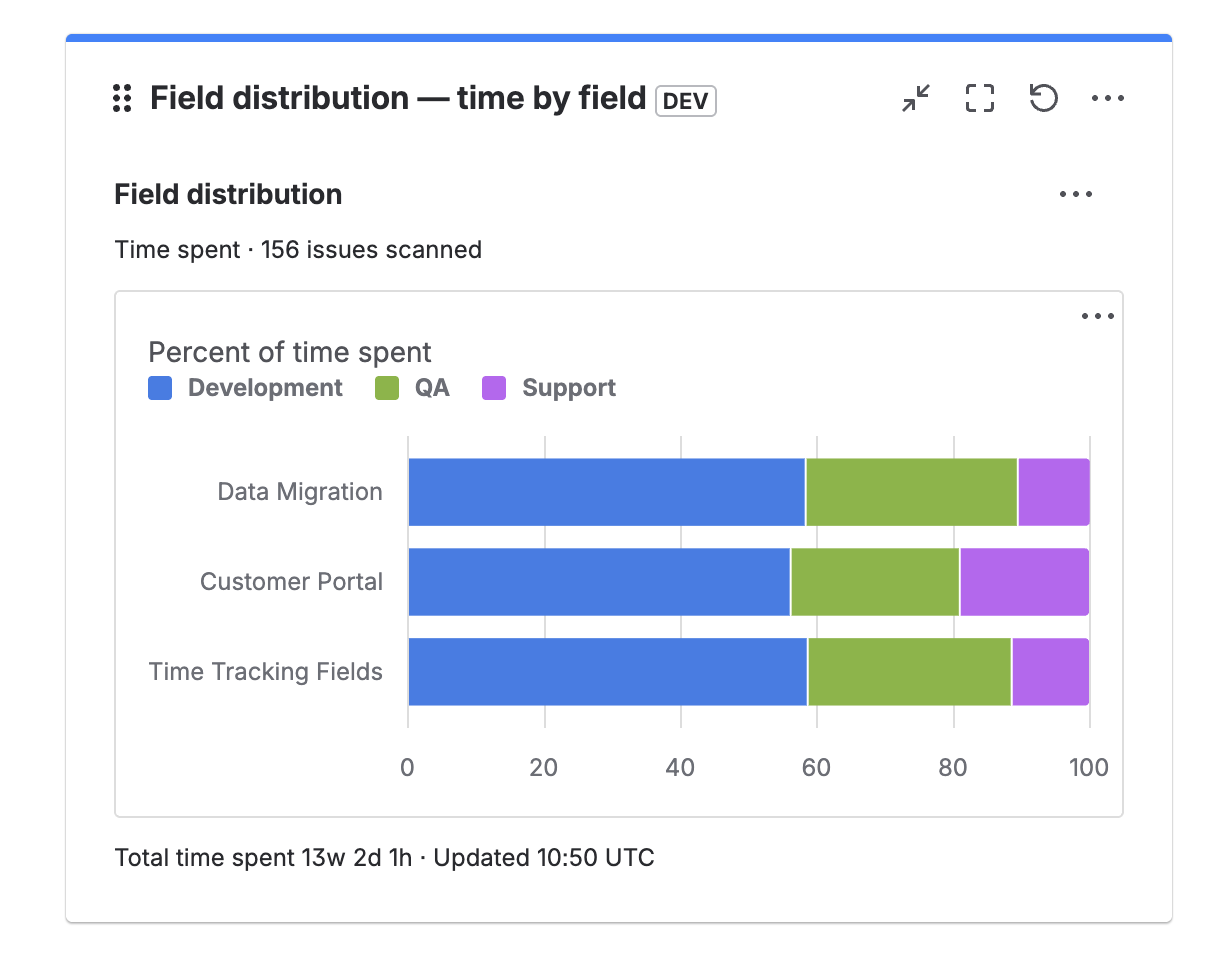
Dashboards. The fields feed dashboard gadgets — split Dev vs QA time, roll up team time, or compare across projects.
JSM. Duration fields sit alongside SLAs as a measurement layer you can actually query.
Reporting. Save any of the JQL above as a filter (see the JQL time-tracking cheatsheet) and drop it into a Filter-results gadget. Full configuration lives in the Time Tracking Fields docs.
When teams reach for multiple time tracking — and how to do it well
Common reasons teams add multiple time tracking fields: separating estimate from actual at a granular level, splitting billable from internal work, making QA effort visible, measuring SLA and response intervals, and meeting compliance or audit requirements.
Best practices
- Name fields clearly and consistently (
Dev Time,QA Time— notTime2). - One field per work type; don't overload a single field with two meanings.
- Don't duplicate native time tracking unless you need a separate bucket.
- Use the native-sync option only when a Scrum board genuinely needs the rollup.
- Add a workflow gate only where data quality is critical.
- Review your fields each quarter and retire what nobody fills in.
Benefits you get in return: consistent format across teams, granular reporting, far less manual tallying, cleaner invoicing, real enforcement, and multi-project rollups that actually add up.
FAQ
Can you have more than one time tracking field in Jira?
Not with native Jira — it allows exactly one Time Tracking field per issue, and it can't be duplicated. A dedicated app such as Time Tracking Fields adds unlimited Time Tracking and Duration custom fields that behave like the native one.
Why does Jira only allow one time tracking field per issue?
Native time tracking is a single special field type wired directly into worklogs, boards, and reports. Jira was never designed to host several of them, and the long-standing community requests to change that remain open.
How do I track Dev and QA time separately on the same issue?
Create two Time Tracking fields — for example Dev Time and QA Time — and add both to your issue screens. Each keeps its own estimate, spent, and remaining, so the two never blend into one total.
What is the difference between a Time Tracking field and a Duration field?
A Time Tracking field stores estimate / spent / remaining fed by worklogs, so it's right for effort like Dev or QA hours. A Duration field stores a single time value with no worklogs, which suits intervals like SLA response time.
Can I query custom time tracking fields with JQL?
Yes. Each field exposes second-based aliases such as .TimeSpentSeconds and .DurationSeconds, so you can filter, sort, and build dashboards exactly as you would with native time tracking.
Do custom time tracking fields work with Jira reports and dashboards?
Yes. They feed dashboard gadgets and export cleanly to CSV, and you can drive Filter-results gadgets from JQL on the fields to compare Dev vs QA or roll up team time.
Can I sync a custom time tracking field back to native Jira time tracking?
Yes. An optional sync pushes a chosen custom field into Jira's native Time Tracking, so Scrum boards and the built-in reports still see the value.
Is it better to use number fields or a dedicated time tracking app?
Number fields are free but lose the time format, the estimate/spent/remaining structure, and the worklog link, so the data drifts. A dedicated app keeps all three and stays queryable, which is usually worth it past a handful of issues.
Does it work with Jira Service Management SLAs?
Yes. Duration fields sit alongside JSM SLAs as a queryable measurement layer — the SLA enforces the goal, the Duration field stores the actual elapsed value for reporting.
Do worklogs still work with multiple time tracking fields?
Yes. Time Tracking fields are fed by worklogs just like the native field, so logging work updates the field's spent and remaining as expected.
Track Dev, QA, billable, and SLA time on every Jira issue
Multiple Time Tracking and Duration fields — JQL-ready, dashboard-ready, no scripts. Free trial on the Atlassian Marketplace.
Start free trial on Marketplace