Jira Time Tracking: The Complete Guide for Jira Admins (2026)
Jira time tracking sounds simple — until a project manager asks "how much did QA actually spend on this release?" and you realise native fields cannot answer that question. This guide walks Jira admins through the entire time tracking stack in Jira Cloud: the native model, its limits, JQL, custom time tracking fields, workflow enforcement, automation, and reporting.
It's the reference we wish existed when we started building Time Tracking Fields. Bookmark it, share it with your admins, and jump straight to the layer you need.
What you'll learn
- How Jira stores Original Estimate, Time Spent, and Remaining Estimate — and where each one actually lives.
- The 5 limitations of native Jira time tracking that push teams toward custom fields.
- A ready-to-copy JQL cheatsheet for time tracking queries in Jira Cloud.
- How to enforce data quality with workflow validators and automation rules.
- A governance checklist you can apply to every project this week.
How native Jira time tracking actually works
Native Jira time tracking revolves around three values on every issue: Original Estimate, Time Spent, and Remaining Estimate. Two of them (Original Estimate and Remaining Estimate) are stored scalar fields you can set directly. The third — Time Spent — is derived from worklog entries.
| Value | Where it lives | How it updates | Who can edit |
|---|---|---|---|
| Original Estimate | Scalar field (seconds, stored) | Set on create or manually later | Anyone with Edit Issues |
| Time Spent | Sum of all worklog entries | Increases when users log work | Anyone with Work On Issues |
| Remaining Estimate | Scalar field (seconds, stored) | Decreases when users log work (auto) or manually | Anyone who logs work |
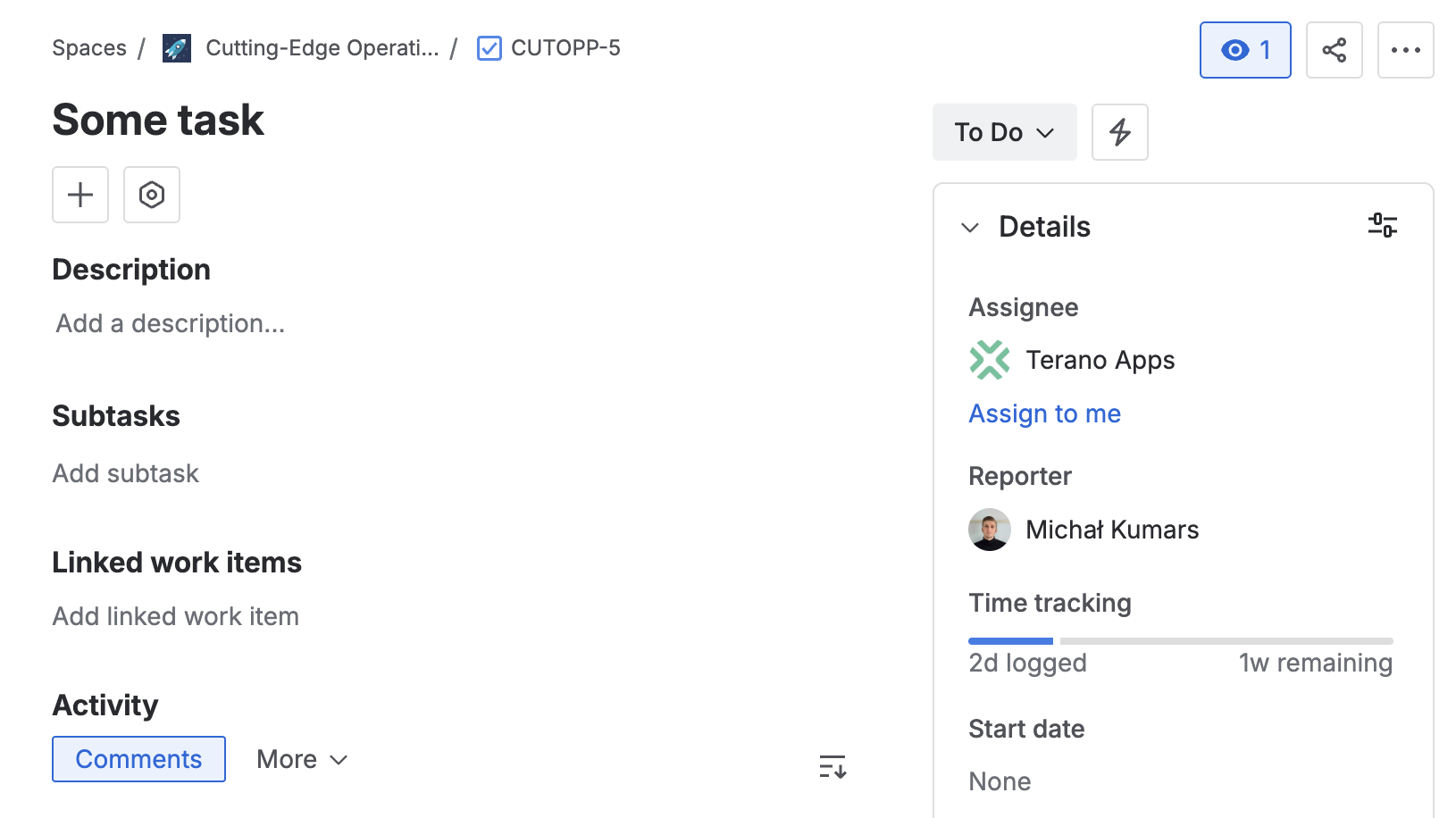
The key detail: Time Spent is not a field you set — it's the sum of a worklog timeline of individual log entries, each with an author, timestamp, comment, and duration. When someone logs 2h against an issue, Jira appends a worklog record and, by default, subtracts those 2h from Remaining Estimate.
Durations use Jira-style format (2w 3d 4h 30m) and respect two instance-level settings most admins forget:
- Hours per working day (default 8)
- Days per working week (default 5)
Change those and every 2d in your instance silently starts to mean something different. That's why time tracking dashboards can drift after an admin "fixes" the time settings for one team.
Time tracking also has a subtle split between Create screens (where users see Original Estimate only) and View screens (where the full widget appears). If you don't put the Time Tracking field on the right screens, users can't log work — and that's usually the first support ticket an admin gets.
Atlassian's official reference: Log time on an issue.
What native Jira time tracking gets right
Before we talk about its limits, let's be honest: native Jira time tracking covers the 80% case well. It's not broken; it's just narrow.
The 80% native handles well
- Worklog timeline with authorship. Every log entry is attributed, timestamped, and commentable — you get an audit trail for free.
- Tight sprint integration. Burndown, velocity, and sprint reports all read the same Original Estimate and Time Spent values.
- Permissions out of the box. The Work On Issues permission controls who can log time, no custom config required.
- Zero-config for basic estimation. Turn it on, add the field to screens, and scrum teams can start estimating in minutes.
- JQL reachability.
originalEstimate,timeSpent,remainingEstimate, andworkRatioare all queryable from day one.
Native time tracking is the right choice for a single-team project where everyone agrees what "time" means. The other 20% is where teams get stuck — and that's the rest of this guide.
5 limitations teams hit in production
1. One time field per issue
Native Jira gives you exactly one Original / Spent / Remaining triplet. If dev, QA, and support all work on the same issue, you can't separate their effort without losing granularity. This has been an open feature request (JRACLOUD-94778) since 2017.
2. No built-in workflow enforcement
Nothing stops a user from dragging an issue to Done with zero logged work. Data quality becomes a Slack message, not a policy.
3. Limited JQL expressiveness
Queries like timeSpent > originalEstimate need workRatio tricks. Cross-field comparisons on custom time values are impossible without helper fields.
4. No SLA-grade duration fields
Native time tracking is worklog-driven. You can't easily model "meeting length", "response window", or "contract SLA" as a first-class duration value.
5. CSV exports strip precision
Exported CSVs use human-readable "2h 30m" strings by default. Invoicing and payroll pipelines need seconds — and have to parse strings or break.
Every one of these is addressable — with workarounds, custom fields, or a mix. We cover the trade-offs next.
Workarounds teams try (and why each fails)
Before installing an app, most admins try to solve this with tools they already have. Here's what we see in the wild.
Number custom fields for estimates
Adding a QA Estimate (hours) number field is the most common first move. It works for reporting headers, but Jira won't format it as 2d 4h, won't aggregate across subtasks, and JQL on it is limited to raw numeric comparisons. You lose everything that made native time tracking ergonomic.
Text custom fields with "2d 4h" strings
Storing estimates as text (2d 4h) looks readable on the issue view, but sorting, aggregation, and JQL comparisons all break. You now have data humans can read but machines can't query.
Tempo Timesheets categories
Tempo solves the multi-bucket problem by tagging each worklog with an account or category. It works, but it forces every team onto the full Tempo paradigm — worklog-first, license per user, and a migration if you switch tools later. For teams that just want more time fields, it's overkill. We compare both approaches in detail in an upcoming Tempo Timesheets vs custom time tracking fields post.
ScriptRunner post-functions
If you have ScriptRunner, you can do anything — at the cost of Groovy maintenance, upgrade risk, and a custom field per calculation. Great for edge cases, painful as a standard pattern across 50+ projects.
Here's how the workarounds compare:
| Approach | JQL | Aggregation | Reports | Maintenance |
|---|---|---|---|---|
| Number fields | Partial | No | Broken | Low |
| Text fields | No | No | No | Low |
| Tempo categories | Good | Yes | Yes | Medium (license) |
| ScriptRunner | Custom | Custom | Custom | High |
| Custom TT fields | Full | Yes | Yes | Low |
Custom time tracking fields — the missing piece
What if you could take the native Jira Time Tracking widget — the one everyone already knows — and have as many of them as your workflow needs?
That's exactly what Time Tracking Fields for Jira provides: unlimited custom Time Tracking fields and unlimited Duration fields, each behaving like the native widget, each with its own Original / Spent / Remaining triplet or duration value, each fully queryable via JQL.
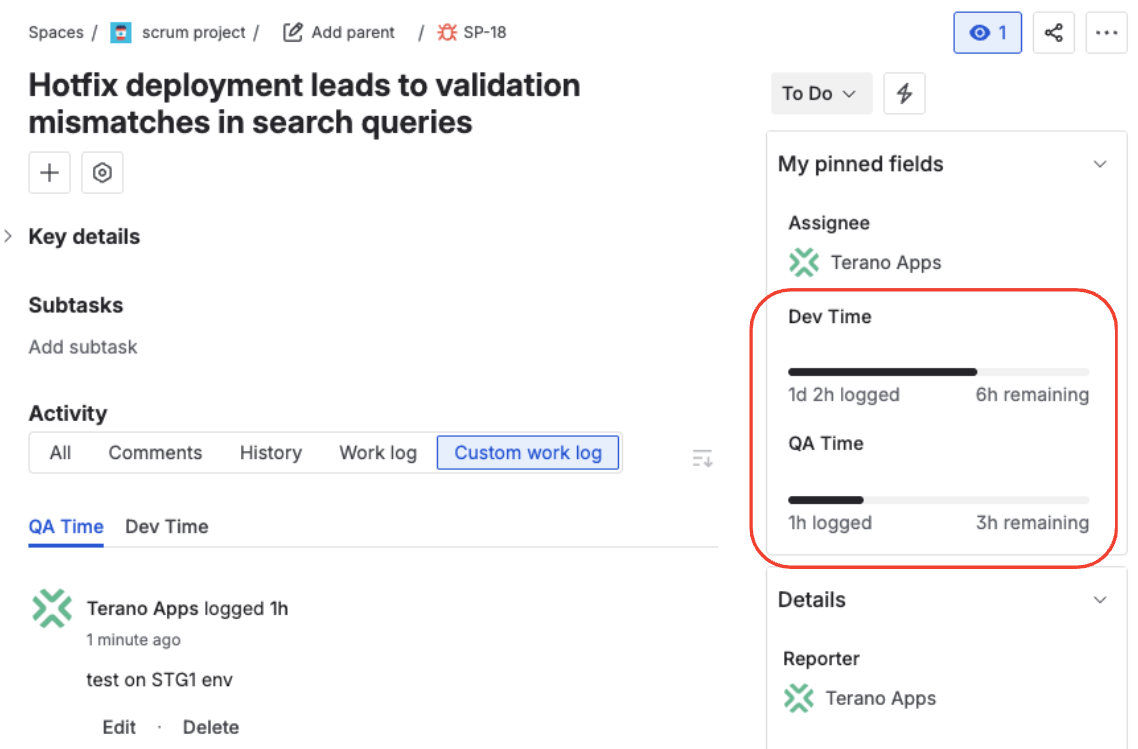
What custom Time Tracking fields give you
- Unlimited Time Tracking instances per issue — one for dev, one for QA, one for SLA, one for contract work.
- Unlimited Duration fields for meeting length, response windows, billable hours blocks.
- Jira-style format (
2w 3d 4h 30m) with automatic normalization. - Full JQL aliases — 6 aliases per Time Tracking field, 2 per Duration field (see cheatsheet below).
- Forge-native — runs on Atlassian infrastructure, no third-party data residency surprises.
- Integrates with automation, dashboards, filters, CSV exports — same touchpoints admins already use.
We'll cover step-by-step setup in a dedicated how-to post (coming soon). This guide stays at the architectural level so you can decide whether custom fields are the right tool before you click Install.
JQL for time tracking — reference cheatsheet
This is the section most admins end up bookmarking. JQL is the fastest way to turn time data into answers.
Native time tracking JQL
originalEstimate > 1d
timeSpent >= 4h AND timeSpent <= 8h
remainingEstimate = 0 AND status != Done
workRatio > 100
worklogAuthor = currentUser() AND worklogDate >= -7d
workRatio is the closest thing native Jira has to "did this take longer than estimated" — it's (timeSpent / originalEstimate) * 100.
Custom time tracking field JQL
Every custom Time Tracking field exposes six JQL aliases, and every Duration field exposes two. Replace "QA Estimate" with your field's display name:
| Field type | Aliases |
|---|---|
| Time Tracking | .OriginalEstimate, .OriginalEstimateSeconds, .TimeSpent, .TimeSpentSeconds, .RemainingEstimate, .RemainingEstimateSeconds |
| Duration | .Duration, .DurationSeconds |
Practical examples:
"QA Estimate.OriginalEstimate" > 2d
"QA Estimate.TimeSpentSeconds" > "QA Estimate.OriginalEstimateSeconds"
"Dev Estimate.TimeSpent" >= 1w AND project = "WEB"
"SLA Response.DurationSeconds" > 3600 AND issuetype = "Service Request"
"Contract Time.RemainingEstimateSeconds" = 0
The Seconds aliases matter for cross-field math and for clean exports — they're always integer seconds, which spreadsheets love. For the full reference, see the Jira JQL time tracking cheatsheet.
Time tracking in Jira automation
Jira Cloud automation reads custom time tracking fields the same way it reads native ones, which unlocks a handful of high-value recipes.
- Notify the PM when an estimate is exceeded. Trigger on Field value changed for the Time Spent alias, condition
"Dev Estimate.TimeSpentSeconds" > "Dev Estimate.OriginalEstimateSeconds", action: send a Slack message with the delta. - Block Done transitions without logged work. Use a workflow validator (covered in the next section) or an automation rule that reverts the transition if
timeSpent = 0. We cover the validator approach end-to-end in our post on requiring time before moving issues forward. - Weekly time report by email. Scheduled trigger → JQL filter on a team label → action: send email with a formatted list of issues and their Time Spent. Your PMs stop asking for status updates on Fridays.
Each of these gets a full walkthrough in our dedicated automation recipes post (coming soon).
Dashboards, gadgets, and CSV exports
Reports are where time tracking fields earn their keep: if data is clean at the field layer, every dashboard downstream works. If it isn't, no gadget can fix it.
Dashboard gadgets that work with time tracking:
- Filter Results — add time tracking aliases as columns. Show Original Estimate, Time Spent, and Remaining side by side for any saved filter.
- Two Dimensional Filter Statistics — cross-reference time spent by assignee × status, or by component × sprint. The fastest way to spot who's overloaded.
- Pie Chart — split total logged time by priority, issue type, or label. Useful for capacity reviews.
CSV exports for invoicing and payroll:
Always export using the Seconds aliases (TimeSpentSeconds, OriginalEstimateSeconds) rather than human-readable values. Seconds are integers that Excel, Google Sheets, and billing tools can aggregate directly — no string parsing, no formula hacks. Details in our upcoming export guide (coming soon).
Enforcing time logging at workflow transitions
Good time tracking data is an enforcement problem, not a field problem. The gap between "users should log time" and "users actually log time" is where most time tracking rollouts die.
The cleanest pattern in Jira Cloud is a workflow validator on the transition into Done (or Released, or Closed): block the transition unless Time Spent is greater than zero on the current issue. It puts the policy exactly where the data is being finalized, and users get feedback in context instead of via a Slack reminder the next day.
We cover the full setup — including how to combine it with custom time tracking fields — in Require time to be logged in Jira before moving issues forward.
Governance checklist for Jira admins
Treat time tracking the same way you treat permission schemes: one deliberate decision per project, reviewed quarterly.
Decide what must be tracked
Not every project needs separate dev/QA/SLA tracking. Start from the reporting question ("what do I need to tell finance?") and work backward to the minimum set of fields. Shadow fields are worse than missing ones.
Document which fields go on which issue types
Use field configurations and screen schemes to pin each time tracking field to the issue types that need it. A Bug probably doesn't need a Contract Time field; an Epic probably doesn't need a QA Estimate directly.
Enforce at the workflow where it matters
Add a "require time logged" validator on the transition into your "done-for-finance" status. One validator in one place beats five Slack reminders.
Review reports quarterly
Once a quarter, open the Filter Results gadget and look for fields no one is using. Dead fields confuse users and rot JQL filters — delete them.
Onboard new projects via a template
When a new project spins up, apply the same field configuration and screen scheme via a project template. Our sibling app Templify handles the issue-type side of that story if you want the full loop.
Common pitfalls and how to avoid them
Mixing hours and minutes
If users see 2.5 and think "2h 30m", they'll set 2d where they meant 2h. Always use Jira-style format (2h 30m) — never plain numbers.
Skipping the seconds aliases
Sorting by TimeSpent sorts alphabetically in some views. Always use TimeSpentSeconds for sort and cross-field math.
Required time fields on Create screens
Making Original Estimate required on Create blocks quick issue creation from Slack, email, and automation. Require it on a later transition instead.
Forgetting transition screens
A field that's on the View screen but not on a transition screen can't be updated during that transition. Users blame the app; the fix is a screen tweak.
Ignoring hours-per-day config
Changing hours-per-day silently rewrites what 2d means everywhere. Document your instance's setting and pin it in your admin handbook.
Leaving dead fields in place
Time fields nobody uses still show up in JQL autocomplete and dashboards. Quarterly cleanup is non-negotiable.
FAQ
What's the difference between Jira time tracking and custom time tracking fields?
Native Jira time tracking gives you one Original / Spent / Remaining triplet per issue, stored via worklogs. Custom time tracking fields (from apps like Time Tracking Fields for Jira) let you have many of those triplets on a single issue, each with its own JQL aliases and automation hooks.
Can I have multiple time tracking fields on one Jira issue?
Not with native Jira alone. Atlassian has been tracking this request as JRACLOUD-94778 for years. Apps like Time Tracking Fields close the gap — see our deep dive on separating dev, QA, SLA, and contract time on one issue.
How do I query custom time tracking fields with JQL?
Each custom Time Tracking field exposes six aliases (.OriginalEstimate, .OriginalEstimateSeconds, .TimeSpent, .TimeSpentSeconds, .RemainingEstimate, .RemainingEstimateSeconds). Wrap the field's display name and the alias in one pair of quotes — Jira reads it as a single field name — for example "QA Estimate.TimeSpentSeconds" > 3600.
Does time tracking work with Jira Service Management?
Yes. Native time tracking works on JSM issues, and custom time tracking fields work on JSM issue types the same way they work on Software projects. Duration fields are especially useful for SLA response windows on JSM — we cover the full pattern in our upcoming JSM SLA response time post (coming soon).
How do I export Jira time tracking data for invoicing?
Export issues as CSV from a saved filter and include the TimeSpentSeconds (or the custom field's Seconds alias) column. Seconds values aggregate cleanly in Excel and billing tools without string parsing. Full walkthrough in our upcoming export guide (coming soon).
Tempo Timesheets vs custom time tracking fields — which should I use?
Tempo is worklog-first and best when every team standardises on the full Tempo workflow with accounts and approval chains. Custom time tracking fields are field-first and best when you need more Original/Spent/Remaining triplets on an issue without migrating off native Jira patterns. We compare both in depth in our upcoming Tempo alternatives post (coming soon).
How do I enforce that users log work before closing an issue?
Add a workflow validator on the transition into Done. The cleanest pattern is documented in our post on requiring time to be logged before moving issues forward.
Is custom time tracking data backed up automatically?
Time Tracking Fields is a Forge app, so data lives on Atlassian infrastructure and follows your Jira Cloud backup and data residency settings — there's no separate vendor database to worry about.
Where to go next
This is the hub post for our Time Tracking Fields series. Jump to the guide that matches what you're trying to do next:
Setup and basics
- How to add custom time tracking fields to Jira Cloud — step-by-step setup guide (coming soon).
- Jira JQL for time tracking: the cheatsheet → — 15 copy-paste queries for estimates, logged work, remaining, and workRatio.
Use cases
- Jira multiple time tracking fields: separate dev, QA, SLA, and contract time → — the core multi-bucket pattern.
- Jira time tracking for billing and billable projects → — how to model contract and billable time.
- Track SLA response time in Jira Service Management — using Duration fields for JSM SLAs (coming soon).
- Jira QA time tracking: separate dev and QA effort on one issue — the QA-specific playbook (coming soon).
- Jira Duration custom field: meetings, response windows, SLAs — when to reach for Duration instead of Time Tracking (coming soon).
Enforcement and automation
- Require time to be logged in Jira before moving issues forward → — the workflow validator pattern.
- Jira automation rules based on time logged: 5 practical examples — automation recipes (coming soon).
Decisions and deep dives
- Tempo Timesheets vs custom time tracking fields: which fits you — side-by-side comparison (coming soon).
- How to export Jira time tracking data for invoicing, payroll, reports — CSV export playbook (coming soon).
- Why Jira Cloud has no multi time tracking (JRACLOUD-94778 story) — the backstory behind the feature gap (coming soon).
Reference material
- Time Tracking Fields product documentation → — installation, field types, JQL reference, troubleshooting.
- Marketplace listing → — pricing, install, reviews.
Related reads from this blog:
- Jira Multiple Time Tracking Fields: Separate Dev, QA, SLA, and Contract Time on One Issue
- Jira Time Tracking for Billing and Billable Projects
- Require Time to Be Logged in Jira Before Moving Issues Forward
- Jira JQL for Time Tracking: Query Estimates, Logged Work & Remaining
Start with custom time tracking fields — free for up to 10 users
Unlimited Time Tracking and Duration fields on every issue, full JQL support, Forge-native, and free on the Jira Cloud Free tier.
Install from the Atlassian Marketplace