How to Track SLA Response Time in Jira Service Management (Without Custom Plugins)
Jira Service Management SLAs are powerful, but they answer one question — "did we hit the goal?" — and stop there. If you need to record the actual response time on every ticket, compare it against the contractual goal, or report on it outside JSM, the native SLA engine alone won't get you there. This post shows where JSM SLAs fit, where they don't, and how a Duration custom field closes the gap without a single plugin or script.
TL;DR
JSM's built-in SLA configurations track whether you hit a goal under a calendar — they are not a place to store the actual measured response time as a queryable field. A Duration custom field gives you a numeric "first response time" or "resolution time" value per issue, JQL-queryable, exportable, and available in dashboards. Use both: SLAs to enforce the goal, Duration fields to record the measurement.
What JSM SLA configurations actually give you
Jira Service Management lets you define SLAs as time metrics scoped to a project. Each SLA combines four ingredients:
| Ingredient | What it controls | Example |
|---|---|---|
| Time metric | What is being measured (e.g. time-to-first-response, time-to-resolution) | Time to first response |
| Calendar | Which hours count toward the clock | 9–5, Mon–Fri, Europe/Warsaw |
| Goal | The target duration per JQL slice | priority = High → 1h, priority = Low → 8h |
| Conditions | When to start, pause, and stop the clock | Start on create, pause on "Waiting for customer", stop on first public response |
Out of the box JSM ships with two common metrics — Time to first response and Time to resolution — and you can define your own. The clock renders next to the queue, on the issue view, and inside SLA reports. It changes colour as the goal approaches and breaches.
This is genuinely useful and you should keep it. JSM SLAs are best when:
- You need an enforcement signal (queue colour, escalation rule, breach alert).
- The goal varies by priority, customer tier, or request type and you want JQL-driven slicing inside JSM.
- You're comfortable with the data living inside JSM's SLA engine, not as a regular Jira field.
The gap — JSM SLAs measure the goal, not always the reality
JSM SLAs are designed as a goal-tracking mechanism. They tell you whether each ticket finished inside the budget, and they expose a "remaining time" countdown while it's running. What they don't do — at least not in a way that's friendly to dashboards, JQL filtering, or CSV export — is store the actual measured response time as a first-class field on the issue.
Three concrete consequences:
- No queryable response-time field. You can filter on
"Time to first response" = breached()or= paused(), but you can't ask "show me all High-priority incidents where the actual first response was between 30 and 45 minutes" — there's no< X minutesoperator over the elapsed value. - No native rollup to dashboards outside JSM. The SLA gauge gadget shows met-vs-breached counts; it doesn't plot the distribution of actual response times.
- No CSV-friendly export. When you export an issue list, SLA columns render as opaque strings ("2h 14m / 4h") that need post-processing before anyone in finance or operations can use them.
Most teams discover this the moment a customer or auditor asks: "what was our actual median first-response time last quarter, split by tier?" — and the answer turns into a multi-step manual extraction.
Duration custom field as a lightweight SLA measurement layer
A Duration custom field stores a single time value on each issue — minutes, hours, days, weeks. It looks and behaves like Jira's native estimate input (4h, 2d 3h), but unlike Time Tracking it is not tied to worklogs. That's exactly what you want for an SLA measurement: one number per ticket that says "this is the elapsed time we want to talk about".
Duration fields are available in Time Tracking Fields for Jira, the same app that adds multiple Time Tracking buckets. Each Duration field exposes two JQL aliases that make reporting trivial:
"First Response Time.Duration" ~ "30m"— text-style matching using Jira's standard time notation."First Response Time.DurationSeconds" > 1800— exact, numeric comparison for filters, automation conditions, and CSV-driven analysis.
Why a Duration field — and not another Time Tracking field — for response time
Time Tracking fields aggregate worklogs into spent / remaining buckets. Response time is a single measured value with no estimate / no logging workflow — a Duration field stores it directly without forcing anyone to log work. Reserve Time Tracking fields for effort (Dev, QA, Support, Contract hours); use Duration fields for intervals (SLA limits, response times, meeting lengths).
Walkthrough — First Response Time as a Duration field
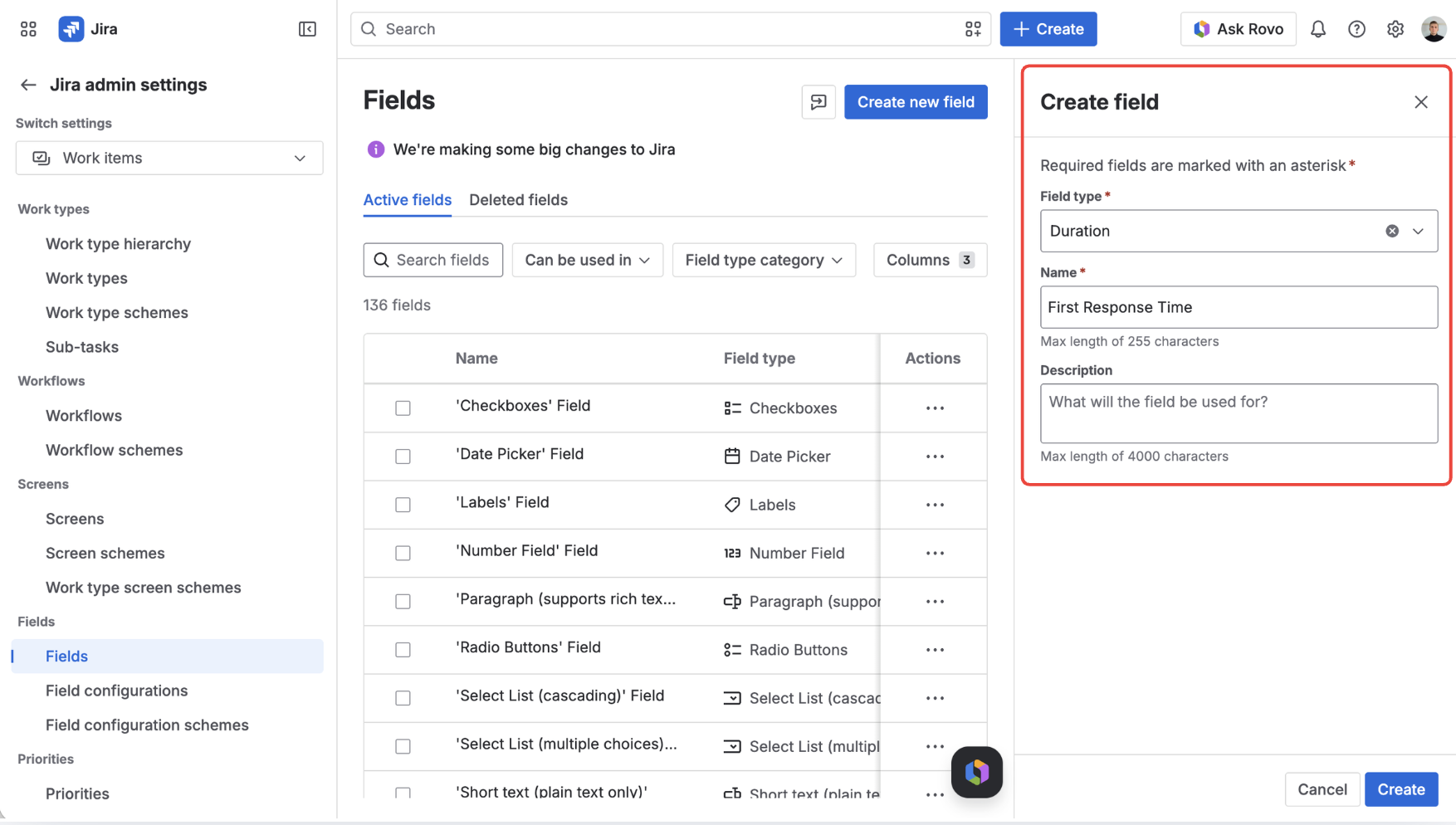
Create a Duration field called First Response Time
In Jira settings → Issues → Custom fields → Create custom field, pick Duration as the type and name the field First Response Time. Add it to the screens used by your service project so it appears on every request.
Decide who fills it in — agent, automation, or both
For low volume, agents can enter the response time manually when they close the first reply. For anything higher, drive it from Jira Automation (covered below). A hybrid setup is common: automation populates the field on the first comment, agents can override on edge cases.
Surface the field where stakeholders look
Add First Response Time to:
- The request view in the agent queue (so support leads see the number at a glance).
- The issue navigator columns (so JQL searches return it).
- A dashboard gadget filtered by your SLA's JQL (see the Reporting section below).
Add Duration and Time Tracking fields without scripts
Free trial of Time Tracking Fields for Jira — Duration fields for SLAs, plus multiple Time Tracking buckets for Dev / QA / Contract hours.
Start free trial on MarketplaceAutomation — capture time between Created and In Progress
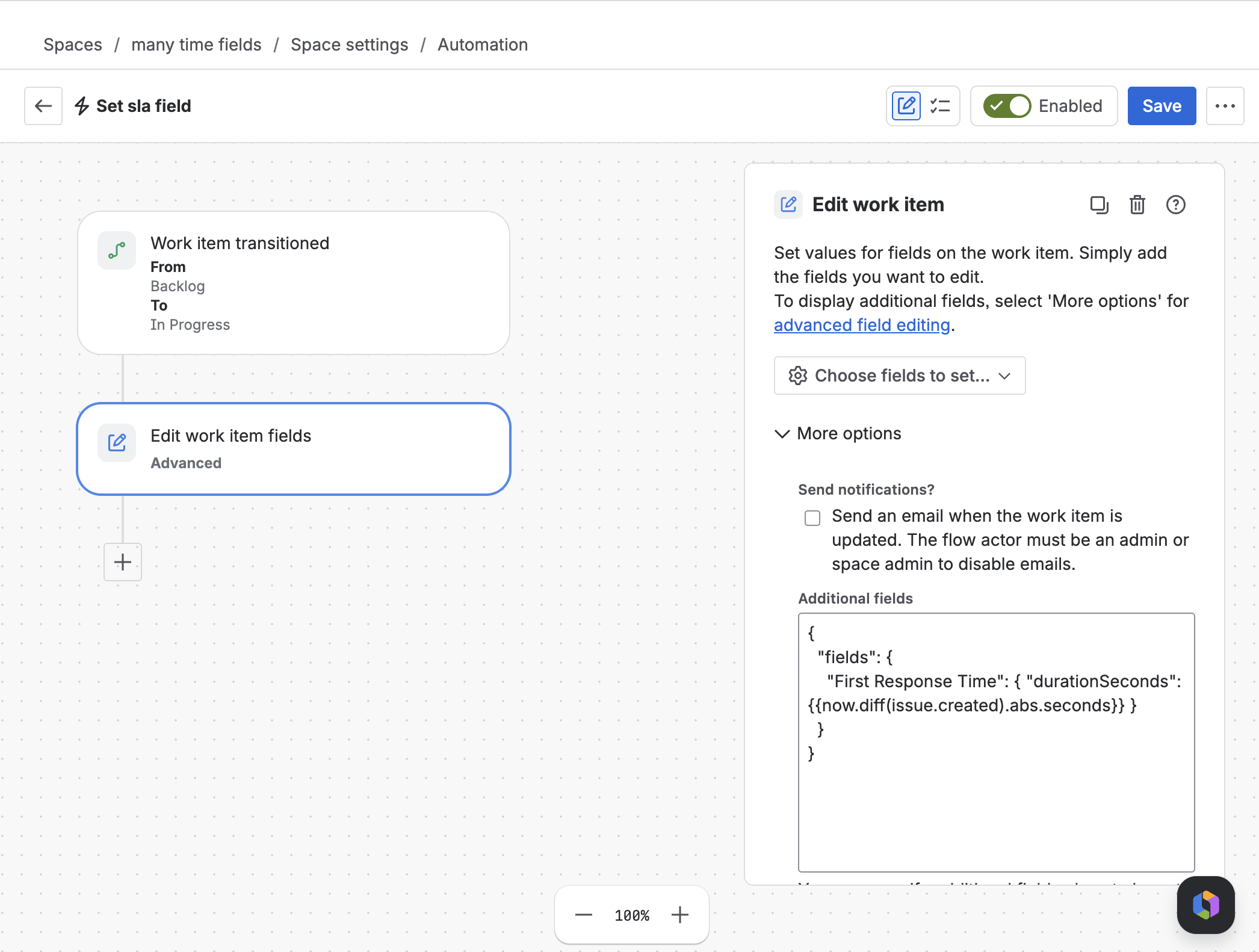
The simplest way to fill the Duration field without agents thinking about it is a Jira Automation rule that fires when the ticket leaves the initial state.
Rule shape:
- Trigger: Issue transitioned — from status
Waiting for supportto statusIn Progress(adjust to your workflow's first-response transition). - Condition: issue type is in your service project's request types.
- Action: Edit issue → expand More options → fill in Additional fields with a JSON object that writes the elapsed time into the Duration field.
Custom fields provided by Marketplace apps — including Duration — are not always visible in the action's simple Choose fields to set picker. In that case Atlassian's documented workaround is the Additional fields (advanced field editing using JSON) section of the same action. Reference the field by name and pass an object with a durationSeconds key — the same property the field exposes to JQL via the .DurationSeconds alias.
{
  "fields": {
    "First Response Time": { "durationSeconds": {{now.diff(issue.created).abs.seconds}} }
  }
}
The smart value computes the elapsed calendar time between the issue's creation and the moment the rule fires, stored in seconds. Smart values aren't validated when you save the rule — Jira evaluates them at runtime, so check the rule's audit log after the first execution and confirm the field was set as expected.
If your SLA goal is configured against business hours rather than a 24/7 calendar, the cleanest split is: keep the JSM SLA engine running the business-hours goal (it already understands the calendar), and use the Duration field for the raw elapsed measurement above. The two answer different questions — "did we hit the goal?" vs "how long did it actually take in clock time?" — and don't need to use the same unit.
Common variants:
- Time to first agent comment — trigger on Comment added with a condition
comment.author.accountType = "atlassian"(filters out customer replies), then write the elapsed time with the same JSON shape. - Time to resolution — trigger on Issue resolved, write the full elapsed business time.
- Pause behaviour — if you need pause windows (e.g. ignore time spent in Waiting for customer), prefer the JSM SLA pause configuration to drive the goal, and accept that the Duration field stores the raw elapsed measurement.
Reporting — JQL, dashboards, and CSV for stakeholders
Once the Duration field is populated, every reporting surface in Jira can read it.
All breaches above the 1-hour first-response goal, last 30 days:
project = "Customer Support"
AND created >= -30d
AND "First Response Time.DurationSeconds" > 3600
Compare two thresholds — High-priority over 30 min, Low-priority over 4h:
("First Response Time.DurationSeconds" > 1800 AND priority = High)
OR ("First Response Time.DurationSeconds" > 14400 AND priority = Low)
Issues that have no measured response time yet (caught by automation gap):
"First Response Time" is EMPTY AND statusCategory != "To Do"
Save any of these as a Jira filter, drop them into a Filter results dashboard gadget, and you have a permanent first-response monitor. For exports, the Duration field shows up as a clean numeric column in CSV — no string parsing, no opaque 2h 14m / 4h formatting from the SLA gauge.
When to use JSM SLA, when Duration fields, when both
| Need | JSM SLA | Duration field | Both |
|---|---|---|---|
| Visual countdown in agent queue | ✅ | — | ✅ |
| Goal varies by priority / tier | ✅ | — | ✅ |
| Pause clock during "Waiting for customer" | ✅ | — | ✅ |
| Filter "actual response time > 30 min" in JQL | — | ✅ | ✅ |
| Plot distribution of actual times on dashboard | — | ✅ | ✅ |
| Export clean numeric column to CSV / BI | — | ✅ | ✅ |
| Breach alerting via JSM rules | ✅ | — | ✅ |
| Cross-project, project-agnostic field | — | ✅ | ✅ |
Rule of thumb: JSM SLAs answer "did we hit the goal?" — Duration fields answer "how long did it actually take?". The teams that ship the cleanest SLA reporting use both: the SLA engine for enforcement and the Duration field for measurement.
FAQ
Can I track SLA response time in Jira Service Management without a plugin?
Partially. JSM ships with built-in SLA time metrics (time to first response, time to resolution) that track goal vs breach. What's missing without an app is an issue-level numeric field holding the actual elapsed response time — that's what a Duration custom field from Time Tracking Fields provides.
What's the difference between a JSM SLA and a Duration custom field?
A JSM SLA is a clock-and-goal mechanism scoped to a project; it raises breach signals and powers SLA-specific gadgets but doesn't expose the elapsed value as a regular field. A Duration custom field stores a single time value on the issue, behaves like a normal Jira field in JQL, dashboards, and CSV, and can be populated by automation or manually.
How do I query SLA response time with JQL?
With a Duration field named First Response Time, use "First Response Time.DurationSeconds" > 3600 for exact numeric comparisons or "First Response Time.Duration" ~ "1h" for text-style matching. Native JSM SLA fields support breached() / paused() / running() functions but not direct elapsed-time comparisons.
Should I replace JSM SLAs with a Duration field?
No — use them together. Keep the JSM SLA for queue colours, breach alerts, and pause logic. Add the Duration field for reporting, JQL filtering, and stakeholder exports. Each tool answers a question the other can't.
Can Jira Automation populate the Duration field on the first agent reply?
Yes. Trigger on Comment added, filter for agent authors, and use an Edit issue action with the Additional fields JSON option to write the elapsed time between issue.created and now into the Duration field. The same pattern works for Issue transitioned (e.g. moving to "In Progress") and Issue resolved.
Track real response time on every Jira issue
Duration fields for SLAs and Time Tracking fields for effort — all without scripts. Free trial on the Atlassian Marketplace.
Start free trial on Marketplace