How to Add Custom Time Tracking Fields to Jira Cloud
A custom time tracking field in Jira is one of those things that looks like a five-minute admin task and turns out to be a research project. Jira Cloud doesn't let you clone the native Time Tracking widget, so teams reach for number or text fields and quietly break JQL and reports.
This guide gives you the short answer first, then the honest comparison, then a 4-step setup for the option that keeps your queries working.
TL;DR
Number and text fields look close enough until your first JQL query or dashboard report. The only way to add a real custom time tracking field in Jira Cloud — with estimate, spent, remaining, Jira-style format, and JQL aliases — is a dedicated app such as Time Tracking Fields. Jump to the 4-step setup.
Quick decision
Just need a number?
A native Number field is fine if "estimate" or "spent" is a metric you only sort and sum, with no Jira-style 2h input and no link to worklogs.
Format display only?
A native Text field renders 2h 30m on the issue view but loses sorting, aggregation, and meaningful JQL. Avoid for anything you report on.
Real time tracking?
Time Tracking Fields gives you estimate / spent / remaining, Jira-style input, JQL aliases, and rollup to native time tracking. This is the recommended path.
At-a-glance comparison
| Capability | Number field | Text field | Time Tracking Fields |
|---|---|---|---|
Jira-style input (2h 30m) | ❌ | ✅ display only | ✅ |
| Numeric sort | ✅ | ❌ alphabetical | ✅ |
| Aggregation in dashboards | ✅ | ❌ | ✅ |
Range JQL (> 4h) | ✅ on numbers | ❌ string match | ✅ |
| Estimate / spent / remaining triplet | ❌ | ❌ | ✅ |
| Rollup to native Time Tracking | ❌ | ❌ | ✅ via bucket sets |
| Multiple per issue | ✅ | ✅ | ✅ unlimited |
| Setup time | < 1 min | < 1 min | ~10 min |
Why Jira Cloud doesn't let you clone the native Time Tracking field
Native Time Tracking is a system field, not a custom field type. Jira ships exactly one Time Tracking widget per issue — the one wired into worklogs, the Time Tracking panel, and the burndown report. It is not exposed in the custom field type picker, so there is no "Add another Time Tracking field" button anywhere in Jira Cloud admin.
That single field is enough when an issue represents a single piece of work with a single estimate. It stops being enough the moment you want to separate dev vs QA effort, billable vs internal time, SLA response time vs goal, or contract hours vs overage on the same issue. Two open feature requests (JRACLOUD-94778 and JRACLOUD-67720) have asked Atlassian for this since 2017.
In Jira Cloud the only practical answers are the three options below.
Option 1 — Number field workaround
A custom Number field is the most popular workaround. Admins call it Dev Estimate or QA Spent, type a number of hours, and move on.
What works:
- Sortable in issue lists and JQL.
- Aggregable in dashboards and saved filters.
- Easy to set with automation rules.
What breaks:
- No Jira-style input.
2h 30mis not valid; users must type2.5. Mistakes are silent. - No normalization.
0.25and15are both legal and both wrong half the time. - No connection to worklogs. The field doesn't roll up time logged on the issue.
- No estimate / spent / remaining triplet — only one number per field. To replicate native time tracking you need three Number fields and your own discipline to keep them in sync.
If you only need a single number that nobody confuses with logged work, this is fine. For real time tracking it isn't.
Option 2 — Text field with format
A custom Text field looks tempting because users can type 2h 30m and it renders verbatim on the issue view. That's where the upside ends.
- Sort is alphabetical:
10hsorts before2h. - No aggregation. Dashboards can count tickets but cannot sum hours.
- JQL is string match:
myField = "2h 30m"works, anything range-based does not. - Automation can't do math on it without parsing.
Use it for display-only fields that nobody reports on. Don't use it as a time tracking field.
Option 3 — Dedicated Time Tracking custom fields (recommended)
Time Tracking Fields for Jira adds two new custom field types you can create unlimited instances of:
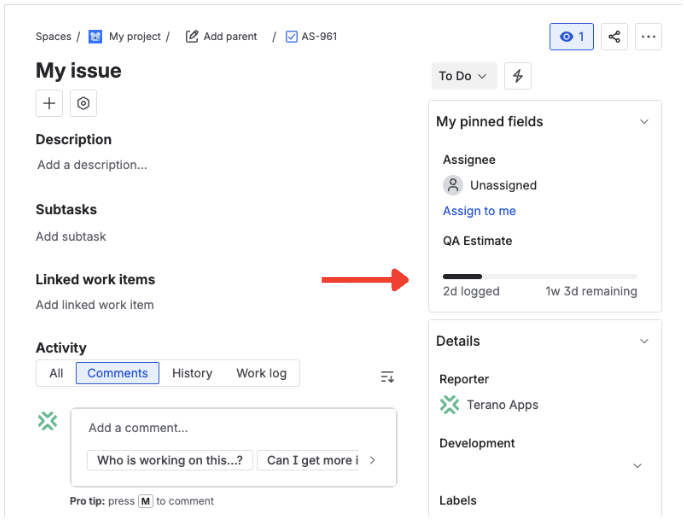
- Time Tracking — full estimate / spent / remaining triplet, behaves like the native widget.
- Duration — single duration value for things like SLA response time or meeting length.
Both accept Jira-style input (30m, 2h, 1d 3h) with auto-normalization. Both expose JQL aliases so you can query "Dev Estimate.OriginalEstimateSeconds" > 14400 or "QA Estimate.TimeSpentSeconds" > 0 like a built-in field. Bucket sets are mappings that add a custom field's hours back into the native Time Tracking widget — so the burndown chart, agile reports, and Atlassian-native CSV exports keep working with your custom fields included. Configurable hours-per-day / days-per-week match your project's working time.
This is the only option that keeps JQL, dashboards, automation, and CSV export working together.
Step-by-step setup
Prerequisites: Jira Cloud admin permission (to install Marketplace apps and create custom fields) and access to the screen scheme of any project where the field should appear. Time: about 10 minutes.
Install Time Tracking Fields from the Marketplace
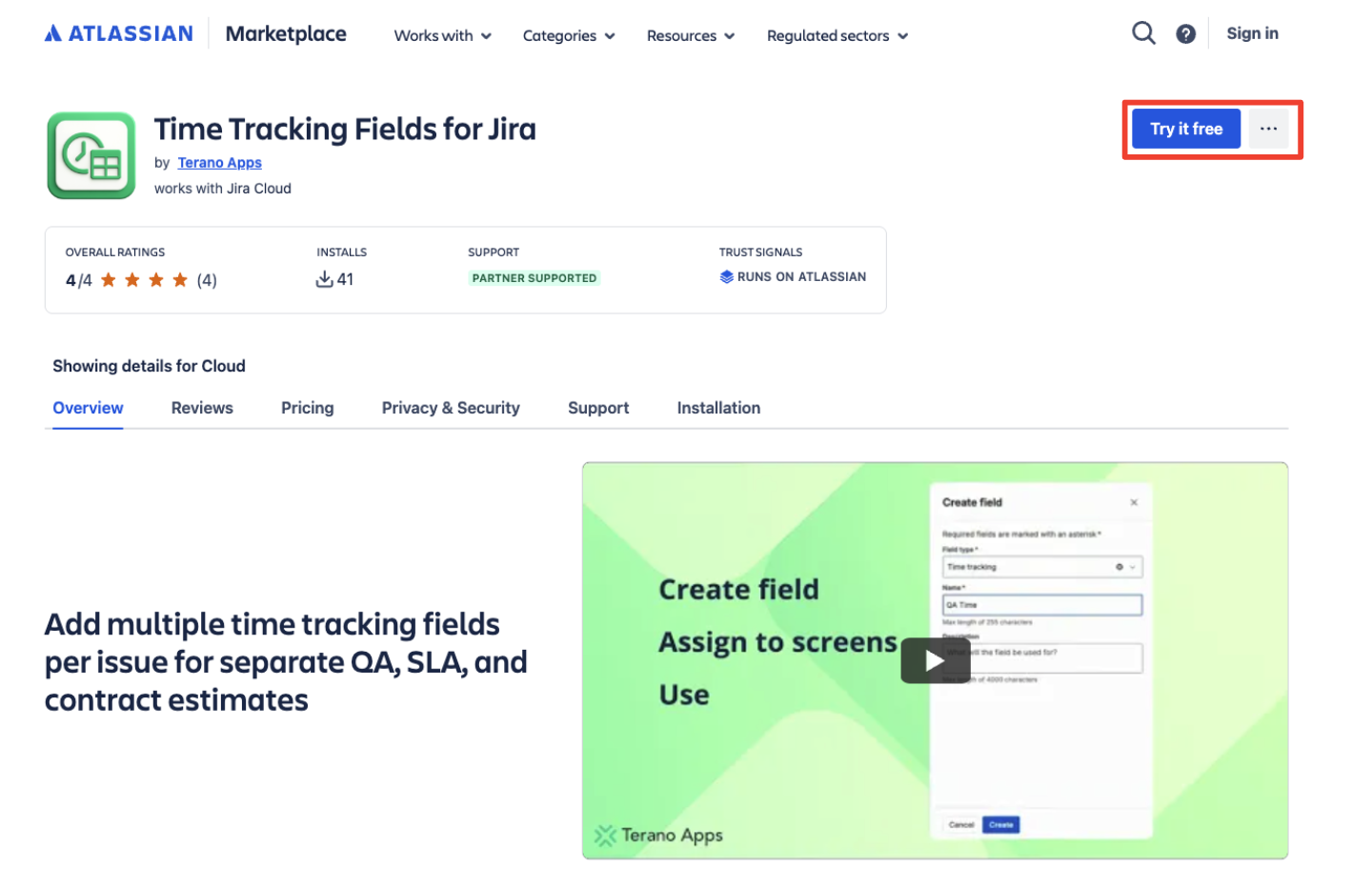
Open the Marketplace listing and install into your Jira Cloud site. The app is Forge-native, so installation finishes without provisioning anything outside Atlassian's infrastructure.
Create a Time Tracking custom field
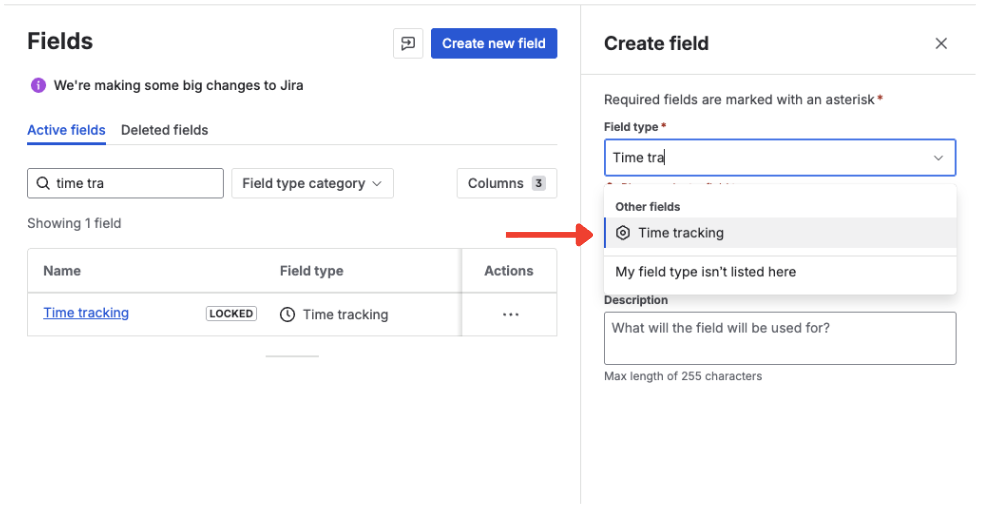
In Settings → Custom fields, create a new field and pick Time Tracking (estimate + spent + remaining) or Duration (single value). Name it after the use case — Dev Time, QA Time, SLA Response — and set hours-per-day / days-per-week to match your Jira global time tracking config so 1d means the same thing everywhere.
Assign the field to your screens
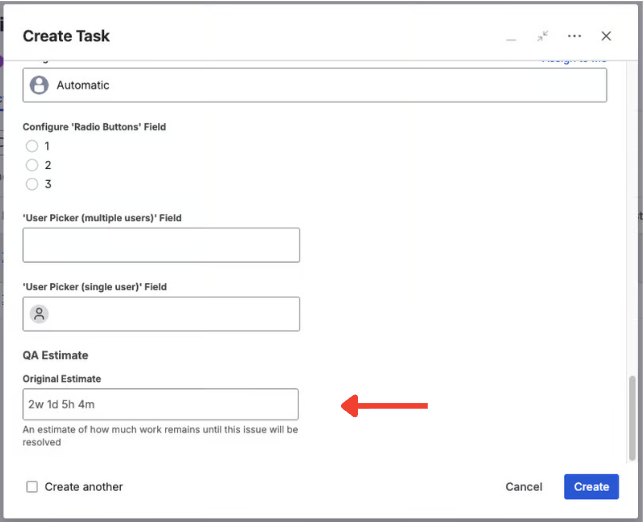
Add the new field to the create, edit, and view screens of every issue type that needs it. If your project uses a screen scheme override, update that scheme — adding the field to the default screens alone won't make it appear in projects that override.
Query the field with JQL
Each Time Tracking field exposes six JQL aliases derived from its name — three numeric (in seconds) and three formatted strings. For a field named "Dev Estimate" they are OriginalEstimateSeconds, TimeSpentSeconds, RemainingEstimateSeconds (numeric) and OriginalEstimate, TimeSpent, RemainingEstimate (formatted). Duration fields expose DurationSeconds and Duration. Use the *Seconds aliases for range comparisons:
-- Dev work logged but no remaining time, and QA hasn't started
"Dev Estimate.TimeSpentSeconds" > 0
AND "Dev Estimate.RemainingEstimateSeconds" = 0
AND "QA Estimate.TimeSpentSeconds" = 0

-- Issues already over their original dev estimate
"Dev Estimate.TimeSpentSeconds" > "Dev Estimate.OriginalEstimateSeconds"
AND "Dev Estimate.OriginalEstimateSeconds" > 0

-- Duration field: SLA breaches over 4 hours (14 400 seconds)
"SLA Response.DurationSeconds" > 14400
The same aliases work in saved filters, dashboards, and automation conditions — Atlassian recommends the numeric forms for automation so you don't have to parse text.
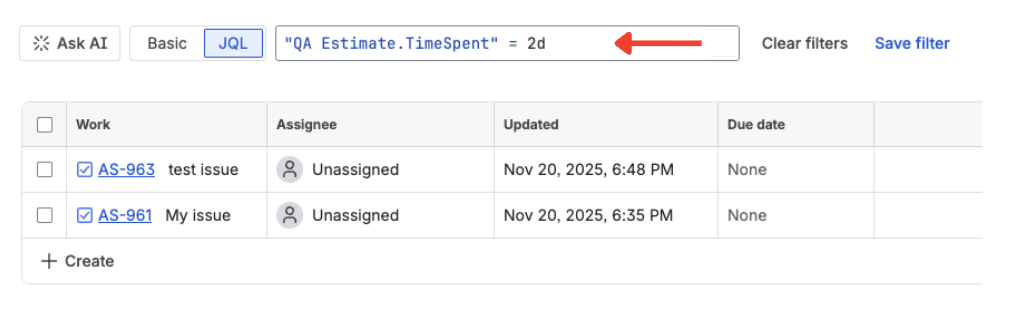
Verify it works
Open an issue in a project where you added the field, set an estimate (try 1d 4h), and confirm Jira normalizes and displays the value the same way the native widget would. Then run one of your JQL queries against that issue. If the field doesn't appear on the issue at all, the screen scheme is the most common cause — see Common pitfalls below.
Common pitfalls
Watch out for these
- Plain-number interpretation. If a user types
2with no unit, the app treats it as the configured default. Set the default explicitly or coach users to always include a unit. - Screen scheme not updated. Adding a field to the default screen scheme doesn't propagate to projects with their own scheme. Audit per project.
- Bucket sets left unconfigured. If you expect the new field to roll up into native Time Tracking (for the burndown report or Atlassian-native exports), configure a bucket set. Without one, the custom field stays separate.
- Hours-per-day mismatch. If the field uses 8h/day and Jira global uses 7.5h/day,
1dmeans different things in different views. Align both.
Frequently asked questions
Why doesn't Jira Cloud allow multiple time tracking fields natively?
Native Time Tracking is a system field tied to worklogs and the burndown report, not a custom field type. Atlassian has not exposed it in the custom field type picker. Two open feature requests, JRACLOUD-94778 and JRACLOUD-67720, have been asking for this since 2017.
Can I have estimate, spent, and remaining as custom fields?
Not as native custom fields — Jira's Number field gives you only a single value. A dedicated Time Tracking custom field type (such as the one provided by Time Tracking Fields) gives you the full estimate / spent / remaining triplet on a single field, behaving like the native widget.
Will a custom time tracking field affect native Jira reports?
By itself, no — a custom field is separate data. With bucket sets configured, the custom field's hours roll up into the native Time Tracking widget, so the burndown report, agile boards, and Atlassian-native CSV exports include them.
Is the Time Tracking Fields app Forge-native?
Yes. It runs on Atlassian Forge, which means installation is in-tenant, security and data residency follow Atlassian's platform guarantees, and there is no separate cloud to provision or maintain.
How is this different from Tempo Timesheets?
Tempo is a full worklog and timesheet ecosystem (with payroll, cost tracking, and approvals). Time Tracking Fields is lighter and focused: multiple time tracking fields per issue, JQL aliases, and workflow enforcement. Many teams use both — Tempo for timesheets, Time Tracking Fields for granular per-issue tracking.
What's next?
Once a single custom time tracking field is in place, the more interesting question is what you measure with it.
- For the full picture of how custom fields fit into Jira's time tracking model, read the pillar guide for Jira admins.
- For separating dev, QA, SLA, or contract time on the same issue, see multiple time tracking fields on one issue.
- For step-by-step product setup beyond this tutorial, see the Time Tracking Fields docs.
- To enforce that time is logged before issues move forward, see require time to be logged in Jira.
Add custom time tracking fields to Jira Cloud the right way
Estimate, spent, remaining — with Jira-style input, JQL aliases, and rollup to native time tracking. Free trial on the Atlassian Marketplace.
Start free trial on Marketplace