Carry the Right Files to a New Jira Work Item
An approved service request should open a development work item, link back to itself, and bring the evidence with it. In Jira Automation the first two are a few clicks. The files are where the rule stops — not because Automation is unable to copy attachments — it has done that for years — but because it copies all of them. The pile you just spent triage time narrowing down arrives whole, on the other side.
TL;DR
Jira Automation has copied attachments since 2022 — but it copies every attachment on the work item, and there is no native way to copy only some. The fix isn't a filter, it's structure: keep the set that should travel in its own File Field, then one action carries that field onto the work item your rule just created. Jump to the finished rule.
The rule that stops halfway
A customer raises a request with a dozen attachments: two log bundles, a handful of screenshots, an invoice they attached by mistake, and the three files that actually describe the fault. Someone triages it, decides it's a real defect, and approves it. That transition should open a work item in the development project, carry the customer's evidence onto it, and link the two so the trail survives.
Three of the four components build themselves. Work item transitioned as the trigger, Create work item for the new one, Link work items to tie them together — no smart values worth thinking about, reliable forever.
The fourth is where you stop. Nowhere on the create step is there a place to name the three files that matter. The rule can bring files across. It cannot be told which ones.
Jira Automation can copy attachments
Start with the part a lot of articles on this topic leave vague: Automation copies attachments, and has done since 2022.
JRACLOUD-78891 is the ticket. It collected over 800 votes and was resolved as Fixed on 16 August 2022. What shipped was Attachments appearing in the field list of the Clone, Create, Edit and Transition work item actions — the same "choose fields to set" list you already use for summary, assignee and labels.
The mechanism is unremarkable, which is the nicest thing you can say about an automation feature. In Create work item, open the field picker, add Attachments, and set it to copy the value from the trigger work item. Save the rule, run it, and the work item it creates comes up carrying the attachments of the one that triggered it. No app, no REST call, no smart-value gymnastics.
So if your requirement is the new work item should have the same files as the old one, you are finished and you can close this tab. The requirement that sends admins searching is a narrower one.
But it copies all of them
Here is that narrower requirement, in the words of someone who ran into it:
We don't want to copy all attachments from the trigger issue, only the ones we add to this field.
That's from a question on the Atlassian Community, and the answer there is the one nobody wants: there is no option for it in Automation, and no single REST call that does it either — anything selective means scripting it yourself, outside Jira. The Attachments field is a single value, and that value is the work item's entire attachment area. You take it whole or you take nothing.
The workaround people get pointed at is subtraction. Copy everything on the create step, then add a Delete attachment action with a filename pattern so the unwanted files are removed a moment after they land. It works in the narrow band where it works, and it disappoints in three ways:
- It assumes filenames stay predictable. The day a customer uploads
Scan_2026-08-04 (1).pdfinstead ofinvoice.pdf, the rule silently keeps the wrong document and no one is told. - The regex handling in that action has known defects.
$doesn't behave the way you would expect, and the community's answer is to end every pattern with.*— a workaround for the workaround. - No pattern can express the actual rule. The three files the reviewer decided were the relevant ones is not a property of their names, their types or their sizes. It's a judgement a person made, and the work item has nowhere to record it.
That last one is the real problem. The other two are symptoms.
Put the set in its own field
So stop trying to describe the right files at copy time. The selection already happened: a human looked at twelve files and decided three of them belonged to the next stage of the work. What's missing isn't a smarter rule, it's somewhere for that reviewer to put the three so a rule can act on the decision later.
Change the unit of copying. Instead of the work item's attachment area, make it a named field:
| What gets copied | |
|---|---|
| Native attachments | every file on the work item |
| A File Field | one named field, in full |
File Field is a native custom field that holds files, and that's the whole consequence of the modelling above. Because it's a field rather than a shared bucket, one work item can carry several — Customer evidence and Internal working notes side by side on the same request, each with its own contents, each addressable by name. A rule can copy one and leave the other where it is.
Which brings the honest limit forward, where it belongs: the copy action copies the field's entire value. It has no filter, no include list, no run-time picker. One File Field holding twenty mixed files copies all twenty, and no setting changes that.
That isn't the workaround failing again — it's the design. The action needs no filter because the field is the filter. This is the step the whole rule rests on, and it is a manual one: during triage, the reviewer adds the three files that matter to Customer evidence, while the rest stay in the attachment area where the customer put them. That's the selection, made hours before the rule ran. All the action has to be trusted with is something much simpler: carry this field, whole, over there.
A useful test when designing fields: would I ever want to move this group of files without the others? If yes, it's a separate File Field, not a category inside an existing one. Categories tell files apart within a field — they don't decide what gets copied.
The rule, end to end
Assembled, it's four components, and only the copy step is one you haven't used before.
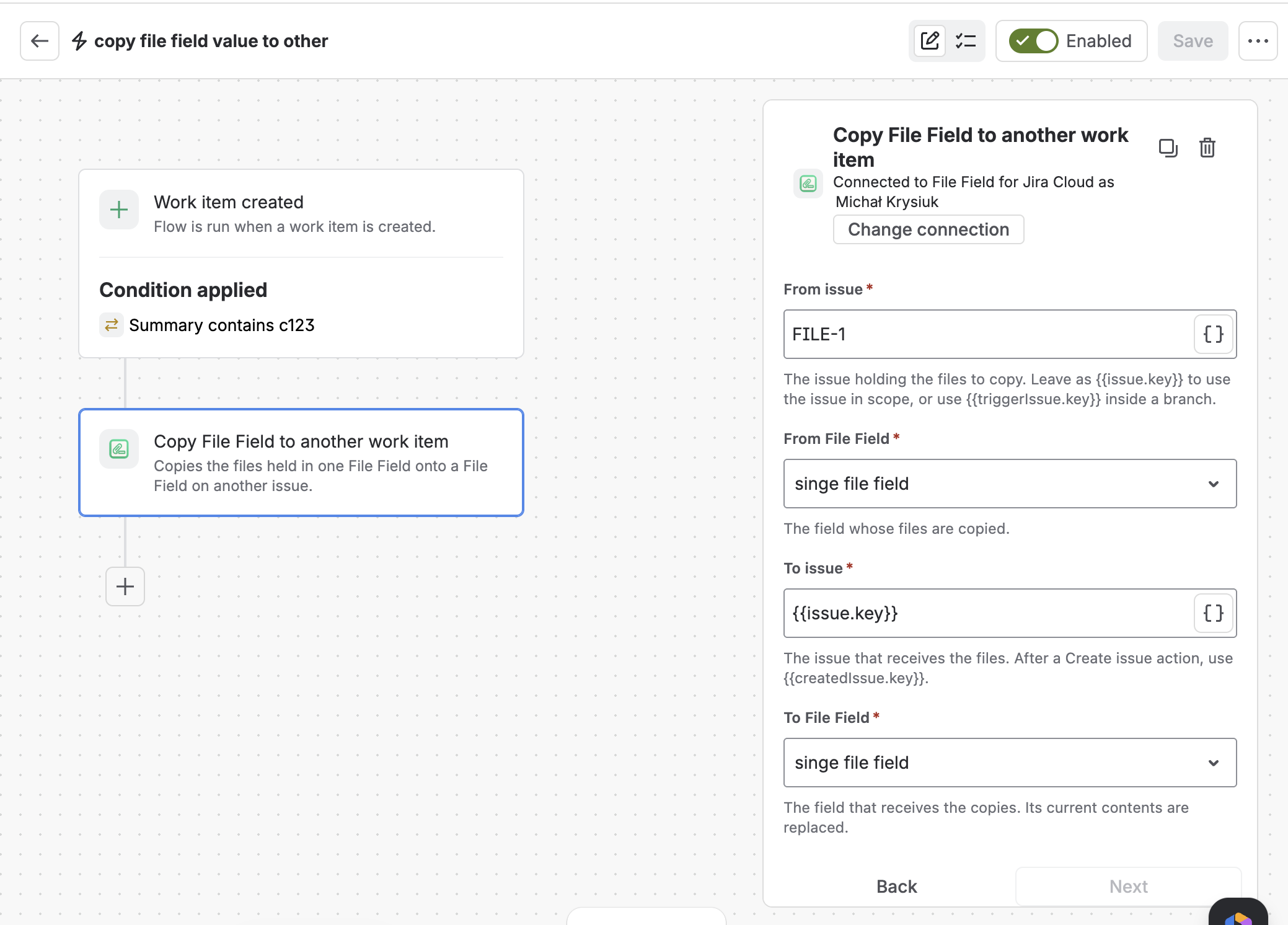
The action in a rule — four inputs, two on each side of the copy
Two things have to be in place before you start. Both File Fields already exist — the curated one on the request, and the one that receives the files. And the target field's context covers the receiving project and issue type, with the field on that project's screen. Miss the second and the copy succeeds while nobody sees the result.
Trigger on the transition
Use Work item transitioned — for example Pending approval → Approved, or whatever your approval step is. The files travel when the decision is made, not when the request is raised.
Create the work item
Add Create work item and set the project, type and summary. Its result is available to every later step as {{createdIssue.key}}.
Carry the field across
Add Copy File Field to another work item and fill its four inputs: From issue {{triggerIssue.key}}, From File Field the curated field, To issue {{createdIssue.key}}, and To File Field the field that receives them.
Link the two
Finish with Link work items, pointed at {{triggerIssue.key}}, so the new work item links back to the request it came from. Scope is still the created work item here, so {{issue.key}} would link it to itself. The files and the trail now travel together.
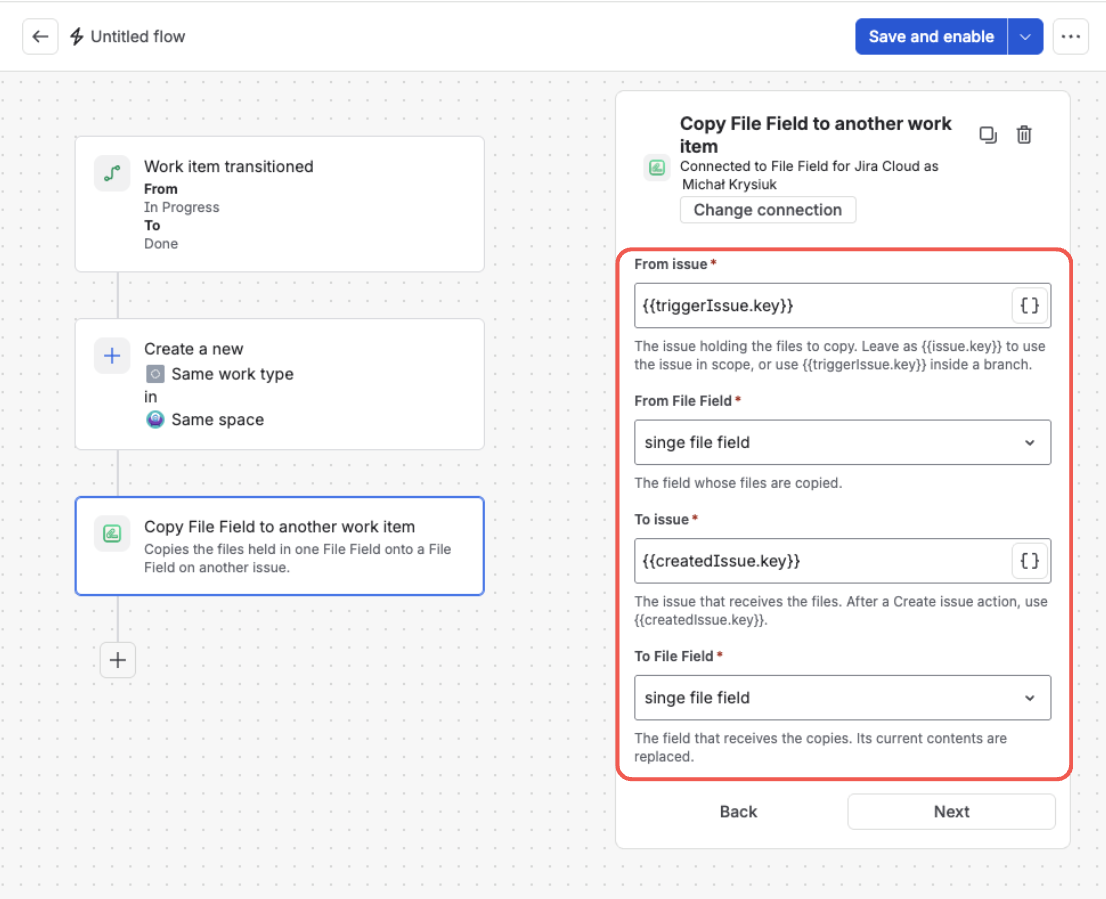
The copy step's four inputs — where the files come from, and where they go
One detail is worth getting right the first time: From issue is {{triggerIssue.key}}, not {{issue.key}}. After the Create work item step the rule's scope moves to the work item it just made, so {{issue.key}} resolves to the new one and the action ends up reading a field on the wrong side of the copy. {{triggerIssue.key}} always points back at the request that started the run. Every input, including the smart values each one accepts, is covered in the action's documentation.
Give the files a field of their own
File Field adds a native attachment custom field to Jira and JSM — so the set that should travel can travel, on its own. Free trial on the Atlassian Marketplace.
Try File Field on MarketplaceWhat the copy actually does
These are the questions that decide whether you trust a rule with your files, so here they are answered flat:
| Question | Answer |
|---|---|
| Can I copy only some files from the field? | No — the whole field value is copied. A set that should travel separately has to be its own field. |
| What happens to what the target field already held? | It's replaced, and those files are removed — including anything a person uploaded to the target by hand. |
| Does the source keep its files? | Yes. The source field is left untouched — the copy writes to the target, it doesn't empty the original. |
| What if the source field is empty? | The target is left exactly as it was. An empty run never clears anything. |
| Does deleting the original break the copy? | No. The copies are independent files, not references back to the source. |
| Who needs which permission? | The account the rule is connected as: it must be able to see the source work item and edit the target. |
| Can a copy be copied onward? | Yes — a copied file is a valid source for the next copy in a chain. |
| How much can one run carry? | 50 files, 100 MB per file, 500 MB in total, all checked before anything moves. |
Different fields on each side
A File Field's context is set per project and issue type, which means the field on a JSM request and the field on a development work item are, quite legitimately, two different custom fields. On the request it's Customer evidence, on a portal form. On the development work item it's Supporting documents, on an engineer's screen. Same files, different name, different audience.
That's why the action takes four inputs rather than two. It doesn't copy a field — it copies from one field into another, and the two dropdowns are chosen independently, by name, with no custom field ID to hunt down.
This is the thing cloning can't do. A clone carries a field into a field of the same name, or nowhere at all — if the target project has no field by that name, the value quietly evaporates. Mapping is what lets the copy cross a project boundary, and crossing a project boundary is exactly what these rules exist to do: JSM on one side, a software project on the other.
Check that it worked
The action hands the copy off and lets the rule carry on to its next step, so the audit log records that the copy was started, not that it finished. On a handful of ordinary documents the files land within seconds — but the log isn't your confirmation. The work item is.
For a rule you've just built, open the target and look at the field. For a rule that has been running for a month, ask JQL instead:
project = DEV AND "Supporting documents" is EMPTY
Any work item your rule touched that still answers this query didn't receive its files. That's the same auditing trick covered in Find Jira Issues Missing an Attachment, Now with JQL — worth a saved filter if this rule matters.
Frequently asked questions
Can Jira Automation copy attachments to a new issue? Yes, and it has since August 2022. Add Attachments to the fields set by a Create, Clone, Edit or Transition action and copy the value from the trigger work item. The catch is scope: the work item's entire attachment area travels, every file on it, not a chosen subset.
Can I copy only some attachments in Jira Automation? Not natively — there is no option for it in Automation, and no single REST call that does it either, so anything selective means scripting it yourself outside Jira. The usual workaround is to copy everything and then delete the rest by filename pattern, which only holds while filenames stay predictable. The structural answer is to keep the set that should travel in its own File Field. The copy action then carries that field across in full; it has no filter of its own, because the field is what does the selecting.
How do I copy attachments when a rule creates a linked issue?
Trigger on the transition, add Create work item, then Copy File Field to another work item with From issue {{triggerIssue.key}} and To issue {{createdIssue.key}}, and finish with Link work items. Use {{triggerIssue.key}} rather than {{issue.key}} — after the create step, the rule's scope has moved to the work item it just made.
Does copying a File Field replace what was already there? Yes. The target field's previous contents are replaced and those files are removed. The one exception is an empty source: if the source field holds no files, the run still succeeds and the target is left exactly as it was.
Do copied files stay if the original is deleted? Yes. The copies are independent files on the target work item, not references back to the source, so deleting the original work item — or just the original file — leaves them intact. A copied file is also a valid source for a further copy down the chain.
Move the files that matter, not all of them
File Field makes attachments a real, curated field in Jira — so a rule can carry one set onto a new work item and leave the rest behind. Free trial on the Atlassian Marketplace.
Start free trial on Marketplace