Jira User Story Template (Copy-Paste Ready) — 4 Team Examples
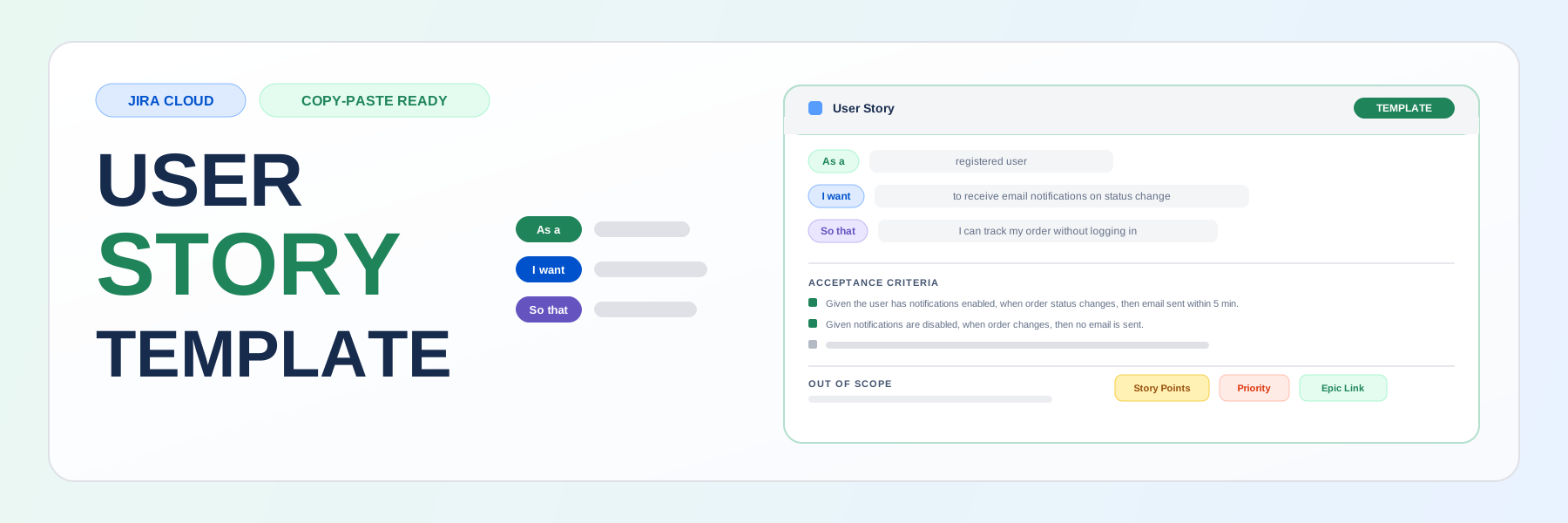
Sprint planning starts. Someone opens a story and it reads: "Add export feature." No acceptance criteria, no context, no scope. The engineer asks what "export" means. The PM explains. Someone else asks about permissions. Ten minutes later you're still on the first ticket. This is what happens without a consistent Jira user story template — a structured description that every story starts from. This guide gives you a ready-to-use template, four copy-paste examples for different team types, and three ways to make it the default for every new story your team creates.
Quick answer
- A Jira user story template uses three required lines: As a [persona], I want [goal], so that [outcome], followed by an Acceptance Criteria block.
- Add Story Points, Priority, and Epic Link fields to the template to avoid incomplete issues at sprint planning.
- To make the template the default for every new story, you need either a Jira Automation rule (free, but fires after creation) or a dedicated template app (visible before submission) — manual copy-paste does not hold beyond a single project.
Why user stories use this format
A user story is not a task description — it is a statement of intent from the perspective of someone who needs something done. The three-part format exists for a specific reason:
- As a [persona] — forces you to name who the work is for, which rules out building the wrong thing for the wrong person
- I want [goal] — keeps the focus on the outcome, not the implementation (you can't accidentally write a technical spec in this field)
- So that [outcome] — captures the business reason, which is what engineers need when they hit an unexpected edge case and have to make a decision without asking
The Acceptance Criteria block then answers: "how do we know this is done?" — written in Given/When/Then so it can be verified by QA without asking the author what they meant.
If a story can't be written in this format, it usually means the requirement is either too large (break it into smaller stories) or it is not actually a user-facing feature (use a Task or Spike instead — see When NOT to use user stories below).
The Jira user story template (copy-paste ready)
Use this as your default description template for every new user story in Jira:
## User Story

**As a** [persona — who is this for?],
**I want to** [goal — what do they want to do?],
**so that** [outcome — why does it matter?].

---

## Acceptance Criteria

- [ ] Given [initial context], when [action], then [expected result].
- [ ] Given [initial context], when [action], then [expected result].
- [ ] Given [initial context], when [action], then [expected result].

---

## Out of scope

What this story explicitly does NOT cover:
-

---

## Notes / open questions

-

---

<!-- Jira fields (set before sprint planning)
  Epic Link: [link to parent epic]
  Story Points: [estimate]
  Priority: Medium
  Labels: [team or feature label]
-->
The commented block at the bottom is a reminder for the reporter — it will not render in the Jira description view but serves as a prompt when filling in the issue. If you are using Templify, set these as actual Jira field defaults in the template editor instead.
Recommended Jira fields to set in the template:
- Story Points — add a placeholder or a team default to prompt estimation at every story
- Priority — default to
Medium; change only when there is a specific reason - Epic Link — always link before sprint planning so the backlog is filterable by initiative
- Labels — add the team or feature label (e.g.
payments,onboarding,api) - Assignee — leave unset in the template; assign at sprint planning, not at creation
Why include "Out of scope"?
Scope creep starts in ambiguity. A one-line out-of-scope block cuts the most common sprint blocker — mid-sprint discovery that the story was interpreted two different ways by the engineer and the product manager.
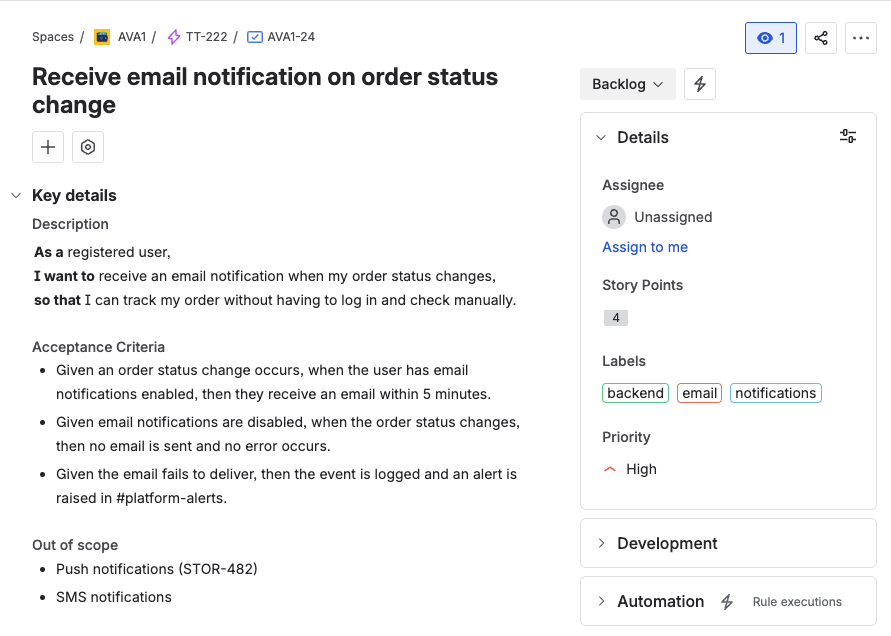
Here is what the template looks like once a reporter fills it in and saves the issue in Jira:
4 Jira user story template examples
The format above works across team types, but the specifics change. Here are four fully filled-in examples you can adapt directly.
- Feature dev
- API / backend
- B2B SaaS
- Internal tooling
Scenario: Email notification on order status change for a software team.
## User Story

**As a** registered user,
**I want to** receive an email notification when my order status changes,
**so that** I can track my order without having to log in and check manually.

---

## Acceptance Criteria

- [ ] Given an order status change occurs (any status), when the user has email notifications enabled, then they receive an email within 5 minutes containing the new status and a direct link to the order.
- [ ] Given email notifications are disabled, when the order status changes, then no email is sent and no error occurs.
- [ ] Given the email fails to deliver, when the delivery failure is confirmed, then the event is logged and an alert is raised in the #platform-alerts channel.

---

## Out of scope

- Push notifications (covered in STOR-482)
- SMS notifications

---

## Notes / open questions

- Confirm 5-minute SLA with product — is this a hard requirement or a target?
Jira fields
Story Points: 3 · Priority: Medium · Epic: Customer Notifications · Labels: notifications, email, backend
Scenario: Stripe webhook signature verification for a platform team.
Technical stories often skip the "As a" format ("there is no real user here"). Keep it — the persona is the engineer consuming the API, or the downstream system. This keeps stories in a consistent format and avoids a two-tier template system.
## User Story

**As a** backend engineer integrating with the payment service,
**I want** the webhook handler to verify Stripe signatures before processing any event,
**so that** we can reject spoofed requests before they reach our order pipeline.

---

## Acceptance Criteria

- [ ] Given a POST to `/webhooks/stripe` with a valid `Stripe-Signature` header, when the payload matches the signature, then the event is processed and returns HTTP 200.
- [ ] Given a POST with an invalid or missing signature, when validation fails, then the request is rejected with HTTP 400 and nothing is persisted.
- [ ] Given Stripe retries a previously processed event (idempotency key match), when the duplicate is detected, then it returns HTTP 200 without reprocessing.

---

## Out of scope

- Handling event types beyond `payment_intent.succeeded` (follow-up stories in the Payments epic)

---

## Notes / open questions

- Webhook secret stored in AWS Secrets Manager — confirm key name with platform team.
Jira fields
Story Points: 5 · Priority: High · Epic: Payment Integration · Labels: api, stripe, payments, security
Scenario: PDF export of project reports for a product team.
## User Story

**As a** project manager using the reporting module,
**I want to** export the current project report as a PDF,
**so that** I can share it with stakeholders who don't have access to the system.

---

## Acceptance Criteria

- [ ] Given the user is on the Project Report page, when they click "Export as PDF", then a PDF download starts within 3 seconds.
- [ ] Given the report includes more than 100 issues, when the export runs, then it completes within 15 seconds and includes all visible issues.
- [ ] Given the export is triggered, when the PDF is generated, then it is named `[Project Name]_Report_[YYYY-MM-DD].pdf`.
- [ ] Given the user does not have "Export" permission, when they open the report page, then the export button is not shown (not just disabled).

---

## Out of scope

- CSV export (PROJ-211)
- Scheduled automatic exports (PROJ-240)

---

## Notes / open questions

- Do we need a loading indicator for large reports? Check with design.
- Confirm max report size with infrastructure — 100 issues is an assumption.
Jira fields
Story Points: 5 · Priority: Medium · Epic: Reporting & Export · Labels: reporting, pdf, export
Estimate assumes an existing PDF library (e.g. Puppeteer, wkhtmltopdf) is already available. If you are implementing PDF rendering from scratch, re-estimate — this becomes a 13 or an epic of its own.
Scenario: Automated sales pipeline export to Google Sheets for a data/analytics team.
## User Story

**As a** data analyst on the revenue team,
**I want** the sales pipeline data to be automatically exported to our Google Sheet every morning,
**so that** the sales team always has up-to-date numbers without asking me to run the export manually.

---

## Acceptance Criteria

- [ ] Given it is 06:00 UTC, when the scheduled job runs, then the Google Sheet is updated with the current pipeline snapshot within 10 minutes.
- [ ] Given the previous day's data is in the sheet, when the new export runs, then the existing rows are overwritten (no duplicates).
- [ ] Given the export job fails for any reason, when the failure is confirmed, then a Slack message is posted to `#data-alerts` with the error type and timestamp.
- [ ] Given an analyst wants to change the export schedule, when they update the schedule field in the pipeline job configuration (Settings → Data Jobs → Pipeline Export), then the new schedule takes effect on the next run without restarting the job.

---

## Out of scope

- Real-time pipeline sync (out of scope for Q2)
- Exporting to tools other than Google Sheets

---

## Notes / open questions

- Confirm Google Sheets API quota limits with the platform team before finalising the export frequency.
- "Pipeline job configuration" refers to the internal admin UI at `/admin/data-jobs` — confirm exact path with the platform team before development starts.
Jira fields
Story Points: 5 · Priority: Low · Epic: Data Pipeline Automation · Labels: automation, data, google-sheets, internal
Already have the template you need?
Templify lets you save any of the examples above as a reusable template in Jira — available to your whole team from the Create Issue dialog, no copy-paste required.
Start free trialHow to save and reuse your Jira user story template
Having the template text is step one. Making it the default — so every new story starts from it automatically — is step two. There are three paths depending on your team size and Jira setup.
Option 1: Paste manually (works for one project, one team)
The simplest approach: copy the template text into your clipboard, then paste it into the Description field every time you create a new story.
When this works:
- Single project, small team (3–5 people)
- Template adoption is the immediate goal, tooling is secondary
- You want zero setup time
When this breaks down:
- Multiple projects — each team creates their own "standard"
- New team members don't know the template exists
- Template gets edited on individual issues and drifts back to blank descriptions within a few weeks
This approach does not scale. It is a valid starting point, but plan to graduate to Option 2 or 3.
Option 2: Jira Automation (free, moderate setup)
Jira Automation can pre-fill the Description field when a new Story is created. Here is the rule setup:
Rule: Pre-fill description on Story creation
- Trigger: Issue created
- Condition: Issue type = Story
- Action: Edit issue → Description → set to the template text (paste the full markdown template from above)
Limitations to be aware of:
- The automation fires after the issue is created, so the description appears in the issue but was not visible during creation — the reporter sees a blank description on the Create dialog and the template only after saving.
- If the reporter types anything in the description during creation, the automation overwrites it.
- You need Jira project admin permissions to set up automation rules.
- This creates one rule per project — if you have 20 projects, you manage 20 rules.
For a complete walkthrough including child issue automation, see Jira Automation for issue templates: epics, tasks, and child issues.
Option 3: Templify — template available at creation time, across all projects
Templify is a Jira Cloud app that lets you define issue templates and make them available directly in the Create Issue dialog. The template is selectable before the reporter submits the form, so the description is never blank.
Install Templify from the Atlassian Marketplace
Go to your Jira Settings → Find new apps → search for "Templify". Install and follow the setup wizard. The app adds a Templates section to your project settings.
Create a new template
Open project settings → Templify → New Template. Set Issue Type to Story. Paste the template text from above into the Description field.
Add Acceptance Criteria and field defaults
In the template editor, pre-fill the Acceptance Criteria with the Given/When/Then structure. Set default values for Priority (Medium) and Labels (your team label). Leave Story Points as a prompt so the team estimates at sprint planning. See the initial setup guide if you need help configuring field defaults.
Assign the template to your project (or all projects)
Templify lets you assign a template to a single project or make it available globally. For a shared user story format, set it as the global Story template so all new projects inherit it automatically.
Test it
Open the Create Issue dialog in Jira, select Issue Type = Story, and confirm that your template appears in the Template dropdown. Create a test issue and verify the description and field defaults are pre-filled correctly.
Why this beats Automation:
- Template is visible and selectable during creation, not injected after saving
- Multiple templates per issue type (e.g. "Story — Feature", "Story — Tech Debt", "Story — Bug-Driven")
- One template definition covers all projects — no per-project rule management
- Reporter can choose a different template or no template — it is not forced
Which option should you choose?
| Manual paste | Jira Automation | Templify | |
|---|---|---|---|
| Setup time | 0 min | 15–30 min per project | 10 min (global) |
| Visible during creation | ✓ (you paste it) | ✗ (injected after save) | ✓ |
| Works across all projects | ✗ | ✗ (one rule per project) | ✓ |
| Multiple templates per issue type | ✗ | ✗ | ✓ |
| Cost | Free | Free | Paid (free trial) |
If you manage more than one Jira project and want the template to appear before the reporter submits the issue, Templify is the right path. If you have a single project and need something working today, start with manual paste or an Automation rule and migrate later.
Related guides:
Create issue templates in Jira Cloud
Step-by-step guide to setting up templates — from manual paste to automation rules. Read guide →
Native Jira vs dedicated app
Side-by-side comparison of built-in Jira options and template apps like Templify. Read comparison →
Template governance
How to manage permissions, audit logs, and template ownership across teams. Read guide →
5 common mistakes in Jira user story templates
1. "As a user" — a persona that tells you nothing
The most common anti-pattern. "As a user" carries no context — it does not tell you what the person is trying to accomplish or what constraints they work under. Replace it with a specific role: "As a project manager using the billing module", "As a new developer onboarding to the codebase", "As a support agent handling tier-2 tickets".
The persona is not about the job title. It is about the context that makes the goal and outcome make sense.
2. Acceptance criteria that describe implementation, not behaviour
Wrong: "The system calls the Stripe API endpoint /v1/charges."
Right: "Given a successful payment, when the user completes checkout, then the order status updates to Paid within 5 seconds."
Acceptance criteria define what success looks like from the outside — in test language, so QA can verify them without reading the code. If your AC reads like a technical spec, rewrite it in Given/When/Then.
3. No "Out of scope" section
Without it, a story's scope is "everything the words could possibly mean". A one-sentence out-of-scope block eliminates the most common sprint blocker: mid-sprint scope expansion disguised as a clarification.
4. Story Points and Epic Link left blank in the template
A template with blank Story Points signals that estimation is optional. Set a placeholder or a team default in the template itself. Same for Epic Link — if it is blank in the template, it will be blank in the majority of created issues.
5. One template for all Story types
A tech debt story needs different context than a customer feature story. A bug-driven story needs different AC than a greenfield feature. Start with one template, then watch for the signal to split: when you notice that more than roughly 20% of your stories consistently need the same extra fields or sections that don't belong in a generic story (e.g. a "Regression risk" block for every tech-debt story, or a "Customer impact" section for every external-facing feature), that is the point to create a second template variant. Creating variants too early adds overhead before you know the pattern; creating them too late means your single template becomes a kitchen-sink document that nobody fills in properly.
When NOT to use the user story format
The user story format works well for user-facing features. It breaks down in three common situations:
Technical tasks
"Run the database migration", "upgrade Node.js to v22" — forcing these into As a/I want/So that produces nonsense like "As a system, I want to run migrations". Use a Task issue type with a plain description and a Definition of Done checklist.
Research & investigation
"Figure out why checkout is slow" has no known output — you cannot write AC before doing the work. Use a Spike: timebox it (e.g. 2 days), write a single AC ("A decision has been made and documented"), and create follow-up stories afterwards.
Enabler work
Setting up CI/CD, writing unit tests for existing code, configuring monitoring. These have no user-facing outcome. Use a Task with a checklist of concrete deliverables.
A simple test: if you cannot complete the sentence "So that [a real person] can [do something valuable]" without making it up, you are probably looking at a Task or Spike, not a Story.
Jira user story template setup checklist
Use this before your next sprint planning:
Pre-sprint checklist
- Confirmed this is a user-facing feature — if you cannot write a genuine "So that [real person] can [do something valuable]" sentence, use a Task or Spike instead (see When NOT to use user stories)
- Template text saved somewhere your team can find it (Confluence, Notion, or directly in Jira via Templify)
- "As a / I want / So that" lines present in every new story description
- Acceptance Criteria block with Given/When/Then format
- "Out of scope" section included (even if it just says "TBD — fill before sprint planning")
- Story Points field has a placeholder or team default in the template
- Epic Link field included in the template (not left blank)
- Template tested: create a new Story in Jira and confirm it pre-fills correctly
- Shared with the team — everyone knows the template exists and where to find it
If more than three of these are unchecked, manual paste will not hold. Move to Jira Automation or Templify before your next sprint.
External references:
- Atlassian: user stories — official guide to the format
- Scrum.org: the product backlog — context on where user stories live in Scrum
Make this the default for every new story
Templify saves your user story template in Jira and makes it available from the Create Issue dialog — no copy-paste, no Automation rules to manage per project. Free trial, installs in under 10 minutes.
Install Templify — free trial