Jira Bulk Delete Incident: How to Recover Dozens of Issues in Minutes
An automation rule runs against the wrong project. A bulk operation catches 50 issues instead of 5. An integration sync error sends DELETE requests for an entire backlog. In seconds, weeks of work across multiple sprints disappears — and Jira Cloud has no undo button, no recycle bin, and no way to get it back.
Quick answer
- Jira Cloud has no native recovery for deleted issues — bulk or otherwise. Once deleted, all content is permanently removed.
- Mass deletions happen through automation rules with overly broad JQL, bulk operations on wrong filters, or third-party API errors.
- With Restorify tracking enabled, recovery takes minutes: filter deleted issues by date and user → select all → click Bulk Restore → done.
- The key is preparation — tracking must be enabled before the incident happens. Retroactive recovery is not possible.
What you will learn
- How bulk deletion incidents happen — the four most common patterns.
- Why mass deletions are harder to recover than single-issue deletes.
- A real-world walkthrough: automation rule gone wrong, 47 issues deleted across 3 sprints.
- Prevention: how to set up tracking before incidents happen (4 steps).
- Recovery: step-by-step bulk restore after an incident (5 steps).
- An automation safety checklist to reduce the probability of mass deletions.
How bulk deletion incidents happen
Single-issue deletions are common — someone clicks the wrong button, confirms without reading, and one issue disappears. But bulk deletions are different. They remove tens, hundreds, or even thousands of issues in a single event, and they follow four predictable patterns.
Automation rule with overly broad JQL
This is the most dangerous pattern. A Jira automation rule is configured to delete issues matching a JQL query — for example, status = Done AND updated < -30d. The intent is to clean up a specific project, but the query has no project filter. The rule fires across the entire Jira instance and deletes every matching issue in every project.
The rule runs in seconds. There is no preview, no dry-run mode for delete actions, and no confirmation dialog. By the time someone notices, the damage is done.
Bulk operations on the wrong filter
A Jira admin opens a filtered view to delete a batch of duplicates or test issues. They select all issues in the view and click Delete. But the filter was slightly wrong — it included issues from a production sprint, or it caught issues that were misclassified. The admin does not verify every row in the selection before confirming.
Bulk operations in Jira process the entire selection as a single action. There is no per-issue confirmation. If 50 issues are selected, 50 issues are deleted.
Third-party integration sync error
Integrations that sync Jira with external tools — project management platforms, CRM systems, CI/CD pipelines — sometimes send DELETE requests via the Jira REST API. A sync error, a mapping misconfiguration, or a bug in the integration logic can trigger mass deletions. Unlike manual operations, API-driven deletions leave no visible UI trace — they happen silently in the background.
Admin cleanup targeting the wrong project
An admin performs a routine cleanup on a sandbox or archive project. They use a saved filter or quick search, but the results include issues from a different project with a similar name. The cleanup proceeds, and production issues are deleted alongside the intended targets.
The common thread
In every pattern, the deletion is fast, silent, and irreversible. Jira provides no safety net — no soft delete, no grace period, no undo. The issues and all their content are permanently destroyed the moment the action completes.
Why mass deletions are harder to recover than single deletes
A single deleted issue is painful. A mass deletion is a crisis. The recovery challenge scales non-linearly for several reasons.
Scale compounds the damage. When 10–500 issues disappear in seconds, you are not dealing with one missing ticket — you are dealing with an entire sprint, a backlog segment, or a project phase. The blast radius includes comments, worklogs, issue links between the deleted issues, subtask hierarchies, and sprint associations. Every deleted issue that linked to other deleted issues creates a cascade of broken references.
There is no per-issue audit content. Jira's native audit log records each deletion as a single line: "Issue PROJ-247 was deleted by automation@company.com." There is no content — no summary, no description, no field values. When 47 issues are deleted, you get 47 one-line entries with nothing to tell you what each issue contained.
Cloud backup restore is all-or-nothing. Atlassian's site-level backup can restore an entire Jira instance to a previous point in time, but it overwrites everything that happened after the backup timestamp. If the mass deletion happened on Tuesday and your team created 30 new issues on Wednesday, a backup restore erases Wednesday's work to recover Tuesday's deletions. For most teams, this tradeoff is unacceptable.
Manual recreation from memory is incomplete and slow. Without a systematic backup, the only option is to manually recreate issues from whatever fragments the team can find — Slack messages, email notifications, screenshots, browser tabs. This is error-prone, time-consuming, and always incomplete. Comments, worklogs, and change history cannot be reconstructed from memory. We covered the full deletion mechanics in What Happens When You Delete a Jira Issue — and Why There Is No Undo.
Real-world scenario: automation rule gone wrong
Here is how a typical bulk deletion incident unfolds — and how the response differs depending on whether deletion tracking was in place.
The incident
A Jira admin creates an automation rule to clean up completed issues older than 30 days. The JQL is:
status = Done AND updated < -30d
The intent was to target the sandbox project SANDBOX. But the rule was created at the global level, not the project level. When the rule fires for the first time, it matches issues across the entire instance.
47 issues are deleted in 8 seconds — across 3 active sprints in the PROJ project. Stories, bugs, and tasks with months of comments, 142 hours of logged work, and dozens of issue links disappear.
The admin realizes the mistake 10 minutes later when a developer asks about a missing issue.
Without deletion tracking
The response looks like this:
- Check the audit log — confirm 47 deletions by the automation rule user.
- Extract the list of deleted issue keys from the audit log.
- Search Slack, email notifications, and Confluence for any references to those keys.
- Ask team members to recall what each issue contained.
- Manually recreate issues one by one, filling in whatever details can be recovered.
- Accept that comments, worklogs, and issue links are permanently lost.
Estimated time: 6–12 hours of admin work, spread across multiple team members. Result: partial recovery at best, with significant data loss.
With Restorify tracking enabled
The response looks like this:
- Open the Deleted Issues panel in Restorify.
- Filter by Date range (last 30 minutes) and Deleted by (the automation user account).
- Confirm: 47 records found, all matching the incident window.
- Select all 47 records using the header checkbox.
- Click Bulk Restore → enable Comments, Worklogs, Issue Links, Subtasks.
- Confirm. Wait for the batch to complete.
- Review the results dashboard: 47 succeeded, 0 failed.
Estimated time: under 3 minutes. Result: complete recovery — every field, comment, worklog, and link restored.
Prevention: how to set up tracking before incidents happen
The critical point is this: tracking must be enabled before the incident occurs. Restorify cannot recover issues that were deleted before the project was added to tracking. Setting this up takes under two minutes.
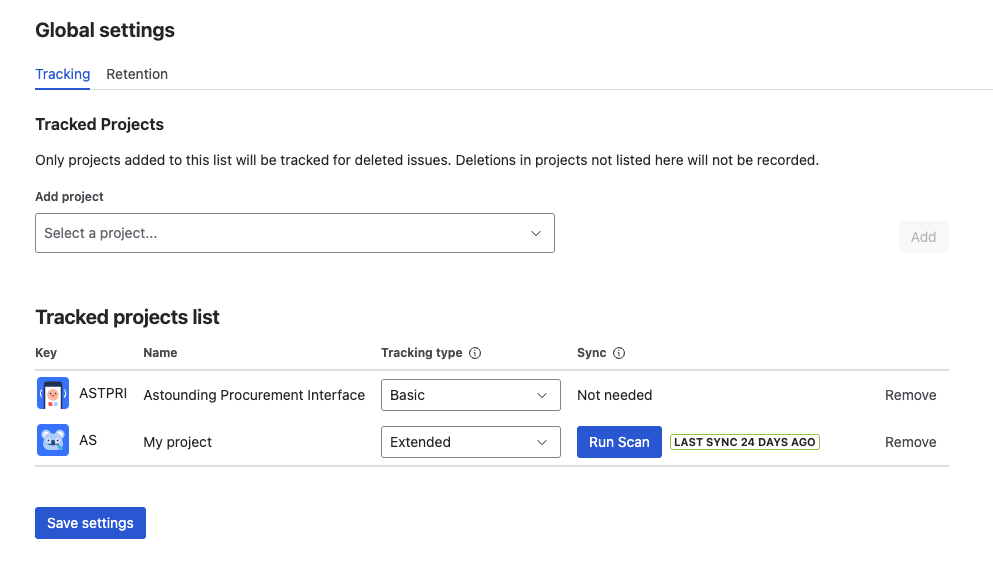
Add all production projects to tracking
Go to Jira admin settings → Restore Deleted Issues → Tracking. Add every project that contains production work, client deliverables, or compliance-sensitive content. Do not skip "small" projects — automation rules do not respect your judgment about which projects matter.
Choose Extended profile for critical projects
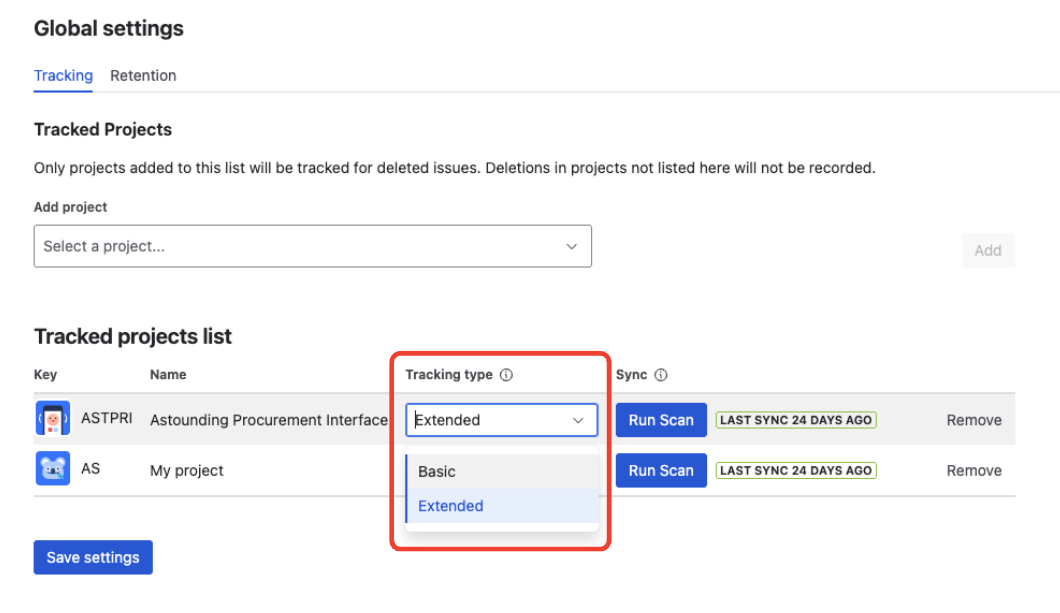
Select Extended tracking profile for projects where comments and worklogs carry business value — billing records, client communication, sprint retrospective notes, compliance evidence. Extended profile continuously syncs comments, worklogs, issue links, and subtasks so the full snapshot is available if a deletion occurs.
For less critical projects, Basic profile captures all issue fields from the deletion event itself and works instantly with zero sync overhead.
See Tracking Profiles — Basic vs Extended for a detailed comparison.
Run Project Scan to backfill existing issues
If you chose Extended profile, run a one-time Project Scan for each project. This backfills comments, worklogs, and links for issues that existed before Extended tracking was enabled. Without the scan, those issues would only have Basic-level snapshots if deleted.
The scan runs in the background and does not affect Jira performance.
Set your retention policy
The default retention period is 90 days — deleted issue snapshots are automatically cleaned up after this window. For projects with compliance requirements or long audit cycles, increase the retention period in Jira admin settings → Restore Deleted Issues → Retention.
See Retention Policy for configuration details.
Recovery: step-by-step bulk restore after an incident
When a bulk deletion happens and tracking was enabled, the recovery process is straightforward. The entire workflow is designed for speed — the goal is to get your team unblocked in minutes, not hours.
Identify the incident in the audit trail
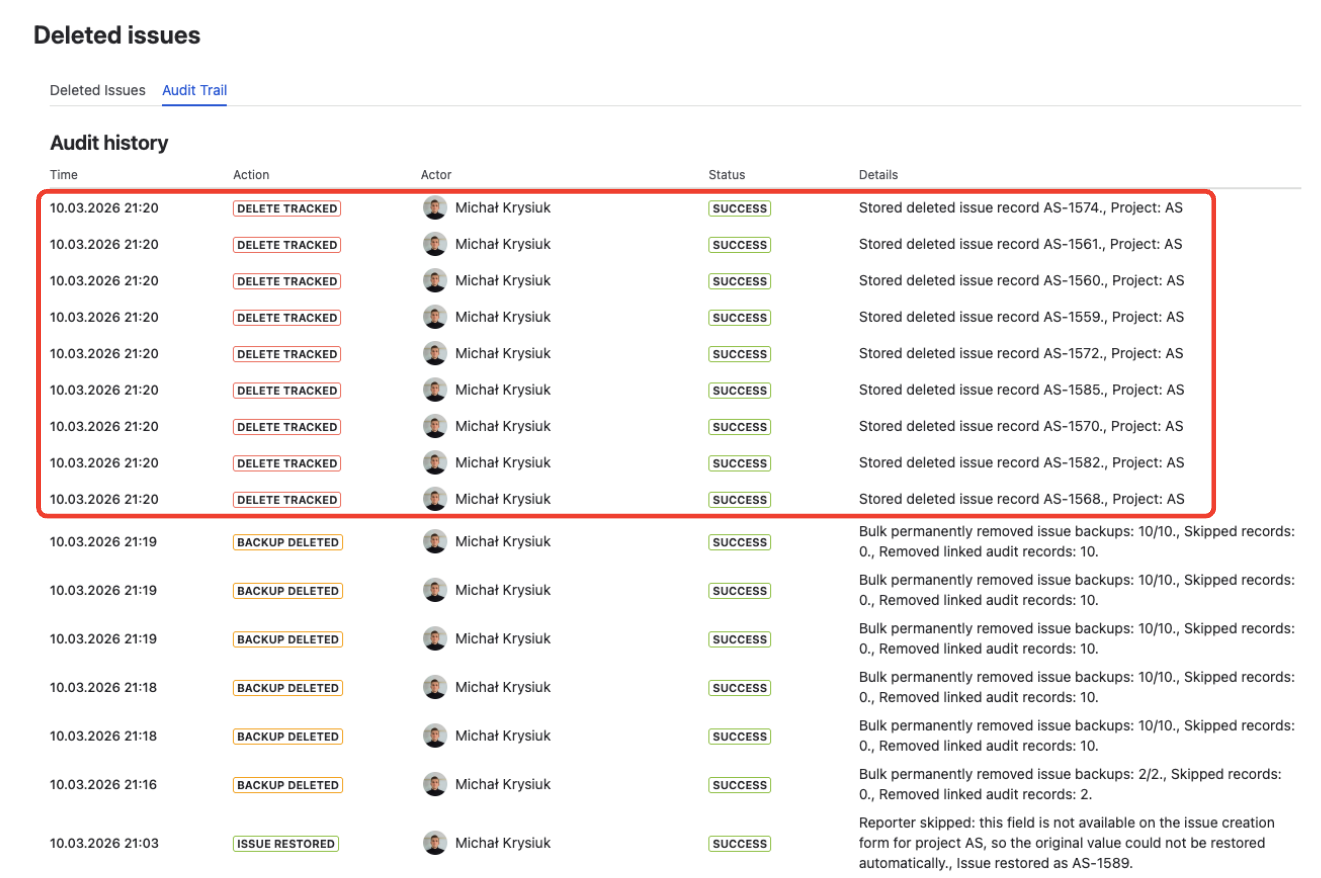
Go to Jira admin settings → Restore Deleted Issues and open the Audit Trail tab. A burst of DELETE_TRACKED events from the same user or automation account within a narrow time window is the signature of a bulk deletion incident. Note the approximate time window and the actor (user account or automation rule).
Filter deleted issues by date range and actor
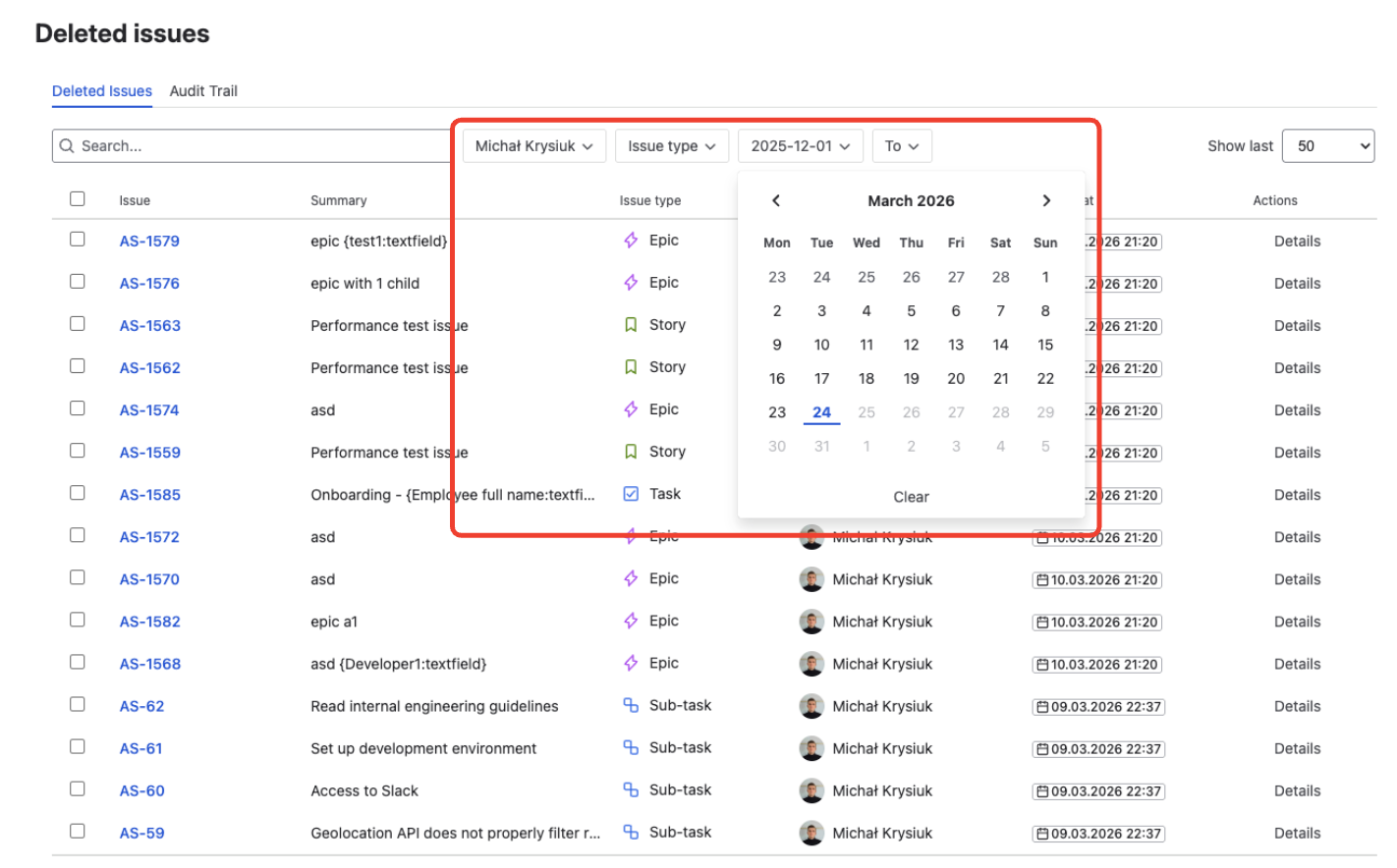
Use the filter bar to narrow the list:
- Date range — set a window around the incident (e.g., last 1 hour)
- Deleted by — select the user or automation account responsible
This isolates the incident records from routine single-issue deletions that may exist in the same project.
Select all affected records
Use the header checkbox to select all filtered results. The bulk action toolbar appears at the top showing the selected count — verify it matches the expected number of deleted issues.
If the count seems wrong, adjust your filters. You may need to widen the date range if the automation rule ran in multiple batches.
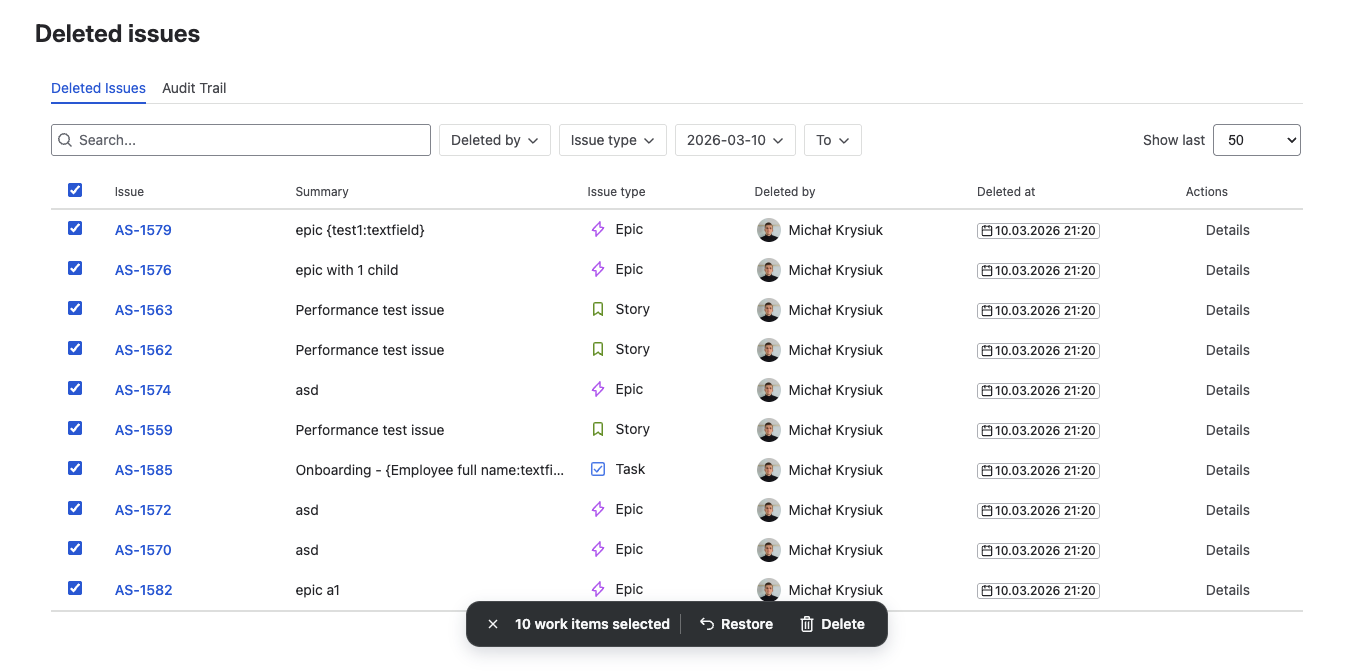
Click Bulk Restore and configure options
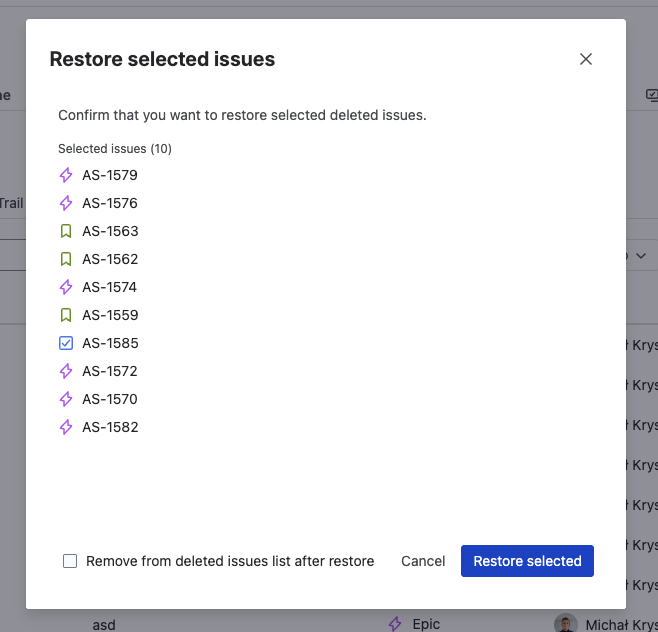
Click Restore in the toolbar. The restore options modal applies uniformly to all selected records:
- Comments — restore all comments with original author attribution
- Worklogs — restore all time log entries with duration, author, and date
- Issue links — reconnect links where target issues still exist
- Subtasks — recreate subtasks as child issues
- Remove record after restore — clean up snapshots on successful restore
Enable everything for a complete recovery. If some issues need different restore options, handle those individually after the batch.
Review the results dashboard
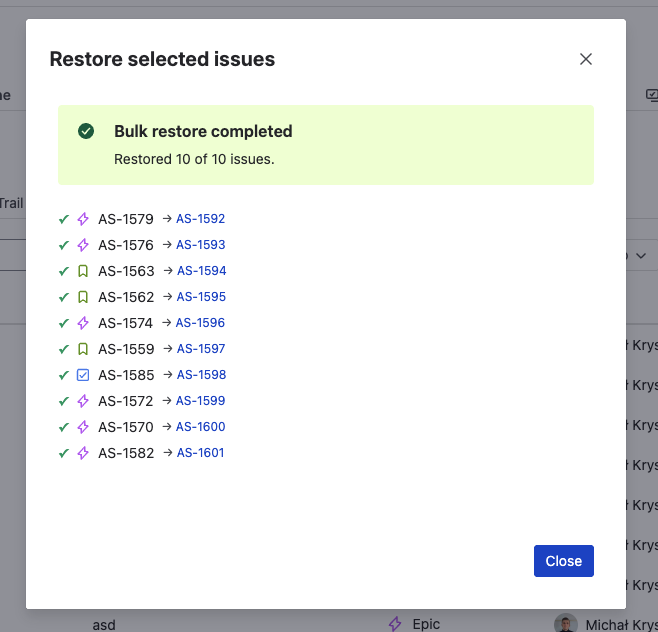
After the batch completes, the results summary shows:
- Succeeded — issues fully recreated with all selected content
- Partial — issues created, but some content could not be restored (e.g., a linked issue was also deleted and not yet restored, a comment author's account was deactivated)
- Failed — issues that could not be created (e.g., target project no longer exists, issue type unavailable)
Each restored issue receives a new Jira key. The list of new keys is shown in the results for easy verification.
For any Partial or Failed items, open them individually to understand the specific reason and address it. Common resolution: restore a failed item's project first, then retry the individual restore.
See Bulk Restore documentation for the full reference.
Automation safety checklist
Automation rules are the leading cause of mass deletion incidents. These four practices significantly reduce the probability of an automation-triggered bulk delete.
Always scope JQL to specific projects
Never use a global JQL query in a delete action. Always include a project clause — project = SANDBOX AND status = Done AND updated < -30d — to ensure the rule only affects the intended project. Unscoped JQL is the single most common cause of cross-project mass deletions.
Test rules in a sandbox first
Create a dedicated sandbox project for testing automation rules. Run every rule there first to verify the JQL scope, the action behavior, and the expected issue count before deploying to production. A 5-minute test prevents a 5-hour recovery.
Restrict Delete Issue permission
Remove the Delete Issue permission from all project roles except administrators. This does not prevent automation rules or API-driven deletions, but it eliminates accidental manual bulk deletes by regular team members. Review permission schemes quarterly.
Enable Restorify tracking on all automated projects
Every project targeted by an automation rule with a delete action should have Restorify tracking enabled. This is your safety net — if the rule misfires, recovery is a 3-minute operation instead of a multi-hour crisis. Use Extended profile for projects where comments and worklogs matter.
Frequently asked questions
Can Restorify recover issues that were deleted before tracking was enabled?
No. Tracking must be active for a project at the time of deletion. If a bulk deletion occurs in a project that was not being tracked, the data was not captured and cannot be recovered. This is why adding all production projects to tracking proactively — before any incident — is the most important step.
How many issues can Bulk Restore handle at once?
Currently, Bulk Restore supports up to 10 issues per operation for performance reasons — restoring an issue involves recreating all fields, comments, worklogs, and subtasks, which requires multiple API calls to Jira. If more than 10 issues were affected, simply run multiple batches. We plan to increase this limit in future releases depending on the Jira Cloud instance tier and available API capacity.
What happens if an automation rule deletes issues across multiple projects?
Each project's deleted issues appear in its own Deleted Issues panel. To recover from a cross-project incident, open each affected project's panel, filter by the automation user account and the incident time window, and run a bulk restore per project. The recovery workflow is the same regardless of how many projects were affected — you simply repeat the steps for each project.
Does Bulk Restore recreate issue links between the restored issues?
Yes — if both the source and target issues are restored, the link is recreated. If you restore all 47 issues in a batch, any links that existed between them will be reconnected. Links to issues that were not deleted are also restored, as long as the target issue still exists in Jira.
How do I prevent automation rules from triggering on the restored issues?
Restored issues are created as new Jira issues with new keys. If your automation rule's JQL still matches these new issues (e.g., they are recreated with status "Done"), the rule could delete them again. Before restoring, either disable the problematic automation rule or fix its JQL scope. Always resolve the root cause of the incident before starting recovery.
Related reads
- What Happens When You Delete a Jira Issue — and Why There Is No Undo — the full deletion mechanics explained
- How to Recover Deleted Jira Issues: Fields, Comments, Worklogs, and Subtasks — single-issue recovery step by step
- Restorify product page — feature overview, pricing, and screenshots
- Tracked Projects documentation — how to add projects to tracking
Protect your projects before the next automation incident
Add your projects to tracking in under 60 seconds. When an automation rule misfires or a bulk operation goes wrong, recovery takes minutes — not hours of manual recreation.
Start trial on Marketplace